Get website change alerts in Google Chat
Visualping watches the web pages your team depends on and posts an alert in your Google Chat spaces when one of them changes. Send each monitor to the space where the right people already work.
No credit card required. Start the trial with your work email.
Google Chat alerts are included in every Visualping Business plan. See all notification options
Trusted by 85% of the Fortune 500.
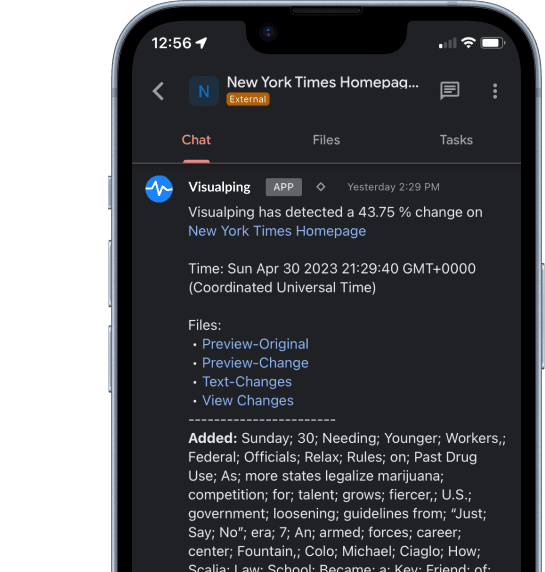
How Visualping and Google Chat work together
Pick a page to watch.
Add a public web page as a monitor, such as a competitor's pricing page, a regulator's news page, or a supplier's policy page.
Tell Visualping what matters.
Watch the full page or crop to one area, ignore sections that change all the time, and describe the change you care about in your own words.
Visualping checks on your schedule.
Business plans can check as often as every 2 minutes.
Your Google Chat space gets the alert.
The alert shows the text that was added and removed and links to the full change in Visualping, where you can compare the before and after.
What you can do with Visualping in Google Chat
Send alerts to the right space
Choose the Google Chat spaces for each monitor, so only the people who need an update get it. One monitor can post to more than one space.
Use Google Chat's own notification controls
Because alerts arrive in a space, each person can use Google Chat settings to turn notifications up for the spaces they care about and mute the rest.
Cut the noise
Visualping AI summarizes every change and flags whether it is important. Mute the changes it classifies as unimportant to keep the space quiet.
Test before the first real change
Click Test in a monitor's Google Chat settings to post a sample message to the selected spaces, so you know the connection works before you need it.
Know when a monitor needs attention
If Visualping can't check a page, it sends an error alert to your notification channels, Google Chat included. Error alerts follow the monitor's error-alert settings and failure threshold.
Popular ways teams use Google Chat alerts
Competitive intelligence
Product marketing and sales teams on Google Workspace track competitor pricing, packaging, and product pages.
Regulatory and compliance updates
Legislation, agency guidance, and policy pages routed to legal, risk, and compliance spaces.
Website quality checks
Tell the web team when your own pages change unexpectedly.
Supplier and partner pages
Terms, policies, and price lists for procurement teams, with Google Sheets keeping the log of every change.
Visualping detects content changes on web pages. It is not an uptime or downtime monitor.
How to set up the Google Chat integration
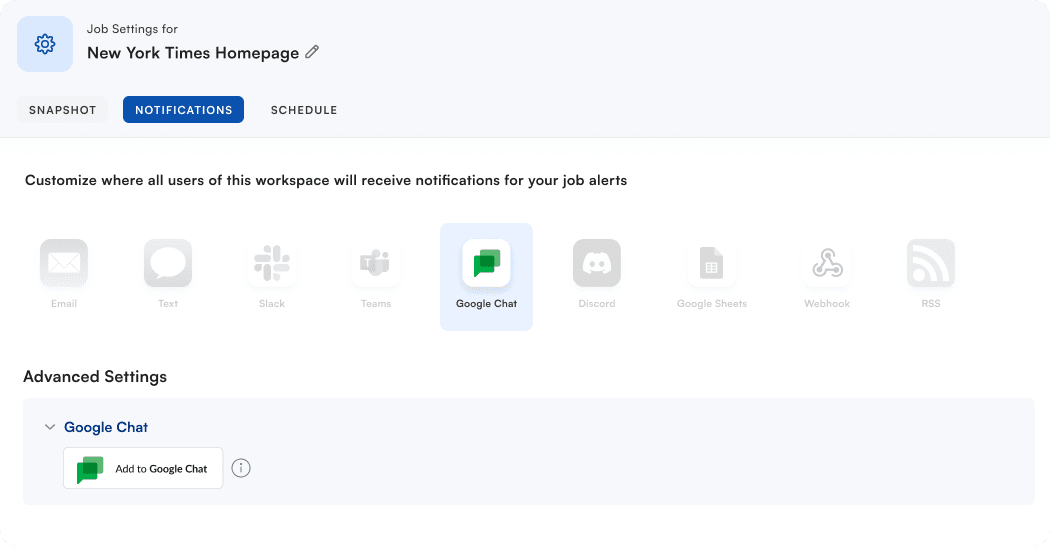
Google Chat alerts are set up from a monitor's notification settings in Visualping. There is nothing to install from the Google Workspace Marketplace.
Open a monitor's notification settings.
In Visualping, open the monitor you want alerts for, go to Notifications, and select Google Chat.
Sign in with Google (Admins, one time).
Click Sign in with Google and allow Visualping to post to Google Chat. On a Business plan an Admin does this once for the organization. Editors see a note to contact their admin until it is done.
Choose the spaces.
Pick one or more Google Chat spaces for this monitor. Editors and Admins can change them later.
Test and save.
Click Test to post a sample message to the selected spaces, then click Save.
Frequently asked questions
Which Visualping plans include Google Chat alerts?
Can different monitors post to different Google Chat spaces?
Who can connect Google Chat to Visualping?
Will everyone in the space get notified?
What does a Google Chat alert include?
Spaces stopped loading or alerts stopped arriving. What should I check?
Start getting website change alerts in Google Chat
Create your account, start a free 14-day Business trial, and connect Google Chat. No credit card required.
Other places to send alerts
- Slack
- All integrations
- Microsoft Teams
- Google Sheets
- Webhooks