Introducing the Google Sheets Integration, Every Website Change Logged to a Spreadsheet You Own
By Kayla Zhu
Updated September 23, 2026
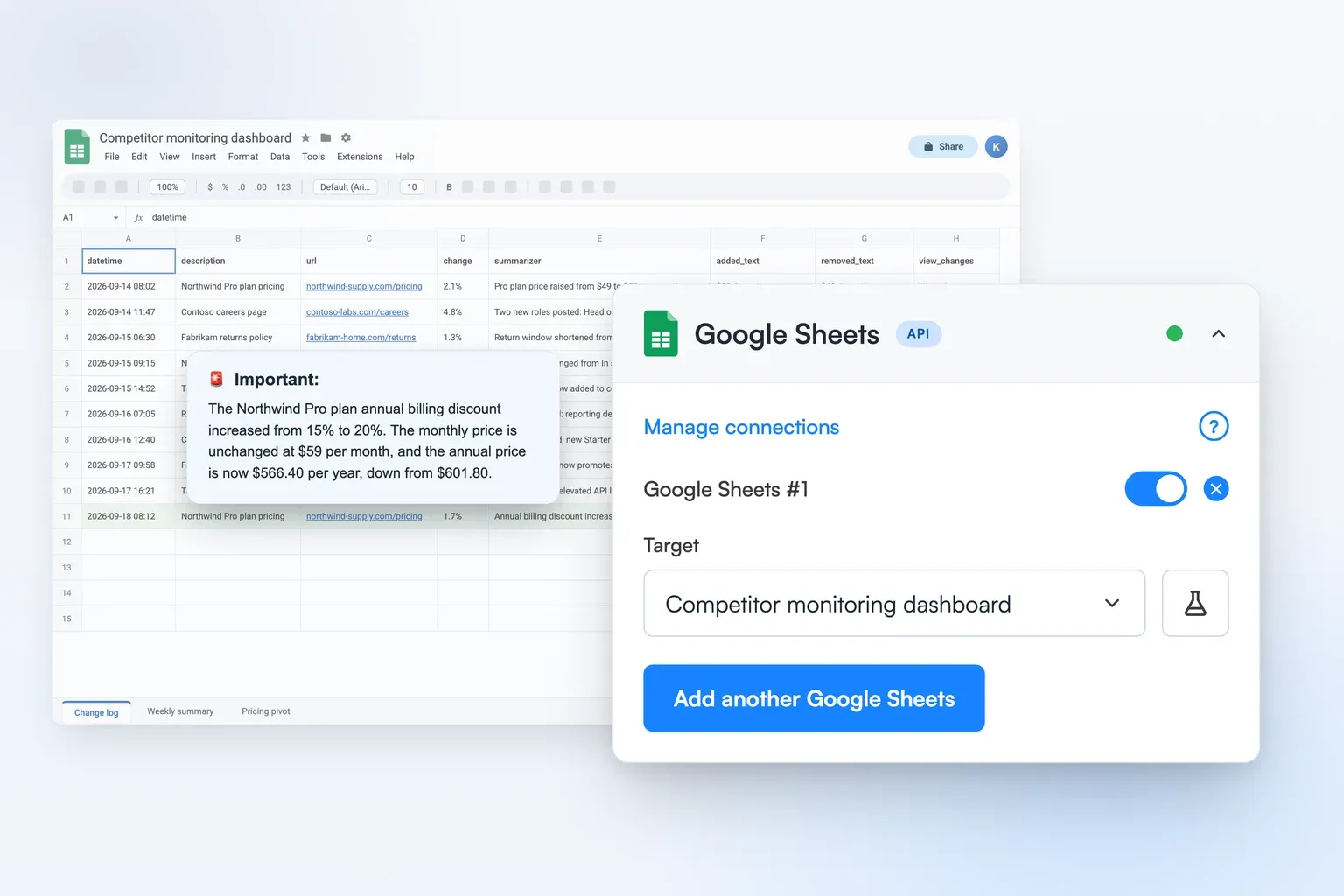
TL;DR: Visualping can now send detected changes straight into Google Sheets, no Zapier or webhook glue required. Open a monitor, go to Notifications, pick the Google Sheets option with the API icon, sign in with Google once, and choose a spreadsheet and tab. Every change lands as a new row with the timestamp, URL, monitor name, AI summary, added and removed text, and a link to the visual diff. Available now on Business plans.
Visualping tells you when a page changes. An email or Slack alert is the right format for that moment: something changed, take a look.
But emails aren't always the best format for the week after. If you're tracking 40 competitor prices, 200 regulator pages, or every job board in your sector, the question isn't always "what changed today" but often "what has changed over the last quarter, and how often."
That's spreadsheet work. And until now, getting change data into a spreadsheet meant wiring a webhook through Zapier, or copying alerts by hand.
Our new native Google Sheets integration closes that gap. Here's how to connect it to your Google account, and how it all works.
How to add the Google Sheets integration
The Google Sheets integration is live now for Business plan workspaces. Setup starts where you already manage alerts, on the monitor itself.
- Click a monitor, or select several, and go to Notifications.
- Click the second Google Sheets option, the one with the API icon.
- Click Add account and sign in with the Google account that owns or can edit the spreadsheet. Visualping only gets access to the spreadsheets you share with it and can't see any other files in your Drive.
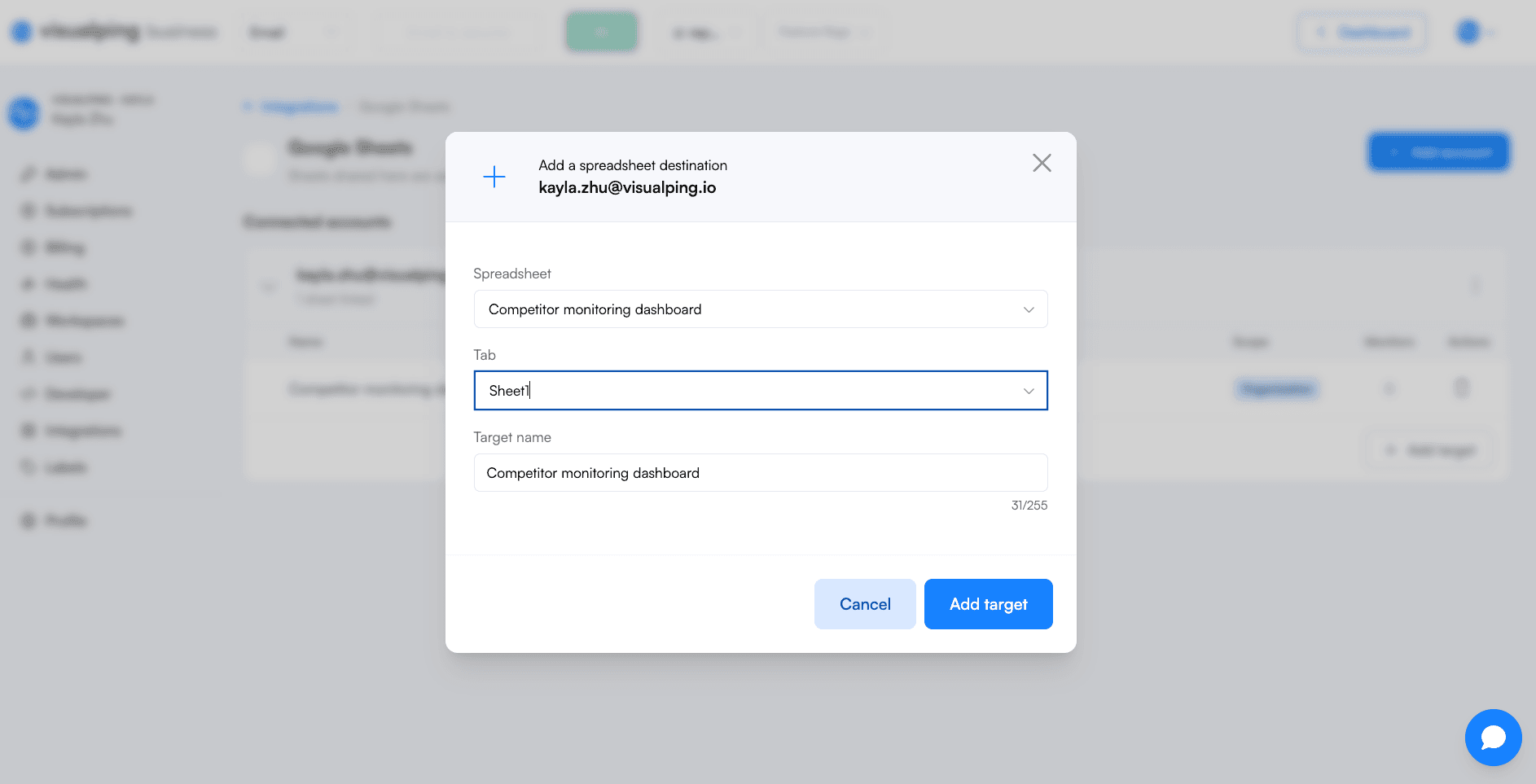
- Click Add target. Choose the Spreadsheet, the Tab inside it, and a Target name so you can tell destinations apart later. Then choose who can use the sheet: Personal, meaning only you can select it when configuring notifications, or Organization, meaning anyone in your organization can pick it.
- Turn the toggle on and pick the target from the dropdown. To use the same sheet on other monitors, select it from their Notifications panel.
The header row is written automatically on the first change. There is nothing to format in advance.
One Google account can hold several targets. The Manage connections link in the same panel opens Account > Integrations > Google Sheets, where a table shows every connected account, how many sheets are linked, and how many monitors are writing through each one.
If you are on Free, Starter, or Personal, you can still reach Google Sheets today through webhooks and Zapier, which are available on every plan.
Set up Google Sheets on a monitor now →
Every detected change becomes a row
Once a monitor is connected to a sheet, each change Visualping detects appends one row. Visualping writes the header row for you on the first delivery and checks it on every delivery after, so the columns stay in a known order even if the tab is empty when you start.
The row carries the fields you would otherwise be copying out of an alert:
- Date and time
- Monitor name
- URL
- Workspace
- Percentage of the page that changed
- Visualping AI summary
- Added text
- Removed text
- Direct link to the before-and-after screenshots in Visualping
- Labels
Keep the incoming tab as your source log. Select its full columns from A through the last column with a header, then choose Insert > Pivot table. Choose New sheet, create the pivot, and rename the new tab Summary. Using full columns includes future rows in the source range.
In the pivot editor, add url under Rows and view_changes under Values, summarized by COUNTA. Under Rows, sort by COUNTA of view_changes in descending order. Add url under Filters and choose Filter by condition > Is not empty.
This ranks URLs by logged rows with a view_changes link. In the source log, read summarizer (the AI summary), check important (the IMPORTANT flag), and open view_changes to decide which changes need attention.
To investigate repeated rows, duplicate the source tab. On that copy, select the data and choose Data > Data cleanup > Remove duplicates. Check Data has header row and select job_id, datetime and view_changes as the comparison columns. Review the number of rows removed and compare the copy with the source log before treating those matches as duplicate changes.
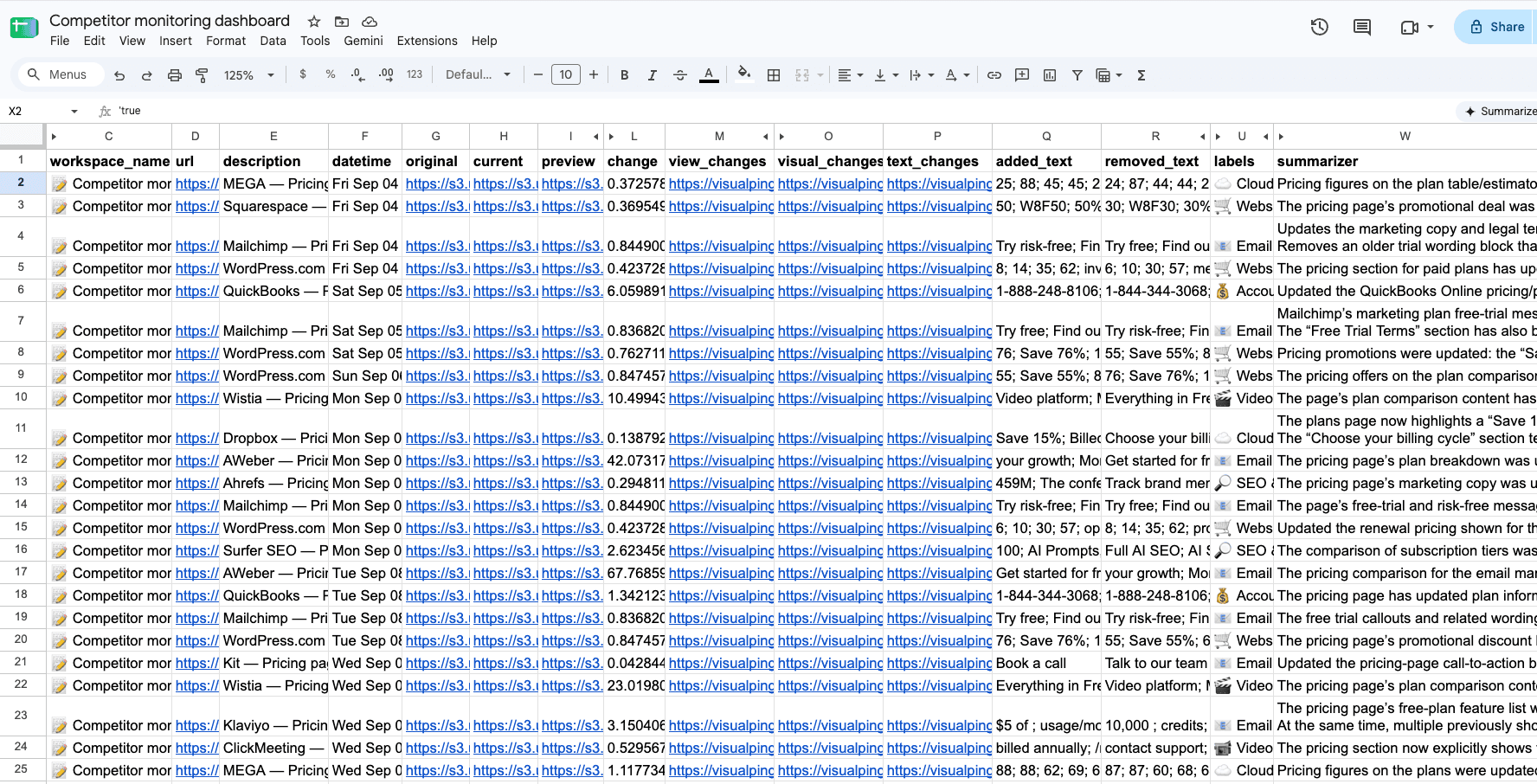
Decide which monitors write where
Each monitor's Notifications panel has its own Google Sheets toggle and a Target dropdown, so you choose per monitor, the same way you choose email, Slack, or a webhook. Point your pricing monitors at one tab and your compliance monitors at another, or send everything to one sheet and split it later with filters.
Because targets are shared at the Organization scope, a colleague can build a sheet once and the rest of the team selects it from a dropdown. Nobody re-authorizes Google or hunts for a spreadsheet ID.
Built to be trusted as a record
A change log is only useful if you can rely on it, so a few things happen behind the scenes.
Deliveries go through a queue and are retried if Google is slow or briefly unavailable, so a hiccup does not drop a row. Any cell that starts with a formula character (equals, plus, minus, or the at sign) is neutralized before it is written, so a page that happens to contain =IMPORTDATA(...) cannot execute inside your spreadsheet. And if you ever disconnect an account or remove a target, Visualping tells you first how many monitors will stop recording.
Why this matters if you monitor at volume
Alerts work well when you're keeping track of a handful of pages, but they become hard to manage once you're tracking hundreds.
When a channel fills with two hundred alerts a day, people stop reading them, and the changes that matter get lost in the ones that do not. A spreadsheet handles that volume differently. Nothing demands your attention as it arrives, every change is stored in one place, and you can sort, filter, and review the history whenever you need to.
That history is also useful as evidence. If a competitor says they never changed a price, or an auditor asks when a regulator updated its guidance page, you can point to a row with a timestamp, the exact text that changed, and a link to the before-and-after comparison.
Finally, the integration puts the data where analysis already happens. Many finance and operations teams already build their models and trackers in Google Sheets. With the change feed arriving in the same file, they can work with it directly instead of paying for and maintaining a separate automation tool to move it there.
Frequently asked questions
Do I need to set anything up in Google Sheets first? No. Create an empty spreadsheet or use an existing one, then connect it from a monitor's Notifications panel. Visualping writes the header row on the first delivery and appends rows after that.
Which plans include the Google Sheets integration? The native Google Sheets integration is available on Business plans, alongside the native Slack and Microsoft Teams integrations. Free, Starter, and Personal plans can send change data to Google Sheets through webhooks and Zapier, which every plan includes.
What does each row contain? Each row Visualping appends includes the date and time, the monitor name and URL, the workspace, the percentage changed, the Visualping AI summary, added text, removed text, labels, keyword matches, and a link to the before-and-after comparison.
Can several monitors write to the same sheet? Yes. Any number of monitors can share one Google Sheets target, and one Google account can hold several targets. Use the Labels or URL column to filter a shared sheet by project.
What can Visualping see in my Google account? Only the spreadsheets you add as targets. Visualping does not read other files in your Drive. You can disconnect the account at any time under Account > Integrations > Google Sheets, which removes the stored credentials and every target attached to it.
What happens if Google is temporarily unavailable? The delivery is queued and retried. In rare cases a retry can produce a duplicate row, which is easy to spot because the timestamp and link are identical.
Keep the whole history of a page
Alerts tell you something changed. The Google Sheets integration keeps the record of everything that did. Turn it on for the monitors you would otherwise be copying into a spreadsheet by hand, and let the sheet fill itself.
Want to monitor web changes that impact your business?
Sign up with Visualping to get alerted of important updates from anywhere online.
Kayla Zhu
Kayla is the Public Relations Specialist at Visualping and manager of Visualping's Journalist Program. She manages Visualping's media relations, content marketing, and social media.
More articles by Kayla Zhu