How to Send Subprocessor List Update Alerts to Your Users
By Emily Fenton
Updated August 2, 2023
The simplest way to keep users informed about your public subprocessor list is to let them subscribe to it. Add the free Visualping button to your subprocessors page, and any visitor who enters an email gets a free Visualping monitor on that page and an email alert when the list changes. You never maintain a mailing list yourself.
Each addition or removal changes who handles your customers' data, so customers need to hear about it quickly. This guide shows you how to use Visualping's button to create subprocessor update alerts.
Why Subprocessor Update Alerts Are Important
A subprocessor is a third party that a data processor engages to help process personal data on a customer's behalf. In most B2B SaaS contracts, your customer is the data controller, your company is the processor, and the vendors you rely on for hosting, support or email delivery are your subprocessors. Each one works under a contract with you.
Subprocessors run databases, customer support channels, infrastructure and more. Where your customers' data is concerned, they are an extension of your product.
SaaS companies need to tell users about every change to the subprocessor list (additions, removals, new locations), because each change can affect where and how their personal data is processed. This is where a tool like Visualping's button comes in. It emails each subscribed user when your subprocessors page changes, so you never maintain a contact list.
Telling users about subprocessor changes is also part of GDPR compliance. Under Article 28(2), a processor working under a general written authorisation must inform the controller of any intended addition or replacement of subprocessors, giving the controller a chance to object. Many vendors handle this by publishing the list and asking customers to watch it. LivePerson's subprocessor page, for example, makes monitoring the list the customer's responsibility and treats no objection within 14 days of a new appointment as approval. A subscribe button makes that watching easy. Treat it as a convenience on top of the notice terms in your data processing agreement, which still apply.
How to Use Visualping to Alert Visitors When Your Subprocessor List Changes
Visualping offers an easy-to-use button that lets visitors subscribe to changes on a web page. Put it on your subprocessors page and visitors can sign up for list updates without leaving it. The button is free to install. Here is how to set it up:
If you need help with setup, contact us!
Step 1
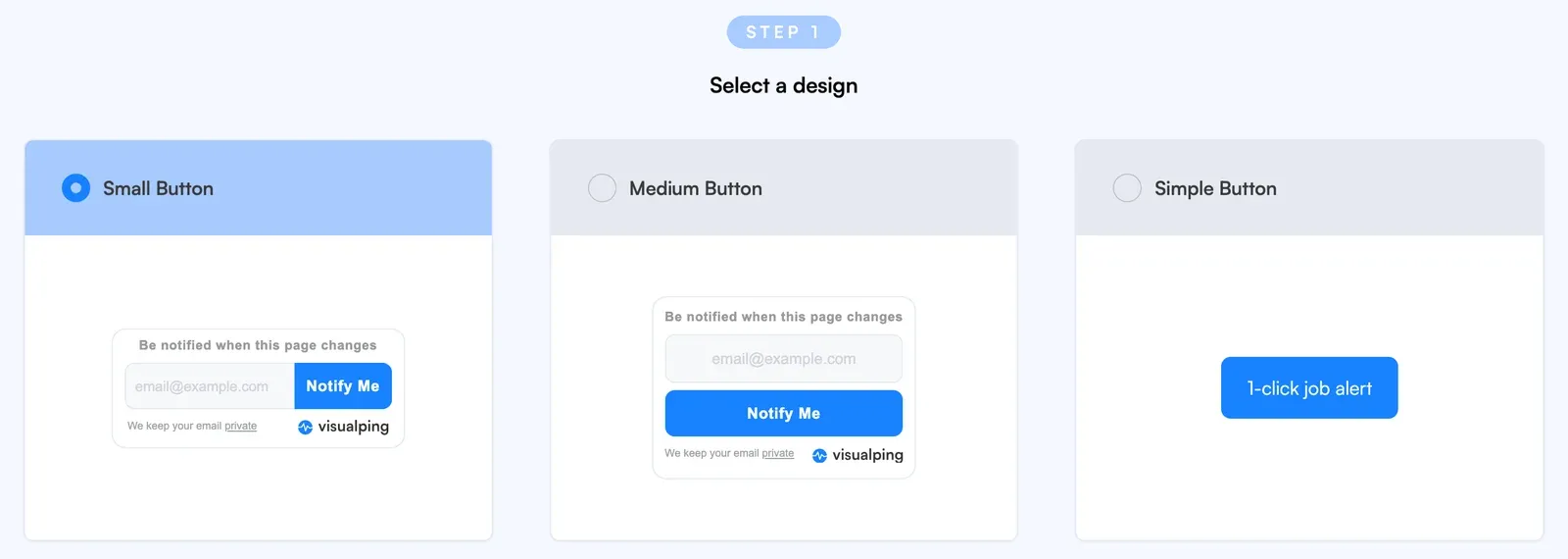
Go to visualping.io/button/subprocessors and click “Customize Your Button”. Then pick a design: Small Button or Medium Button (both show an email field and a Notify Me button), or Simple Button (a single button).
Step 2
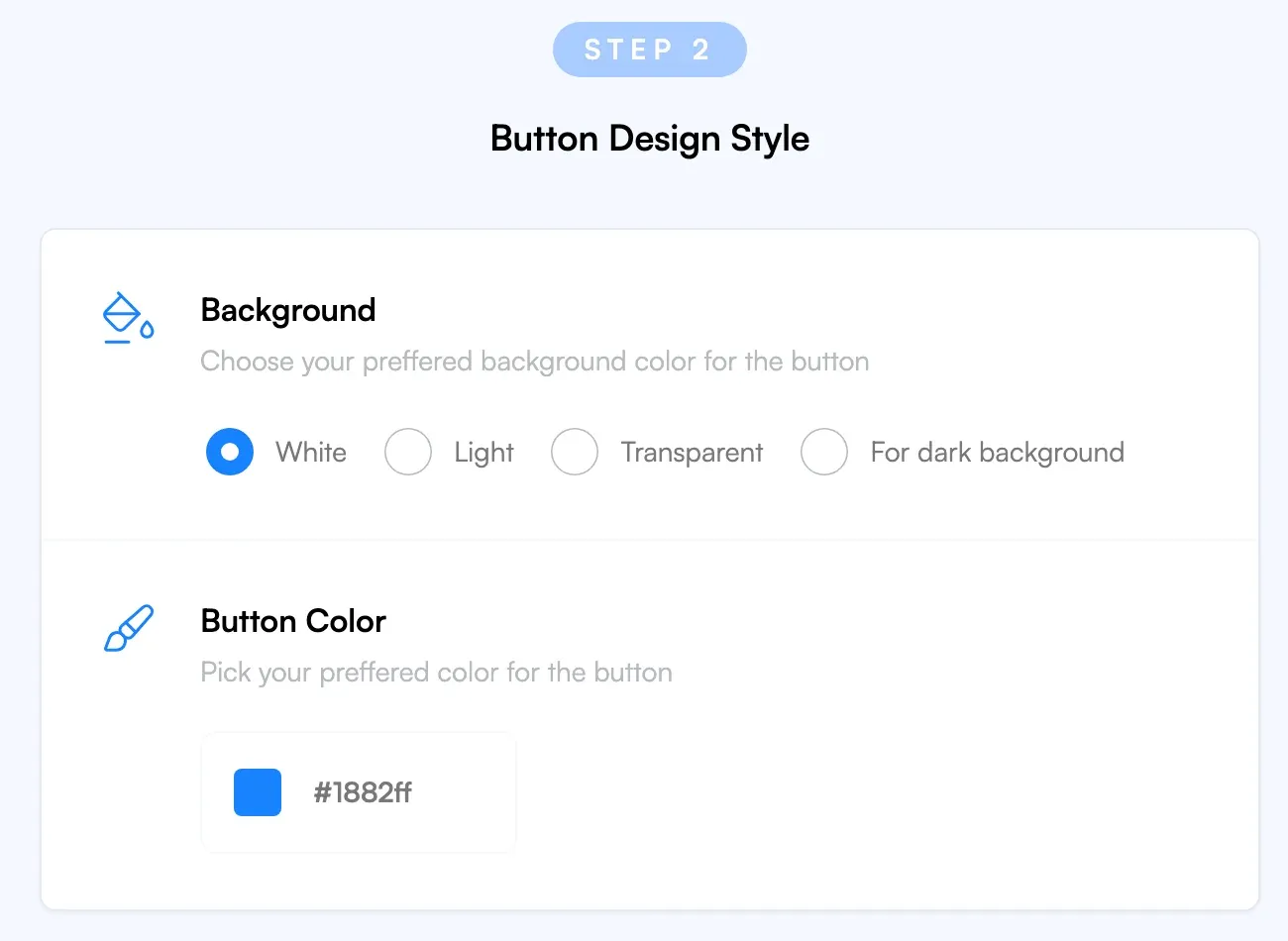
Choose a background (White, Light, Transparent or For dark background), a button color, and the button text. The Simple Button's default text is "1-click job alert", so change it to something like "Get subprocessor updates".
Step 3
Under Monitor Settings, tell Visualping what should trigger an alert for your visitors.
Leave Compare Type on its default. (The generator still labels it "Visual", but since October 2026 the button creates an AI Mode monitor, which checks both how the page looks and what its text says.) Then fill in the optional "What's important to track?" field, for example "A subprocessor is added, removed, or changes location or purpose". That text becomes the "Alert me when" condition on each visitor's monitor, so Visualping's AI alerts them only when a change matches it.
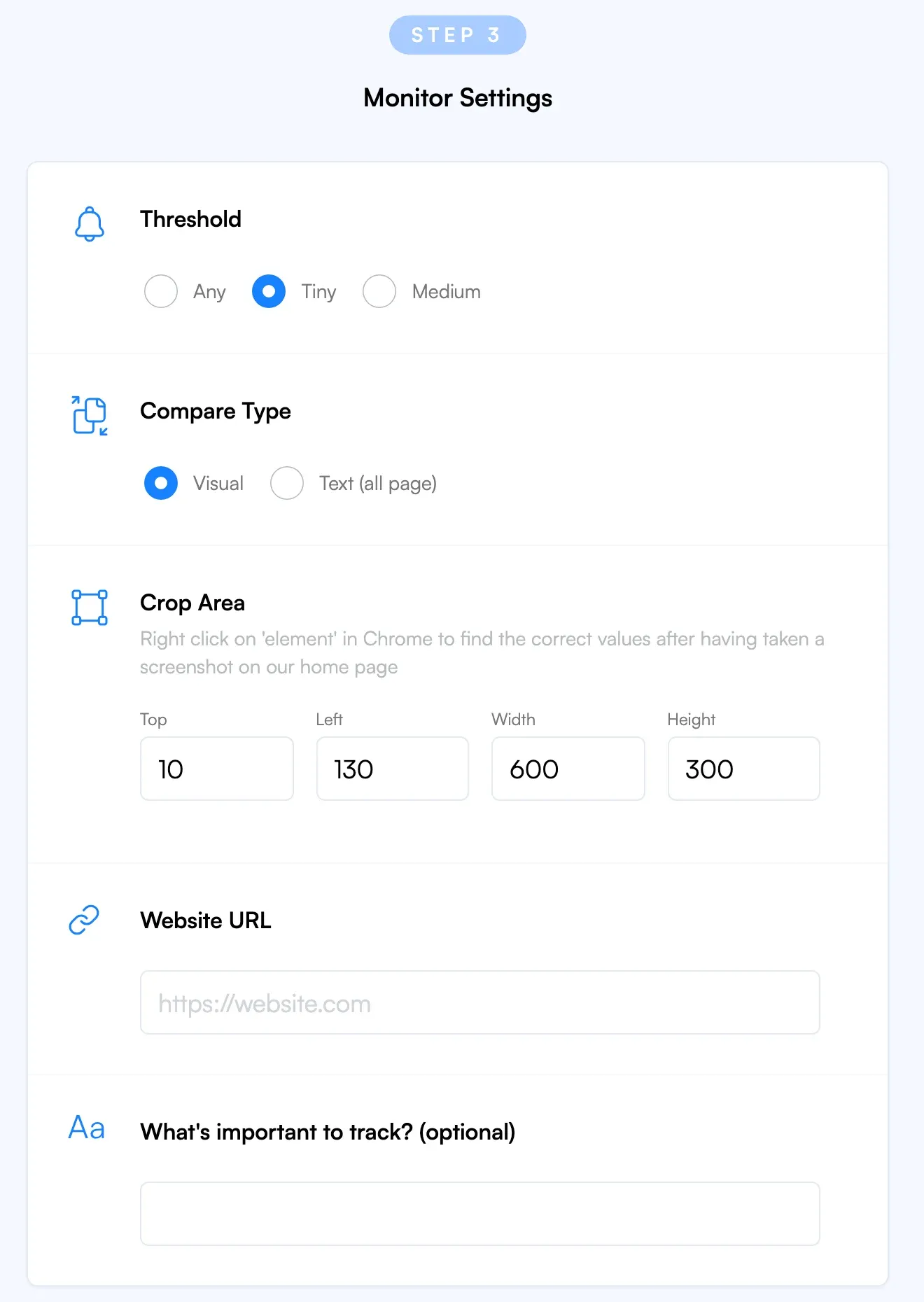
Then enter the URL of your subprocessors page in the Website URL field.
Step 4
Grab the code snippet and add Visualping to your subprocessor page.
The first option, "JavaScript button with auto-update", is a script that embeds the button and picks up new features automatically.
The second option is a customized link you can add to the page without any code. It is simpler but less visible than the embedded button.
How your visitors will interact with the Visualping button
When your users visit your subprocessors page, they will be able to enter their email and subscribe to updates to the page.
When a visitor enters their email and clicks Notify Me (or clicks the Simple Button), Visualping opens in a new window with your page already filled in, plus their email if they typed one. They finish creating a free Visualping account, and that account monitors your subprocessors page for them.
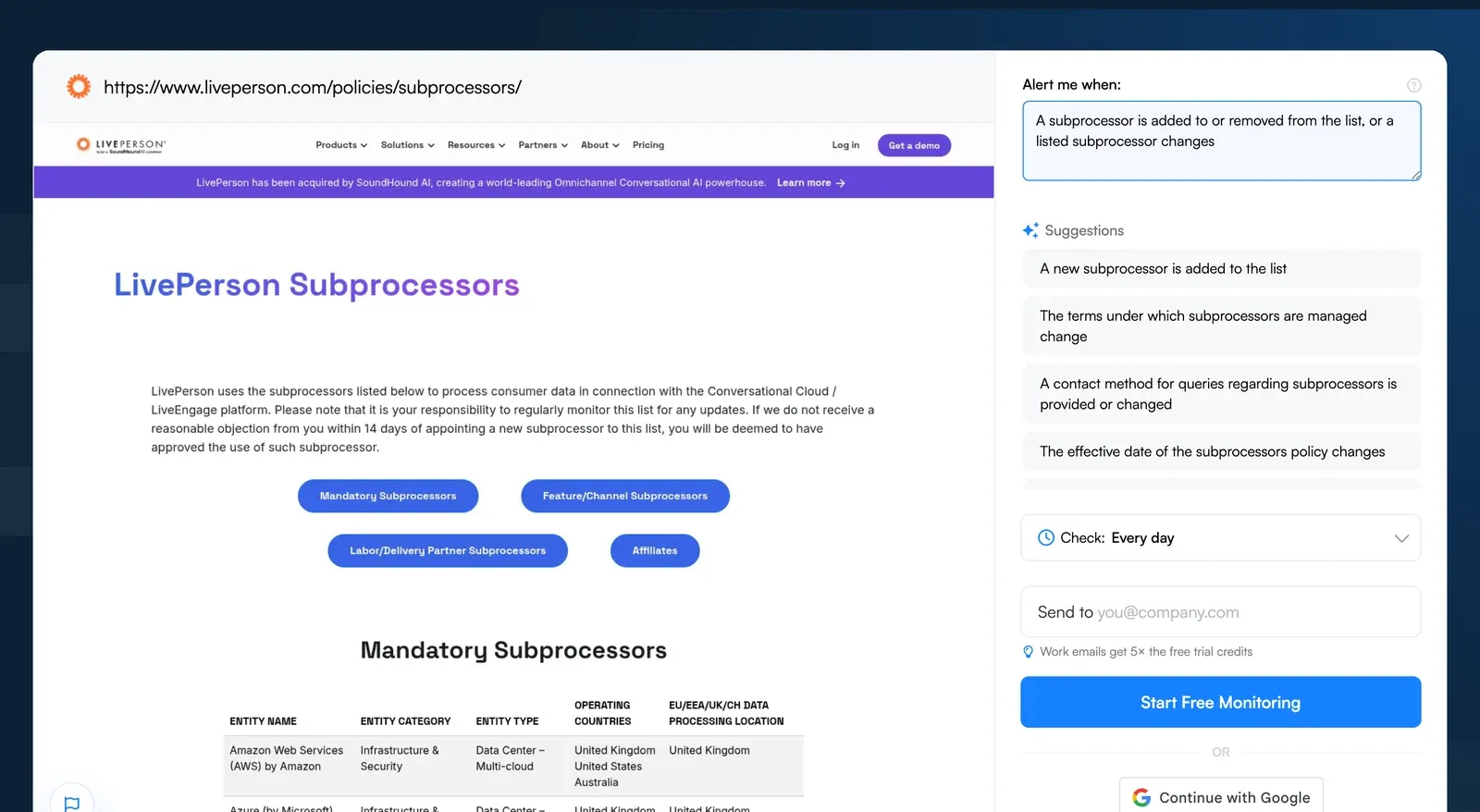
From then on, Visualping emails that visitor whenever a change on your subprocessors page matches your condition.
Conclusion
An update to your subprocessor list shouldn't come as a surprise to your users. With Visualping's button, users can subscribe to subprocessor update alerts in one click. It suits any SaaS company that publishes a subprocessor list and wants users to hear about changes without a mailing list to maintain. Your data processing agreement's notice terms still apply, and the button gives users a self-serve way to stay informed between those notices.
If you have any questions about how to set up the Visualping Button on your subprocessors page, don’t hesitate to contact us.
Want to monitor web changes that impact your business?
Sign up with Visualping to get alerted of important updates, from anywhere online.
Emily Fenton
Emily was the Product Marketing Manager at Visualping. She has a degree in English Literature and a Masters in Management.
More articles by Emily Fenton