Introducing the Visualping Assistant, Answers About Your Monitors Right in the App
By Kayla Zhu
Updated September 29, 2026
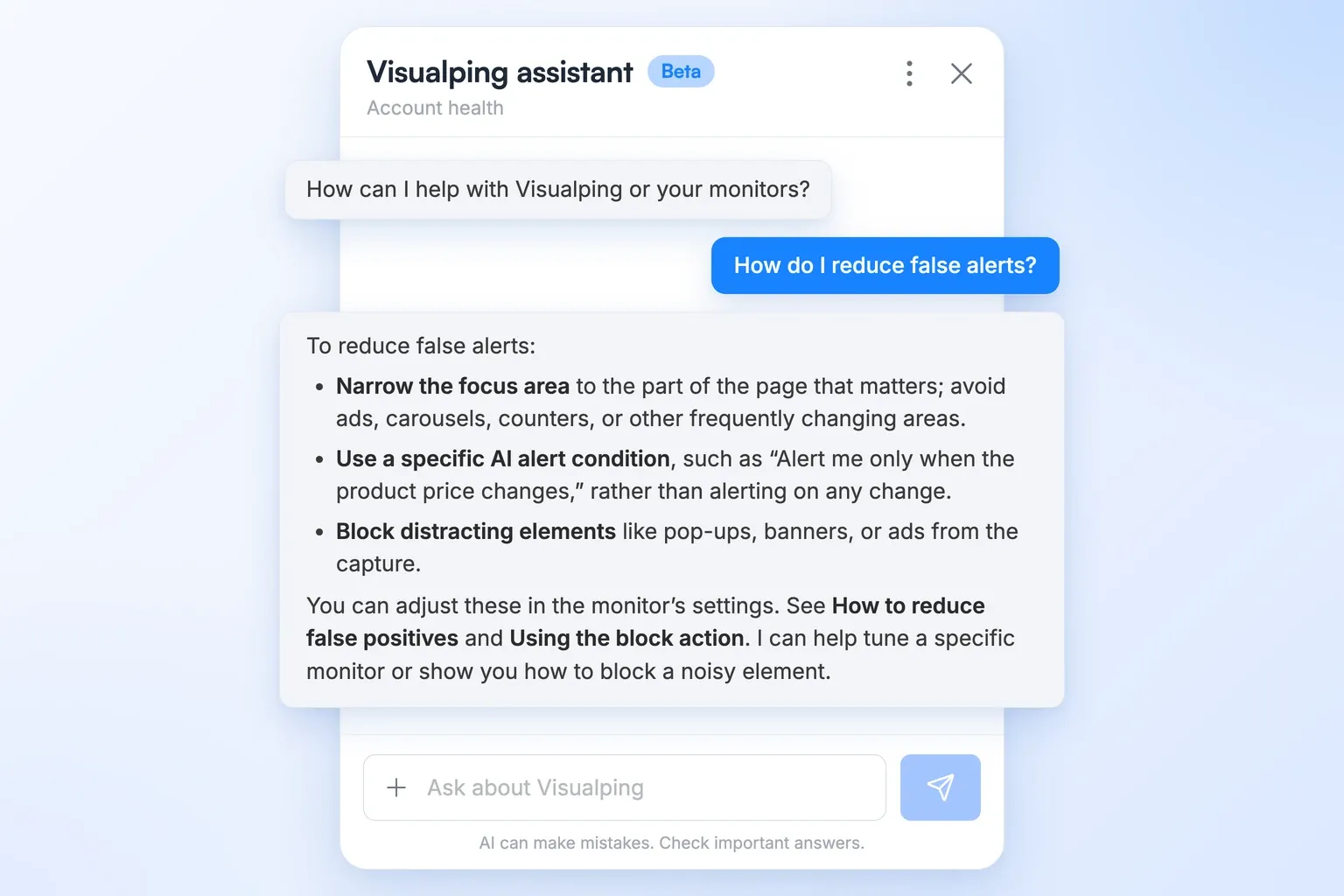
TL;DR: The Visualping Assistant is an AI chat built into your Visualping dashboard. It answers product questions using our help center articles, answers questions about the monitors you select, and shows before/after screenshots and diff images when you ask what changed. If a question needs a person, it passes the conversation to our support team. The assistant is in Beta and available now to every signed-in user, on every plan including Free. Open it from the chat icon at the bottom right of your dashboard.
A monitor sends an alert you didn't expect, and you want to know what happened. Until now, finding out meant checking a few places: the monitor's timeline for the change itself, the help center for how a setting works, or a support ticket for anything else.
The Visualping Assistant puts those answers in one chat window inside your dashboard. Ask how a feature or setting works, and the answer comes from our help center articles.
Select a monitor to ask why it alerted or how often it checks. Questions about what changed on a page get the before and after screenshots, with the change highlighted. For anything that needs a person, the assistant passes the conversation to our support team.
Ask how Visualping works
The assistant answers product questions using Visualping's help center articles. You ask in your own words and get the relevant steps in the chat, without leaving the dashboard.
Questions like "How do I monitor only one part of a page?", "What's the difference between visual and text comparison?", or "How do I send alerts to a webhook?" get a direct answer. If the first answer doesn't match your situation, ask a follow-up question in the same conversation and the assistant keeps the earlier context.
Ask about specific monitors
The assistant also answers questions about your own monitors. To point it at one or more monitors, select them on your dashboard before you ask. The assistant reads which monitors are selected, so you don't need to paste URLs or describe which monitor you mean.
With a monitor selected, you can ask "Why did this monitor alert yesterday?" or "How often does this monitor check?" and the assistant answers using that monitor's settings and history. Select several monitors to ask about them as a group.
See what changed on a page
When you ask what changed on a monitored page, the assistant's reply includes the before screenshot, the after screenshot, and the diff image that highlights the change. These are the same images you'd find in the monitor's timeline.
The images stay in the conversation, so you can scroll back to them later. If a screenshot is older than your monitor's retention period and has expired, the assistant's reply accounts for that instead of showing a broken image.
Reach the support team
When a question needs a person, the assistant offers to pass the conversation to Visualping's support team. The support team receives your chat history with the handoff, so they start with the context of what you already asked.
Getting started
The Visualping Assistant is live now in Beta for every signed-in user on every plan, including Free. There's no setup and nothing to turn on.
- Sign in to your Visualping account.
- Click the chat icon at the bottom right of your dashboard.
- To ask about specific monitors, select them on the dashboard.
- Type your question.
The assistant is labelled Beta in the app and shows an AI disclaimer. For answers that affect billing or business-critical monitors, confirm the details in your account settings or ask to be handed off to support.
Frequently asked questions
Is the Visualping Assistant free? Yes. The Visualping Assistant is available to every signed-in user on every plan, including Free.
Where do I find the Visualping Assistant? Click the chat icon at the bottom right of your Visualping dashboard. The assistant opens in a panel on the same screen, so your monitors stay in view while you ask questions.
What can I ask the Visualping Assistant? You can ask how Visualping features and settings work, and you can ask about your own monitors, such as what changed or how often a monitor checks. Select monitors on the dashboard first to ask about them directly.
Where do the Visualping Assistant's answers come from? Product answers come from Visualping's help center articles. Answers about your monitors come from your account data, including each monitor's settings and change history.
Can I reach a person through the Visualping Assistant? Yes. When a question needs the support team, the Visualping Assistant passes the conversation to them with your chat history attached.
Why is the Visualping Assistant labelled Beta? The Visualping Assistant is new, and Visualping is improving it based on real conversations. The Beta label and AI disclaimer are a reminder to verify answers about billing or business-critical monitors.
Try the assistant on your own monitors
The Visualping Assistant answers product questions, answers questions about the monitors you select, shows the screenshots behind each change, and connects you to support when needed. To try it, sign in to Visualping, select a monitor, and ask the assistant what changed on it most recently.
Want to monitor web changes that impact your business?
Sign up with Visualping to get alerted of important updates from anywhere online.
Kayla Zhu
Kayla is the Public Relations Specialist at Visualping and manager of Visualping's Journalist Program. She manages Visualping's media relations, content marketing, and social media.
More articles by Kayla Zhu