Bulk Editing and Bulk Import Are Now on Every Visualping Plan
By Kayla Zhu
Updated October 28, 2026
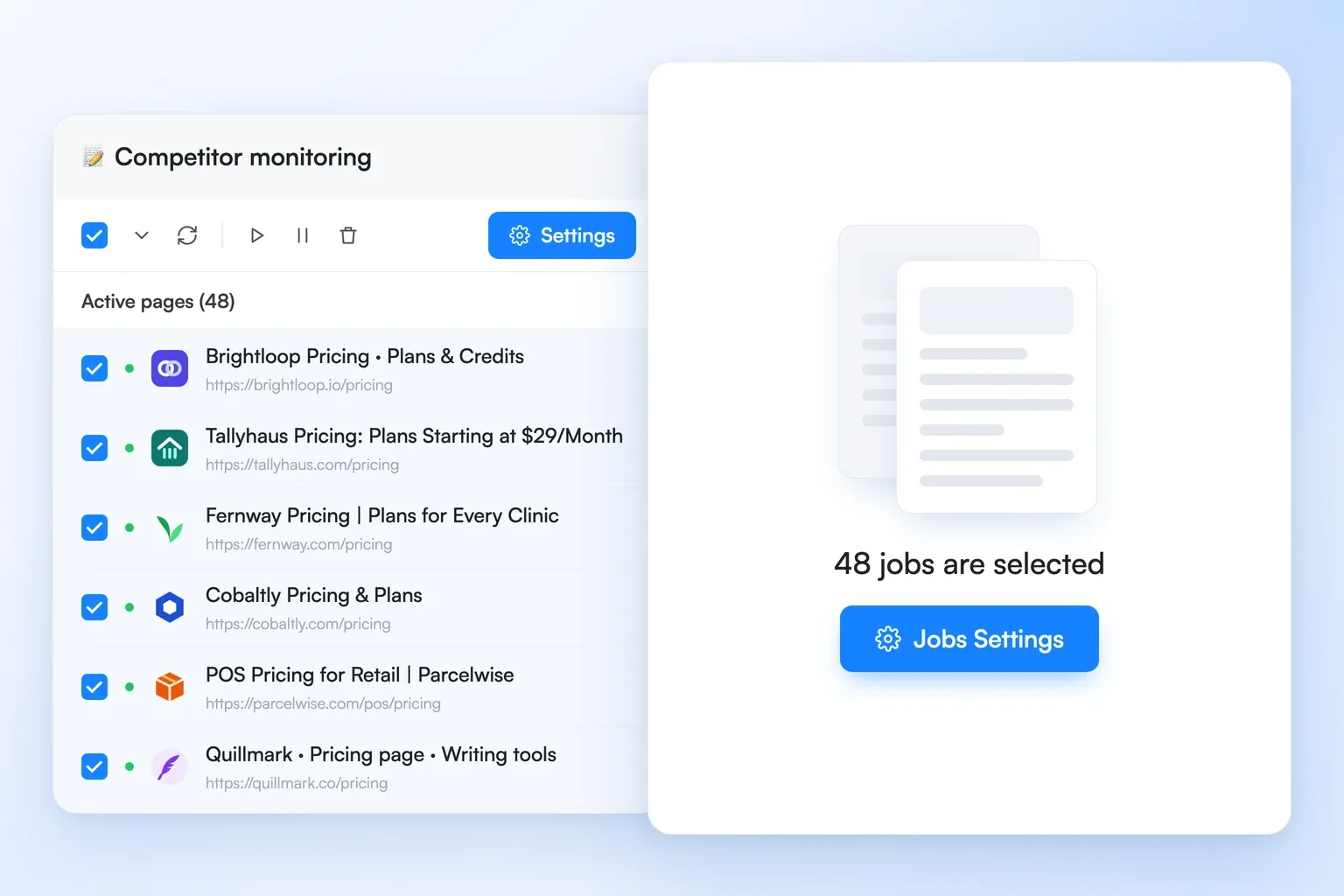
TL;DR: Bulk editing and bulk import used to be Business-only. They now come with every Visualping plan, Free and Personal included. Select two or more monitors to change their check frequency, schedule, notifications, actions, AI condition or advanced settings in one save, or run, pause, resume and delete them together. To add many pages at once, open Start monitoring and choose Bulk. Both work up to your plan's page limit.
Visualping makes it quick to set up one monitor. Paste a URL, pick what counts as a change, and you're watching the page.
Say you track 20 competitor pricing pages and want hourly checks instead of daily. Until now, that meant 20 separate edits, and adding more pages meant pasting URLs one at a time.
This update opens both to every plan, including Free. Here's what shipped.
Select every monitor you want to change in one click
Each row in your monitor list has a checkbox. Select two or more and a toolbar opens above the list with Settings, Run, Activate, Deactivate and Delete.
The dropdown beside the header checkbox picks a whole group at once: All jobs, All jobs on this page, Active jobs or Inactive jobs. These options follow your current filters and search, and they reach past the first page of the list. Search for "pricing", choose All jobs, and every matching pricing-page monitor is selected, even if you have 300 of them.
Your selection stays put as you page through the list. Changing a filter, the search text or the sort clears it, so set those first and select second.
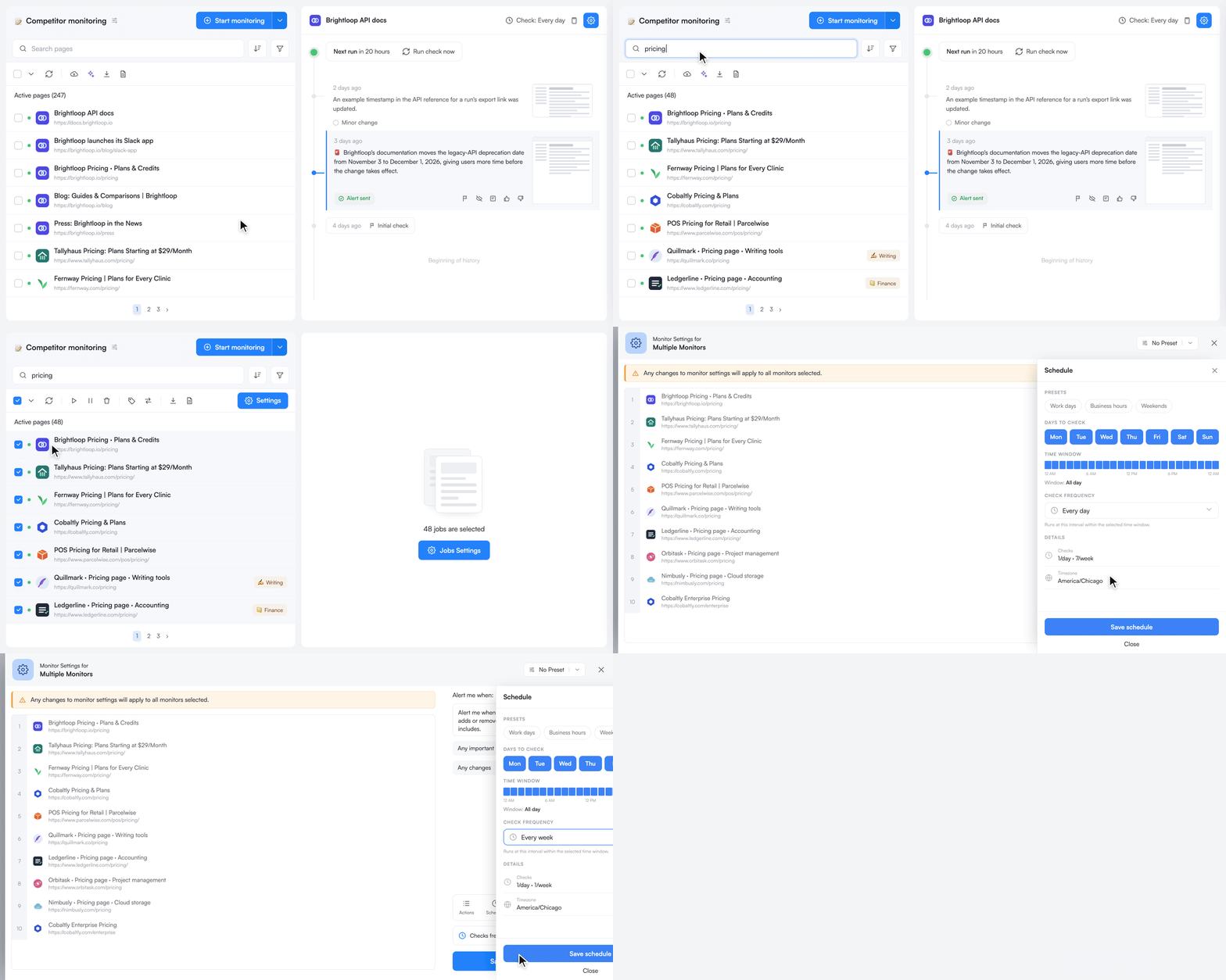 Search, choose All jobs, then change the schedule for every selected monitor in one save
Change settings on many monitors in one save
Click Settings with several monitors selected and you get the same settings window you use for a single monitor, applied to the whole selection. A banner at the top reminds you: "Any changes to monitor settings will apply to all monitors selected."
You can change:
- Check frequency and the advanced schedule (for example, weekdays only during business hours)
- Notifications, including "only important alerts"
- Actions, such as a click or login flow that runs before each check
- The AI condition that decides what's worth an alert
- The compare type (AI Mode or Text changes) and its threshold
- Advanced settings: the country to check from, wait time, disable JavaScript, block ads and cookie banners, mobile view, alert on error and data retention
One habit worth building: when the selected monitors have different values for a setting, the window shows a default instead of their current value, and saving writes that default to all of them. Opening a panel changes nothing. Editing a field changes it everywhere. So if 15 monitors check hourly and 5 check daily, set the frequency you want on purpose before you save.
A bulk edit applies to every selected monitor or to none of them. If one monitor would go over a plan limit, nothing is saved and you'll see why, so you never end up with half a batch updated.
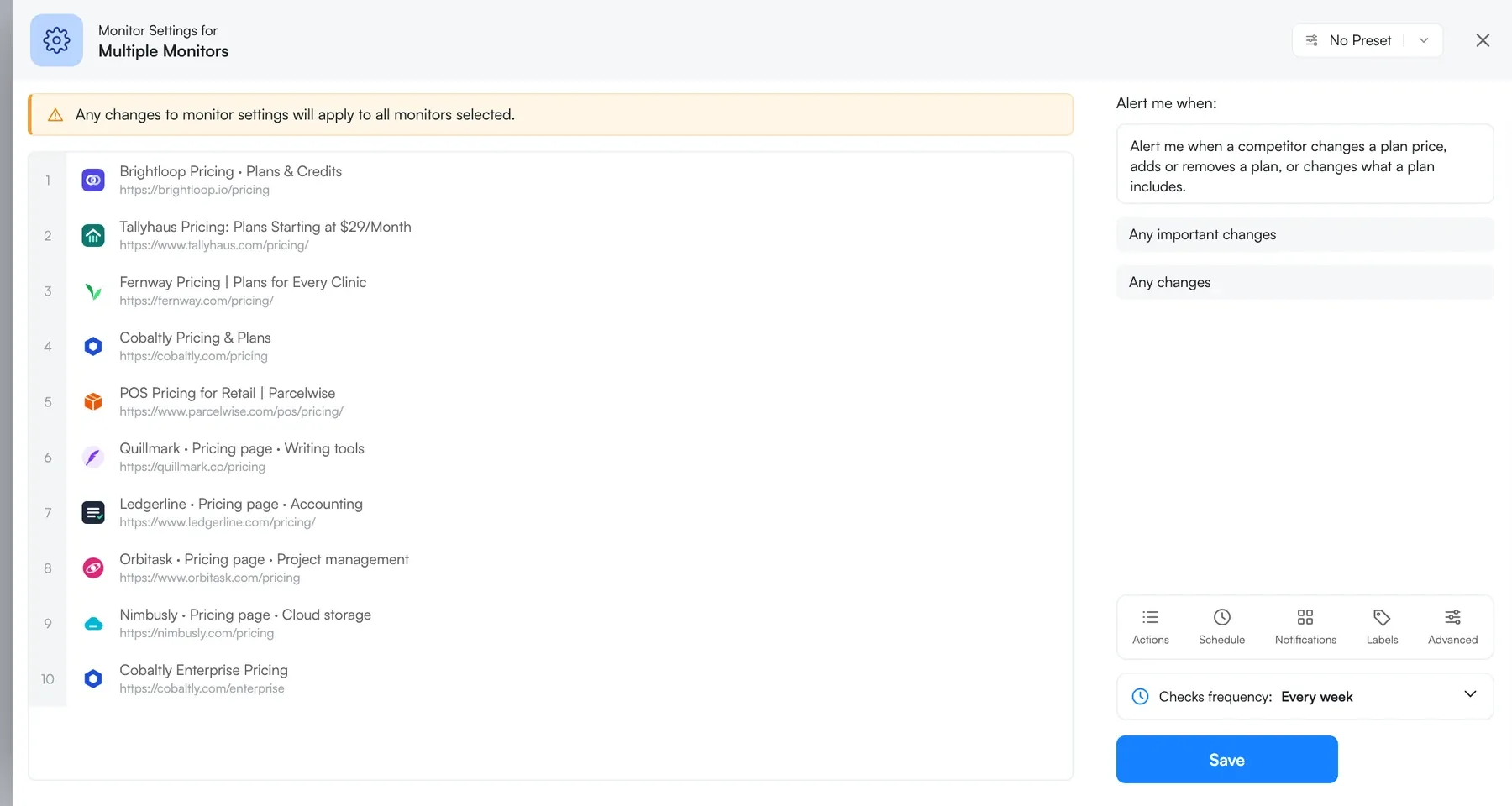 The Bulk Settings window applies each change to every selected monitor
Try bulk editing in your account now →
Run, pause or resume a batch of monitors together
Run opens the Run Selected Jobs window. Under Future checks should:, pick Stay as scheduled or Restart as now. The window shows how many checks the run will use before you start it.
Deactivate pauses every selected monitor at once, and Activate resumes them. Pausing is handy before a site redesign you already know about. Resume the batch when the new pages settle, and you skip a wave of alerts about changes you expected. Activate counts against your plan's page limit, and the toolbar shows how many active slots you have left.
Delete removes the whole selection after one confirmation. Deleted monitors can't be restored from your account, so double-check the selection first.
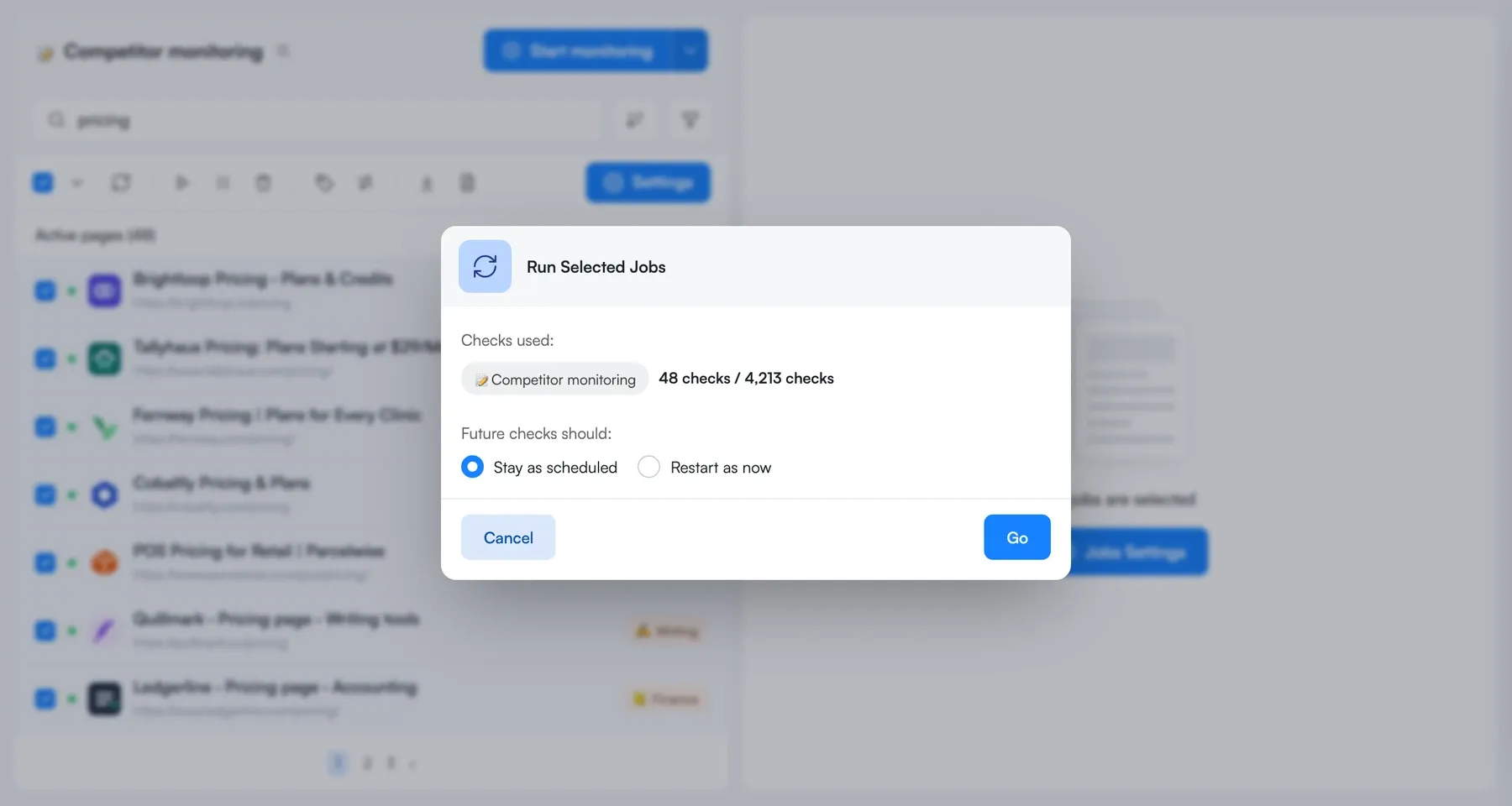 Run Selected Jobs shows how many checks the run will use before you start it
Add a whole list of pages at once
Bulk import is on every plan too. Click the chevron on the Start monitoring button and choose Bulk, "Upload a list of pages". The bulk import icon in the monitor list toolbar opens the same place.
Paste your URLs into the Page address column, one per line, or with a title after each URL. Visualping looks up each page's title for you and keeps any title you typed yourself. It also flags rows that need a look before you save. Unreachable or invalid URLs turn red and have to be fixed. Pages you already monitor are marked "Page already in this workspace", and you can still add them if you want a second monitor.
The settings you choose in the creator apply to every page in the list. Monitors added from the Bulk tab watch the full page. The only cap is your plan's page limit: if the list would take you over it, the creator shows your limit and asks you to trim the list before you save.
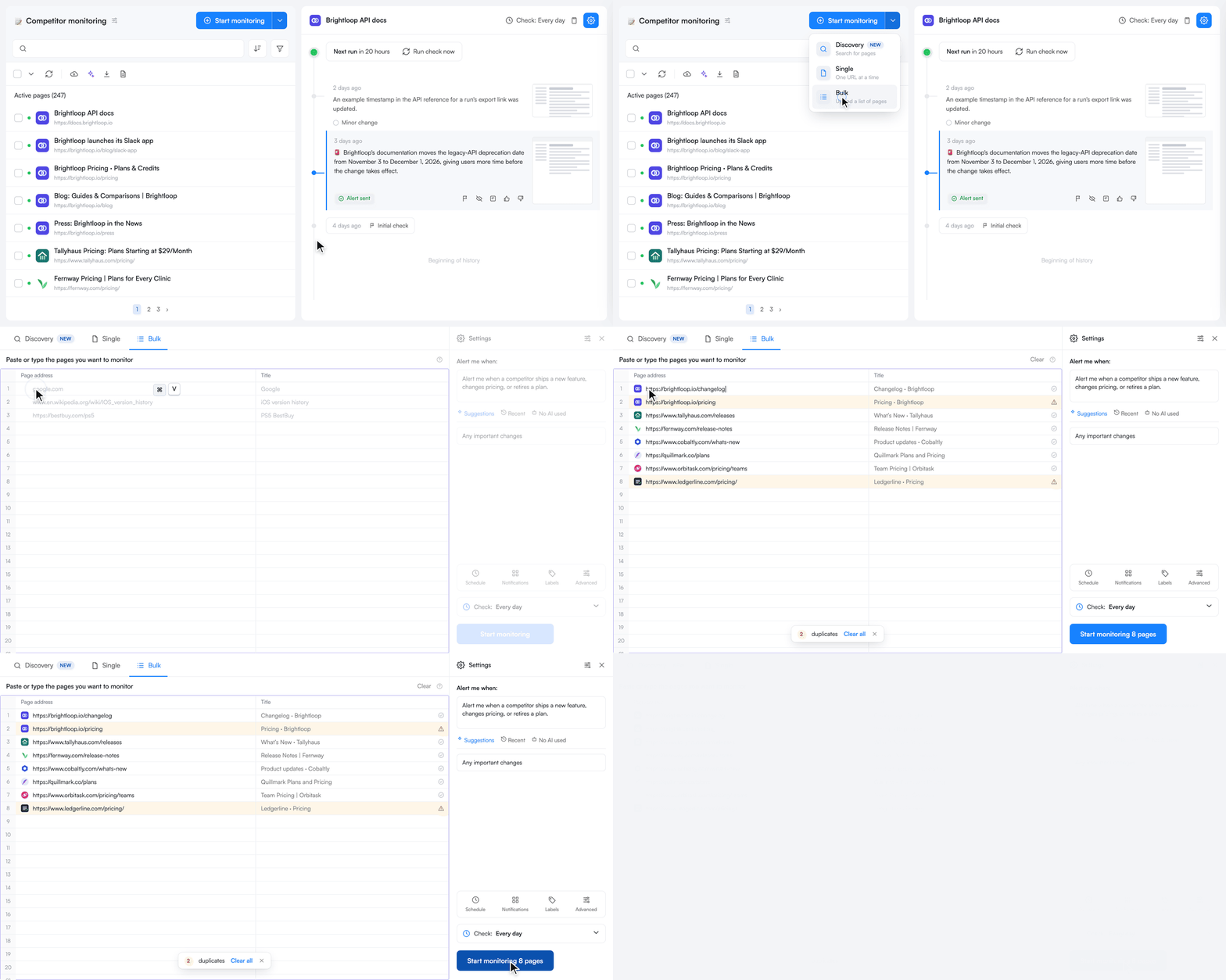 Paste a list into the Bulk tab and Visualping fills in the page titles
Getting started
Bulk editing and bulk import are live now on every Visualping plan, including Free. There's nothing to turn on.
- Open your monitor list.
- If your account has several workspaces, pick one. Bulk actions work inside a single workspace, not in the All workspaces view.
- Select two or more monitors, or use the dropdown beside the header checkbox, then choose Settings, Run, Activate, Deactivate or Delete.
- To add pages, open Start monitoring, choose Bulk, paste your list and save.
For step-by-step help, see How do I bulk edit jobs? and How do I import jobs in bulk? in the Visualping Knowledge Base.
On Business plans, team members need the Editor or Admin role to use bulk actions. Labels and moving monitors between workspaces stay Business features.
Frequently asked questions
Which Visualping plans include bulk editing? Every plan, including Free, Starter and Personal. Bulk editing and bulk import used to be Business-only. Both now work on any plan, up to that plan's page limit.
How do I edit several Visualping monitors at once? Select two or more monitors in your monitor list, then click Settings in the toolbar above the list. Any setting you change applies to every selected monitor when you save.
Can I change the URL or name of many monitors in bulk? No. Bulk Settings covers frequency, schedule, notifications, actions, the AI condition, compare type and advanced settings. Each monitor's URL, name, keywords and selected page area are edited one monitor at a time.
How many URLs can I import with bulk import? As many as your plan's page limit allows. Visualping's Bulk tab has no separate cap on list length. If a pasted list would take you past your limit, the creator says so before you save.
Why don't I see the bulk editing checkboxes? Three common reasons. You're on a screen narrower than 1,024 pixels, you're in the All workspaces view instead of a single workspace, or you have the Viewer role in a Business workspace. Bulk editing needs Editor or Admin there.
Does a bulk edit use checks? Saving settings usually doesn't. Changing the compare type, mobile view or disable JavaScript runs a fresh check on every selected monitor right away so it has a new baseline. Bulk Run uses one check per monitor, and the Run Selected Jobs window shows the count first.
Other new Visualping features
- Discovery finds pages to monitor from a prompt
- The Health Dashboard at Account > Health shows your estimated monthly check consumption and status of your monitors
- The Visualping Assistant answers questions about your monitors inside the app.
For everything else that shipped last quarter, see the Q3 2026 release recap.
Want to monitor web changes that impact your business?
Sign up with Visualping to get alerted of important updates from anywhere online.
Kayla Zhu
Kayla is the Public Relations Specialist at Visualping and manager of Visualping's Journalist Program. She manages Visualping's media relations, content marketing, and social media.
More articles by Kayla Zhu