How to Get Instant Website Change Alerts on Slack
Updated April 30, 2026

Disclosure: This article is published by Visualping. We offer website change monitoring with Slack integration and may benefit if you choose our product. We have made every effort to provide accurate, practical information to help you understand how website change alerts with Slack integration work and how to implement them effectively. We encourage you to take advantage of our free trial to test the integration with your own Slack workspace before making a purchasing decision..
Your team works in Slack. Your website update alerts happen... somewhere else.
And by the time you find out about critical changes, whether it's a competitor's pricing update, a supplier's policy change, or a regulatory announcement, you've already lost valuable time.
The disconnect is real. Most page monitoring agents (also known as website monitoring tools) email you alerts that get buried in overflowing inboxes. Your team might have monitoring set up, but if alerts don't reach people where they're actually working, they might as well not exist.
That's why website change alerts tools with Slack integration (like Visualping) have become essential for teams that need to stay responsive.
Instead of checking emails or separate monitoring dashboards, your team can get instant notifications right in the Slack channels where they're already collaborating, making it easy to spot changes, discuss implications, and take action immediately.
Why Use Slack Integrations for Website Change Alerts?
If you're using a page monitoring agent like Visualping to get alerts for important web updates, it's important to consider how you want to receive those alerts.
If it's just one person receiving the alerts, email alerts probably still makes sense. But if your team uses communication tools like Slack, wouldn't it make more sense to receive alerts in a dedicated slack channel?
They check it constantly, use it for all their urgent communications, and have workflows built around it.
When you set up website change alerts with Slack integration, you transform passive notifications into actionable insights:
- Immediate visibility: Website monitoring alerts appear instantly in relevant Slack channels where your team is already active. No checking separate tools or digging through emails.
- Team collaboration: Multiple people see the same website change alert simultaneously and can discuss the implications in real-time. Marketing sees when a competitor updates their messaging. Sales sees when a prospect changes their pricing. Product sees when an integration partner updates their API docs.
- Contextual organization: Different types of website change alerts can route to different Slack channels. Competitor monitoring goes to #competitive-intel. Customer website changes go to #account-management. Regulatory updates go to #compliance. Everyone gets what they need without alert fatigue.
- Faster response: When website monitoring alerts reach your team where they're already working, response times drop from hours to minutes. Your team can spot opportunities and risks the moment they appear.
- Persistent record: Slack keeps the record of all these website changes in searchable messages, giving you the ability to search for past changes, when they occurred and how your team responded.
How Website Change Alerts with Slack Integration Work
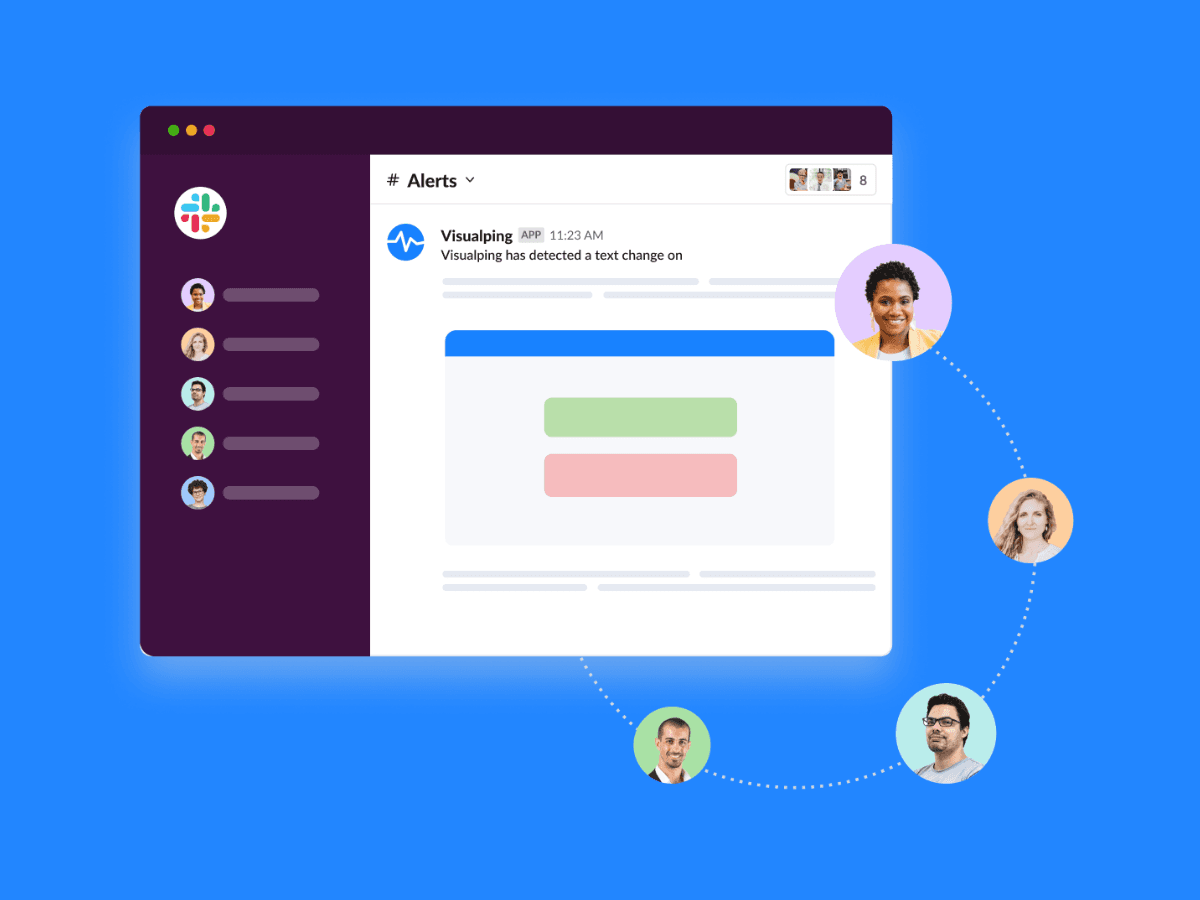
The process is straightforward:
- Set up monitors: You specify which websites or web pages you want to track. This could be competitor pricing pages, supplier catalogs, regulatory agency sites, partner documentation, industry news feeds, or customer websites.
- Configure change detection: Choose what types of changes should trigger website monitoring alerts. You can monitor entire pages, specific sections, or even precise elements like price tables or product listings.
- Connect to Slack: Authorize the monitoring tool to post website change alerts to your Slack workspace and select which channels should receive notifications for each monitor.
- Receive instant alerts: When the monitoring tool detects a change, it posts a website change alert to the designated Slack channel with details about what changed, often including before/after comparisons.
- Take action: Your team sees the website monitoring alert in Slack, discusses if needed, and responds appropriately, all without leaving their primary work environment.
Common Uses for Website Change Alerts in Slack
Website change alerts with Slack integration can serve a variety of business needs:
- Competitive intelligence: Monitor competitor pricing pages, product launches, feature updates, team changes, and marketing campaigns. Your sales and marketing teams get instant Slack alerts when competitors make moves.
- Supplier and vendor tracking: Track supplier policy changes, price updates, product availability, shipping terms, and service status pages. Procurement teams receive website monitoring alerts in Slack the moment vendor terms change.
- Review and reputation monitoring: Track review sites, social media mentions, ratings platforms, and customer feedback forums. Marketing and customer success teams receive website change alerts in Slack when new reviews appear or ratings change.
- Regulatory compliance: Track regulatory agency websites, policy pages, guidance documents, and compliance requirements. Compliance teams receive monitoring alerts through Slack integration when rules change.
- Partnership monitoring: Watch partner documentation, API updates, terms of service changes, and product roadmaps. Integration and product teams get website change alerts in Slack when partners publish updates.
- Industry intelligence: Monitor industry publications, association websites, standards bodies, and thought leader blogs. Your team receives Slack-integrated alerts about trends and developments.
- Brand protection: Track unauthorized use of your brand, monitor reseller pricing, watch for counterfeit listings, and catch brand mentions. Legal and brand teams get immediate website monitoring alerts in Slack.
Setting Up Website Change Alerts in Slack with Visualping
Here's a step-by-step walkthrough for implementing website change alerts with Slack integration using Visualping:
For more information about configuring Visualping alerts on Slack, check out our dedicated Slack page here and our comprehensive tutorial here.
Step 1: Identify What Needs Monitoring
Start by figuring out which websites your team needs to track and why. Here's a couple of ideas:
Competitor intelligence:
- Pricing pages (watch for promotions, price changes)
- Product pages (new features, messaging updates)
- About/team pages (leadership changes, company announcements)
- Blog/news sections (product launches, company updates)
Supplier and partner monitoring:
- Policy pages (terms changes, shipping updates)
- Catalog pages (new products, availability)
- Documentation (API changes, integration updates) Support/status pages (service disruptions, maintenance)
Regulatory and industry tracking:
- Government regulations or policy pages
- Industry association updates
- Compliance requirement pages
Review and reputation monitoring:
- Review sites (Google Reviews, Trustpilot, G2, Capterra)
- Rating platforms (industry-specific review sites)
- Social media mentions (brand monitoring)
- Customer feedback forums (community discussions)
Step 2: Create Your Slack Channels
Before setting up monitors, organize your Slack workspace to receive alerts effectively.
Create dedicated channels for different types of monitoring:
- #competitor-alerts for competitive intelligence
- #supplier-updates for vendor/partner changes
- #customer-intelligence for account management signals
- #regulatory-compliance for regulatory monitoring
- #industry-news for broader industry tracking
This channel structure prevents alert fatigue by routing different alerts to relevant team members. Your competitive intel team doesn't need supplier alerts, and your procurement team doesn't need marketing updates.
Step 3: Set Up Your First Monitor
First, sign up for an account with Visualping to create your alerts.
Select the page: Enter the URL of the website you want to monitor.
Enter a change criteria: Use Visualping's visual selector to highlight the specific section of the page you want to monitor, or enter a criteria for an alert using our "Alert me when" prompt feature. To track any important change, you can simply write "Alert me when anything important changes."
Set check frequency: Choose how often Visualping should check for changes:
- Every 5 minutes for time-sensitive content (real-time listings)
- Hourly for actively updated content (social media feeds)
- Daily for slower-changing content (policy pages, documentation)
- Weekly for rarely-updated content (about pages, team listings)
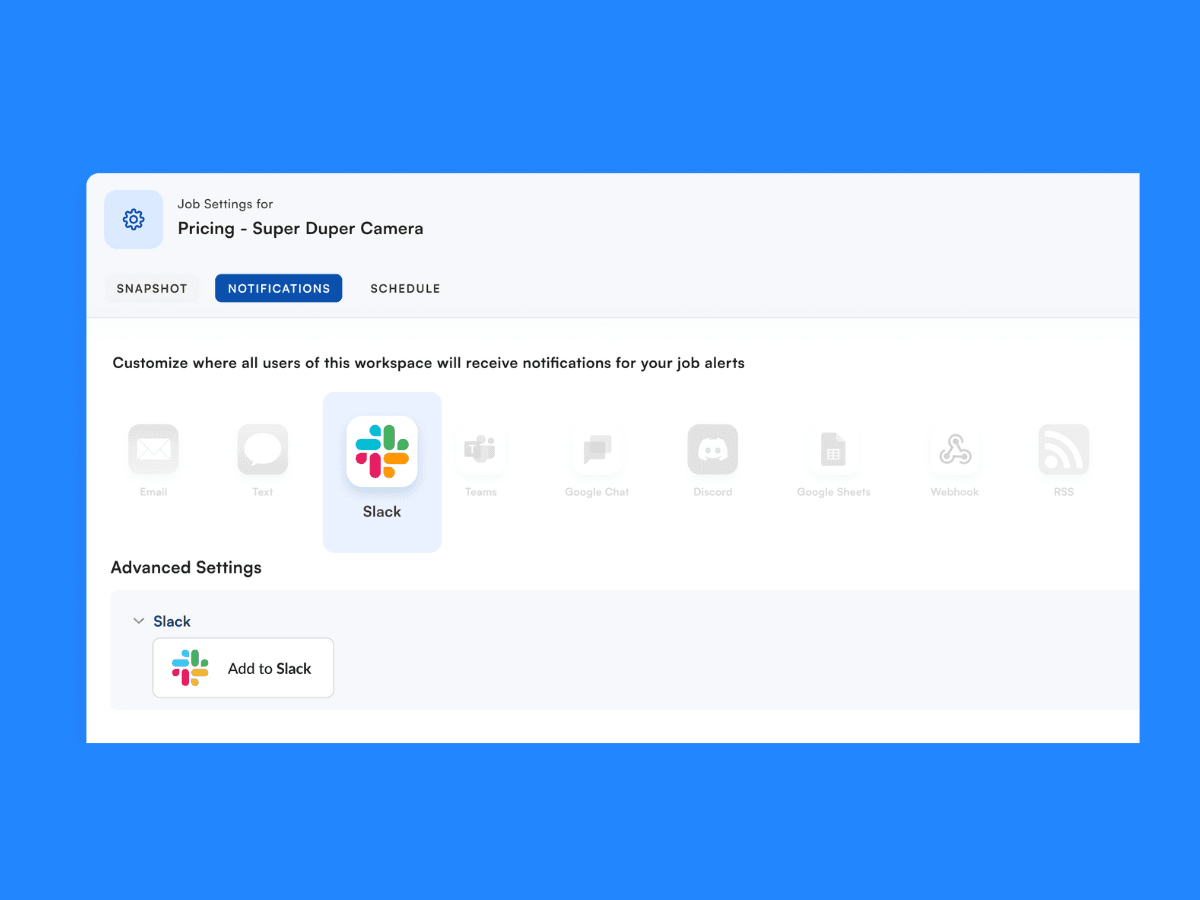
Configure Slack integration: Click "Add notification" and select Slack. Authorize Visualping to access your workspace (you'll need Slack admin permissions for this). Then choose which channel should receive alerts for this monitor.
Name and organize: Give the monitor a descriptive name and add it to a folder for easy organization if you're creating multiple monitors.
Step 4: Test and Refine
After creating your first monitor, test it.
Make a small edit to your selection if needed to trigger a test alert, or wait for the next scheduled check. When the alert appears in Slack, verify that:
- It posts to the correct channel
- The alert format works for your team
If you're getting too many false positives (alerts for irrelevant changes), narrow down your "Alert me when" condition. If you're worried about missing changes, you might widen your selection or increase check frequency.
Best Practices for Website Change Alerts in Slack
Once your website monitoring alerts with Slack integration are active, these practices will help you get maximum value:
Create Alert Response Workflows
Having alerts is only valuable if your team knows what to do with them. Document clear workflows:
For competitor alerts:
- Who reviews the change and assesses impact?
- When should it be escalated to leadership?
- How do we share insights with sales or marketing?
- Where do we document new competitive intelligence insights?
For supplier/partner alerts:
- Who evaluates policy or pricing changes?
- When should we reach out to the supplier?
- How do changes affect our operations?
- What internal teams need to know?
Use Slack Threads Strategically
When an alert comes in, use Slack's thread feature to keep discussions organized:
- Start a thread on the alert to discuss implications
- Tag relevant team members who need to see it
- Document decisions or actions taken
- Add emoji reactions to signal review status (? for reviewing, ✅ for handled)
This keeps your channel readable and preserves context around each alert.
Avoid Alert Fatigue
Too many alerts decrease effectiveness. Keep alerts valuable by:
- Monitoring selectively: Only track pages where changes actually matter to your business. Don't monitor everything just because you can.
- Using precise selections: Monitor specific page sections rather than entire pages to reduce noise from irrelevant updates.
- Setting appropriate frequencies: Don't check hourly if the page updates monthly. Match check frequency to actual update patterns.
- Archiving low-value monitors: If a monitor consistently produces alerts your team ignores, either refine it or remove it.
Review and Optimize Regularly
Periodically review if your Slack website alert system is working well for your team. Some questions to consider:
- Which monitors are producing valuable alerts?
- Which ones are creating noise without value?
- Are there new pages we should be monitoring?
- Are alerts reaching the right Slack channels?
- Do check frequencies match actual update patterns?
- Are there websites we can stop monitoring?
Regular optimization keeps your monitoring program focused and effective.
Leverage Slack Search
One underrated benefit of Slack integration is searchability. When you need to find when something changed, search your monitoring channel:
- "competitor pricing" finds all pricing alerts
- "from:Visualping April" finds all April changes
- "has:link" finds alerts with links to changed pages
This makes Slack your searchable monitoring archive.
Making Website Change Alerts with Slack Integration Work for Your Team
Being able to receive, view, and discuss website change alerts in Slack is a game changer for distributed teams.
Your team already lives in Slack. They check it constantly, use it for urgent communications, and have processes built around it. Routing website monitoring alerts directly into Slack is a no brainer.
Visualping makes it simple to get website change alerts in Slack. Whether you're tracking five websites or fifty, getting website change alerts in Slack helps your team respond faster, collaborate better, and stay ahead of changes that matter to your business.
For a more detailed guide on how to integrate Visualping into Slack, check out our Help article here.
Frequently Asked Questions About Website Change Alerts with Slack Integration
Can I send different website monitors to different Slack channels?
Yes, and you should. Website change alerts with Slack integrations let you configure channel routing individually for each monitor. Your marketing team doesn't need supplier updates, and your procurement team doesn't need competitive intelligence alerts.
Create purpose-specific Slack channels and route appropriate monitors to each one. For example, route all competitor monitors to #competitor-alerts, supplier monitors to #supplier-updates, and review monitoring to #review-alerts.
How do I avoid overwhelming my team with too many Slack alerts?
Alert fatigue is real and reduces the effectiveness of website change alerts with Slack integration.
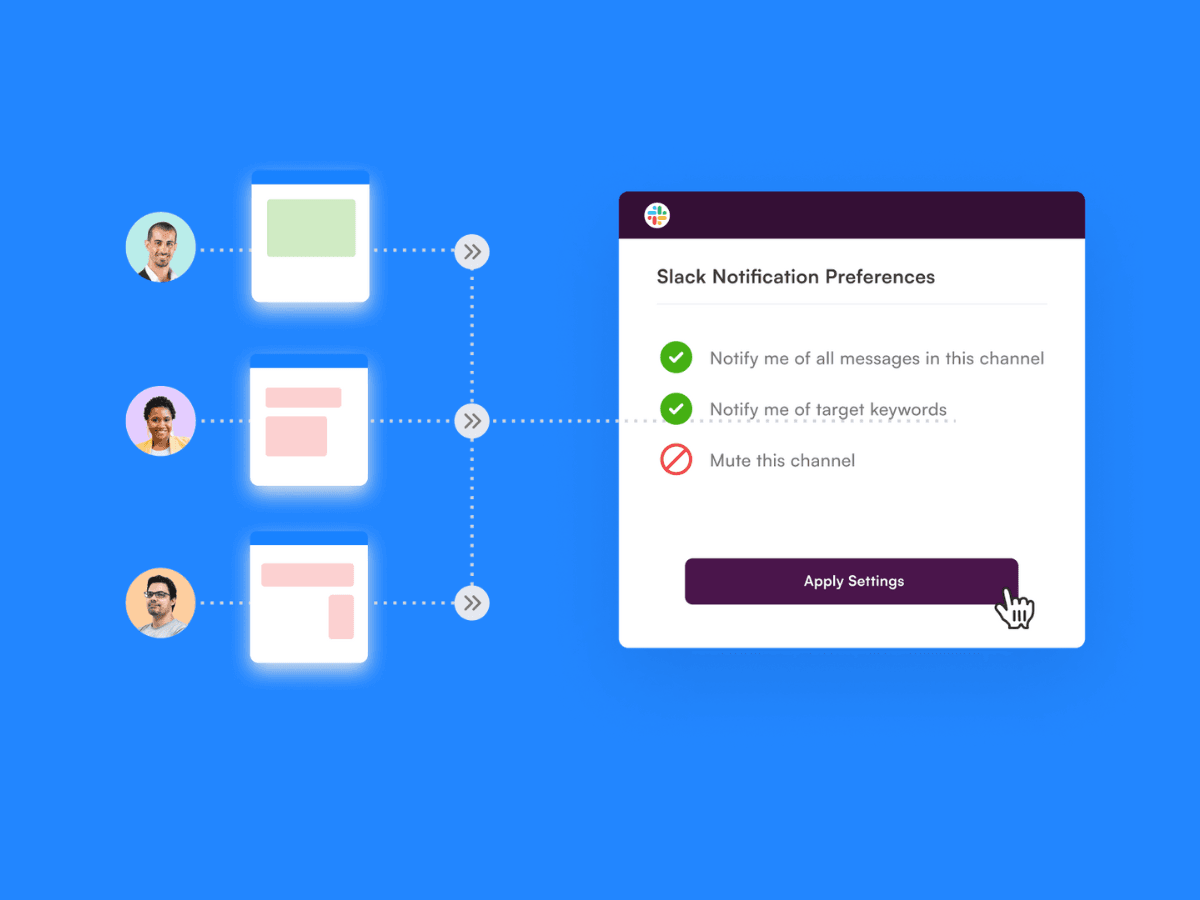
Prevent it by: (1) Monitor selectively, a.k.a. only track pages where changes actually matter. (2) Use precise page selections to monitor specific sections rather than entire pages. (3) Set appropriate check frequencies based on how often pages actually change. (4) Route different alert types to different Slack channels so team members only see relevant website monitoring alerts. (5) Regularly review and remove monitors that consistently produce low-value alerts. (6) Use Slack's notification settings to mute less-critical channels during focus time while keeping urgent channels active.
Want to monitor web changes that impact your business?
Sign up with Visualping to get alerted of important updates from anywhere online.
Eric Do Couto
Eric Do Couto is the Head of Marketing at Visualping. He leads content strategy, growth operations, and brand positioning for website change detection.
More articles by Eric Do Couto