Introducing Site Scan for Finding the Pages Worth Monitoring on a Website
By Kayla Zhu
Updated November 23, 2026
TL;DR: Site scan is a new tab in the Visualping monitor creator. Enter a website, pick the kinds of pages that matter or describe them in your own words, and Visualping reads up to 250 of the site's pages once. Each page is marked as a match or not, and you pick the ones to monitor. Site scan is live now in the Visualping app on desktop for Business plans and the 14-day Business trial.
Visualping is good at watching a page once you know which page to watch. Paste the URL, choose how often to check it, and you hear about the changes that matter.
Finding the pages is the slow part. If you track a competitor, you want their pricing page, their product pages, their press page and the policy pages that change quietly. Discovery suggests pages from a topic search and Bulk adds a list you already have. Neither reads through one site you know well, so finding the right pages there usually means clicking through it yourself, and the list covers whatever you thought to look for.
Site scan does that first pass for you. Here's what shipped.
Describe the pages that matter, and Visualping reads the site
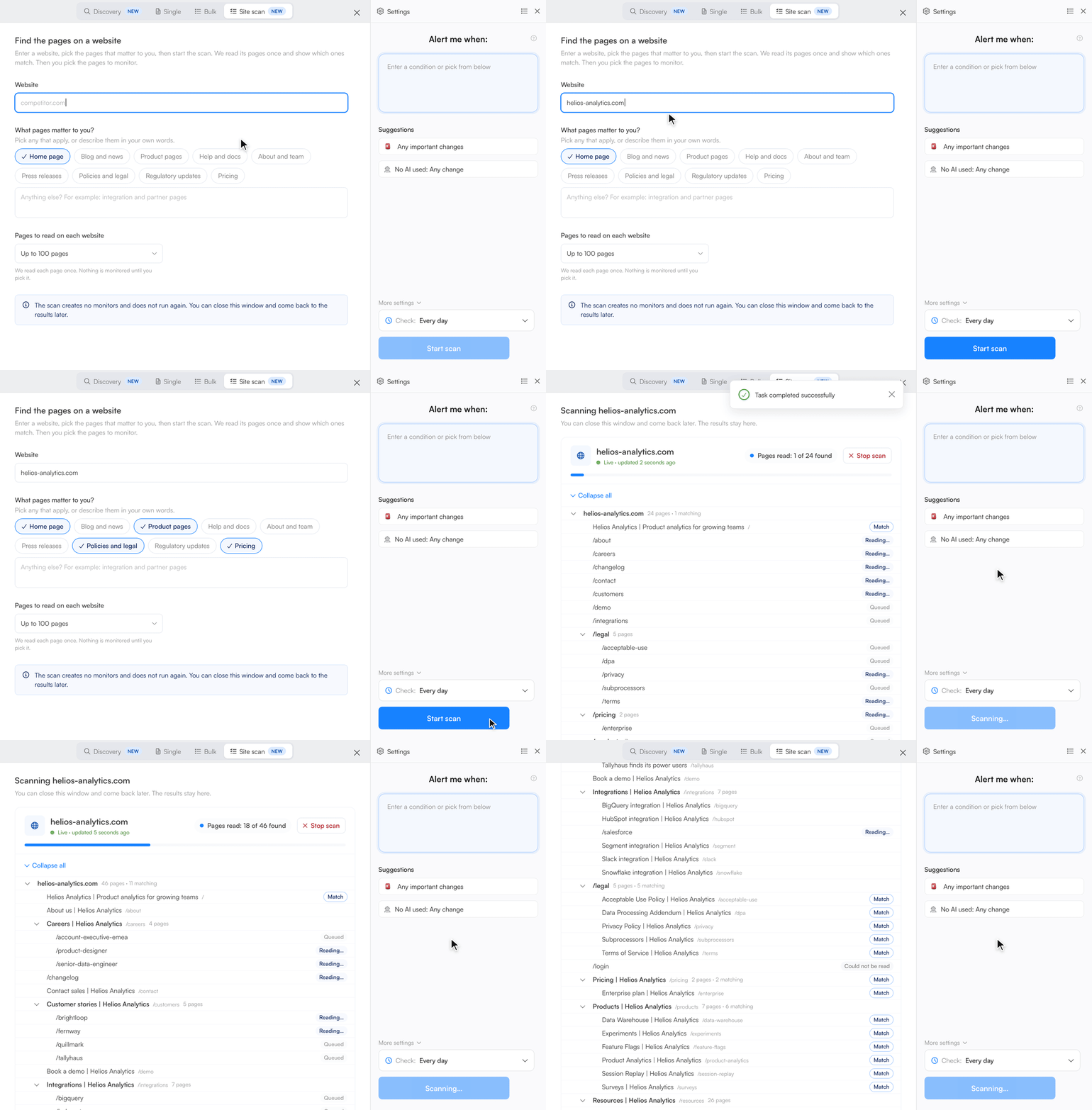
Open the Site scan tab and enter a website, such as competitor.com. Under What pages matter to you?, pick any of nine page types: Home page, Blog and news, Product pages, Help and docs, About and team, Press releases, Policies and legal, Regulatory updates and Pricing. Add anything else under Other pages that matter, for example "integration and partner pages."
Then choose how many pages to read on the website: up to 50, 100 or 250. Visualping starts from the address you entered, follows the site's links up to three levels deep, and checks each page it reads against what you picked and wrote.
The scan runs in the background. The tab lists pages as they're found and read, with a running count ("Pages read: 64 of 100 found"). You can close the window and come back later, and the results will be waiting in the tab.
See which pages match, folder by folder
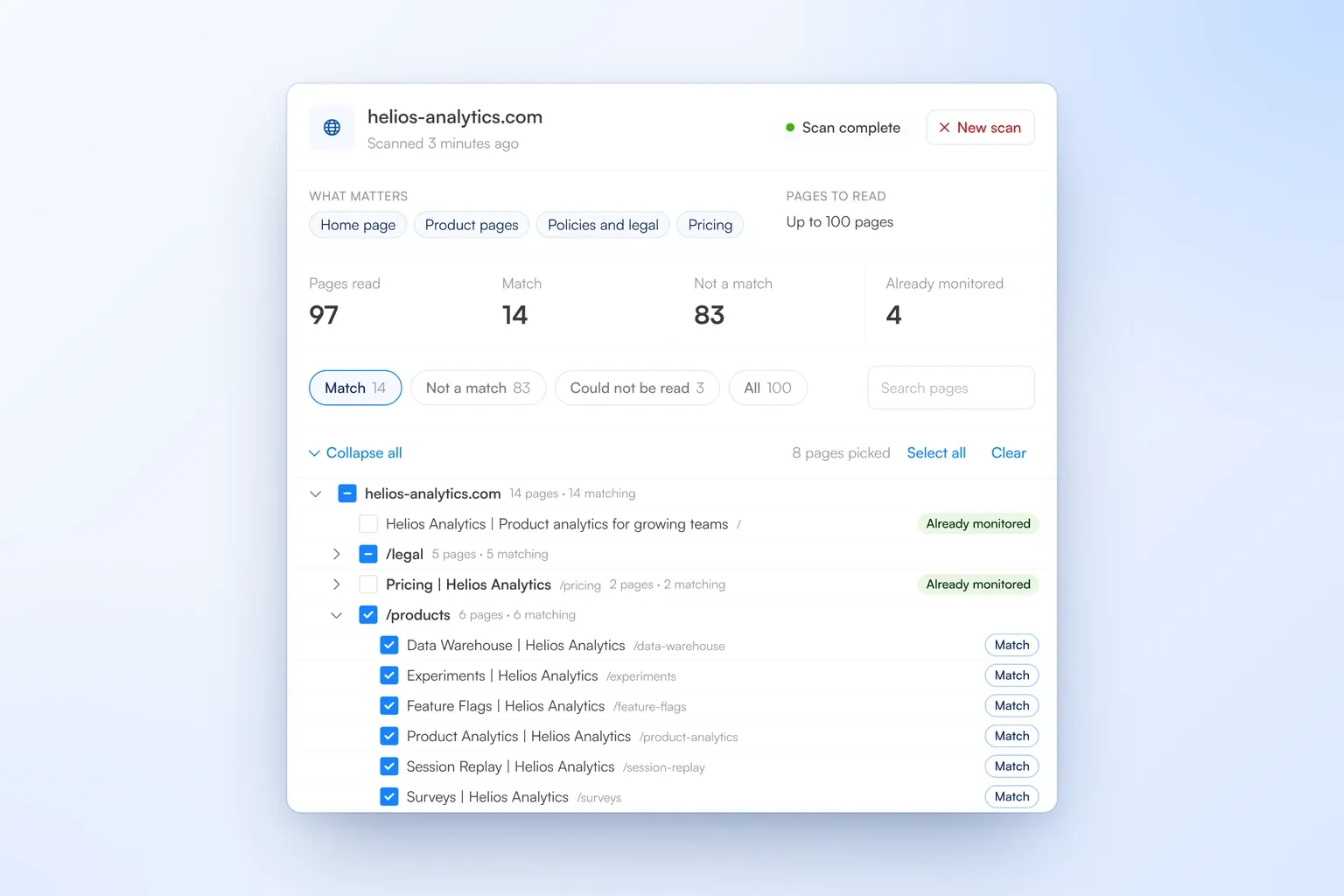
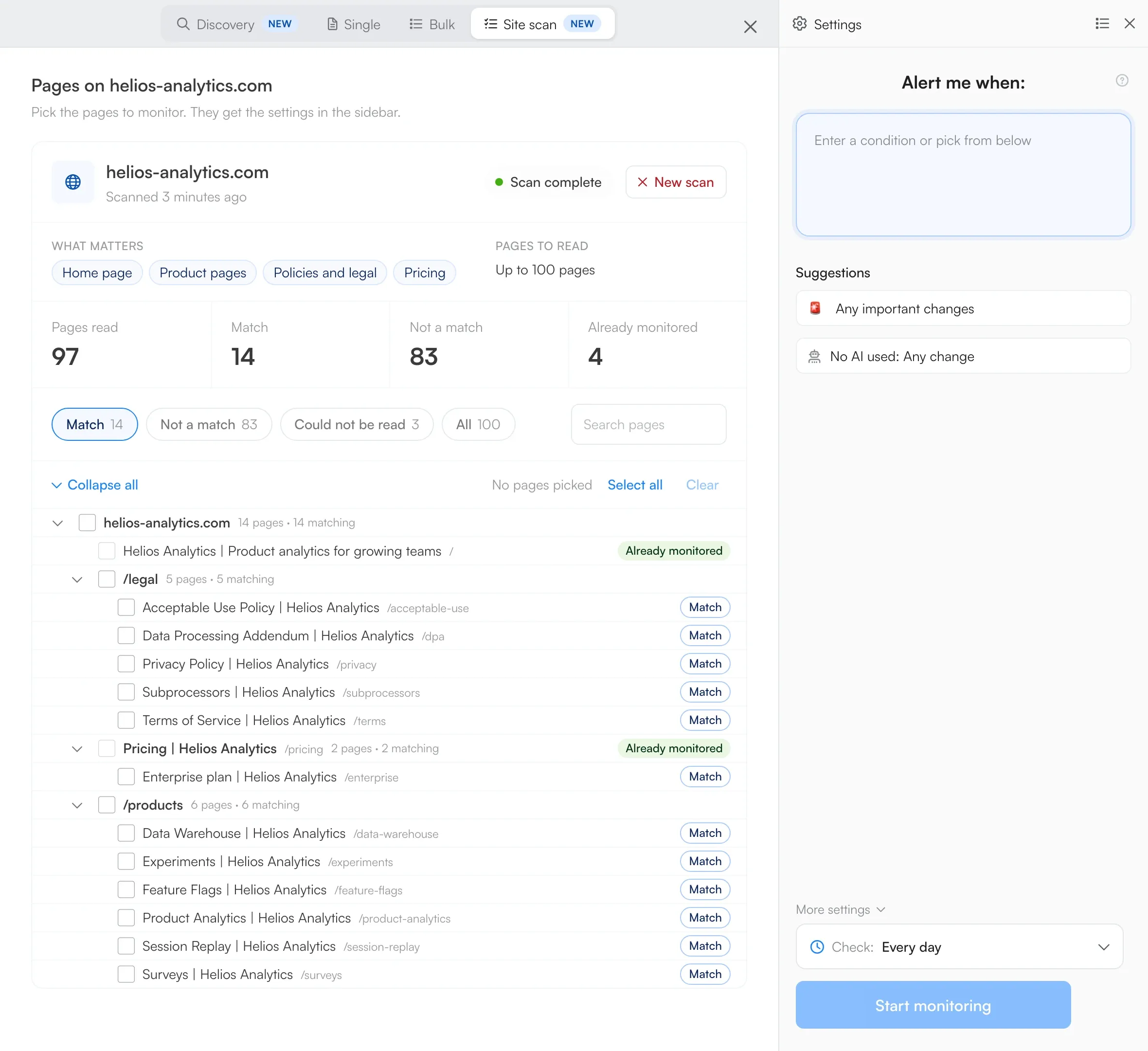
When the scan is complete, the results show the website the way it's organized, as folders and pages. Each page is marked as a Match, Already monitored or Could not be read, and each folder shows how many of its pages match ("31 pages · 9 matching").
A summary at the top counts pages read, matches, pages that didn't match and pages you already monitor, so you can see how much of the site the scan covered before you pick anything. The Show pages filter switches the list between Match, Not a match, Could not be read and All.
Matching is a yes or no for each page, based on what you described. If the matches look too broad or too narrow, start a new scan with different page types or wording.
Pick a page or a whole folder, and set them up once
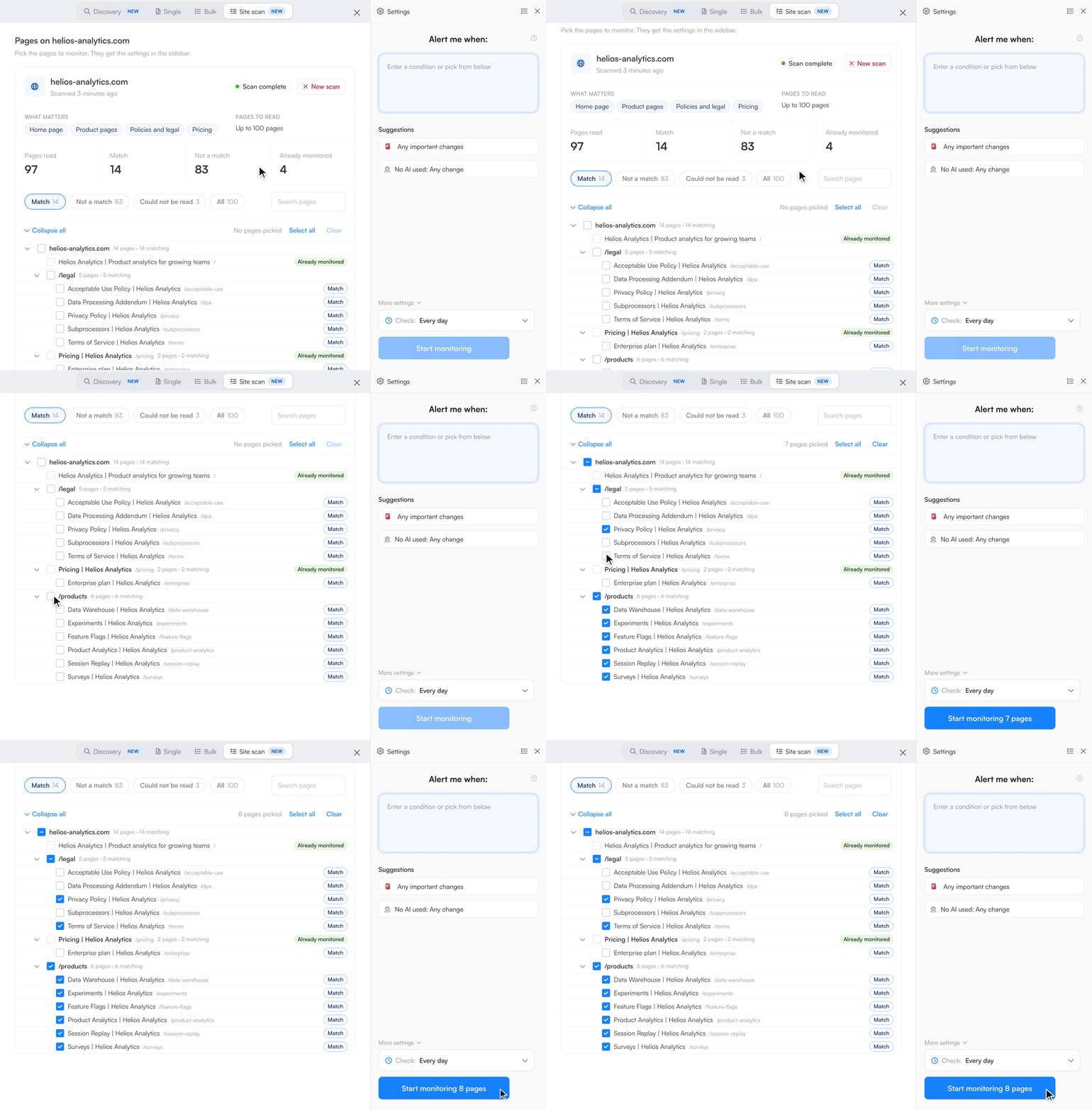
Tick single pages, or tick a folder to pick every page under it. Select all and Clear are there for bigger lists, and the bar above the list keeps count ("8 pages picked").
The pages you pick all get the settings in the creator sidebar, so you set them up once instead of page by page, and Visualping creates the monitors together. Pages you already monitor are marked and can't be picked twice. If a page couldn't be read during the scan, you can still pick it, and its monitor reads it again.
Nothing is monitored until you pick it, and the scan doesn't run again on its own. To take a fresh look at the site later, click New scan. That clears the old results, and the monitors you already created stay.
Run a site scan in your workspace →
Visualping suggests a scan when you add pages one at a time
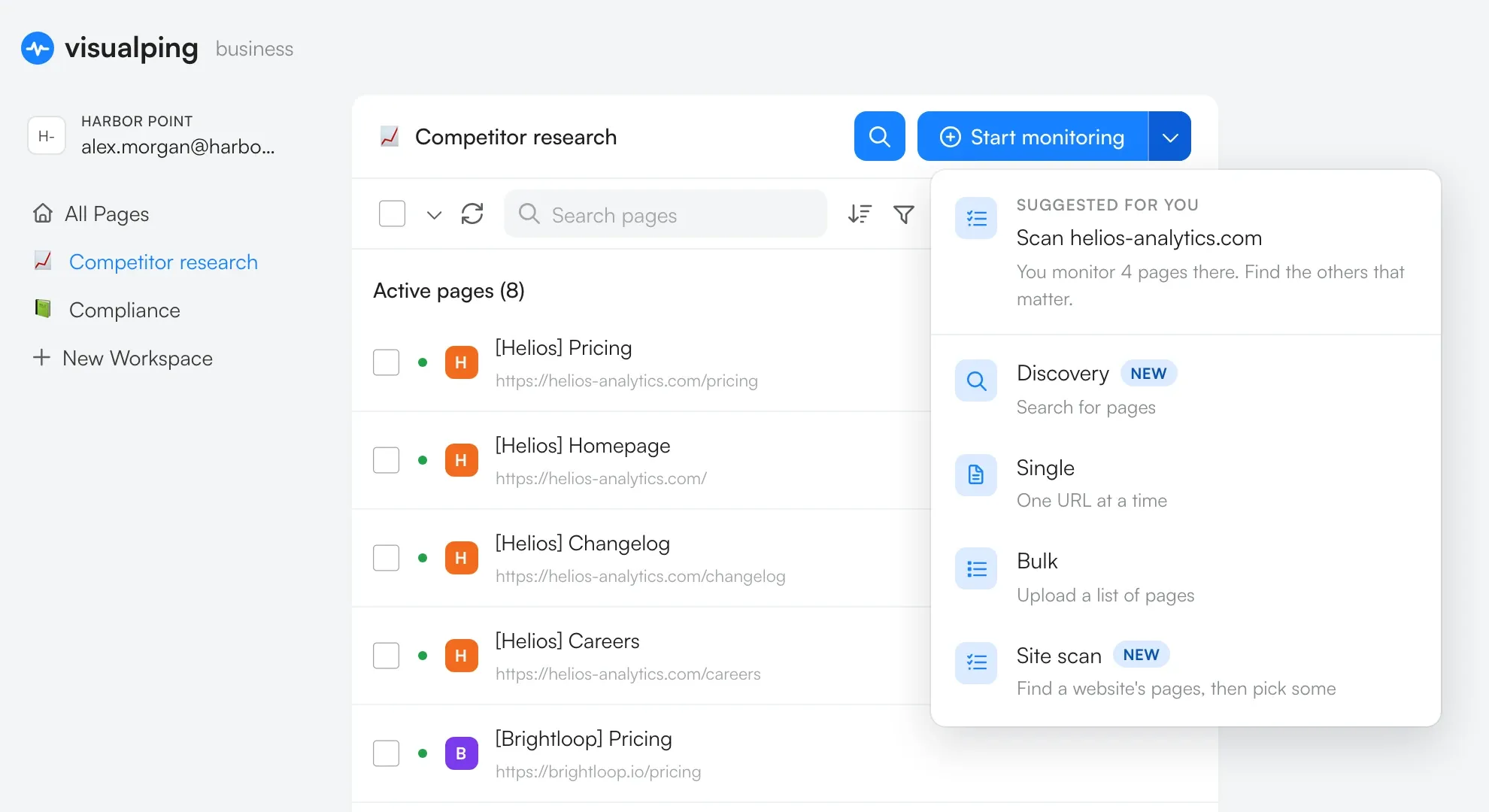
If your workspace already monitors two or more pages you added yourself on the same website, Visualping picks that up. The arrow next to Start monitoring on your dashboard shows a small orange dot, and the menu opens with a suggestion under Suggested for you, such as "Scan competitor.com. You monitor 4 pages there. Find the others that matter."
Visualping suggests the website you monitor the most pages on. Click the suggestion and the Site scan tab opens with that website already filled in.
Why this matters if you watch more than a few pages per site
Most Business teams on Visualping already watch several pages per website. In November 2026, 798 of the 1,618 paid Business workspaces with active monitors (49%) watched five or more pages on the same website, and 536 (33%) watched 10 or more.
The pages that slip through are usually the ones nobody knew to open: the shipping policy linked only from the checkout footer, a guidance archive three clicks into a regulator's site, a partner terms page. Site scan reads those too, up to your page limit, and puts them in front of you to decide.
Site scan runs once. If you need Visualping to keep finding new pages on a site and monitor them as they appear, that's Domain Monitoring, available on Solutions plans.
Getting started
Site scan is live now in the Visualping app, on desktop, for every Visualping Business plan and the 14-day Business trial. There's nothing to turn on.
- Go to your Visualping dashboard, click the arrow next to Start monitoring and choose Site scan. You can also open the creator and pick the Site scan tab.
- Enter a website and pick the pages that matter, or describe them in your own words.
- Choose how many pages to read, then click Start scan.
- When the scan is complete, pick the pages to monitor, check the settings in the sidebar and create the monitors.
Monitors you create from a scan count toward your plan's page limit and use checks on their regular schedule, the same as any other monitor. Not on a Business plan yet? The 14-day Business trial is free and needs no credit card, and Discovery works on every plan.
Frequently asked questions
Which Visualping plans include Site scan? Site scan is available on every Visualping Business plan and on the 14-day Business trial. Free and Personal accounts don't have the Site scan tab, but they can use Discovery, which suggests pages to monitor from a description on every plan.
Does Site scan monitor the pages it finds? No. Site scan reads each page once and shows which ones match your description. Nothing is monitored until you pick pages and create monitors from them, and the scan doesn't run again on its own.
How many pages does Site scan read? Up to 50, 100 or 250 pages per website, with 100 as the default. Site scan follows links up to three levels deep from the address you enter, so on large websites some pages may fall outside the scan.
How is Site scan different from Discovery? Discovery starts from a topic, searches the web and suggests up to five pages from any website. Site scan starts from one website you already know, reads up to 250 of its pages and marks which ones match what you described.
Will Site scan find new pages that appear later? No. Site scan is a one-time read. To take a fresh look, start a new scan from the results. Domain Monitoring, on Visualping Solutions plans, rescans websites on a schedule and monitors new matching pages for you.
Start from the site itself
Site scan joins Discovery and Bulk as ways to add pages in the monitor creator: Discovery for a topic, Bulk for a list you already have, and Site scan for a website you know well. Pick the site you check most often and run a scan.
Want to monitor web changes that impact your business?
Sign up with Visualping to get alerted of important updates from anywhere online.
Kayla Zhu
Kayla is the Public Relations Specialist at Visualping and manager of Visualping's Journalist Program. She manages Visualping's media relations, content marketing, and social media.
More articles by Kayla Zhu