When Does Old Navy Restock? How to Track Sold-Out Sizes
By Anika Gupta
Updated October 29, 2026

When Does Old Navy Restock Online?
For a sold-out size, check the current product page and ask Old Navy customer service about that item. Review any notification options offered on the page or in your account. You can also use a page monitor to check for captured availability changes.
Visualping does that checking for you.
Paste the product URL into Visualping and confirm that the preview shows the intended size, color and availability. Describe what you want, for example, "Alert me when size M in blue is available to order," and confirm condition-only notifications are enabled. After a scheduled check detects a matching change, Visualping can email you. Cloud checks run as often as every 2 minutes on Personal 10K and Business, and hourly on Free, within each plan’s check allowance.
Does Old Navy Restock Sold-Out Items?
A specific sold-out item may remain unavailable. Check its live page for the size and color you want, and use Old Navy’s customer-service pages for help with an existing order. A stock alert cannot establish when a future restock will happen.
If you monitor the page, open the live listing when an alert arrives and confirm that your selection is still available to order.
With Visualping, choose a page and a supported cloud interval. Every plan includes email notifications, AI summaries and a flag indicating whether each detected change is important. Review the preview and your criteria to confirm the monitor is watching the intended content.
Free includes up to 5 pages and 150 checks per month. One page checked every 6 hours uses 120 checks over 30 days or 124 over 31 days. All cloud monitors share the allowance, and failed checks count. Monitoring pauses when the allowance is exhausted until reset or upgrade.
How To Track Out of Stock Products on Old Navy with Visualping
Create an account or sign in through the Visualping homepage. In the dashboard, select Start monitoring, which opens the Single tab. Paste the Old Navy URL and click Go. Confirm the intended size, color and availability in the preview before configuring the alert.
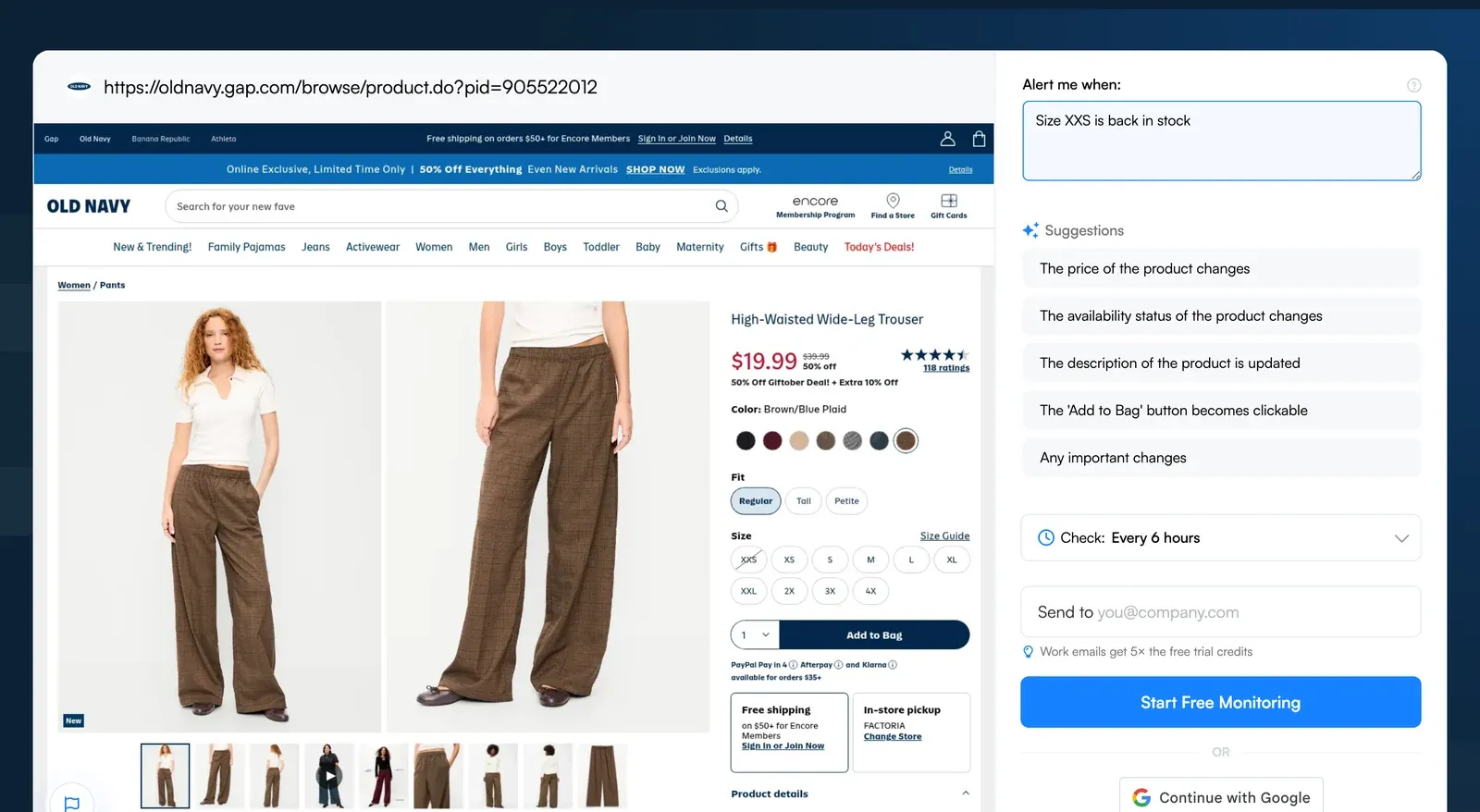
Historical setup screenshot with a size-XXS prompt and six-hour checks. The pictured prices, promotion, trial message and interface are examples; use the current instructions and plan limits below.
Step-by-Step Breakdown of How to Track Out of Stock Products
Step 1: Add the Old Navy Product URL to Visualping
Suppose a sweater you want is unavailable in medium. Copy its URL, create an account or sign in at Visualping, and open Start monitoring in your dashboard. On the Single tab, paste the URL and click Go.
Step 2: Tell Visualping What to Alert You About
If the intended color or size needs a page interaction, configure Actions first and check the updated preview. Full-page monitoring is the default; you can optionally select the area containing the availability details. Recheck the area after changing Actions. In Alert me when, pick an AI suggestion or write a condition such as "Alert me when size M in blue is available to order." Confirm Alert me only when the AI condition is met is enabled. It is on by default when you enter a prompt.
In AI Mode, style-only changes such as a CSS color change do not trigger alerts. If your size is shown as unavailable only through styling, such as a greyed-out or crossed-out button, a restock may not trigger an alert. If selecting the size reveals availability text, use Actions to select it, include that text in the monitored area and confirm it in the preview. A prompt does not select a size for you. To monitor two sizes together, both must be captured in the monitored area; otherwise use separate monitors and account for their page slots and check use. Review alerts for AI errors.
Step 3: Set Monitoring Frequency with Visualping
Choose a cloud-check interval available on your plan. Free supports checks as often as hourly, Personal 1K every 15 minutes, Personal 5K every 5 minutes, and Personal 10K and Business every 2 minutes. Longer available intervals reduce check use.
One hourly page uses 720 checks over 30 days or 744 over 31 days, exceeding Free’s 150-check allowance. One page checked every 15 minutes uses 2,880 checks over 30 days or 2,976 over 31 days, exceeding Personal 1K’s 1,000 checks. Personal 5K includes 5,000 monthly checks. Compare the current subscription plans and budget for every cloud monitor.
Step 4: Start Monitoring
Click Start monitoring and complete any remaining account or verification prompts.
Step 5: Confirm Notifications and Review the Monitor
Confirm that email notifications are enabled in your notification settings and use those settings to test delivery. Visualping can send an email after a scheduled check detects a matching change. SMS starts on Personal 5K. Review the monitor’s captured content, condition and interval in your dashboard before relying on the alert.
Track Restocks at Other Retailers
Related guides explain how to monitor out-of-stock products, including pages at Best Buy and Costco. Test each page’s preview separately.
For price monitoring, see our price-drop guide and setup instructions for Target and Amazon.
Start with the exact product and variant, confirm the preview, and choose a check schedule within your allowance.
Want to get back in stock alerts?
Sign up with Visualping to get back in stock alerts for any product you've got your eye on.
Anika Gupta
Anika Gupta is a former Marketing Intern who wrote about competitive intelligence and marketing strategy for the Visualping blog.
More articles by Anika Gupta