How to Get Restock Alerts and Back in Stock Notifications
Updated October 27, 2026
Quick answer: Monitor a product page with Visualping to receive an email after a scheduled check detects a relevant stock change. Confirm that the preview shows the product and availability information you want. The free plan includes 5 pages and 150 checks per month, enough for one daily check on each page over 30 days. Checking more often than daily, down to the 60-minute cloud minimum, uses the allowance sooner. Personal 1K allows 15-minute cloud checks with 1,000 monthly checks for $120/year ($10/month equivalent), or $14 month to month. Create a free account to set up your first alert.
Do you ever line up the perfect new item, only to find that your size or color is gone?
Set up a page monitor for the size or color you want, then choose the changes and check schedule that matter to you.
Getting started:
- Copy the URL of the product you want to monitor.
- Confirm that the preview shows its availability and your selected variant.
- Add an “Alert me when” prompt, such as “Add to Cart appears for Size 12.”
- Choose a check schedule within your plan’s allowance and confirm that email notifications are enabled.
Set up your free restock alert, then verify the preview, schedule, and alert settings.
Jump to: Setup walkthrough · Compare methods · Smart tips · FAQ
Setup walkthrough
The three steps below cover page selection, alert criteria, and scheduling. The free plan includes five pages and 150 checks per month.
Step 1: Drop the product URL into Visualping and pick the area to watch
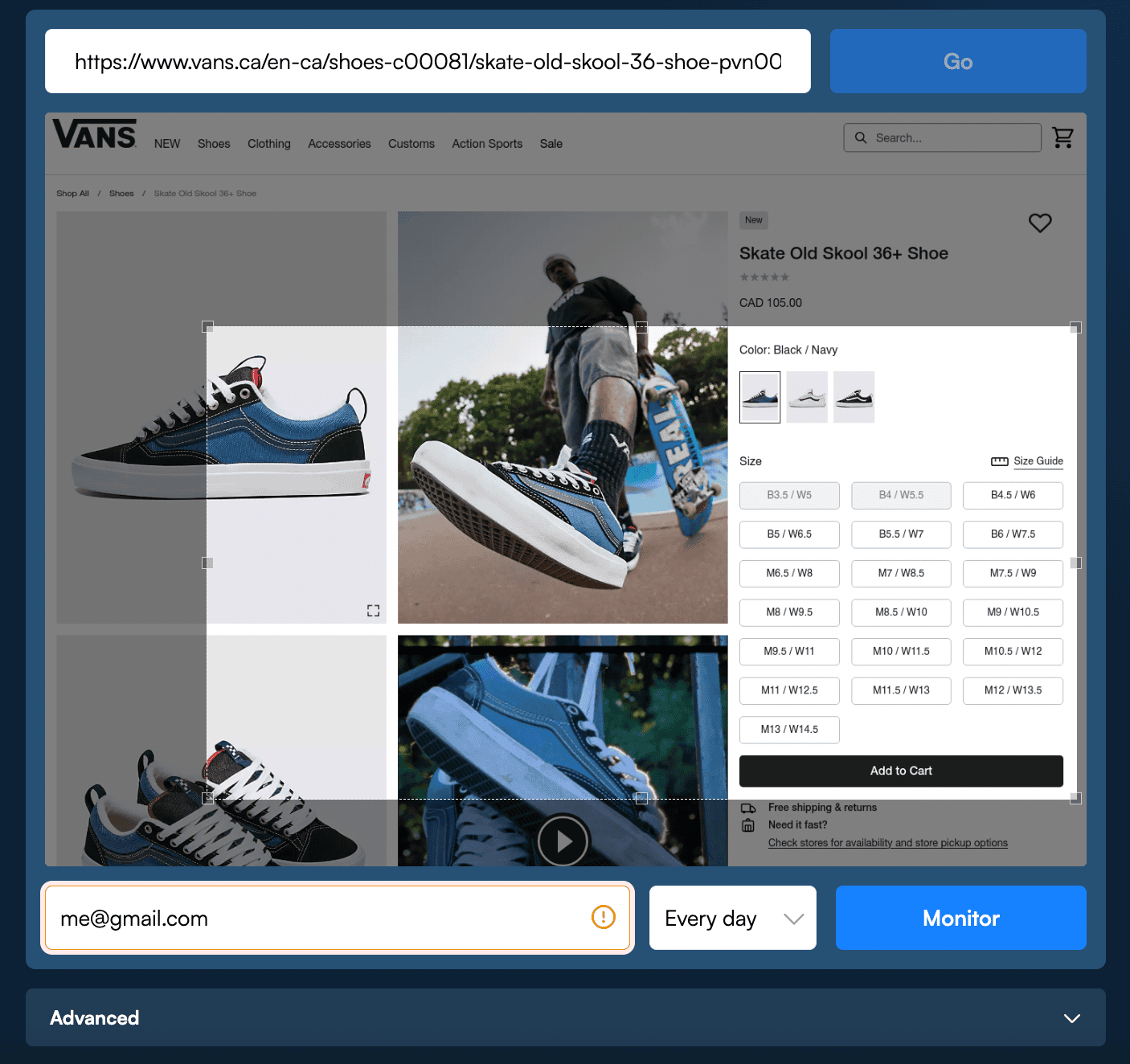
Setup example using an earlier Visualping interface and a Vans Canada page. Check your current preview for the product, price, and availability you want.
Open Visualping and choose Start monitoring in your dashboard. Paste the product page URL and click Go. Check that the preview loads. If a variant requires clicks or dropdown selections, add Actions first and confirm that the preview shows that variant. Then drag a selection around the relevant stock label, Add to Cart button, or size options. If you change Actions later, recheck that the selected area still covers the availability information.
Select an area that includes the availability information you need. Pair it with a specific “Alert me when” prompt. Recheck the selected area if the retailer redesigns the page.
Use the default AI Mode with an availability-focused prompt. The current area-selection guide explains how to choose the part of the page to monitor.
Step 2: Add an AI prompt for the stock change you want
Use the “Alert me when” field to describe the specific availability change you want to follow.
Add a short instruction like: "Alert me only when 'Add to Cart' appears, or when 'Size 12' becomes selectable. Ignore changes to price, reviews, or recommended items."
Visualping AI uses your prompt to classify each detected change with a binary Important flag and an AI Summary. Confirm that “Alert me only when the AI condition is met” is enabled if you want notifications filtered by that classification. Review the summary and before-and-after screenshots, then open the product page to confirm availability.
Step 3: Pick a check schedule and confirm email alerts
Choose a cloud check interval based on how often you want to check and the allowance available. Eligible paid plans support intervals as short as two minutes. For one page running continuously over 30 days, 15-minute checks use 2,880 checks and hourly checks use 720. The Free plan’s 150 checks cover 6.25 days of hourly checks on one page, assuming no other checks use the allowance.
Enable email notifications and click Start monitoring. Review the saved monitor’s preview and settings. Visualping captures a baseline, then compares later checks with the previous version. An email is sent after a check detects a change that meets your alert settings.
A change-alert email includes an AI Summary, before-and-after screenshots with changes highlighted, and a link to open the product page. Confirm the item, price, and checkout options there before buying.
Comparing restock alert methods
These options involve different setup choices. Check how each one reports availability for the product you want.
Retailer “notify me” forms. Read the form’s terms and notification options, including any marketing preferences. Confirm the product’s current availability when a notification arrives.
Browser extensions. Check whether the monitor runs locally or in the cloud. Visualping’s local monitors require Chrome to stay open; its cloud monitors continue when the computer is off. See Chrome monitoring options for setup guidance.
Refreshing the page yourself. You see the page’s current information when you visit it. Choose when to check again.
Reddit threads and Discord servers. Use community tips as leads, then confirm the product and purchase terms on the retailer’s page.
Visualping cloud monitors run on its servers. After confirming that the preview captures the product and variant you want, choose a check schedule and notification settings. A detected change can produce an email with the summary, comparison images, and a link to the page.
Check current plan limits before choosing a short interval. All cloud monitors share the plan’s monthly check allowance; monitoring pauses if that allowance runs out.
Visualping appears in G2’s website change monitoring category and Hongkiat’s 2023 monitoring-tool guide.
Want to set up a monitor in ChatGPT? Connect the Visualping app and sign in to your Visualping account. Then ask: Visualping, monitor [the URL you want to track]. Follow the app’s prompts and verify the saved monitor’s preview, schedule, and alert settings. Open Visualping in ChatGPT →
Smart tips
In an October 2026 sample of 3,374 personal accounts categorized from their declared interest in price drops or restocks, 1,449 (42.9%) had active monitors on more than one distinct stored URL. If you are watching several listings, create a separate monitor for each URL and include each monitor in your check budget.
Sample method: an October 28, 2026 UTC snapshot of active Visualping monitors with standard schedules. Internal and special-access accounts, members of internal organizations, deleted accounts, and automatically created or spider monitors were excluded. Accounts were grouped by their declared-use-case classification at extraction, which can prioritize one of several selections. The count includes each sampled account’s eligible URLs, regardless of page topic; several URLs can lead to the same underlying page.
- Track variants separately: If you need separate alerts for sizes, colors, or bundles, use a monitor for each configuration. Confirm each variant is visible in the preview and allow for the extra pages and checks.
- Adjust intervals for your plans: Use a shorter available interval when you want more frequent checks, then adjust it as your needs change. Estimate the check usage before changing the schedule.
- Add a price-drop monitor: Create a separate monitor whose selected area includes the price. For example, if your budget is $220, use “Alert me when this product’s price drops below $220.” This monitor uses another page slot and draws checks from the same monthly allowance.
- Verify store and region: Check the location shown in the monitor preview. Use the Check from option in Advanced settings for the cloud checking location, and Actions for any product or store selections that must be repeated.
Common questions
How do I get notified when items are back in stock? Monitor the product page’s availability information, set a specific “Alert me when” prompt, and confirm email notifications are enabled. An alert follows a successful scheduled check that detects a change meeting your settings.
Are retailer restock emails fast enough? Compare the retailer’s notification terms with your monitoring needs. With Visualping, check timing and your alert settings affect when you hear about a change. Confirm current stock on the product page before ordering.
Can I track specific sizes or colors? Configure the page for the variant you want, using Actions if needed, and verify it in the preview. Then describe that variant’s availability in your prompt.
Is there a free plan? Yes. Free includes five pages and 150 checks per month. Its fastest cloud interval is hourly, within that allowance. Paid plans add pages and checks, and offer shorter minimum intervals. Email and webhooks are included on Free; other notification options depend on the plan.
Can I use this for tickets, grocery drops, or non-retail pages? Try the specific page you want to monitor and confirm that its availability information loads in the preview. Page access, required interactions, and your settings affect whether the monitor can capture the change you need.
Related reading
Start your free restock alert, verify the captured product details, and choose a schedule within your check allowance.
Create your first back in stock alert with Visualping
Monitor a product page for availability changes.
Eric Do Couto
Eric Do Couto is the Head of Marketing at Visualping. He leads content strategy, growth operations, and brand positioning for website change detection.
More articles by Eric Do Couto