SAM.gov Alerts: Saved Searches and Better Options
Updated July 2, 2026
"SAM.gov alerts" means three different things, and getting the one you actually want takes some setup. There are system alerts (the banners SAM.gov posts about its own outages and changes), entity alerts (registration expiration reminders), and the one most people are after: notifications when new contract opportunities match your search. SAM.gov does offer that last one natively through saved searches and the follow feature, both free with a Login.gov account. This guide covers how to set them up, where they fall short, and how to get filtered, cross-source alerts on any SAM.gov page.
Three kinds of alerts, one setup that actually filters
The three kinds of SAM.gov alerts
| You want... | What it's called | Where it lives |
|---|---|---|
| Notices when opportunities match your niche | Saved-search notifications + the follow feature | Search → save, or follow a specific notice (account required) |
| Warnings before your entity registration lapses | Entity expiration alerts | Automatic emails tied to your registration record |
| To know when SAM.gov itself changes or goes down | System alerts | The banner on sam.gov and its announcements page for transition news |
The rest of this guide is about the first row, since that is where the setup choices and the trade-offs live.
What SAM.gov offers natively
SAM.gov's own framing is accurate and worth quoting: anyone may search contract opportunities without an account, and a user account lets you save searches, follow changes to opportunities, and join interested vendor lists. Three tools, three jobs:
Saved searches with email notifications
Run a search in Contract Opportunities, tune your filters, and save it. Your saved searches live at sam.gov/search/saved, and each can send email notifications when new notices match. Setup that works in practice:
- Sign in (any free Login.gov account) and open Search with the Contract Opportunities domain.
- Build the search: keywords, notice types, agencies, set-asides. Filter to active notices.
- Save it, name it something your future self will recognize, and turn notifications on.
Two configuration notes practitioners converge on: start broader than feels natural (keywords over NAICS codes on the first pass, since agencies mislabel NAICS constantly), and audit your saved searches quarterly, because a search tuned last year quietly rots as terminology shifts.
Following a specific opportunity
Signed-in users can follow a notice. Following tracks changes to that one solicitation: amendments, attachment updates, and deadline moves. If you have bid on something, follow it; a moved deadline you hear about late is an unforced error.
Interested vendor lists
Some notices let you join an interested vendor list, which signals your interest to the contracting office and (where the office enables it) lets other vendors see potential teaming partners. It is a visibility tool rather than an alerting tool, but it pairs naturally with following.
Where the native notifications fall short
Used as a safety net, saved searches are genuinely useful. Used as your only detection layer, four gaps show up:
They are keyword-literal. A saved search for "janitorial services" stays silent when the notice says "custodial support." The match is lexical; synonyms, acronym variants, and agency phrasing quirks all slip through. You end up maintaining keyword lists instead of describing what you want.
They cover one domain of one site. Saved-search notifications watch Contract Opportunities. They do not watch the Contract Awards data, an incumbent's record, state portals, or the DoD daily contracts page. Your pipeline rarely lives on one domain.
They are batch rather than real-time. Notification emails arrive on SAM.gov's schedule, which can trail the moment a notice posts. For most solicitation workflows that lag is fine; for same-day plays (a protest window, a hot award notice) it is worth knowing about.
Everything is account-bound. Notifications go to the account holder's inbox. Routing to a shared team channel, a CRM, or a spreadsheet means forwarding rules and duct tape.
The URL trick: any SAM.gov search is monitorable
Here is the piece most guides miss. When you run a search on SAM.gov, the address bar URL encodes your entire query, and that URL re-renders your live results for anyone who opens it, no login required. That makes any filtered search a public, watchable page.
One catch we confirmed by testing: a hand-typed shortcut like sam.gov/search/?keywords=cybersecurity renders an empty "Set Your Search Criteria" form. You need the full URL SAM.gov generates, which carries sfm[...] parameters. The template:
https://sam.gov/search/?index=opp&page=1&pageSize=25&sort=-modifiedDate&sfm[simpleSearch][keywordRadio]=ALL&sfm[simpleSearch][keywordTags][0][key]=cybersecurity&sfm[simpleSearch][keywordTags][0][value]=cybersecurity&sfm[status][is_active]=true
Swap cybersecurity for your term (it appears twice). Append &sfm[typeOfNotice][0][key]=a&sfm[typeOfNotice][0][value]=Award Notice to see only award notices, the fastest running answer to who just won in your niche.
Monitor the search URL with AI filtering
Paste that URL into Visualping, set a daily check, and describe what matters in plain language: "Alert me when a new solicitation or award notice is posted that mentions network security or zero trust." Every detected change comes back with a plain-language summary from Visualping AI and an importance flag scored against your prompt, which closes the keyword-literal gap: the prompt is semantic, so "custodial support" trips a "janitorial services" alert.
This is a live check from the monitor we run on the template URL above, with newly posted notices highlighted:
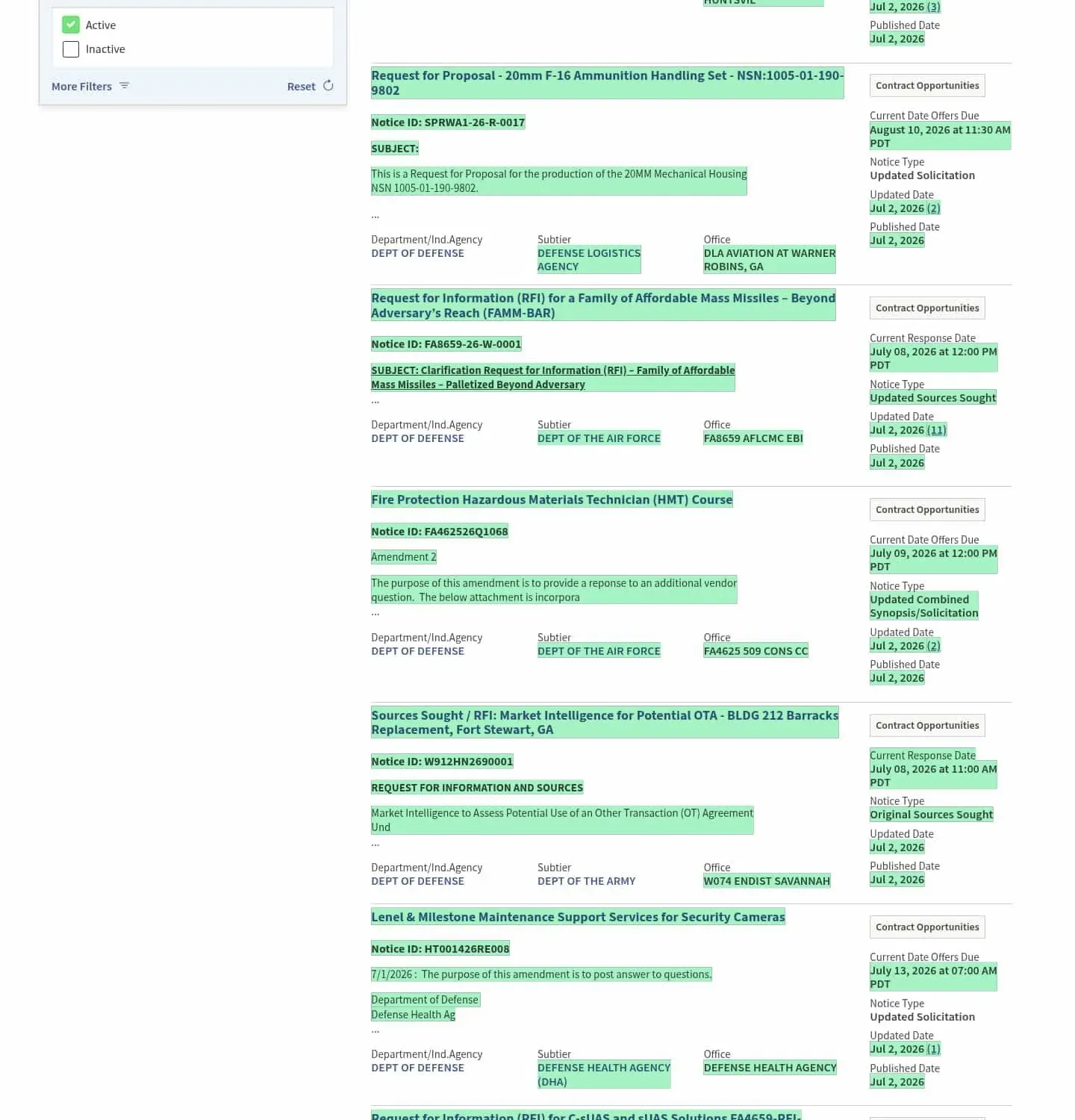 A real check on a SAM.gov search URL: new notices highlighted from a July 2026 run
The same pattern covers everything the native notifications cannot reach: award-notice-only searches, an incumbent's USAspending profile, state portals from the directory of award sources, and the DoD daily page, one alert layer across all of them, delivered to email or a shared webhook. The Free plan's 5 cloud monitors (plus unlimited local monitoring in the browser extension) cover a SAM.gov search, your state portal, and the DoD wire with room to spare.
Belt and suspenders is the honest recommendation: keep a saved search as the native safety net, and run the monitor as the filtered, cross-source layer on top. Our government contract award alerts guide extends this setup to every award source, and the government contract search guide covers the lookup side.
FAQ: SAM.gov alerts and notifications
Does SAM.gov send email alerts?
Yes, three kinds: saved-search notifications for new matching opportunities, follow notifications for changes to specific notices, and entity-registration expiration reminders. All require an account except the public system-alert banners on the site itself.
Can I get SAM.gov alerts without creating an account?
Not natively. But because SAM.gov search URLs are public and encode the full query, a change monitor on your search URL delivers alerts with no SAM.gov account at all.
What is a SAM expiration alert?
A reminder that your entity registration is approaching its annual renewal date. It is unrelated to contract opportunity notifications; letting registration lapse mid-pursuit is its own category of avoidable disaster, so do not filter those emails away.
Can I get alerts on SAM.gov contract award data as well as opportunities?
Native notifications cover the Contract Opportunities domain. For the award data itself (the FPDS record, post-migration), monitor an award-notice-filtered search URL or the equivalent USAspending page.
How fast are SAM.gov saved-search notifications?
They arrive in batches on SAM.gov's schedule rather than in real time. Pair them with a daily monitor on the search URL if same-day detection matters to your workflow.
Set the smarter layer up once. Create a free monitor on your SAM.gov search URL and let the next new notice announce itself.
Want to monitor web changes that impact your business?
Sign up with Visualping to get alerted of important updates from anywhere online.
Eric Do Couto
Eric Do Couto is the Head of Marketing at Visualping. He leads content strategy, growth operations, and brand positioning for website change detection.
More articles by Eric Do Couto