Introducing Alert on Error: Get an Email When a Monitor Stops Working
By The Visualping Team
Updated August 27, 2026
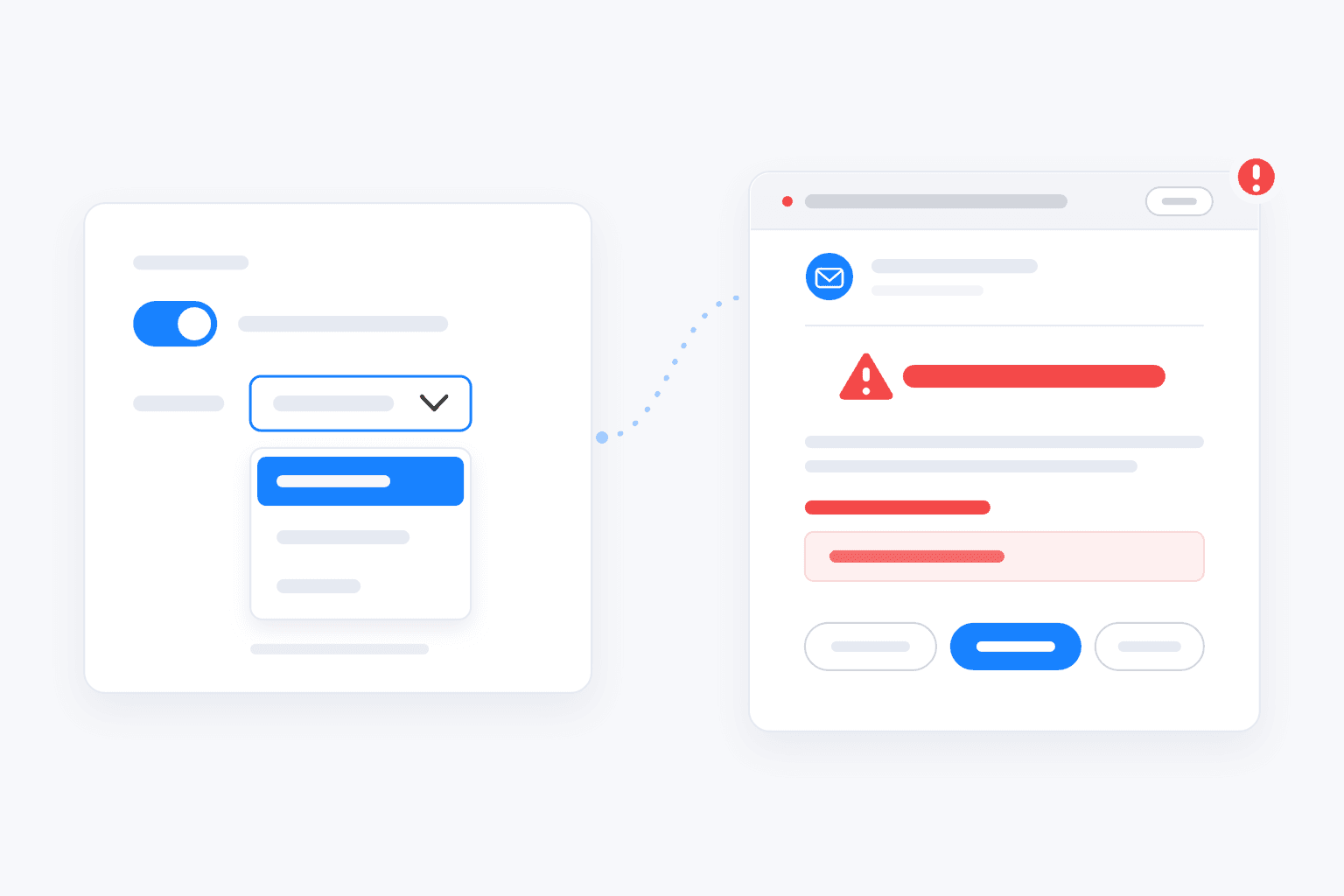
Quick summary: Visualping can now email you when a monitor stops working. Toggle Alert me on errors in a monitor's settings and choose when to be notified: on every error or after a certain amount of consecutive errors. The email will show the monitor, the number of failed checks, and the type of error. Available on all plans, including Free.
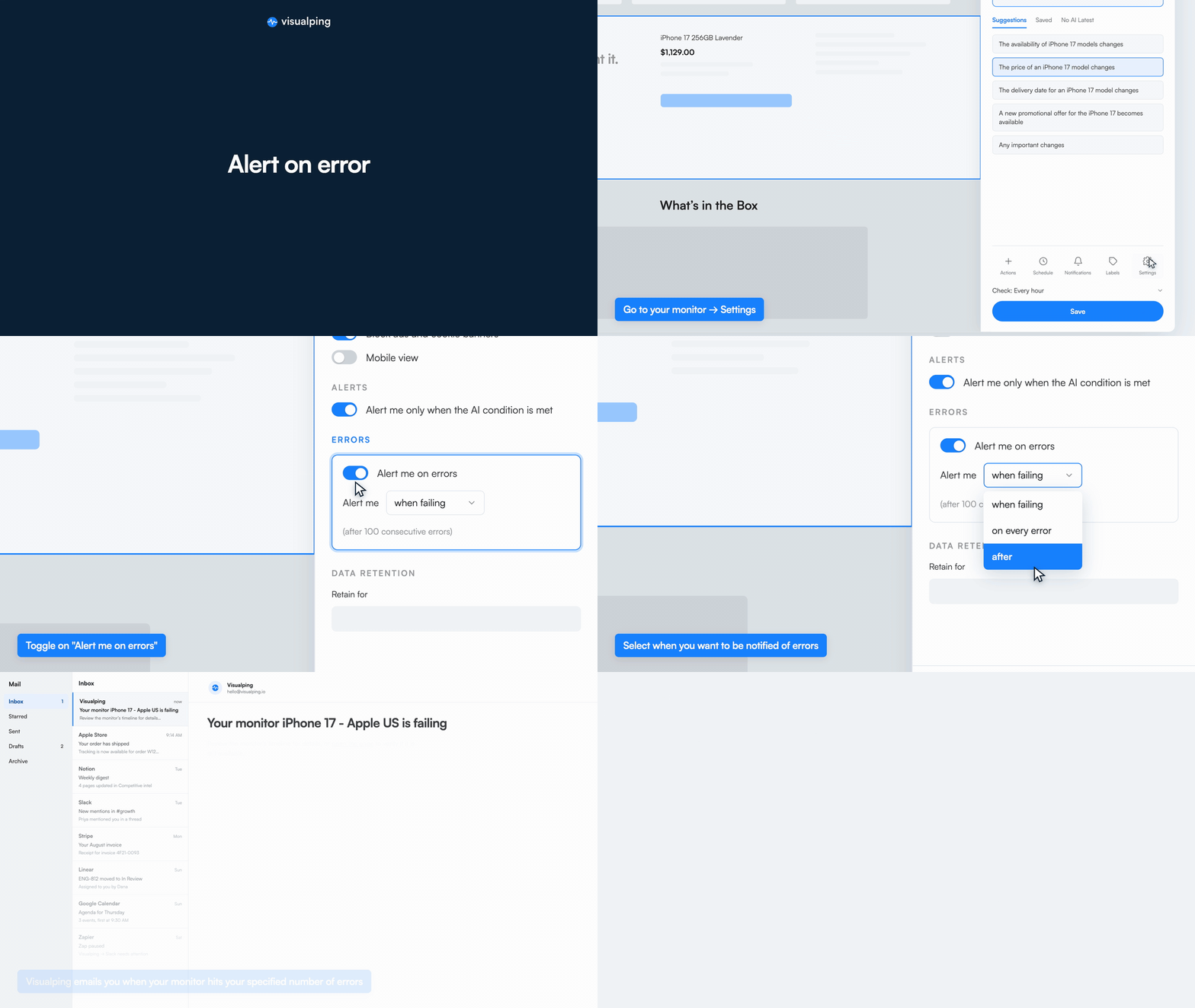 Turn on Alert me on errors, choose when to be notified, and Visualping emails you when the monitor starts failing
Visualping tells you when a page changes. An alert arrives, you open the diff, and you act on it.
Monitors can run into problems of their own, though. A site starts blocking the crawler, a product page gets taken down and returns a 404, a login expires, or a page keeps timing out. When that happens, the monitor stops producing results, and unless you check the Health Dashboard, it's easy to miss.
Alert on Error fixes that. Turn it on, and Visualping emails you when a monitor runs into errors. Here's how it works.
Getting started
Alert on Error is live now and set per monitor.
- Open the monitor and go to Settings on the bottom right corner.
- Scroll to Errors and toggle on Alert me on errors.
- Pick your trigger in the Alert me dropdown: when failing, on every error, or after your own consecutive-error count.
- Click Update settings.
Everything here works on every plan, including Free.
If you're new to Visualping, our guide on how to monitor website changes covers setting up your first monitor. And the Health Dashboard shows which of your monitors are erroring and why, all in one place.
For a more detailed look at the new Alert on error function, keep reading below.
Turn it on in Settings
Open any monitor, and then click the bottom right icon called "Settings."
Under Errors there's a new toggle: Alert me on errors. Switch it on, click Update settings, and Visualping will email you when that monitor's checks run into errors.
The setting is per monitor, so you can enable it for the pages you rely on most and leave it off for the rest.
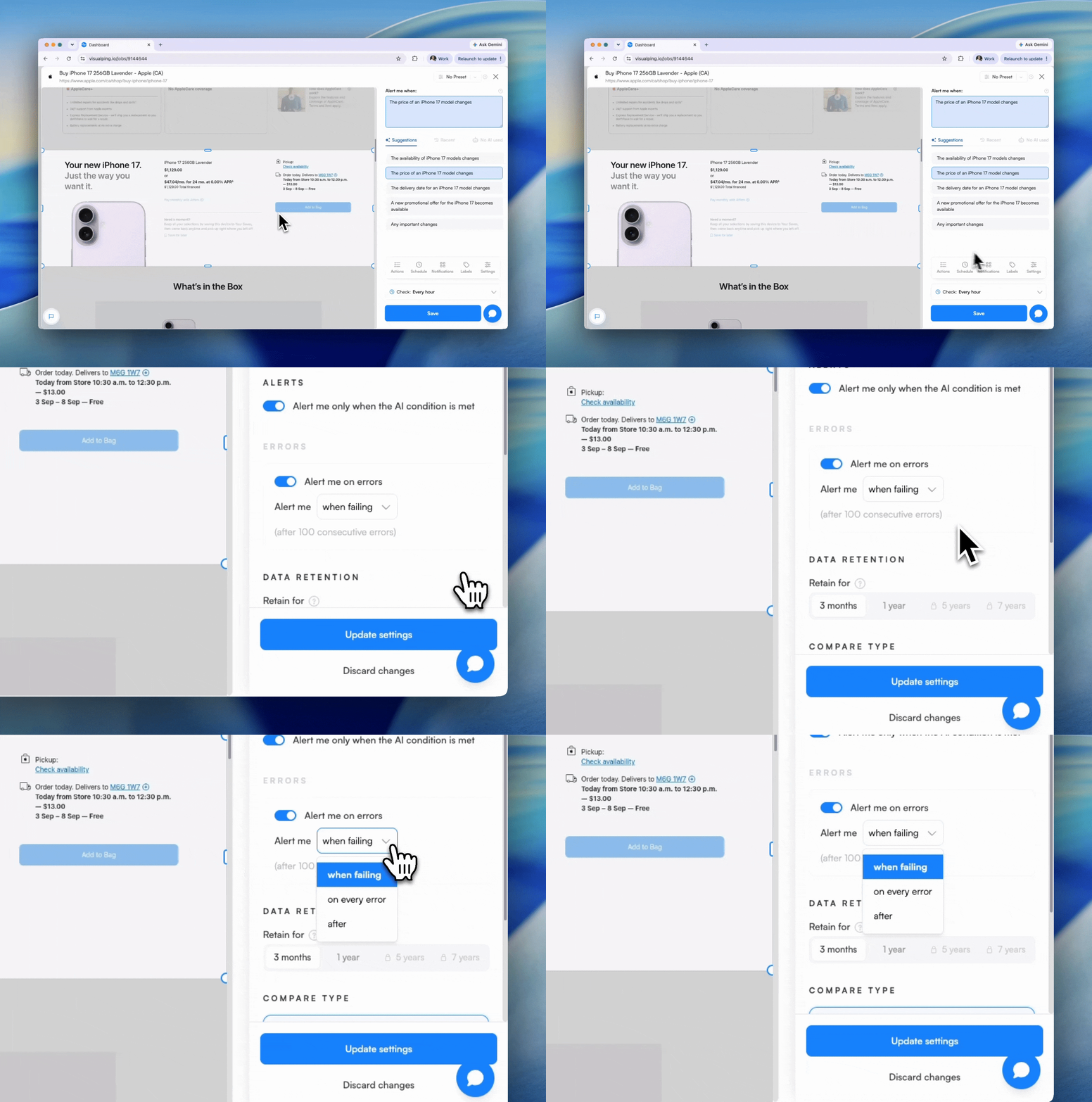
Turn on Alert on Error in your workspace →
Choose when to get notified
Not every error needs an email. A page that times out once usually recovers on the next check. A page that has failed 40 checks in a row may warrant attention.
The Alert me dropdown sets the threshold:
- When failing. The email goes out once the monitor hits 100 consecutive errors, the point where Visualping considers it failing.
- On every error. Every failed check triggers an alert, for monitors where a single missed check matters.
- After. Set your own consecutive-error count, and the alert on error email when send when the monitor reaches it.
One-off errors stay quiet, and persistent problems get flagged.
What the error email tells you
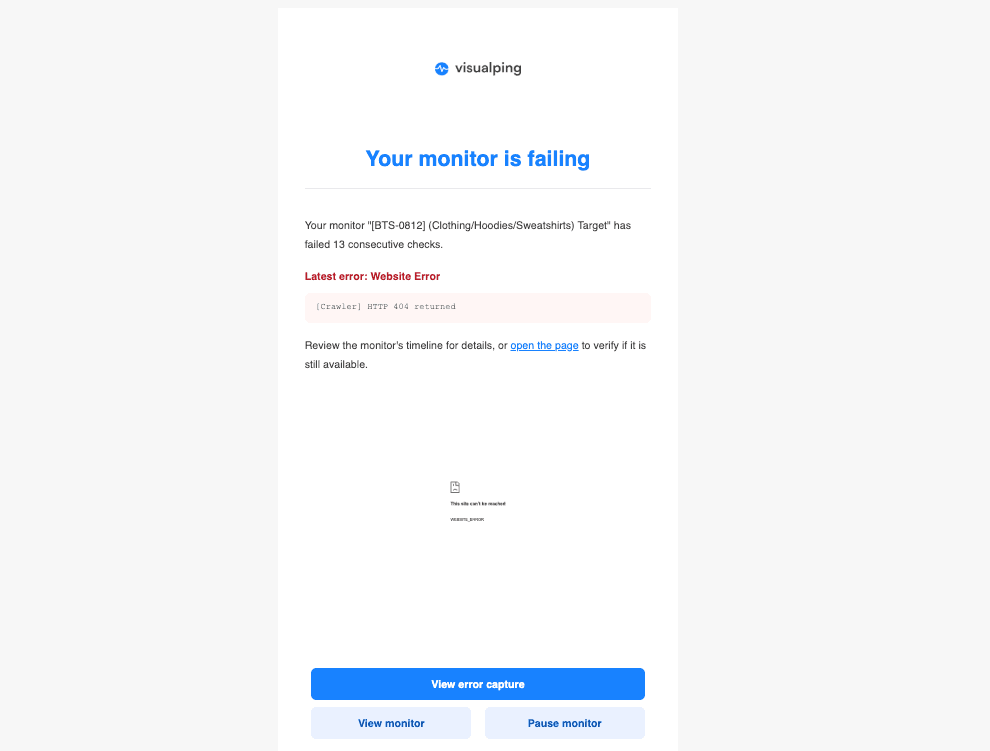
The subject line names the monitor, its workspace, and the page, so you know what broke before you open it. The body tells you how many consecutive checks have failed, the latest error type, and the specific reason, like "Website Error: HTTP 404 returned."
The email includes three actions: View error capture to see what Visualping saw on the last check, View monitor to open its timeline, and Pause monitor if the page is gone for good. It also links to the page itself, so you can check whether it's still live.
Sometimes the fix is adjusting the monitor. Sometimes the error is the finding: a 404 on a product page you track usually means the product was pulled.
Why this matters if you run a lot of monitors
As we noted when the Health Dashboard launched, some accounts have monitors that have been failing for weeks without anyone noticing. The monitor looks fine in the lisr, but is isn't checking anything anymore.
The Health Dashboard is the overview: open Account > Health to see every failing monitor in a workspace, with the reason and when it last errored. Alert on Error is the notification: it tells you the day a monitor breaks, without you having to look.
Use the alert to catch problem monitors immediately, and the dashboard to see the full picture.
Frequently asked questions
Where do I turn on error alerts in Visualping? In the monitor's settings, under Advanced Settings. Scroll to the Errors section, switch on Alert me on errors, choose your trigger in the Alert me dropdown, and click Update settings.
What does "when failing" mean? A monitor counts as failing after 100 consecutive errors. Choose this trigger when only persistent breakage should reach your inbox.
What's in the error alert email? The monitor's name, workspace, and page in the subject, plus how many consecutive checks have failed and the latest error, such as a website timeout or an HTTP 404. Buttons let you view the error capture, open the monitor, or pause it.
Will Alert on Error flood my inbox? No, unless you choose on every error for monitors that constantly hit errors. The "when failing" and "after X errors" triggers only email you once an error streak crosses your threshold, so a page that fails one check and recovers stays silent.
Which plans include Alert on Error? All plans, including Free. Toggle it on in any monitor's settings.
Know when a monitor needs attention
A monitor only helps if its checks are running. With Alert on Error turned on, you'll hear about a broken monitor the day it happens instead of weeks later.
Alert on Error follows the Health Dashboard and Visualping Reports in a series of updates for managing monitors at scale.
Want to monitor web changes that impact your business?
Sign up with Visualping to get alerted of important updates from anywhere online.
The Visualping Team
The Visualping Team is the content and product marketing group at Visualping, a leading platform for website change detection and competitive intelligence. We write about automation, web monitoring, and tools that help businesses stay ahead.