How to Monitor a Web Page With AI: 5-Step Setup Guide
By Emily Fenton
Updated July 28, 2026

TL;DR: To monitor a web page with AI: paste the page URL into Visualping and click Go, select the part of the page that matters, write a plain English condition like "alert me when the price drops" (or pick one of the AI's suggestions), choose how often to check, then enter your email to activate the monitor. From that point on, the AI checks the page on schedule, compares each version to the last, and sends you a short summary only when your condition is met. Setup takes about two minutes, no code required, and 5 pages are free.
Most pages you care about change more often than you think. In a 30-day sample of 2,765 monitored Amazon pages, two thirds changed at least once. Even government pages moved: 62% of 2,142 monitored canada.ca pages changed in the same window. A monitor that alerts on any change turns into inbox noise within a week.
That is the problem AI monitoring solves. Instead of telling you "something changed," it reads the change, decides whether it matches what you asked for, and explains it in two or three lines. You describe the event you care about once, then stop checking the page forever.
This guide walks through the full setup in five steps, with the exact prompts real users write, and shows how to route alerts into email, Slack, or your own AI agent. Every screenshot below is the live product, captured in July 2026.
What "monitoring a web page with AI" actually means
A plain change monitor diffs two versions of a page and pings you when the pixels or text differ. AI monitoring adds three jobs on top:
| Job | What the AI does | Where you see it |
|---|---|---|
| Read | Summarizes what changed in plain language | 2-3 line summary in every alert |
| Judge | Checks the change against your written condition | Important / Not important tag |
| Explain | Shows the changed passage with before and after context | Highlighted screenshot and text diff |
This is not a beta feature bolted onto a diff tool. Across a three-month sample of 55.9 million Visualping page checks, 4.5 million were analyzed by an AI prompt, and the share of AI-analyzed checks grew 28% inside that same window.
Every change event gets the AI summary, on every plan. The Important tag is binary: a change either matches your condition or it does not. For a deeper look at how the analysis works, see the Visualping AI overview.
How to monitor a web page with AI in 5 steps
You need a page URL and an email address. Nothing to install, nothing to code.
Step 1: Enter the URL of the page you want to monitor
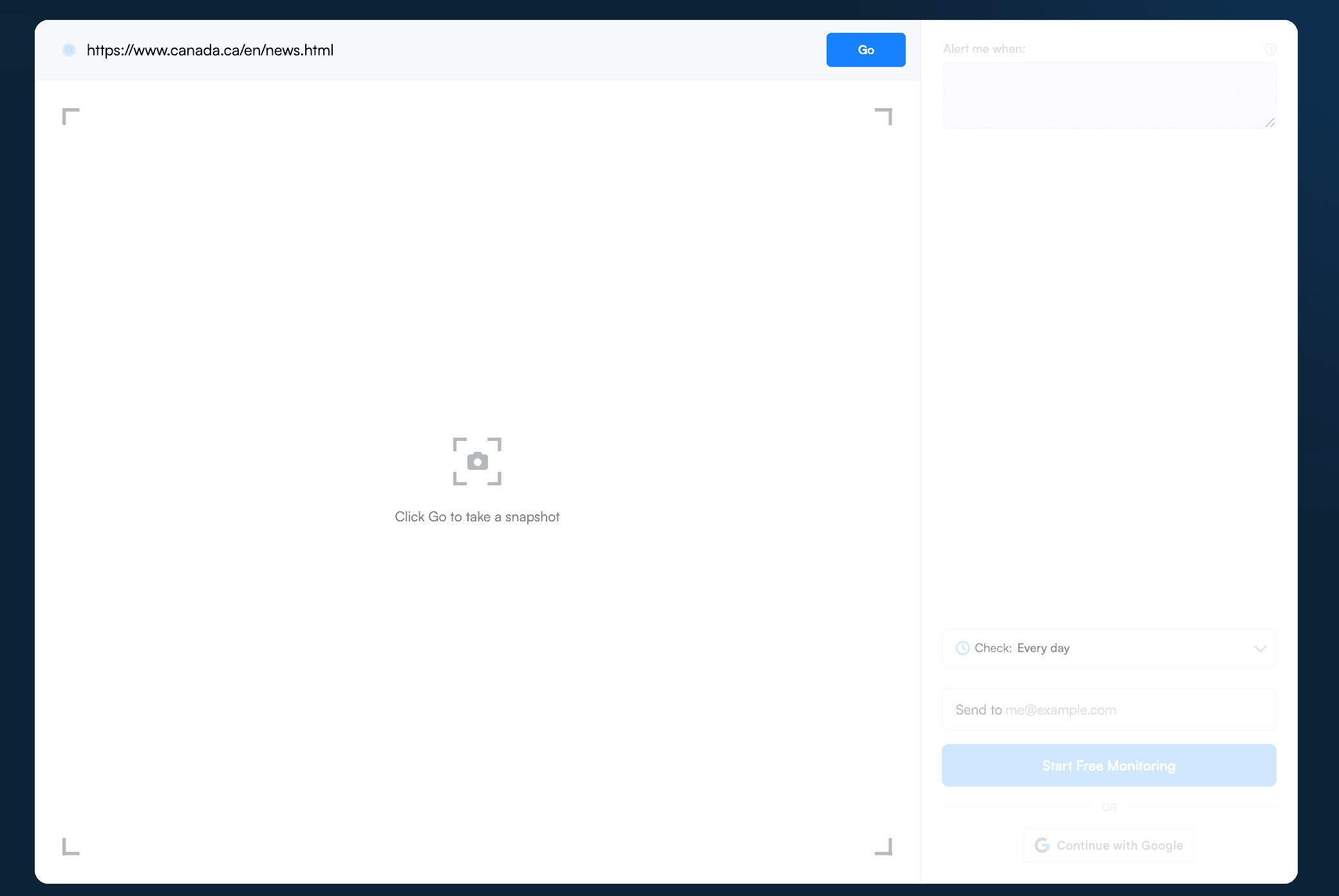
Go to the Visualping homepage. No account needed yet. Paste the URL of the page you want to track and click Go. Visualping loads the page and takes a snapshot, so you can see exactly what will be monitored. In the walkthrough below we monitor the Government of Canada news page, one of the most-watched page types on the platform.
Step 2: Select the exact page area to watch
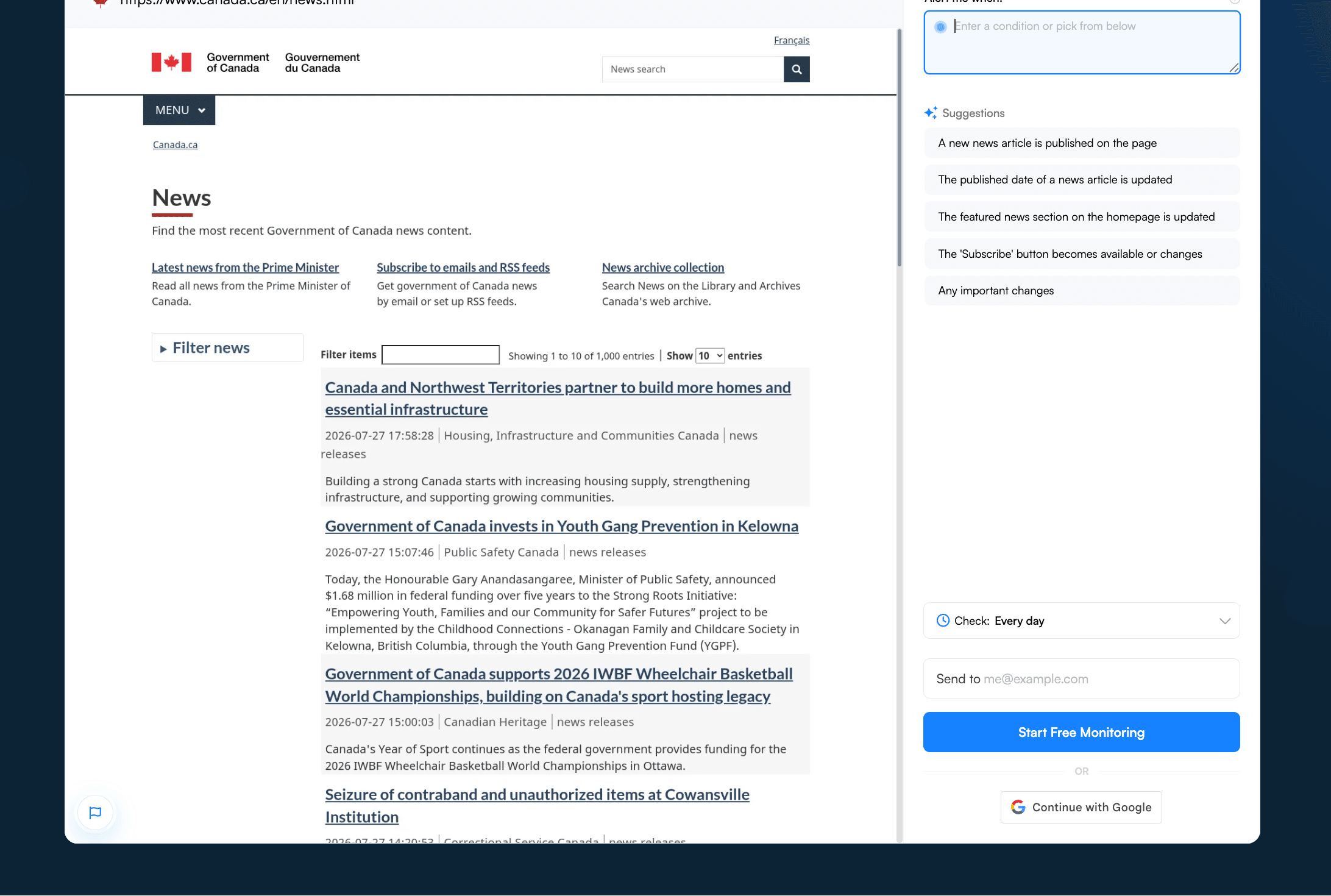
Once the snapshot loads in the viewport, you can watch the whole page or drag to select just the section that matters: a pricing table, a job listings block, one paragraph of a policy page. A tight selection cuts noise at the source. Cookie banners, rotating promos, and "recommended for you" widgets change constantly and have nothing to do with what you care about.
Step 3: Write your "Alert me when" condition
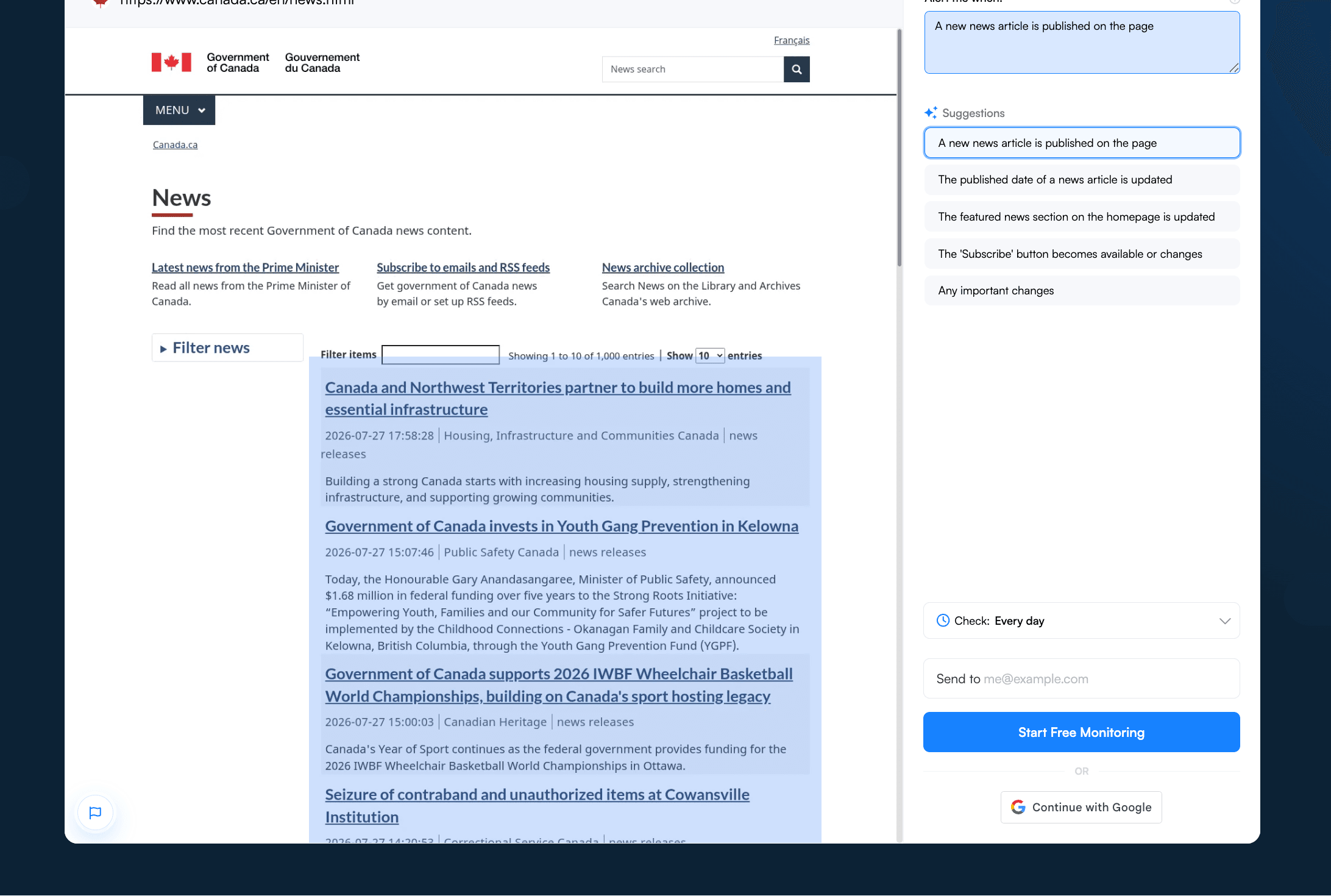
This is the step that separates AI monitoring from ordinary change detection, and it takes one sentence. In the Alert me when box beside the page snapshot, describe the event you want in plain English.
You do not have to invent the wording. Visualping reads the page you loaded and suggests conditions for it. For the government news page above, it proposed "A new news article is published on the page" and "The featured news section on the homepage is updated," each one click to apply.
Real usage shows how specific these get. In a March 2026 sample of roughly 89,000 custom alert conditions users wrote for their monitors, almost nobody asks for "any change." They write conditions like:
- "The price of the product decreases"
- "The availability status of the product changes"
- "A new job listing is posted"
- "A new tender is published"
- "A new law or regulation is published"
When a detected change matches your condition, the alert is tagged Important and your notifications fire. Changes that do not match are still captured in your monitor's history, but they stay quiet.
As one technology-company customer put it on a call with our team: "We can say, listen, only alert me when a staff member is added or removed." That is the shift. You stop watching diffs and start describing events.
Write the condition the way you would brief a colleague. Name the thing ("the price," "a job posting," "the eligibility criteria"), and name the direction if it matters ("decreases," "is added," "is removed"). For more worked examples, see the prompt writing guide.
Step 4: Choose how often the AI checks the page
Pick a check frequency from the dropdown: every 5 minutes, 15 minutes, hourly, daily, or other intervals depending on your plan.
Real usage is a good guide here. In a sample of 2 million active monitors, 86% are set to check their page at least once a day, and nearly a third check more often than hourly. Match the frequency to how fast the stakes move: sub-hourly for prices and inventory, daily for policy pages and documentation.
Step 5: Enter your email and start monitoring
Type the email address where alerts should land and click Start Free Monitoring. Your first monitor is now live, and Visualping creates your account from that address. Confirm it with the email you receive. 5 pages are free, which is enough to test a real workflow before deciding anything.
What each AI alert includes
Every alert Visualping sends contains:
- A screenshot of the page with the changes highlighted
- A text diff showing exactly what was added or removed
- An AI summary explaining the change in 2-3 lines
- The Important / Not important tag, if you wrote a condition
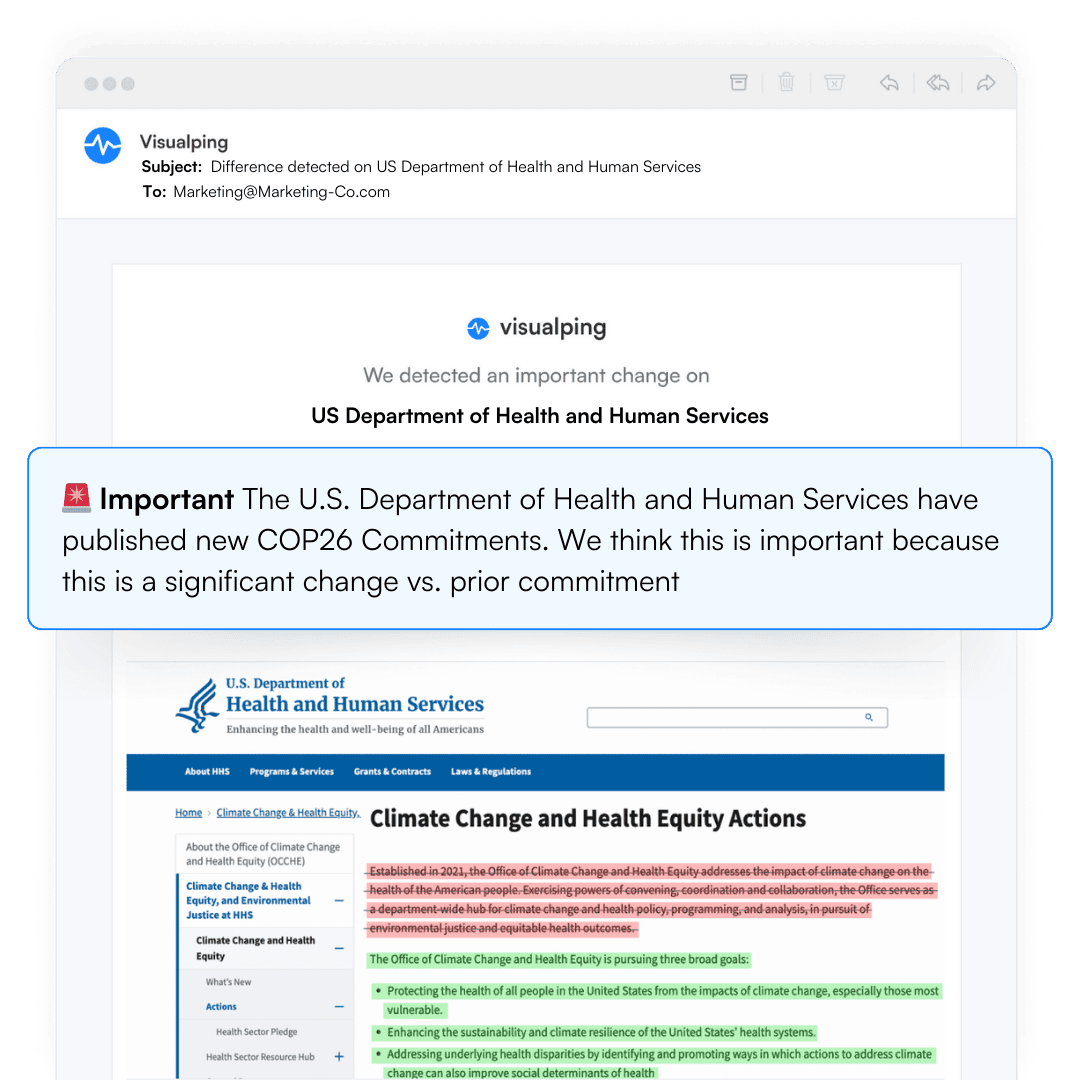
You can scan an alert in about 15 seconds and decide whether it needs action, without opening the monitored page at all.
Copy-paste AI alert prompts for common jobs
Among the accounts in that March 2026 sample, the most common asks were price changes (15,239 accounts), stock and inventory availability (14,331), new content on a page (12,833), and new job postings (5,904). The platform's own classifier tells the same story from the page side: across 2 million active monitors, the AI tags pricing and availability pages most often (266K monitors), followed by government pages (202K), news (110K), medical and clinical pages (59K), job listings (42K), and legal pages (34K).
Here are starting prompts for each of those jobs, ready to adapt:
| You want to know when... | Prompt to write |
|---|---|
| A competitor changes pricing | "Alert me when any price on this page increases or decreases" |
| A product comes back in stock | "Alert me when this product becomes available to buy" |
| A regulator publishes new rules | "Alert me when a new regulation, guidance document, or consultation is published" |
| A company posts a specific role | "Alert me when a new engineering job is posted" |
| A vendor changes their terms | "Alert me when the terms of service or data policy language changes" |
| A tender or RFP opens | "Alert me when a new tender or request for proposals is published" |
One legal-industry customer described their version of this on a call: "With the AI prompt, you could say, I'm looking for any changes to additives. I'm looking for these different scenarios." One monitor, one sentence, one very specific event.
Send page changes to your AI agent, Slack, or API
Email is the default delivery, but the setup above becomes more useful when alerts land where work happens:
- Slack and Microsoft Teams: post Important alerts to a shared channel so the team sees them without forwarding.
- Google Sheets: append each change as a row for a running log.
- Zapier and n8n: trigger any downstream workflow from a change event. The integrations guide covers setup.
- Webhooks and the API: every plan includes an API key, including the free tier. Your systems can receive a JSON payload with the change summary the moment it is detected, or create and manage monitors programmatically. The walkthrough in turn any website into an API has working cURL and Python examples.
- AI agents and assistants: Visualping ships an endpoint (
visualping.io/mcp/sse) for the open Model Context Protocol, so agent frameworks and assistants that speak MCP can create monitors and read change timelines as native tools. There is also a Visualping app inside ChatGPT. If you are building an agent that needs to know when a page changes, this is the piece that replaces polling and scraping loops.
That last point matters if you searched for something like "real-time web monitoring for my AI agent." The pattern is: Visualping watches the page and runs the AI analysis, your agent subscribes to the change feed via webhook or MCP, and your agent acts only on events that matter. No headless browser farm to maintain.
Monitoring with AI vs monitoring AI systems
These get mixed up in search results, so to be clear about what this guide covers: monitoring a web page with AI means an AI watches a page and filters changes for you, which is what Visualping does. Monitoring AI systems, like tracking how often your brand appears in AI answers or watching AI crawler activity in your server logs, is a different job done by different tools. If you landed here for the second one, this guide will not help, though teams do use Visualping to watch AI vendors' pages the ordinary way: model changelogs, status pages, pricing pages, and usage policies are some of the fastest-moving documentation on the web.
FAQ: monitoring web pages with AI
Is there an AI that can read web pages? Yes. Visualping's AI reads the rendered page the way a person sees it, compares each new version to the last, and writes a short summary of what changed. You do not paste content into a chatbot; the reading happens automatically on every check.
Can AI view websites, including dynamic ones? Yes. Pages are loaded in a real browser before analysis, so JavaScript-rendered content, dynamic pricing, and single-page apps are all visible to the monitor. You select the area to watch from the rendered view, exactly as it appears to a visitor.
What is the AI that can analyze web pages for changes? Visualping AI analyzes web page changes: it detects a change, summarizes it in plain language, and tags it Important when it matches a condition you wrote. Setup is the five steps above and takes about two minutes.
How often should the AI check a page? Match the check frequency to the page's stakes. Most users land on daily or faster: 86% of active monitors in a 2-million-monitor sample check at least daily, and nearly a third check more often than hourly. Prices and inventory justify sub-hourly checks; policy pages and documentation are usually fine at daily.
Do I need to know how to code? No. The five-step setup is entirely point and click. Code enters the picture only if you want it to, via the API (a free API key comes with every plan) or the MCP endpoint for agents.
Related reading
- How Visualping AI works
- Writing alert prompts
- Turn any website into an API
- Prompt engineering for Important alerts
- 7 best AI page monitoring agents
Over 2 million users, including teams at 85% of Fortune 500 companies, rely on Visualping to watch the pages that matter to them.
Want to monitor the web with AI?
Sign up with Visualping to track web changes with AI and save time, while staying in the know.
Emily Fenton
Emily was the Product Marketing Manager at Visualping. She has a degree in English Literature and a Masters in Management.
More articles by Emily Fenton