510(k) clearance alerts: compare FDA sources and track new records
Updated November 16, 2026

510(k) clearance alerts need a clear definition of “new.” FDA's decision date, the date a record reaches a dataset and the date your team first sees it can differ. A repeatable comparison keeps those dates separate and records which K numbers appeared in earlier snapshots.
We compared FDA's sources and tested a download workflow that found two newly observed records for one product-code filter. The research also exposed a coverage gap: a record with LLZ as a subsequent product code appeared in FDA's browser search, while its download row contained OLO. The same filter can return different records across sources.
Short answer: Build 510(k) clearance alerts around a persistent K-number history, explicit decision-code and watchlist filters, and a review or notification step. For category-wide coverage, reconcile cumulative data and check how the source represents additional product codes. The workflow below includes a spreadsheet comparison and a tested Python companion; notification delivery needs its own setup and test.
For record lookup, predicate research and monitoring stable TPLC or PMA URLs, use our FDA 510(k) database guide. This companion examines source freshness, download comparisons and the coverage limits we observed.
Research dates: source comparison on October 29, 2026; download and POST-search monitoring tests on November 3; FDA source check on November 16. This guide describes monitoring public information for medical device regulatory affairs and competitive intelligence teams. It does not provide regulatory advice.
Compare the FDA source snapshots, follow the download comparison workflow, or inspect the POST-search test.
Compare FDA clearance sources
FDA puts 510(k) decisions in several places, and those sources can update at different times. The table records what each source offered when we checked on October 29, 2026.
| Source | What it provides | Update timing FDA states | October 29, 2026 observation |
|---|---|---|---|
| 510(k) database | Searches by K number, applicant, device name, product code, review panel and decision date | None found on the reviewed pages | Clearances dated up to October 23; page footer dated October 26 |
| Downloadable 510(k) files | A current-month file and cumulative files back to 1976 | Monthly, usually on the fifth | Current-month file modified October 26; 516 records dated September 1 to October 23 |
| openFDA 510(k) API | JSON records for scripts, with coverage from 1976 | Monthly | Last updated October 19; newest decision dated October 18 |
| CDRH email lists | Device news and regulatory updates across 18 topics | CDRH New is a daily digest; most lists state no schedule | Some include clearance-related information; no product-code or applicant subscription found |
| Archived clearance lists | Yearly lists of cleared devices | Not applicable | The landing page linked archived years through 2023 |
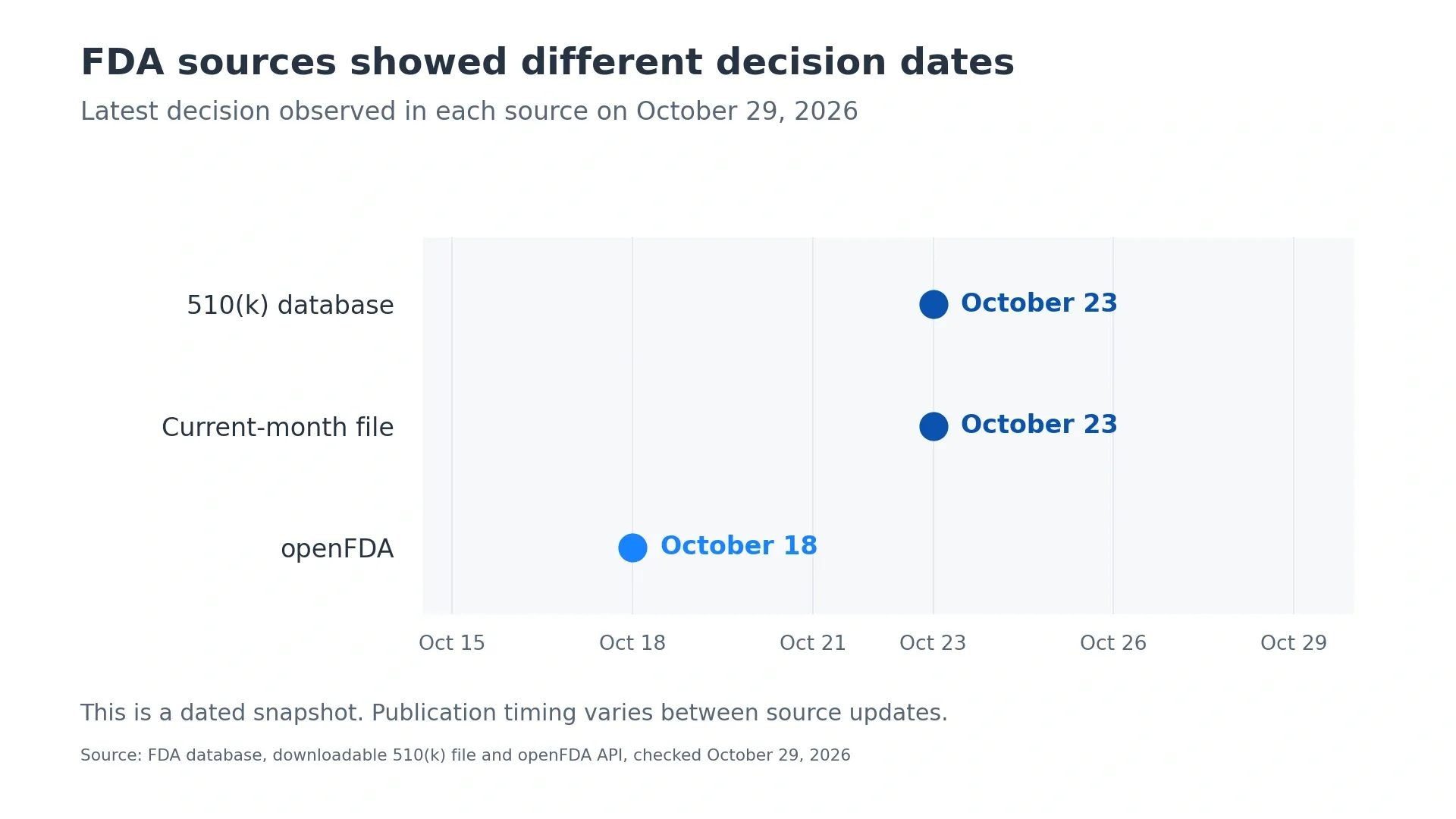
Latest observed decision dates in the October 29 snapshot. These dates are not guaranteed publication delays.
We traced five recent clearances across the database, download and API. Four decided on October 21 and 23 were in the database and current-month file but had not reached openFDA. A decision from October 18 appeared in all three. For one product code, openFDA's newest record was dated September 29 while the database already showed four clearances from October 9 to 23.
The database and download file contained newer decisions in that comparison. A single snapshot does not establish which source always updates first. A page footer is also a page timestamp, not proof of when FDA added each record.
We checked again on November 3. The current-month download had a November 2 Last-Modified timestamp and held decisions dated October 1–30. Our openFDA requests returned HTTP 500 errors, so we could not repeat the same-day API comparison. The October dates in the table remain a historical snapshot; the November check does not establish a new API lag.
On November 16, a minimal openFDA request responded successfully and reported last_updated: 2026-11-09. That was an API availability check. Pagination, record comparison and alert delivery were outside its scope.
Where email subscriptions fit
FDA's CDRH subscriptions include clearance-related information. The In Vitro Diagnostics list mentions 510(k) decision summaries, and CDRH New covers webpage additions and updates. FDA says its recently approved device collection leaves out some newly cleared or approved devices.
We found no saved product-code or applicant subscription in the subscription pages and RSS directory reviewed. Use those broader updates alongside the record comparison when they cover your team's interests.
What happened in our POST-search monitoring test
Our November 3 test repeated a product-code search through the pmn.cfm POST form using Visualping Actions. It was a different setup from monitoring a stable FDA record or TPLC URL. Copied search-results links had returned the blank form in our October 29 browser tests, so we tested Actions that submitted the search before each capture.
We tried that on November 3 with product code LLZ. Visualping typed the code, selected "Decision Date (descending)," clicked Search and waited five seconds. At 21:56:25 UTC, the first capture showed all 10 first-page results, including K263648, decided October 29. At 21:57:57 UTC, the next check returned "Bot detected" and a Challenge Validation page. We paused the monitor.
The evidence covers one successful capture and one bot-check response. Scheduled operation, new-clearance detection and notification delivery remain unverified for that setup. Our device database monitoring guide describes stable TPLC and PMA URL workflows; those URLs were outside this POST-search test.
A monitor capturing only the first page of those search results also has a coverage limit when it loads. More than 10 matching records between captures can push unseen rows off the page. A later-posted decision with an older decision date can appear below it. A digest can summarize captured changes, but it cannot recover rows that never entered a capture.
Compare FDA downloads to find new K numbers
Start with a spreadsheet if someone on your team will review each file. A scheduled script can use the same comparison once you have checked the filters and output. Either way, retain K numbers across snapshots: a decision date describes FDA's decision, and an observation timestamp records when your workflow found it.
Choose the records your team needs
Find the relevant product code in FDA's Product Classification database. A download filter matches the file's PRODUCTCODE field across applicants. An applicant filter follows the company names recorded in the file. Check spelling and known name variants before treating an applicant filter as complete.
The download's product-code field does not reproduce every result of a database search. For example, FDA's K262567 record lists OLO as its classification product code and LLZ as a subsequent product code. It appeared in the browser's LLZ search, but the download row contained OLO. An exact LLZ filter on that field misses the record, so validate category coverage against known records and any additional codes your team follows.
Choose clearance decision codes explicitly. The October 29 download contained 516 records, including two coded DENG for De Novo grants. Counting every row as a 510(k) clearance would have included the wrong population. The script described below checks both K-number identifiers and a defined set of clearance decision codes.
Import the file and establish a baseline
Download the relevant ZIP from FDA's 510(k) download page, extract its text file and import it into your spreadsheet with the pipe character (|) as the delimiter. Keep the fields KNUMBER, DECISIONDATE, DECISION, PRODUCTCODE, APPLICANT and DEVICENAME.
Apply your product-code or applicant filter and the clearance decision-code filter. Trim whitespace from K numbers, use a consistent uppercase format and remove duplicate identifiers. Save the result as your first accepted snapshot, and copy its KNUMBER values to a sheet named Baseline. For the formula below, put those identifiers in column A.
The first snapshot establishes what you already know. It should not announce every historical record as a new clearance.
Compare the next file with your saved history
Import the next accepted snapshot to a separate sheet. With its KNUMBER in column A, add this formula in the next available column on row 2, then fill it down:
=IF(COUNTIF(Baseline!$A:$A,A2)=0,"New to this snapshot","Seen before")
Microsoft's COUNTIF documentation explains the range-and-criterion comparison. Here, a zero count means the K number in A2 is absent from your saved baseline.
Filter that column to New to this snapshot. For each match, retain the applicant, device name, product code and FDA decision date. Add the time you retrieved the source. The reviewer can then distinguish a newly observed record from a decision made that day.
After accepting the comparison, append the new identifiers to Baseline and remove duplicate K numbers. Preserve that history when the monthly file changes. A disappearance from a rolling file is not evidence that FDA withdrew a clearance.
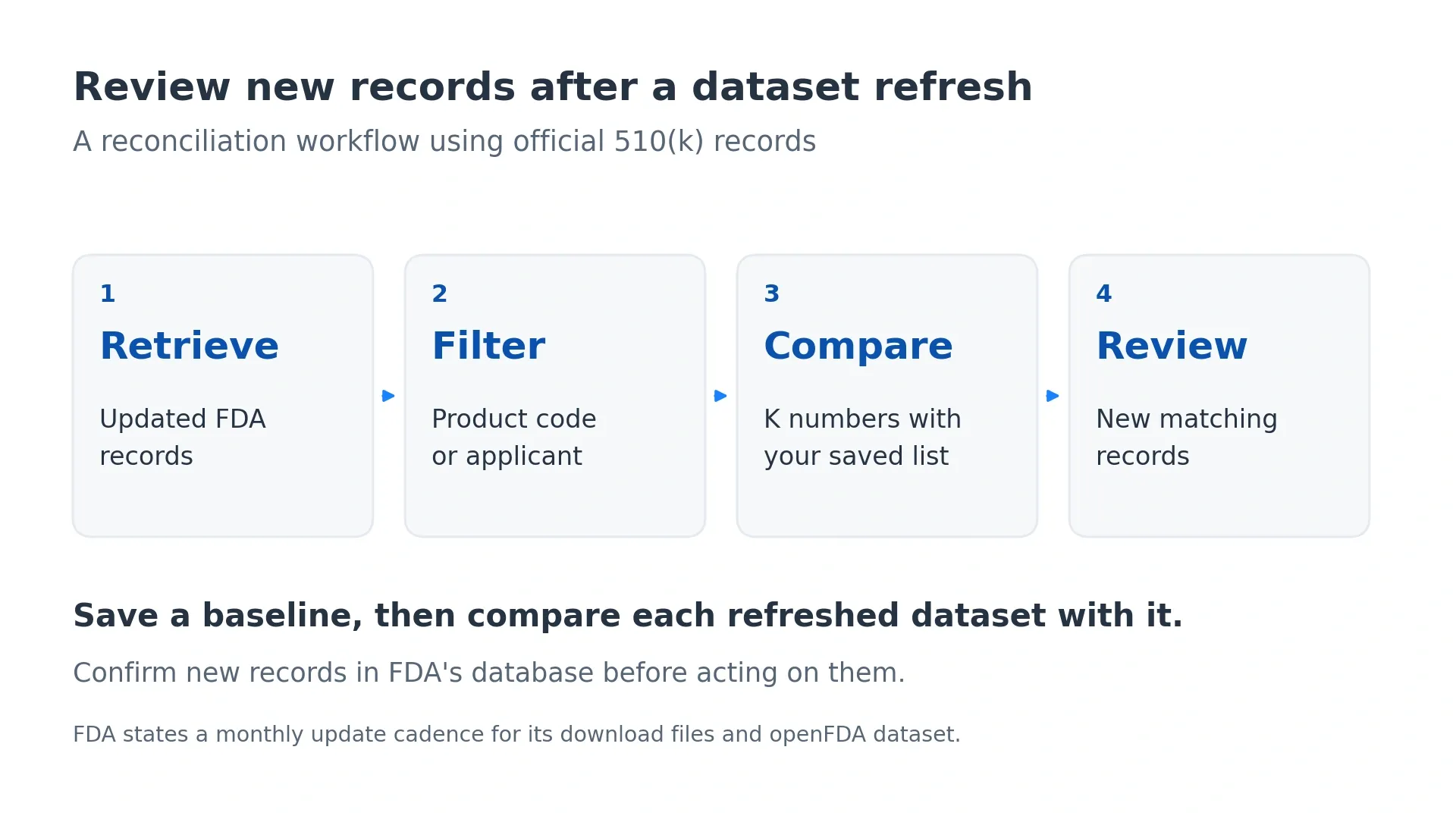
Compare refreshed FDA records with a saved baseline. Source updates limit how fresh the results can be.
Automate the comparison when the filters are settled
The optional Python companion reads the FDA ZIP or extracted pipe-delimited file, applies the selected filters and writes newly observed K numbers to CSV and JSON. It retains its state between runs. Download the FDA comparison companion to inspect or adapt it for your team's workflow.
Extract the companion ZIP and open its README. The script is at scripts/fda_download_diff.py. Save your first FDA source file as baseline.zip and a later one as latest.zip in the extracted companion folder. From that folder, run these commands using Python 3:
python3 scripts/fda_download_diff.py baseline.zip --state llz-state.json --product-code LLZ --out-prefix baseline-review
python3 scripts/fda_download_diff.py latest.zip --state llz-state.json --product-code LLZ --out-prefix latest-review
Keep the same state file and filters for each watchlist. The first run establishes a baseline and writes zero newly observed records. The second command writes latest-review.csv and latest-review.json. You can repeat --product-code to match any listed code. Adding --applicant applies a case-insensitive substring filter together with the product-code filter.
The CSV includes FDA's decision date. Add a retrieval timestamp to your review log: the companion does not currently write an observation timestamp into its output.
We ran that comparison on the saved October 29 download and the November 3 download. The baseline contained nine eligible records whose PRODUCTCODE field equalled LLZ. The later file contained four such records, of which two were new to the saved history:
| K number | FDA decision date | Comparison result |
|---|---|---|
| K261763 | October 26, 2026 | Newly observed in the November 3 download |
| K263648 | October 29, 2026 | Newly observed in the November 3 download |
The saved history retained 11 K numbers, including seven absent from the later monthly file. Repeating the comparison produces no new records. This test establishes the local file comparison for the selected field and filters. It does not establish complete LLZ category coverage or notification delivery.
A failed download or malformed file should leave the last accepted state intact. Record the failure separately. An empty review list means no newly observed matching K numbers were found in an accepted snapshot; an error response means the source was not successfully checked.
Configure delivery and cumulative reconciliation
Send the new-record output to a review inbox or the tracker your team already uses. Zapier can be the delivery layer if your team uses it. Configure the trigger and destination in your account, then test one record through the complete route before scheduling it. Our file-comparison test does not establish notification delivery.
A current-month file is convenient for a frequent check, but a later file can drop older records. Keep the persistent history and periodically reconcile against FDA's cumulative files. With openFDA, retrieve all relevant result pages; a query ending in limit=10 covers only ten records.
Avoid restricting reconciliation to a narrow decision-date window when older decisions matter. A record added later can carry an earlier decision date. Deduplicate the complete matching set by K number and compare it with the history you already hold.
Choose how to compare clearance records
Choose the comparison method according to who will maintain the history and review its output.
| Method | Output | What your team maintains |
|---|---|---|
| Spreadsheet comparison | Rows whose K numbers are absent from the saved baseline | Imports, filters, accepted history and review log |
| Python download companion | CSV and JSON of newly observed matching K numbers | Source downloads, state file, run schedule and notification delivery |
| openFDA comparison | Matching JSON records across the API result pages | Pagination, error handling, persistent history and delivery |
If category-wide coverage matters, combine cumulative reconciliation with checks for subsequent product codes, and retain the source files used for each comparison. An exact PRODUCTCODE filter alone can miss relevant records. Our competitor tracking guide covers the wider watchlist; the FDA record remains the reference for the clearance decision itself.
Monitor guidance and company news alongside clearance records
A clearance feed covers one part of regulatory intelligence. Guidance pages, standards notices and company newsrooms supply different signals. Keep those page changes alongside your clearance-record workflow, with a reviewer responsible for interpreting each source.
Visualping checks a page on a schedule and compares its captured content with the previous check. Use the "Alert me when" field to describe the changes you need reviewed. Every detected change receives a Visualping AI summary and an important-or-not flag. Validate the capture for each source page before relying on it.
For a guidance page, a suggested criterion is: "Alert me when a new guidance document is added or an existing guidance document is revised. Include the document title and the change in the summary." Test the criterion against the captured guidance page before relying on its alerts.
Our guide to regulatory compliance monitoring covers page selection.
For agency updates, see agency news monitoring.
Press release monitoring adds the manufacturer's own announcements. Keep the clearance decision and the launch announcement as separate records.
On Business plans, scheduled Reports collect changes from selected monitors into one email. Reports cover the pages those monitors captured; your download-comparison output needs its own review or delivery step.
The webhooks and API guide explains options for routing Visualping page-change alerts.
The Google Sheets guide covers that Business integration.
Limits of 510(k) clearance alerts
FDA must publish a record before your workflow can find it. FDA documents monthly updates for its downloadable files and openFDA. We found no posting schedule on the live database pages. A scheduled script cannot turn monthly source updates into immediate notice of an FDA decision.
"New" in a comparison means newly observed against your saved history. A record can have an older decision date. Preserve both dates in the review output and avoid presenting the observation timestamp as FDA's publication time.
A K-number comparison detects newly observed identifiers. It does not, by itself, identify corrections to fields on records already seen. If changes to applicant names or device descriptions matter, compare those fields separately and label the output as an updated record.
openFDA asks users to treat its results as unvalidated. Check the FDA record when it affects a regulatory decision. Your regulatory team must assess a device's relevance and any possible use as a predicate. Neither a comparison script nor Visualping assesses substantial equivalence.
Questions about clearance-record comparisons
How soon after an FDA decision can an alert arrive?
It depends on when the record reaches your chosen source, when your comparison runs and whether delivery succeeds. FDA documents monthly updates for the downloads and openFDA. Our October 29 snapshot found newer decisions in the database and download than in openFDA, but it does not establish a permanent lag or an alert-delivery timeframe.
Should the first download trigger alerts for every matching record?
The first accepted snapshot establishes the baseline. Keep those K numbers in the saved history and report newly observed identifiers on later runs. If you want an initial inventory for review, label it as the baseline so readers can distinguish it from later additions.
Does the download product-code filter include subsequent codes?
The tested companion matches the download's PRODUCTCODE field. In our K262567 example, that field held OLO while the FDA record also listed LLZ as a subsequent code. An LLZ filter on that field missed the record. Validate your watchlist against known records and any subsequent codes needed for category-wide coverage.
Does a newly observed K number mean FDA cleared the device today?
The decision date belongs to FDA's record. The observation time belongs to your comparison workflow. A record can be newly observed while carrying an older decision date, so retain both in the review log. The companion's CSV contains the decision date; add the retrieval timestamp to your log.
Will this comparison catch corrections to an existing record?
The companion reports K numbers absent from its saved history. To catch later edits to an applicant name, device description or another field, add a field-level comparison and report those separately as record updates. Keep the original source snapshots so you can inspect the changes.
About this guide
Eric Do Couto leads Marketing at Visualping, which makes the page-monitoring tool discussed here. We compared FDA sources on October 29, 2026 and tested the download comparison and POST-search Actions setup on November 3. We paused that test monitor after its second check hit a bot challenge. The November 16 publication check covered FDA source descriptions and a minimal openFDA response.
The comparison results retain their original measurement dates. Scheduled comparisons, notification delivery and stable TPLC/PMA URL monitoring were outside these tests. For the wider discipline, see regulatory intelligence monitoring.
Start with a baseline for one product code
Choose a product code, inspect the matching FDA records and save the first accepted snapshot as your baseline. Compare the next snapshot with that history, review the newly observed K numbers and test your notification route. Include cumulative reconciliation and separate subsequent-code checks if your team needs complete category coverage.
Monitor guidance and company news changes
Add a public guidance or newsroom page, verify its capture, and describe the changes your team needs to review.
Eric Do Couto
Eric Do Couto is the Head of Marketing at Visualping. He leads content strategy, growth operations, and brand positioning for website change detection.
More articles by Eric Do Couto