How to Check When a Website Was Last Updated (7 Methods)
Updated September 9, 2026
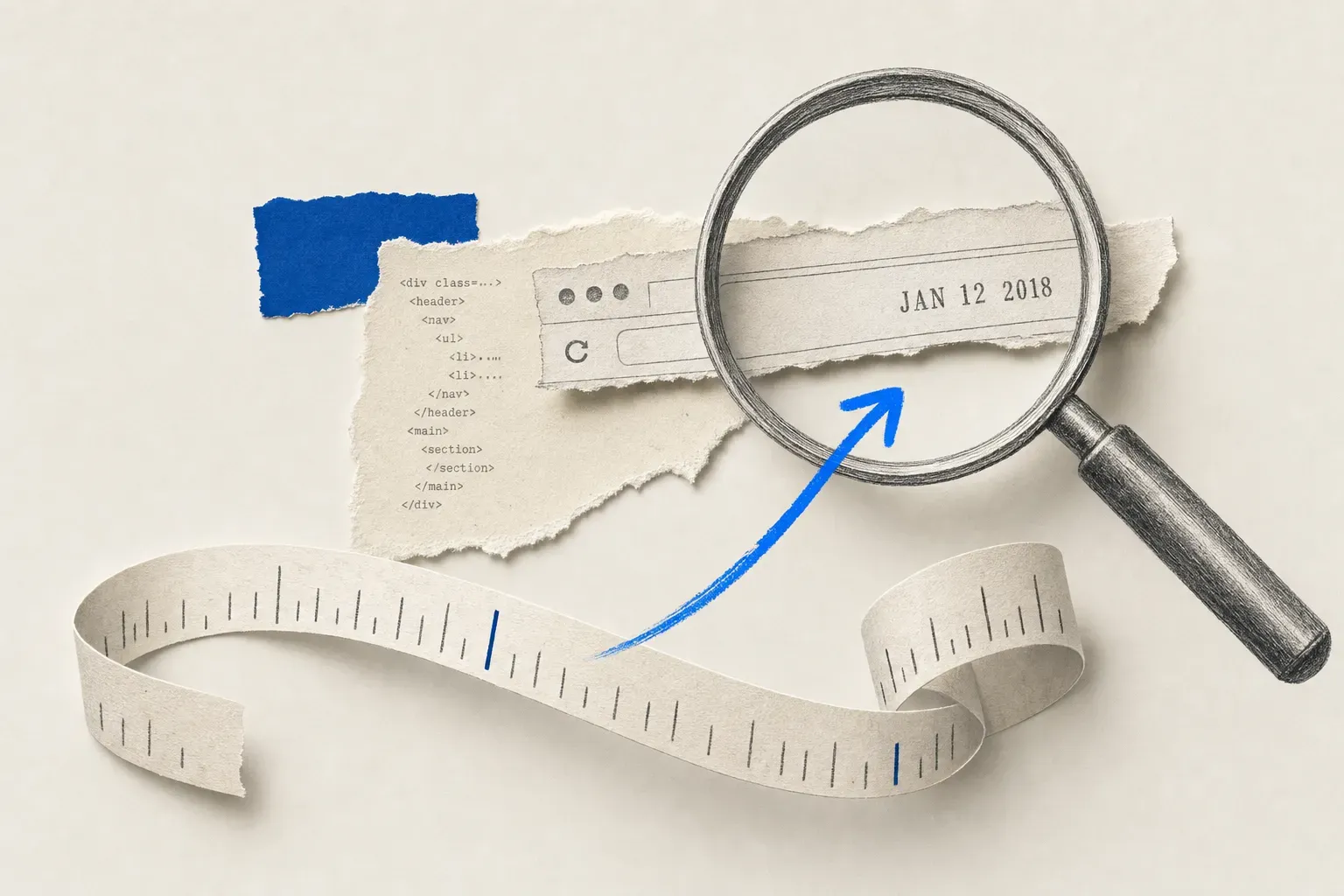
To check when a website was last updated, look for a visible "last updated" date on the page, read the date meta tags in the source and the <lastmod> values in its sitemap, check the HTTP Last-Modified header, or compare saved versions on the Wayback Machine.
Last verified September 2026. Every method below was re-tested against live sites this month; results are in the spot-check table.
There is no single "last updated" date for most websites. Some pages bury it in a meta tag. Some lie about it. Some servers send a Last-Modified HTTP header, while others return today's date for every request because of dynamic rendering. And Google Cache, the method half the internet still recommends, was retired in September 2024.
The method that gives you a real answer depends on whether you have access to source code, whether the site is honest in its sitemap, and whether you need the answer once or every time the page changes.
Quick answer: pick a method by what you have
| You're trying to... | Use this method | Time |
|---|---|---|
| Spot-check a single page right now | document.lastModified in the console | 10 seconds |
| Verify a publisher's freshness for SEO | Sitemap.xml <lastmod> | 30 seconds |
| Track when a competitor or regulator changes a page | Visualping alert | 90-second setup |
| See historical changes (months or years back) | Wayback Machine compare | 1–2 minutes |
| Build an audit trail for compliance or legal | Visualping alert with the audit log | 90-second setup |
If you need to know when the next change happens, not just the last one, skip ahead to Method 7. The first six methods only show you what already happened.
Method 1: Read the source for <lastmod> and date meta tags
Open the page, right-click anywhere, choose View Page Source (or press Ctrl+U / Cmd+Option+U). Then Ctrl+F for these tags, in order of reliability:
<meta name="last-modified">. Explicit, hand-set by the publisher.<meta property="article:modified_time">. Common on WordPress and major CMS platforms.<meta property="og:updated_time">. The Open Graph signal.<time datetime="...">. Semantic HTML, often inside the article body.<lastmod>. Only appears in sitemaps, but worth searching the source if the site is small.
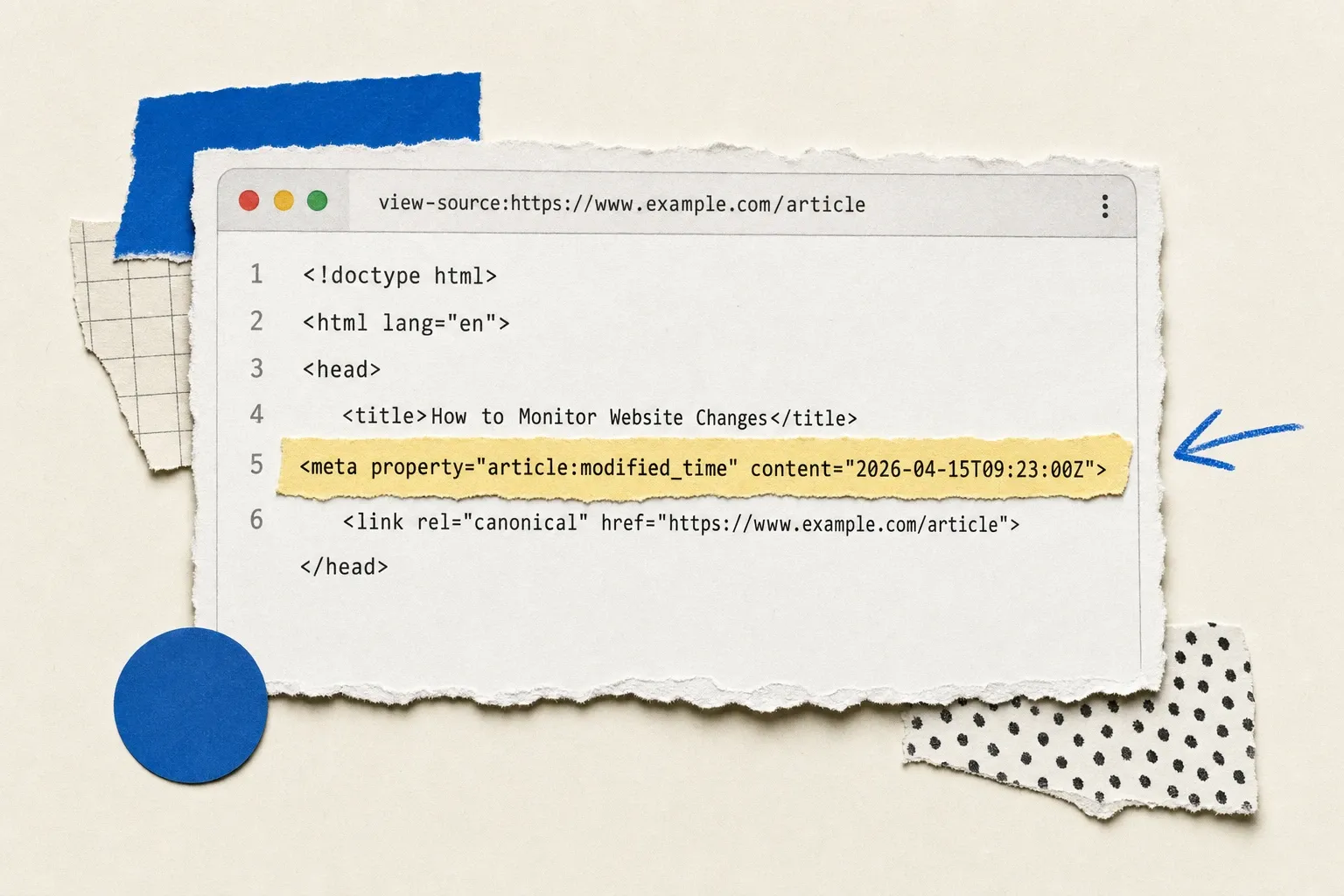
When it works: news sites, well-maintained marketing pages, blog platforms.
When it lies: dynamic sites that regenerate the head on every page load (the date will be today). Pages where the publisher set the field once and forgot. Pages that had a copy edit but the meta wasn't refreshed.
Method 2: Check the HTTP Last-Modified header
Every HTTP response can carry a Last-Modified header. To see it:
Browser: open DevTools (F12) → Network tab → reload → click the document request → look at Response Headers for Last-Modified.
Command line:
curl -sI https://example.com | grep -i last-modified
Or paste a URL into a free tool like HTTP header checker.
When it works: static HTML files, simple sites, files like PDFs and images served straight from disk.
When it lies: this is the most-recommended method on the internet, and it's also the most misleading. Sites behind a CDN (Cloudflare, Akamai, Fastly) will often send the cache pop time, not the page edit time. Server-rendered apps regenerate the response on every request, so Last-Modified matches the request timestamp. WordPress without proper caching does this too. If the header reads "two seconds ago," the site is dynamic, and the header is meaningless for our purpose.
Method 3: Run document.lastModified in the browser console
The fastest one-liner. Open the page, hit F12 for DevTools, switch to the Console, and paste:
document.lastModified
The browser returns a string like "04/17/2026 13:22:51" based on the Last-Modified header (or, when the header is missing, the time the document was loaded).
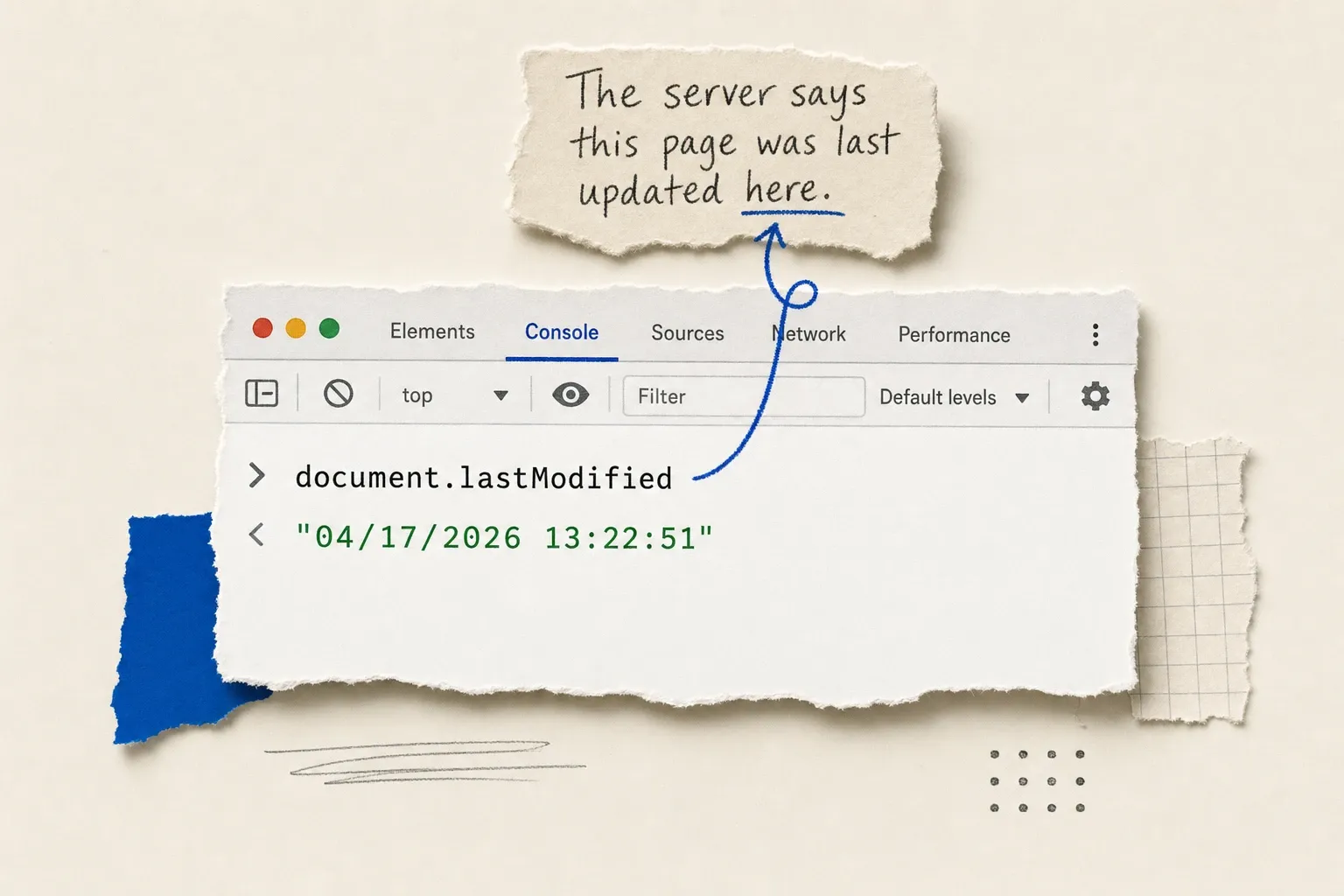
When it works: you want a 10-second answer and you trust the site to be honest.
When it lies: same trap as Method 2. If the server doesn't send a real Last-Modified header, the browser falls back to the load time, and you've learned nothing. A useful tell: if you reload the page and the value changes by exactly a few seconds, the site is dynamic and the date is fake.
Method 4: Inspect the site's sitemap.xml
Most legitimate sites publish a sitemap at /sitemap.xml (or /sitemap_index.xml). Each <url> entry can include a <lastmod> tag. To find a specific page:
- Visit
https://example.com/sitemap.xml(or check/robots.txtfor the sitemap path). - Search the file for the page's URL.
- Read the
<lastmod>value next to it.
When it works: SEO-conscious sites, content-heavy publishers, anyone who runs Yoast or RankMath. The sitemap is what publishers tell Google about their freshness, so it's usually closer to the truth than HTTP headers.
When it lies: a sitemap auto-regenerated on every crawl will show the regeneration time, not the actual page edit. Some platforms write today's date to every URL on every build. Cross-reference at least one date you can verify (a page you know was edited last year) before trusting the sitemap as a source.
Method 5: Compare versions on the Wayback Machine
The Internet Archive's Wayback Machine has snapshotted billions of pages. Paste any URL into the search bar and you'll see a calendar of saved versions. Click two snapshots, then use the side-by-side compare view to see what actually changed.

When it works: you need the historical record. Pages that have been crawled by the Wayback Machine for years. Anything you can't see anymore because the publisher removed it. If you need a long-term local copy of a site rather than relying on a third-party archive, walk through how to archive a website yourself.
When it lies: the Wayback Machine doesn't capture every page on every site every day. Coverage gaps can hide changes. A page might have changed three times between two snapshots, and you'd never know. For thorough historical research, the 12 best Wayback Machine alternatives cover the gaps.
Method 6: Look for a visible "last updated" date on the page
The cheap method that works surprisingly often. Scroll the page and check:
- The byline or author block (some sites print "Updated October 2025" near the top).
- The footer (copyright dates, "last reviewed" notes).
- The end of articles (especially on documentation sites and government pages).
When it works: documentation, government pages, news, anything with editorial review processes.
When it lies: marketing pages that auto-print the current year in the footer. Pages where the visible date is the original publish date, not the most recent edit. SEO-focused sites that bump the date on every minor cosmetic change to look fresh. To know the moment it changes next, set up change alerts in Chrome or in the cloud.
Method 7: Skip the manual check and get an alert
The first six methods all share the same flaw. They tell you the last update as of now. To know about the next one, you have to keep checking. For a single page that's fine; you can even auto-refresh the page on a timer if you want a passive watch. For 5, 50, or 500 pages, manual checking falls apart.
An automated tool like Visualping takes a snapshot of any URL on a schedule (every 5 minutes to once a week), compares each new capture to the last, and emails you when something changes. Every alert includes a binary IMPORTANT flag and an AI-written plain-English summary of what changed, so you don't have to scan diffs.
To set one up:
- Paste the URL into the free monitor.
- Pick how often to check (down to every 2 minutes on paid plans, every 60 minutes on the free plan).
- Enter your email.
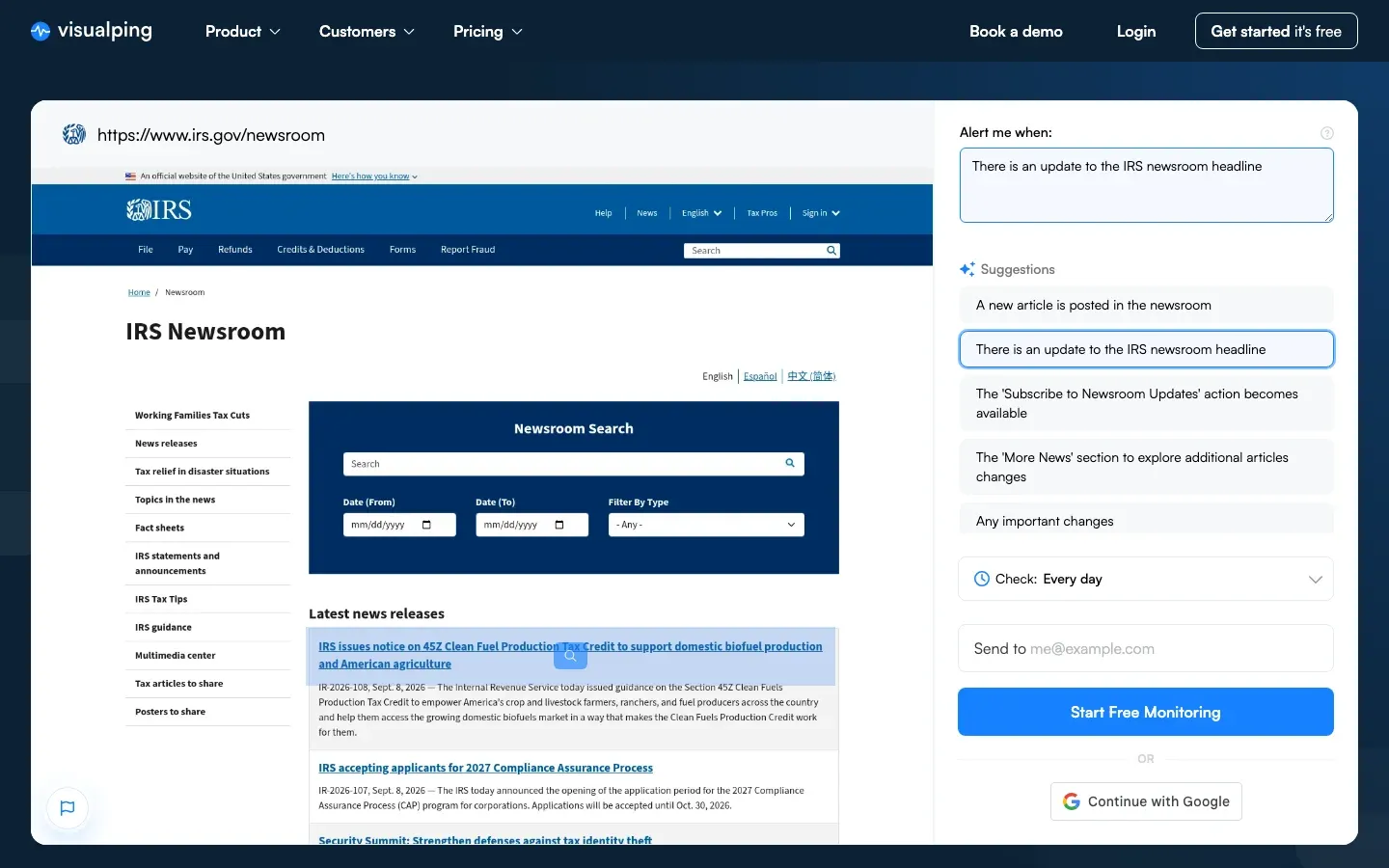 Paste the page you want to watch, pick what counts as an update, and the first check sets your baseline
The first check creates a baseline. Every check after that is a comparison. You'll know within minutes when a regulator updates a guidance page, when a competitor changes pricing, or when a job listing closes, without ever clicking refresh again.
For developers, the same comparison engine is available through the Visualping API on every plan, including free.
Why each method can mislead you (the limitations table)
| Method | Reliable when | Misleading when |
|---|---|---|
| Source meta tags | Publisher hand-edits article:modified_time | Templates auto-stamp every render |
Last-Modified HTTP header | Static files, no CDN | Dynamic rendering, CDN cache pop time |
document.lastModified | Same as HTTP header (it inherits) | Falls back to page load time |
Sitemap.xml <lastmod> | Publisher writes to it on real edits | Sitemap auto-regenerates daily |
| Wayback Machine | Page is in the index with frequent crawls | Coverage gaps between snapshots |
| Visible page date | Editorial review process is real | Auto-stamped year in footer |
| Visualping alert | You set it up before the change | You set it up after the change |
Every other method tells you about the past. An active monitor catches what changes after you stop looking.
We tested the Last-Modified header on 4 real sites (September 2026)
Methods 2 and 3 both read the same thing: the Last-Modified header the server sends back. The
problem is that it behaves completely differently depending on the site, and you cannot tell which
case you are in until you look. So we ran the check against four real sites in September 2026.
Each one lands on a different outcome, and between them they cover everything you are likely to hit:
| Site we checked | What the header said | Can you trust it? |
|---|---|---|
| irs.gov | Wed, 26 Aug 2026 | Yes. A real date two weeks in the past. Static government content, so the header reflects an actual edit. |
| en.wikipedia.org | Wed, 09 Sep 2026 (the moment we checked) | No. The date is "now" because the page is built on request. This is the dynamic-rendering trap: the header is real, but it describes the render, not the edit. |
| bbc.com/news | nothing, no header sent | No. A major news site, where you would most expect a date, sends no header at all. Plenty of modern sites don't, and no tool can recover a date that was never published. |
| sec.gov | request refused (HTTP 403) | No. Some sites block automated header checks outright, so the method fails before it returns anything. |
Only one of those four gave a usable answer. That is the honest hit rate to expect. The useful tell is the second row: if the timestamp is within seconds of when you checked, you are looking at render time, and the number means nothing.
Sitemaps split the same way. Every one of the 35 <lastmod> values we sampled from gov.uk
carried an identical timestamp: the moment the sitemap was generated, not the moment any page
changed. A sitemap reporting the same date for every URL is describing its own build schedule.
Before trusting one, look up a page whose edit date you already know and check whether the
sitemap agrees.
Methods that no longer work
A lot of older guides still recommend two methods that have been retired:
- Google Cache (
cache:operator). Google removed the cache feature from search results in September 2024. Thecache:URLoperator no longer returns anything useful. If a guide tells you to use Google's cached version, that guide is stale. Site Operatorwith date filtering. Google'ssite:operator combined with date range filters used to surface content by indexed date. It still works, but the dates returned reflect when Google last crawled the page, not when the publisher updated it. The two are often weeks apart.
Skip both. They were never the most accurate methods, and they're now the least.
Which method should I use? A 60-second decision guide
- You can read source code: start with Method 1 (meta tags). It's the publisher's own statement about freshness.
- You can run a curl command or open DevTools: Method 2 or Method 3, with skepticism if the site is dynamic.
- You're checking a publisher's overall freshness, not a single page: Method 4 (sitemap).
- You need history, not just the last update: Method 5 (Wayback Machine).
- You're not technical: Method 6 (look for a date), then Method 5 to verify.
- You'll need to know about the next change too: Method 7.
For monitoring more than a handful of pages, manual checking stops scaling fast. A regulatory team watching 200 government pages, a journalist tracking 50 corporate disclosures, or an SEO team watching 30 competitors will all hit the same wall: the methods above tell you that a page changed, not what changed or when it mattered. That's the gap Visualping fills, and it's why teams that started with curl -sI end up here.
FAQ
How do I see when a website was last updated on Chrome specifically?
The fastest path in Chrome: open DevTools (F12), switch to the Console tab, type document.lastModified, and press enter. For the underlying HTTP header, use the Network tab, reload the page, click the document request, and read the Response Headers panel.
Is there a free website update checker online?
Yes. Free header-checking tools work for static sites: paste a URL, get the Last-Modified header back. They're useful for spot checks but share every limitation in Method 2. The free tier of Visualping handles ongoing monitoring at no cost for low-frequency checks.
How do I find the exact date a webpage was created (not just last updated)?
Two paths. For domains, check WHOIS records: they show when the domain was registered, which is usually close to the site creation date. For specific pages, the earliest Wayback Machine snapshot is the closest you can get to a publish date. Neither method is exact, but the combination usually narrows it to a few days.
Why does the same page show different update dates in different methods?
Because the methods measure different things. The HTTP header reflects when the server last touched the file (which can be a deploy, not an edit). The meta tag reflects what the publisher chose to write. The sitemap reflects what the SEO platform claims. The visible date reflects what the editor decided to print. None of them are wrong; they're answers to different questions. The one closest to "when did the content meaningfully change" is usually the article's modified-time meta tag, when it exists.
How often should I be checking a website's last update date?
If you're checking manually, you're already doing too much. Anything that needs to be known within hours should run on an automated website change monitor. Anything that needs to be known within minutes (regulatory pages, breaking news, inventory) should run on five-minute intervals.
Can I check multiple websites at once?
Manually, no, not in any practical way. With a page monitoring agent, yes. Paste a list of URLs, set a check frequency, and let the comparisons run in the background. Bulk monitoring is the actual use case behind most of these searches; the manual methods only ever solve the one-page version.
The methods above answer the question of when a website was last updated. The harder question (what changed, when it mattered, and what you should do next) is the one Visualping was built for. Compliance teams and journalists use it for the audit trail every alert produces. If you're tired of refreshing, that part takes 90 seconds to set up.
Want to monitor web changes that impact your business?
Sign up with Visualping to get alerted of important updates from anywhere online.
Eric Do Couto
Eric Do Couto is the Head of Marketing at Visualping. He leads content strategy, growth operations, and brand positioning for website change detection.
More articles by Eric Do Couto