How to Check When a Website Was Last Updated (7 Methods)
Updated October 28, 2026
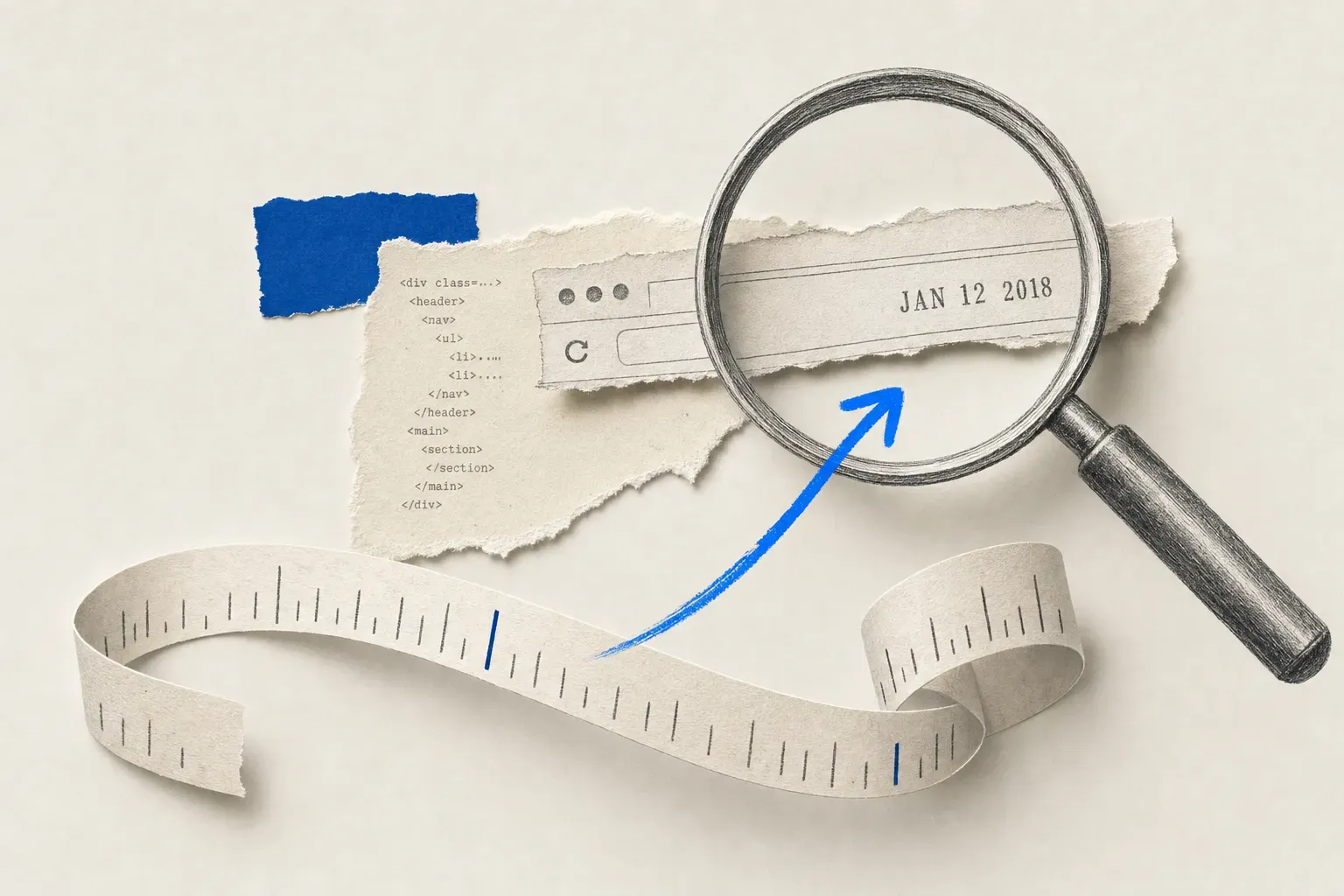
To check when a website was last updated, look for a visible "last updated" date, inspect the page's date metadata and sitemap, check the HTTP Last-Modified header, or compare saved versions on the Wayback Machine. Each method supplies a different kind of evidence. A reliable answer starts with identifying what its timestamp describes.
The worked example below uses public responses from three Visualping pages checked on October 28, 2026.
A website can have different dates for publication, content updates, server responses and archived captures. A missing date leaves a gap; a recent date needs context. Google's cache: search operator is also unavailable, as Google documented in September 2024.
Choose a method based on the evidence available and whether you need a historical answer or notifications about future detected changes.
Quick answer: pick a method by what you have
| You're trying to... | Use this method | Check this limitation |
|---|---|---|
| Inspect a single page's browser-reported date | document.lastModified in the console | It can return the current time when modification metadata is unavailable |
| Inspect a publisher's declared page-update date | Sitemap.xml <lastmod> | Find the individual page's entry and corroborate its date |
| Track future changes to a competitor or regulator page | Visualping alert | Detection follows a successful scheduled check |
| Compare historical page content | Wayback Machine versions | Captures can be missing or incomplete |
| Keep records of detected changes | Visualping change history | Review capture coverage and retention for your requirements |
For notifications about future detected changes, go to Method 7. The first six methods inspect dates or versions that are already available.
Method 1: Read the source for date metadata
Open the page's View Page Source option, where your browser provides it, and search for date fields. For metadata inserted by JavaScript, inspect the rendered document in DevTools as well. Look for these fields and read the surrounding context:
article:modified_time: the Open Graph article property for when an article was last changed.dateModified: a Schema.org property that can appear in structured data, including JSON-LD. Check that it describes the article or page you are investigating.datePublishedorarticle:published_time: publication fields, which have a different meaning from modification fields.<time datetime="...">: machine-readable date or time markup. Read its visible label to determine whether it describes publication, an update, or another event.
Treat any last-modified meta tag or og:updated_time field as publisher-supplied metadata requiring context. They are not substitutes for the HTTP header, and og:updated_time is not a property listed in the current Open Graph specification. Sitemap <lastmod> belongs in Method 4.
When it helps: the publisher supplies a clearly labeled field for the page you are checking.
Limits: metadata can be stale, automatically generated, or attached to another object on the page. Compare it with a labeled visible date and a version history or other record of a known edit. A field name alone does not verify the date.
Method 2: Check the HTTP Last-Modified header
The HTTP Last-Modified header expresses when the origin server believes the selected representation last changed. It is optional and can reflect changes beyond the article text. To inspect it:
Browser: open DevTools, select Network, reload the page, select the final document request, and inspect its Response Headers. Chrome documents this in its Network reference.
Command line (macOS or Linux):
curl --silent --show-error --location --dump-header - --output /dev/null 'https://example.com/'
This curl command fetches the response body and discards it while printing headers. Redirects produce multiple header blocks, so read the final response and check its status before using a date. curl -I makes a HEAD request; compare with GET if the responses differ.
When it helps: the server maintains a modification timestamp that corresponds to the content you need to date. Static files can expose filesystem-derived dates, but those dates still need interpretation.
Limits: a deployment or a change to another part of the representation can affect the header. CDN use, dynamic rendering, or a timestamp close to the request time is insufficient to prove the value is wrong. Check the server's behavior and compare with a known content revision. Date describes response origination, while ETag is an opaque representation validator; neither supplies a content-edit date.
Method 3: Run document.lastModified in the browser console
Open the page, open DevTools, switch to the Console, and enter this read-only expression:
document.lastModified
The browser returns a string such as "04/17/2026 13:22:51" in local time. The HTML standard derives it from available modification metadata, such as an HTTP Last-Modified value. When that metadata is unknown, the required fallback is the current date and time.
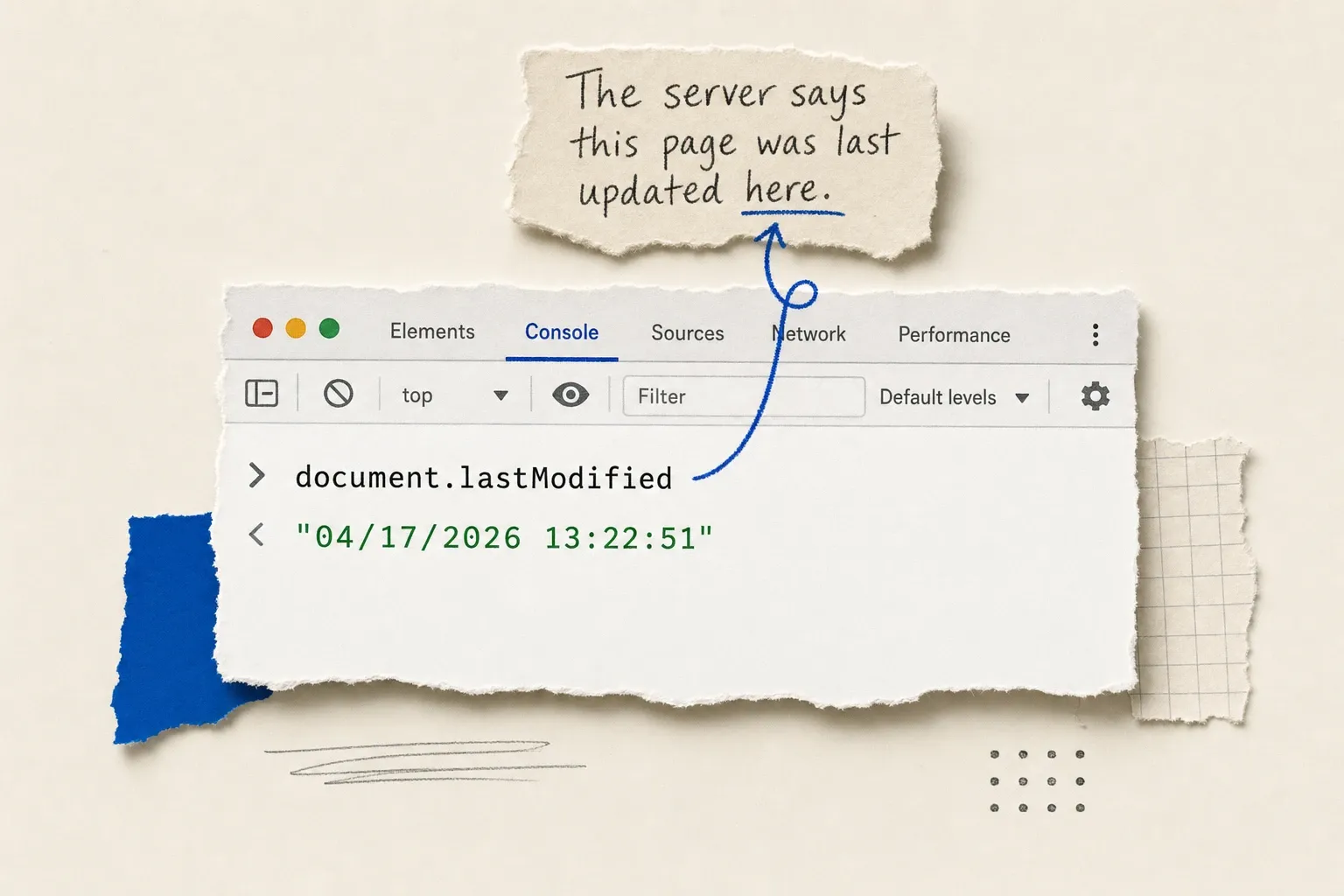
Illustrative console output for a document with modification metadata. When that metadata is unavailable, the value can be the current time.
When it helps: you want to inspect the browser's modification value and can compare it with the response headers.
Limits: this property does not independently measure edits to the page. A changing value can be a fallback or a changing server value. It does not by itself establish dynamic rendering, a content edit, or a false publisher date.
Method 4: Inspect the site's sitemap.xml
A site may publish a sitemap at /sitemap.xml, /sitemap_index.xml, or another URL. Check /robots.txt for a Sitemap: directive if the common paths do not work. A page's <url> entry can include an optional <lastmod> value.
- Open the sitemap URL.
- If it is a sitemap index, follow the relevant child sitemap, then find the page's
<loc>entry. - Read
<lastmod>inside that page's<url>entry, if present. A<lastmod>in a sitemap index describes the sitemap file itself.
When it helps: the publisher maintains accurate page-level dates. Google uses <lastmod> when it is consistently and verifiably accurate and reflects a significant update, such as a change to main content, structured data, or links.
Limits: the sitemap protocol requires a page entry's date to describe the page modification. Regenerating a sitemap does not require changing every page date. Identical dates warrant a check, but can also follow a shared update. Compare a known revision with its entry before trusting the value.
Method 5: Compare versions on the Wayback Machine
Enter a page URL in the Wayback Machine and look for available captures. Open versions from different dates and compare their contents. A capture timestamp records when the archive fetched a version; it does not establish when the publisher made the edit.

When it helps: captures exist for the page and contain the material you need, including content later removed from the live page. For a local copy you control, see how to archive a website.
Limits: the archive does not guarantee coverage. Scripts, images or whole pages can be missing. Differences between two successful captures narrow an observation window; intermediate changes may remain unseen. For other approaches, see Wayback Machine alternatives.
Method 6: Look for a visible "last updated" date on the page
Scroll the page and look for a clearly labeled date:
- The byline or author block, labeled "Published" or "Updated".
- A "last reviewed" note, which records a review rather than necessarily a content edit.
- A dated changelog or update note at the end of the article.
When it helps: the label states what the date means and another record corroborates it.
Limits: a copyright year does not establish when an individual page changed, and a publication date can precede later edits. Google recommends clear, consistent dates on the page and in structured data. For future detected changes, set up change alerts in Chrome or cloud monitoring.
Method 7: Skip the manual check and get an alert
Historical dates and saved versions answer questions about earlier content. To follow future changes, repeat the comparison or schedule monitoring. You can auto-refresh a page for manual review; a change monitor also compares captures.
An automated tool like Visualping checks a configured URL on a schedule and compares captured content. Every detected change has an AI summary and an important-or-not flag. The "Alert me when" prompt describes what should count as important; the Important-only notification setting and enabled channels control which notifications you receive.
To set one up:
- Create a free account, then choose Start monitoring, paste the URL, and click Go.
- Check that the preview contains the content you need. In default AI Mode, select an area if useful and write an "Alert me when" prompt.
- Choose a check frequency within your plan and monthly check allowance. Review the Important-only notification setting, enable email, and start monitoring.
The Free plan includes five pages and 150 monthly checks, with a fastest cloud interval of 60 minutes. One page checked hourly uses 720 scheduled checks over 30 days, so Free cannot sustain that schedule for the full period. Five daily pages use 150 checks over 30 days and 155 over 31 days. Two-minute cloud checks are available on Personal 10K and Business plans, and still draw from the plan's check budget. Failed checks consume quota; monitoring pauses when the allowance is exhausted.
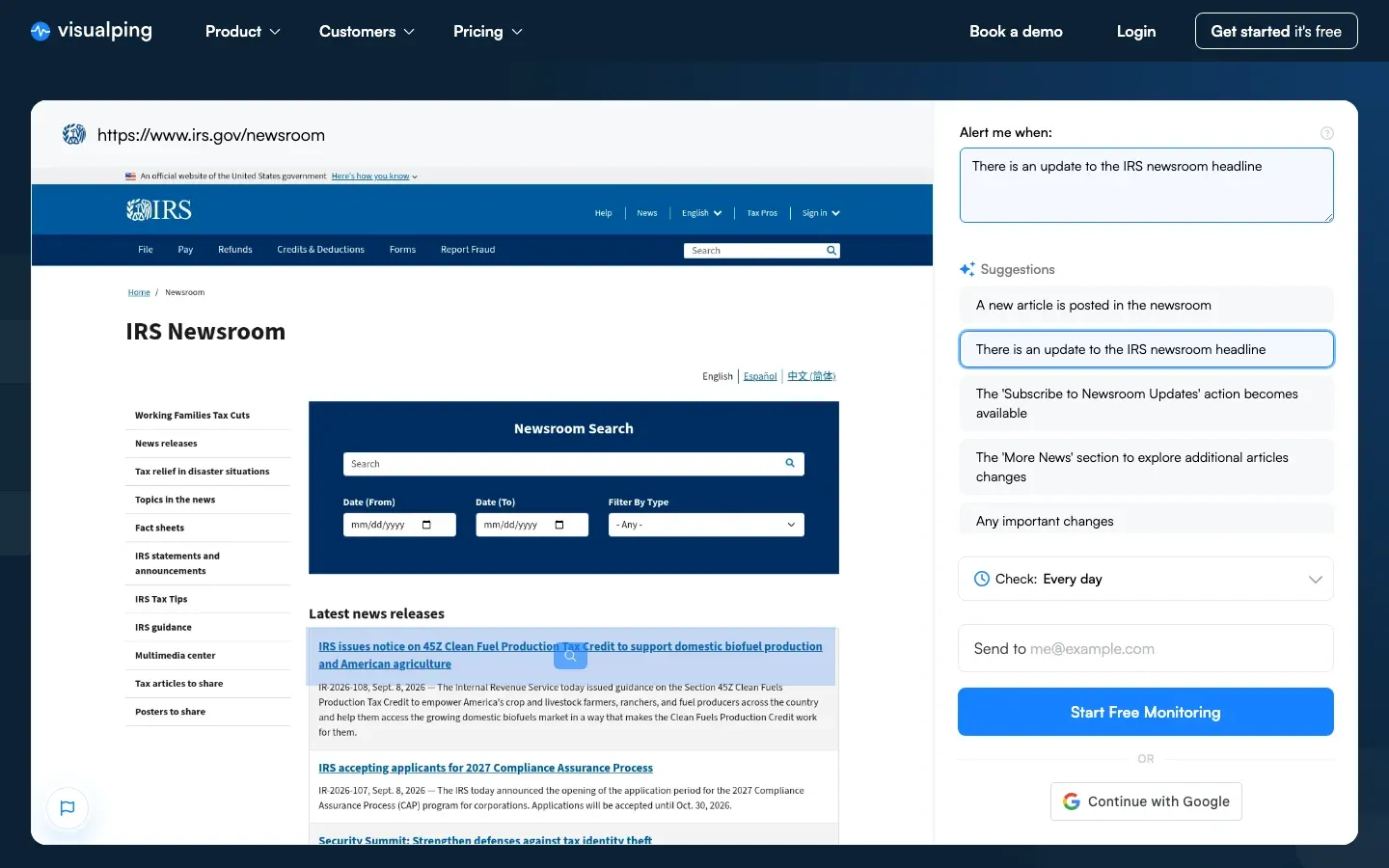
Earlier interface example showing an IRS newsroom preview and an alert condition. Follow the written setup steps; the image is not a current report of IRS content or monitor activity.
A successful initial capture provides a baseline. Later successful checks compare captured content. When you receive an alert depends on the schedule, successful access and comparison, and notification delivery. A change that appears and disappears between checks can be missed. Review failures and the captured preview if a page stops behaving as expected.
For developers, the Visualping API and MCP access are available on every plan, including Free. API usage draws from the plan's normal check allowance.
Why each method can mislead you (the limitations table)
| Method | Useful evidence | Main limitation |
|---|---|---|
| Source date metadata | Publisher-declared publication or modification date | Field can be stale or describe another object |
Last-Modified HTTP header | Server-declared representation modification time | Optional; may reflect changes beyond article text |
document.lastModified | Browser value derived from available modification metadata | Returns current time when the metadata is unknown |
Sitemap.xml <lastmod> | Declared update to the individual page | Index-level dates describe sitemap files |
| Wayback Machine | Content present in a particular archived capture | Missing captures and resources leave gaps |
| Visible page date | Publisher's labeled publication, update or review date | Labels and corroboration determine its meaning |
| Visualping alert | Change detected between captured versions | Requires successful checks; cannot recover earlier unobserved changes |
Keep the observed timestamp and its source together. A capture time, declared update date and alert time answer different questions.
A worked example from three Visualping pages (October 28, 2026)
On October 28, 2026, we fetched three Visualping blog pages with unauthenticated GET requests after making substantive corrections to them. The responses arrived at 22:16 UTC and each returned HTTP 200. We compared the fetched article bodies with our corrected versions.
| Page checked | Last-Modified response header | article:modified_time in the page |
|---|---|---|
| Walmart stock alerts | Absent | 2026-10-28 |
| Free monitoring tools | Absent | 2026-10-28 |
| Best Buy stock alerts | Absent | 2026-10-28 |
These pages had changed despite the missing HTTP header. Our saved revisions corroborated the date in this example. The metadata alone would still be a publisher declaration to check independently.
This was a deliberately selected example from three pages on our own site, sharing one publishing template. It does not measure accuracy across the web, and later responses may differ. If a page omits Last-Modified, continue with labeled metadata, a version history or another record of the update.
Google Cache and search-result dates
Google Cache and date-filtered search results require different treatment:
- Google documented the retirement of the
cache:search operator on September 24, 2024. It is unavailable for retrieving a cached page. - The
site:operator still restricts results to a domain or URL prefix. Google's displayed byline dates are estimates of publication or significant update, based on several signals. They are not a record of the last crawl.
Use search results to locate candidate pages, then inspect the page and its supporting records. Date filtering does not turn the search result into a verified edit history.
Which method should I use? A decision guide
- You can inspect page source: start with Method 1 and identify what each date field describes.
- You can use curl or DevTools: inspect the final response with Method 2, then compare the browser value in Method 3.
- You want declared dates across a site: use Method 4 and check individual page entries.
- You need historical content: use Method 5 where captures exist.
- You prefer a visible date: use Method 6 and look for a label and corroboration.
- You want future change notifications: set up Method 7.
For repeated checks, choose the pages and content that matter, then set a schedule you can maintain. A website change monitor compares captured versions; its detection timestamp records when the change was observed.
FAQ
How do I see when a website was last updated on Chrome specifically?
In Chrome, open DevTools, select Console, type document.lastModified, and press Enter. Treat the result as a browser-reported value with the fallback described in Method 3. To inspect the underlying response, use Network, reload, select the final document request and read Response Headers.
Is there a free website update checker online?
You can inspect response headers in browser DevTools at no charge. A header checker shares the limitations in Method 2. For ongoing monitoring, Visualping Free includes five pages and 150 monthly checks; choose a schedule that fits that allowance.
How do I find the exact date a webpage was created (not just last updated)?
Look for a labeled publication date, datePublished, or a publisher's original release record. An early Wayback capture supplies a dated archived version to inspect; check that it contains the relevant page content. ICANN registration data dates a domain's registration. It cannot establish when a particular webpage was created. An exact publication date may remain unavailable.
Why does the same page show different update dates in different methods?
The fields describe different events. HTTP Last-Modified concerns the selected representation, source metadata records a publisher's declaration, sitemap dates describe either a page or a sitemap file, and archive dates record captures. Fields can also be missing or inaccurate. Check their meaning and compare with a known revision instead of choosing a universally preferred field.
How often should I be checking a website's last update date?
Choose an interval based on how quickly you need to review a change and the check budget available. A shorter interval creates more opportunities to observe a change, but successful capture and delivery still matter. For repeated monitoring, use a website change monitor and inspect its failures as well as its alerts.
Can I check multiple websites at once?
You can inspect several URLs manually or with scripts. For scheduled comparisons, a page monitoring tool manages multiple monitors. Visualping's Bulk tab accepts a list of pages on every plan, subject to active-page limits. The monitors share the plan's monthly check allowance.
Conceptual illustration. The displayed check time is an example, not a live monitoring result.
Before relying on a monitor, confirm its captured preview, check allowance and notification settings. If you need a change-history workflow, also review retention and export requirements. Business plans include advanced Reports; saved history is subject to plan limits.
Want to monitor web changes that impact your business?
Sign up with Visualping to get alerts about detected changes on the pages you monitor.
Eric Do Couto
Eric Do Couto is the Head of Marketing at Visualping. He leads content strategy, growth operations, and brand positioning for website change detection.
More articles by Eric Do Couto