How to Monitor Website Changes with an API
Updated April 10, 2026

API-driven monitors scale from 10 pages to 10,000
Tracking a handful of web pages by hand is manageable. Tracking 50 is tedious. Tracking 500 is a job in itself.
Most teams hit this wall eventually. They need to monitor website changes across competitors, vendors, or regulatory bodies, and the click-by-click dashboard approach breaks down somewhere around monitor number 30. This happens across industries: in a sample of Visualping users with company data, the top sectors include software, IT services, financial services, government agencies, law firms, and higher education. Different use cases, same scaling problem. That is when an API becomes the obvious next step. Write a script, loop through a list of URLs, and spin up hundreds of monitors in a single run. Wire up webhooks so alerts land in Slack or Teams instead of an inbox nobody checks.
This guide covers how to monitor website changes programmatically using the Visualping API: generating an API key, creating monitors, configuring AI-powered change summaries, routing alerts through webhooks, and building automated monitoring workflows that would take hours to set up by hand.
Never written API code before? That is genuinely fine. We will show how AI coding tools like Claude Code can write the full integration from a plain-English prompt.
The point where dashboards stop working
Most page monitoring agents work well for one person watching a few pages. Pick a URL, set a check frequency, get an email when something changes. Simple.
But the model breaks when the list grows. If you need to track pricing pages across 200 competitors, clicking through a web interface to create each monitor takes days. Email notifications pile up unsorted. And the moment you need custom logic (only flag price drops above 10%, cross-reference changes with your CRM, archive every version of a regulatory page for compliance), you need code. Code needs an API.
The scale is real. In a sample of active Visualping accounts over a 30-day period, the platform processed over 19 million monitoring checks and delivered 1.9 million change notifications. Among sampled users who reported their primary use case, price tracking was the most common (over 73,000 users), followed by competitor monitoring (15,600+), regulatory and legal tracking (11,200+), and software release notes (6,200+). These are not hobbyists: sampled users span software companies, financial services firms, law practices, government agencies, and higher education institutions. Among the most intensive sampled accounts, 128 run 1,000 or more active monitors each, averaging over 7,400 monitors per account. Nobody is configuring those one at a time.
Get your API key in five clicks
Visualping API keys are self-serve. No sales call, no approval queue.
- Log in to visualping.io and go to Account Settings
- Click the Developer tab
- Click Create API Key
- Choose the scope (Organization or Workspace) and access level (Read or Write)
- Copy the key immediately (it will not be shown again)
You can hold up to five active keys. Each one is a Bearer token:
Authorization: Bearer YOUR_API_KEY
No OAuth flow, no client secret rotation, no developer application review. You are ready to make API calls.
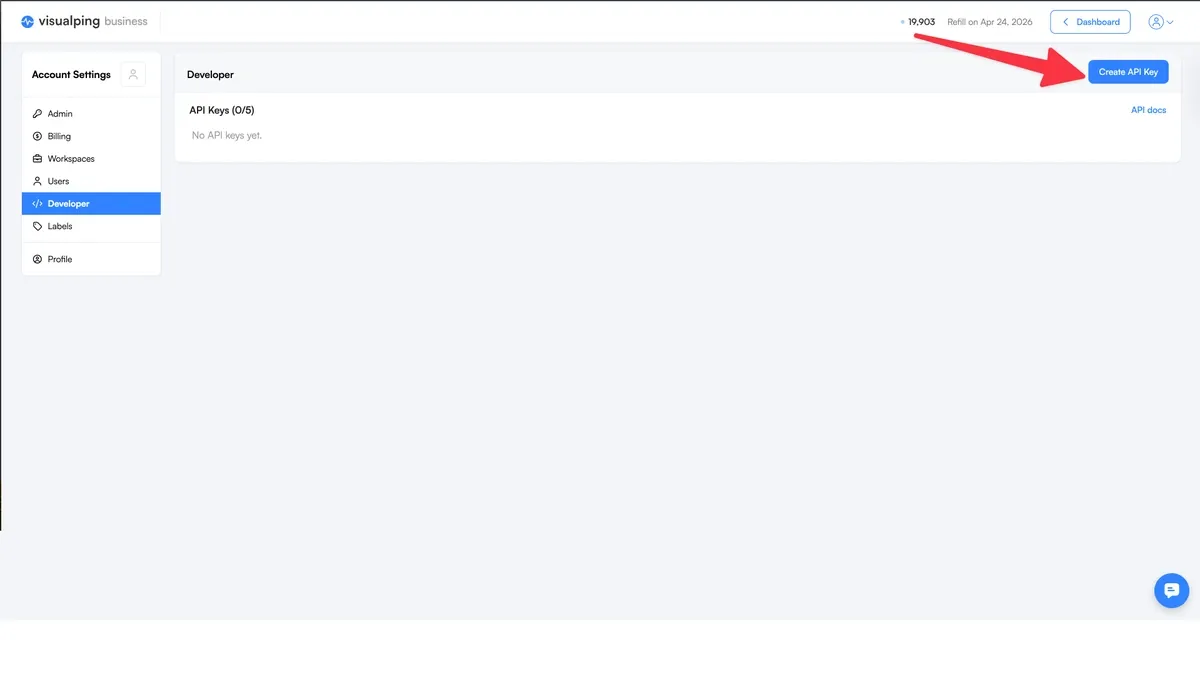 Generate your API key in the Developer tab with no approval needed
Your first monitor: one POST request
The Visualping API calls monitors "jobs." A job watches a URL at a set interval and alerts you when something changes.
Here is a monitor that checks a competitor's pricing page every hour:
import requests

API_KEY = "YOUR_API_KEY"
headers = {
    "Authorization": f"Bearer {API_KEY}",
    "Content-Type": "application/json"
}

payload = {
    "url": "https://competitor.com/pricing",
    "description": "Competitor pricing page",
    "interval": "60",
    "active": True,
    "trigger": "1",
    "mode": "ALL",
    "target_device": "4",
    "wait_time": 0
}

response = requests.post(
    "https://job.api.visualping.io/v2/jobs",
    headers=headers,
    json=payload
)

print(response.json())
One POST request, one active monitor. The interval field takes values in minutes: "5" for every five minutes, "60" for hourly, "1440" for daily, "10080" for weekly. Most public pricing pages do fine with hourly or every-six-hours checks.
Narrow the focus to one page section
You do not have to watch the entire page. The xpath parameter targets a specific CSS selector or XPath expression:
payload = {
    "url": "https://example.com/products",
    "description": "Product availability section",
    "interval": "30",
    "xpath": "#inventory-status",
    "active": True,
    "trigger": "1",
    "mode": "ALL",
    "target_device": "4",
    "wait_time": 0
}
The monitor watches only the #inventory-status element. Header redesigns, footer changes, rotating ads? Ignored.
Pages that need a click or login first
Some pages hide behind cookie consent banners or login forms. The preactions parameter handles both:
payload = {
    "url": "https://example.com/dashboard",
    "description": "Vendor dashboard status",
    "interval": "360",
    "preactions": {
        "active": True,
        "actions": [
            {"action": "click", "selector": "#accept-cookies"},
            {"action": "type", "selector": "#email", "value": "your@email.com"},
            {"action": "click", "selector": "#login-button"}
        ]
    },
    "active": True,
    "trigger": "1",
    "mode": "ALL",
    "target_device": "4",
    "wait_time": 0
}
Tell the AI what matters (and ignore everything else)
Every change Visualping detects comes with two things: a binary IMPORTANT flag and a plain-English summary explaining what changed.
The interesting part is that you define what "important" means for each monitor. The summalyzer field accepts a natural-language importance definition:
payload = {
    "url": "https://vendor.com/terms-of-service",
    "description": "Vendor ToS - legal review",
    "interval": "1440",
    "summalyzer": {
        "importantDefinitionType": "custom",
        "importantDefinition": "Changes to liability clauses, data handling policies, or pricing terms"
    },
    "active": True,
    "trigger": "1",
    "mode": "ALL",
    "target_device": "4",
    "wait_time": 0
}
When the API detects a change, the response includes:
{
    "englishSummary": "The data retention clause in Section 4.2 was updated to extend the retention period from 12 months to 24 months.",
    "analyzerAlertTriggered": true
}
The analyzerAlertTriggered field is the IMPORTANT flag. true means the change matched your custom importance definition. Pair it with the onlyImportantAlerts notification setting, and your team only hears about changes worth acting on. A vendor tweaking their footer copyright date? Silence. The same vendor rewriting their data retention clause? Alert.
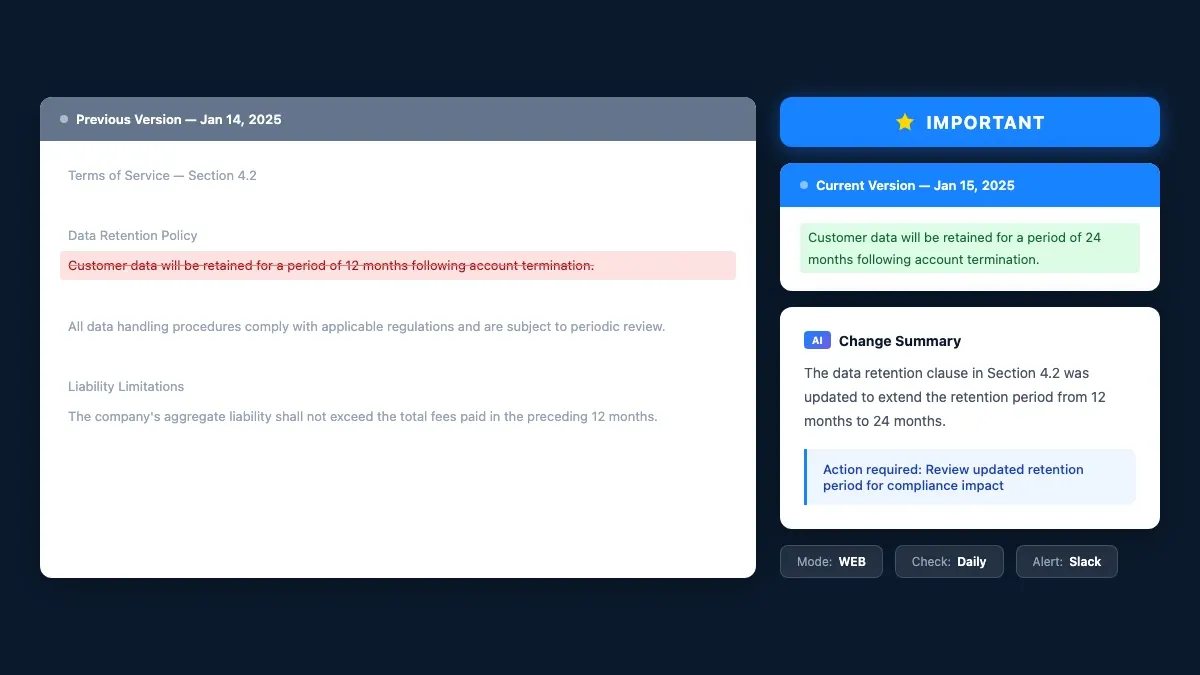 Every change gets an IMPORTANT flag and plain-English summary
Send alerts where your team actually looks
Email alerts work when you are watching three pages. At 30 or 300, they become noise. In a sample of active accounts, 589,000 jobs triggered at least one notification in a 30-day period across 142,000 users. That volume of alerts needs to land somewhere useful. Webhooks route change alerts directly into the tools your team already has open: Slack, Microsoft Teams, Discord, Google Chat, Google Sheets, or any custom HTTP endpoint.
Configure them in the notification object when creating a job:
Slack example
payload = {
    "url": "https://competitor.com/pricing",
    "description": "Competitor pricing - alerts to #competitive-intel",
    "interval": "60",
    "notification": {
        "enableEmailAlert": False,
        "onlyImportantAlerts": True,
        "config": {
            "slack": {
                "url": "https://hooks.slack.com/services/YOUR/WEBHOOK/URL",
                "active": True,
                "notificationType": "slack",
                "channels": ["#competitive-intel"]
            }
        }
    },
    "summalyzer": {
        "importantDefinitionType": "custom",
        "importantDefinition": "Price changes, new tier additions, or feature removals"
    },
    "active": True,
    "trigger": "1",
    "mode": "ALL",
    "target_device": "4",
    "wait_time": 0
}
Custom webhook endpoint
For full control, point Visualping at your own URL. It will POST change data to that endpoint every time a change is detected:
"notification": {
    "config": {
        "webhook": {
            "url": "https://your-app.com/api/visualping-webhook",
            "active": True
        }
    }
}
Once you control the webhook, the routing options open up. A few patterns we have seen teams build:
- Log every change to a database and run weekly trend reports across all monitored pages
- Trigger Zapier or n8n automation workflows that enrich the change data before routing it
- Feed changes into a Slack bot that posts a daily digest (instead of one alert per change)
- Update a live competitive intelligence dashboard
- Auto-create Jira tickets when a critical page changes
Spin up 200 monitors in one script
The API earns its keep when you need monitors in bulk. Here is a Python script that loops through a list of competitor URLs and creates a monitor for each one:
import requests
import time

API_KEY = "YOUR_API_KEY"
BASE_URL = "https://job.api.visualping.io/v2/jobs"
headers = {
    "Authorization": f"Bearer {API_KEY}",
    "Content-Type": "application/json"
}

competitors = [
    {"url": "https://competitor-a.com/pricing", "name": "Competitor A pricing"},
    {"url": "https://competitor-b.com/pricing", "name": "Competitor B pricing"},
    {"url": "https://competitor-c.com/plans", "name": "Competitor C plans"},
    # Add as many as you need
]

for comp in competitors:
    payload = {
        "url": comp["url"],
        "description": comp["name"],
        "interval": "360",
        "active": True,
        "trigger": "1",
        "mode": "ALL",
        "target_device": "4",
        "wait_time": 0,
        "summalyzer": {
            "importantDefinitionType": "custom",
            "importantDefinition": "Price changes, plan restructuring, or feature additions/removals"
        },
        "notification": {
            "onlyImportantAlerts": True,
            "config": {
                "slack": {
                    "url": "https://hooks.slack.com/services/YOUR/WEBHOOK/URL",
                    "active": True,
                    "notificationType": "slack",
                    "channels": ["#competitive-intel"]
                }
            }
        }
    }

    response = requests.post(BASE_URL, headers=headers, json=payload)

    if response.status_code == 200:
        job_id = response.json().get("id", "unknown")
        print(f"Created monitor for {comp['name']} (Job ID: {job_id})")
    else:
        print(f"Failed for {comp['name']}: {response.status_code}")

    time.sleep(1)  # Rate limiting courtesy
The same script works for 10 URLs or 1,000. Swap the competitors list for a CSV import and you can monitor URLs in bulk across an entire competitive landscape in a single run. Among sampled power-user accounts, 103 manage between 500 and 999 active monitors, and 128 manage 1,000 or more. At that scale, bulk creation scripts like this one are not optional.
 One script spins up hundreds of monitors in a single run
Manage monitors programmatically
The API gives you full CRUD: create, read, update, delete. A few of the patterns that come up most often:
Pull all active monitors
response = requests.get(
    "https://job.api.visualping.io/v2/jobs",
    headers=headers,
    params={"activeFilter": [1], "pageSize": 100}
)

jobs = response.json().get("jobs", [])
for job in jobs:
    print(f"{job['id']}: {job['url']} ({job.get('description', '')})")
Read a monitor's change history
job_id = 1234567  # Numeric jobid from the create response
response = requests.get(
    f"https://job.api.visualping.io/v2/jobs/{job_id}",
    headers=headers
)

data = response.json()
for change in data.get("changes", []):
    summary = change.get("englishSummary", "No summary")
    important = change.get("analyzerAlertTriggered", False)
    date = change.get("created", "")
    flag = "IMPORTANT" if important else "minor"
    print(f"[{flag}] {date}: {summary}")
Find monitors with recent important changes
response = requests.get(
    "https://job.api.visualping.io/v2/jobs",
    headers=headers,
    params={
        "eventFilter": "changedImportant",
        "dateFilter": "since_custom_date",
        "dateFilterStart": "2025-01-20T00:00:00Z"
    }
)
Set dateFilterStart to seven days ago (ISO 8601 format) to get the past week. Useful for weekly digest reports or "what did we miss?" audits.
What if you do not write code?
You do not need to be a developer to use the Visualping API. AI coding assistants like Claude Code can write the entire integration from a plain-English description.
Open Claude Code and tell it what you need:
"Create a Python script that uses the Visualping API to monitor the pricing pages of these 20 SaaS competitors. Check every 6 hours. Send important changes to the #pricing-intel Slack channel. Use this API key: [key]. Here are the URLs: [list]."
Claude Code writes the script (error handling, rate limiting, the exact API payloads from this guide), you review it, and run it. Twenty monitors, live.
The same approach works for other monitoring scenarios. A compliance analyst might ask Claude Code to set up daily checks on 50 government regulatory pages with importance definitions focused on policy language, routing alerts to a compliance Slack channel. A product manager might ask it to track competitor careers pages and log new job postings to a Google Sheet. An engineering lead might need monitors on vendor API documentation with preactions to handle login and Teams webhook routing for breaking changes.
The pattern is the same each time: describe what you want to watch, where you want alerts, and what counts as important. The AI writes the code. You run it.
This matters because the people buying website monitoring at scale are not always engineers. In a sample of opportunity-stage contacts in our CRM, the most common job functions are executives and directors, followed by research analysts and marketing leads. These are people who know what they need to monitor but may not have written a Python script before. AI coding tools close that gap.
Five ways teams use API-driven monitoring
These are not hypothetical. They come from self-reported use cases across a sample of Visualping's user base, cross-referenced with industry data from our CRM pipeline.
Competitive intelligence. Among sampled users, over 15,600 report competitor monitoring as their primary use case. The typical setup: 50-200+ URLs across a competitive landscape, covering pricing pages, feature lists, and marketing messaging. AI-powered competitor monitoring summaries flag pricing restructures and positioning shifts. Alerts route to a dedicated Slack channel. In our CRM, software companies, IT services firms, and marketing agencies are the most active buyers of competitive monitoring at scale, with sampled marketing agency accounts averaging the highest monitor counts per user of any industry.
Compliance and regulatory. Over 11,200 sampled users report tracking laws and regulations as their primary use case, and law practices and legal services firms rank among the top industries for power users with 100+ active monitors. These teams use compliance monitoring to watch terms of service, privacy policies, regulatory filings, and government pages across vendors, partners, and agencies. The importance filter flags changes to liability language and data handling clauses. Cosmetic updates (typo fixes, copyright year changes) stay silent.
E-commerce pricing. Price tracking is the single most popular self-reported use case: over 73,000 sampled users watch for price changes and out-of-stock transitions. Retail and e-commerce monitoring teams track competitor pricing data, inventory status, and promotional offers. Importance definitions target specific triggers (price drops below a threshold, stock status changes, new product listings). Webhooks feed detected changes directly into pricing optimization systems or internal dashboards.
Financial research. Financial services monitoring is the sixth-largest industry among sampled users (7,600+), and sampled power users in the industry average over 890 active monitors each. Investment firms and research analysts monitor SEC filings pages, investor relations portals, earnings calendars, and executive team pages. One API script sets up monitors across hundreds of public company websites. Importance definitions target leadership changes, financial restatements, and M&A language. Some users also monitor PDF documents directly: over 22,600 sampled jobs track PDF files like quarterly reports and regulatory filings.
API dependency tracking. Over 6,200 sampled users report software release notes as their primary monitoring use case, and another 1,400+ sampled jobs monitor JSON API endpoints directly. Engineering teams set up API changelog monitoring for the documentation, changelog, and status pages of every third-party service their product depends on. When a vendor pushes a deprecation notice, the team finds out from a Slack alert, not a production incident at 2 AM.
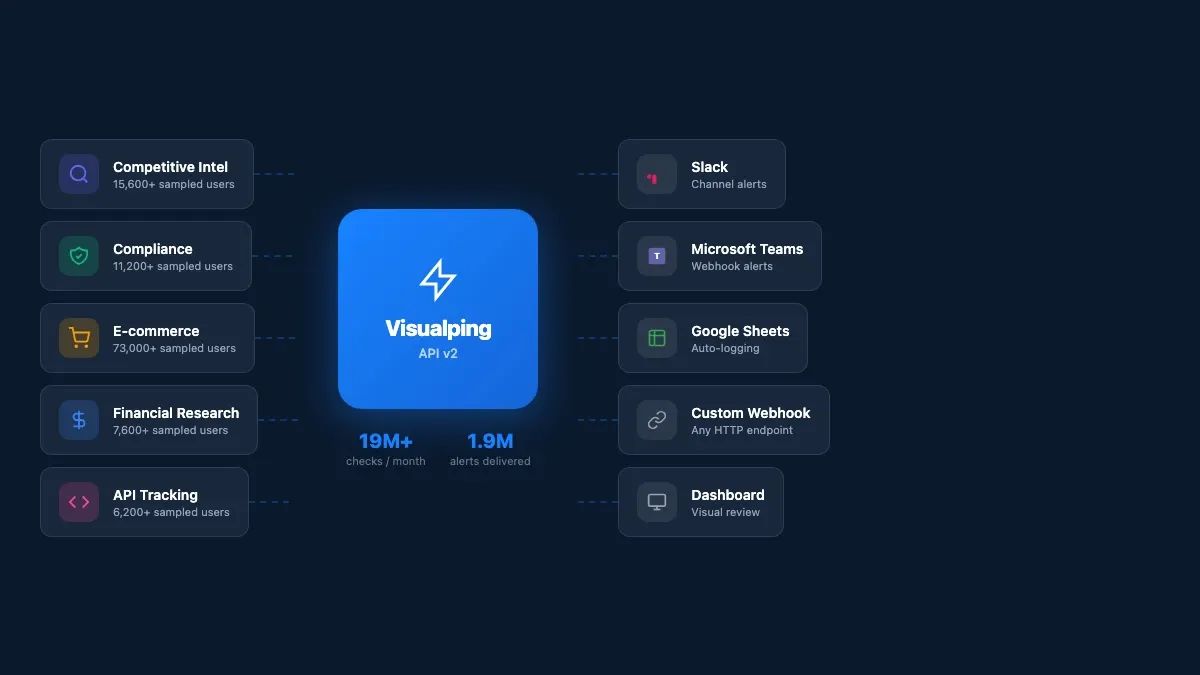 Five use cases, one API with alerts routing to any tool your team uses
Advanced API features
Run checks during business hours only
Some pages only update during the workday. The advanced_schedule parameter limits checks to the hours you specify:
"advanced_schedule": {
    "start_time": 9,
    "stop_time": 18,
    "active_days": [1, 2, 3, 4, 5]  # Monday through Friday
}
No weekend checks, no overnight checks. Saves check quota and reduces noise.
Organize with labels
At 50+ monitors, you need categories. Assign label IDs during job creation to group monitors by purpose ("Competitors," "Compliance," "Vendor APIs"):
"labelIds": [101, 205]
Then filter by label when querying: "labelsFilter": [101] returns only that group.
Search across all monitors
The fullTextSearchFilter parameter searches URLs and descriptions:
params = {"fullTextSearchFilter": "pricing"}
Returns every monitor containing "pricing." Useful for auditing coverage: "Are we watching all the pricing pages we said we would?"
From zero to working automation
The fastest path: sign up at visualping.io. Every plan includes full API access, including the Free tier. Generate an API key in the Developer tab and copy the Python example from this guide. One POST request gives you a live monitor. Add a webhook to route alerts to Slack or Teams. Then loop through a list of URLs to scale.
If you want help writing the code, open Claude Code and describe what you want to monitor. It will generate the full script using these API patterns.
Frequently asked questions
How do I monitor a website for changes automatically?
Send a POST request to the Visualping API with a target URL, check frequency, and notification settings. The platform renders the page on schedule, compares it to the previous version, generates an AI summary of what changed, and delivers alerts through your configured webhooks. No manual checking required after setup.
What types of website changes can the API detect?
The recommended monitoring mode is ALL (the default), which is Visualping's AI mode: it compares a screenshot and the page text in a single check and describes what changed. TEXT mode (text extraction only) is a legacy option. The Visual and Element compare types were retired in the app on October 4, 2026, so use ALL for new monitors. You can also target specific page sections using CSS selectors or XPath expressions, so you only track the part of the page that matters.
Do I need coding experience to use a website monitoring API?
Not necessarily. AI coding tools like Claude Code can generate working API integration scripts from a plain-English description. You describe the URLs, frequency, and alert destinations. The AI writes the code. You review and run it. That said, understanding what the code does will help you troubleshoot and customize, so the code examples in this guide are worth reading even if you plan to use AI to write the script.
How many websites can I monitor through the API?
No hard limit on the number of monitors. Your plan's check quota determines how many checks run per month. Among a sample of active Visualping power users, accounts commonly manage 100 or more active monitors at once.
Can I get website change alerts in Slack or Microsoft Teams?
Yes. The API supports webhook notifications for Slack, Microsoft Teams, Discord, Google Chat, Google Sheets, and custom HTTP endpoints. Set the notification object when creating a monitor. Alerts go straight to your team's tools.
What is the difference between the API and the Visualping dashboard?
The dashboard is for manual, one-at-a-time management. The API is for programmatic control: bulk creation, webhook automation, integration with existing tools. Both hit the same monitoring platform, and monitors created through the API show up in your dashboard (and vice versa).
Want to monitor web changes that impact your business?
Sign up with Visualping to get alerted of important updates from anywhere online.
Eric Do Couto
Eric Do Couto is the Head of Marketing at Visualping. He leads content strategy, growth operations, and brand positioning for website change detection.
More articles by Eric Do Couto