Bulk URL monitoring: import, organize, and get AI-powered alerts
Updated March 11, 2026
Disclosure: We have a commercial interest in Visualping's success. While we highlight our platform's capabilities, we encourage you to evaluate multiple solutions based on your needs. All third-party statistics cited have been independently verified.
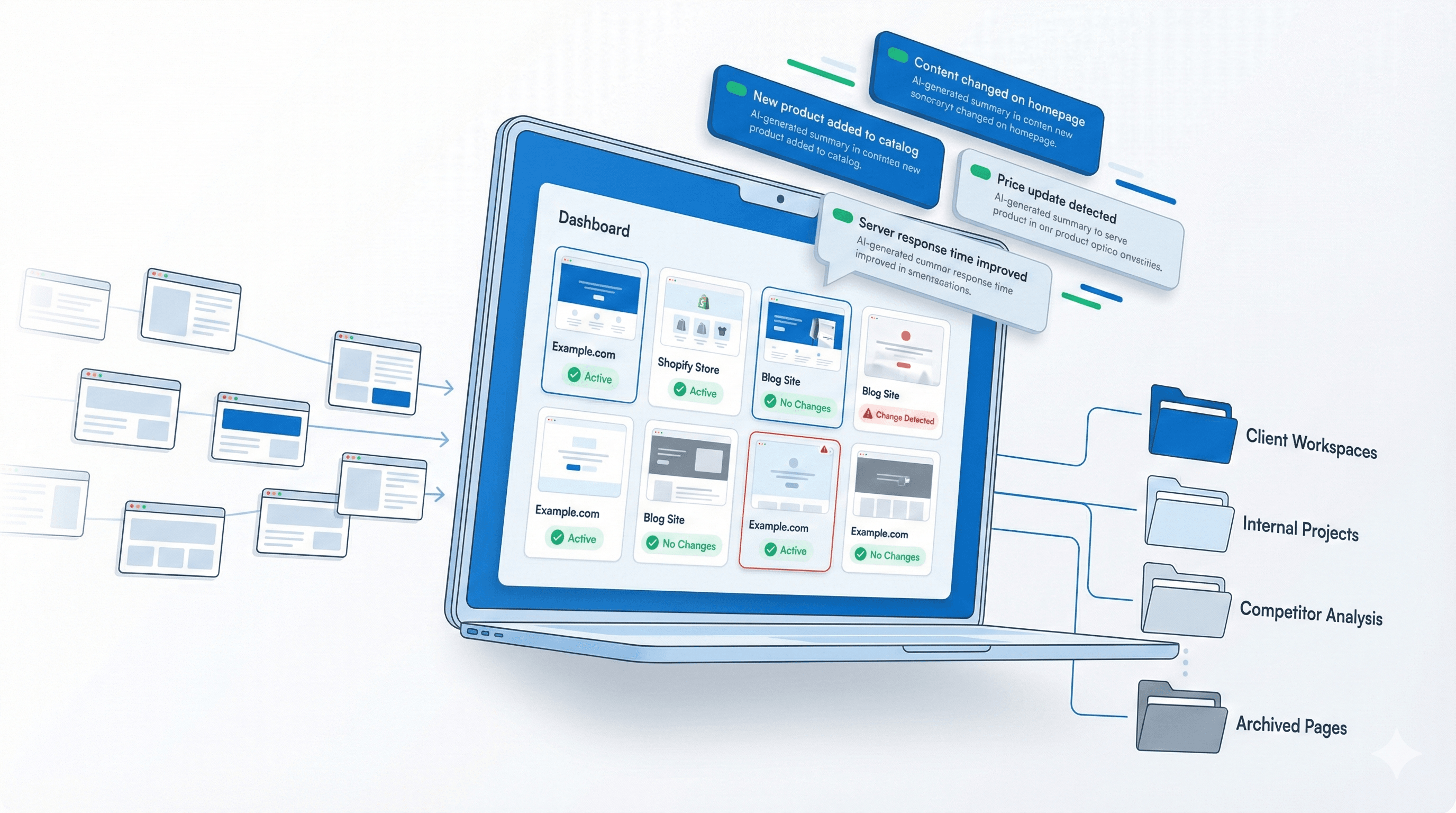
You have 400 competitor pages to watch. Doing it manually means tabbing between bookmarks, squinting at cached screenshots, and hoping you notice the pricing tweak that dropped at 2 AM. Bulk URL monitoring strips that work out entirely. Import URLs from a spreadsheet, apply monitoring rules in one pass, and let AI summaries tell you what actually changed.
According to Crayon's 2025 State of Competitive Intelligence research, 68% of B2B software sales opportunities are now competitive. That number alone justifies a system for tracking competitor pricing, compliance changes, brand mentions, and content updates across hundreds of pages at once.
Key takeaways
- Bulk import tools configure hundreds of monitoring jobs from a spreadsheet in minutes.
- AI-powered summaries explain what changed and whether it matters.
- Workspaces, folders, and labels help manage alerts across teams and projects.
- Scheduled reports let you review changes on your schedule instead of reacting to every alert.
What bulk URL monitoring actually does (and who needs it)
Bulk URL monitoring creates multiple monitoring jobs at once by importing URLs from a spreadsheet. Instead of configuring each webpage one by one, you paste URLs or upload them in bulk, then apply consistent settings across all pages.
Once imported, pages are monitored automatically. You define what changes matter, set your monitoring frequency, and get alerts when something shifts. This works across product pages, competitor sites, regulatory sources, or any web content that needs ongoing tracking.
A web development manager maintaining 100+ WordPress sites shared on G2's software review platform that bulk import was how they configured 500 monitoring jobs. That pattern is common among teams managing large web properties.
Where teams put this to work
Competitive intelligence and pricing is the most common use case. E-commerce teams monitor competitor pricing across hundreds of product pages to inform pricing strategy. Marketing departments track brand mentions and campaign performance across multiple domains.
Compliance and regulatory tracking is another big one. Compliance teams verify that regulatory content stays accurate across corporate websites and third-party vendor sites. Legal teams monitor court dockets and regulatory agency websites for case updates.
Investment professionals track changes to SEC filings, earnings announcements, and investor relations pages. Publishers watch for unauthorized modifications across sites they manage. SEO professionals monitor large inventories of pages to catch crawl errors, content drift, or unauthorized changes that affect search rankings.
What changes when you monitor at scale
Configuring hundreds of monitors by hand takes days. Bulk operations finish in minutes. That time difference alone justifies the switch for most teams.
Beyond speed: identical monitoring rules across all URLs eliminate configuration errors. Your entire monitoring setup follows the same check frequencies and alert thresholds. And adding another hundred URLs takes the same effort as adding five, so coverage grows without growing your team's workload.
Automated checks also run continuously, catching changes the moment they happen rather than hours or days later.
Setting up bulk URL monitoring
Visualping's bulk import feature is available to Business plan users (Personal plans support individual job creation only). You can configure frequency, threshold, compare type, adjustments, actions, notifications, and schedule for hundreds of jobs in a few clicks.
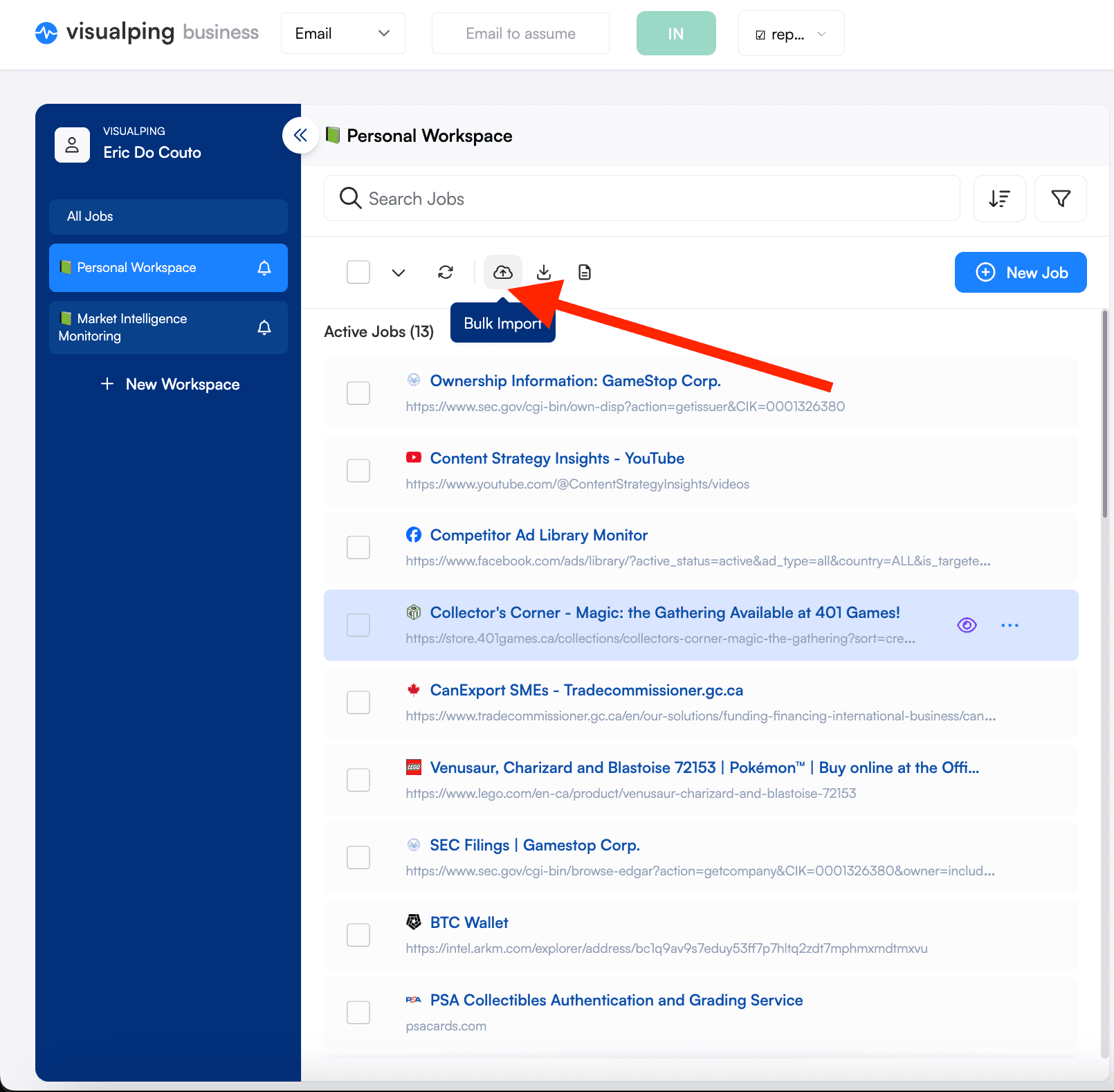
Importing URLs in bulk
-
From the Visualping dashboard, click the Bulk Import icon. Paste URLs directly or copy a list from a spreadsheet using two columns: URL and description (which becomes the job title).
-
Configure settings in the right panel. This is where you define what counts as a meaningful change for these URLs.
Example AI prompt for competitive intelligence monitoring:
"I am a competitive intelligence analyst tracking competitor websites for our sales and product teams.
Alert me when you detect:
- Pricing changes (new prices, removed tiers, discount offers, or pricing page restructuring)
- New product or feature announcements
- Changes to product capabilities or feature descriptions
- New integrations or partnership announcements
- Leadership or team page changes (new hires, departures, role changes)
- Customer logos added or removed from the site
- Case studies or testimonials added
- Messaging or positioning changes on the homepage or product pages
- New comparison pages mentioning our company or other competitors
- Trial or demo offer changes
Ignore:
- Blog post dates updating
- Minor copy edits or typo fixes
- Footer changes, copyright year updates
- Cookie banners, popup changes
- Rotating testimonials or customer logos in carousels
- Job posting counts changing
- Social media follower counts
- Event dates for webinars or conferences
- Dynamic content like "Last updated" timestamps
When flagging a change as important, briefly explain the competitive implication (e.g., 'Competitor lowered Enterprise pricing by 20% - may impact our deal positioning' or 'New AI feature announced - overlaps with our Q2 roadmap')."
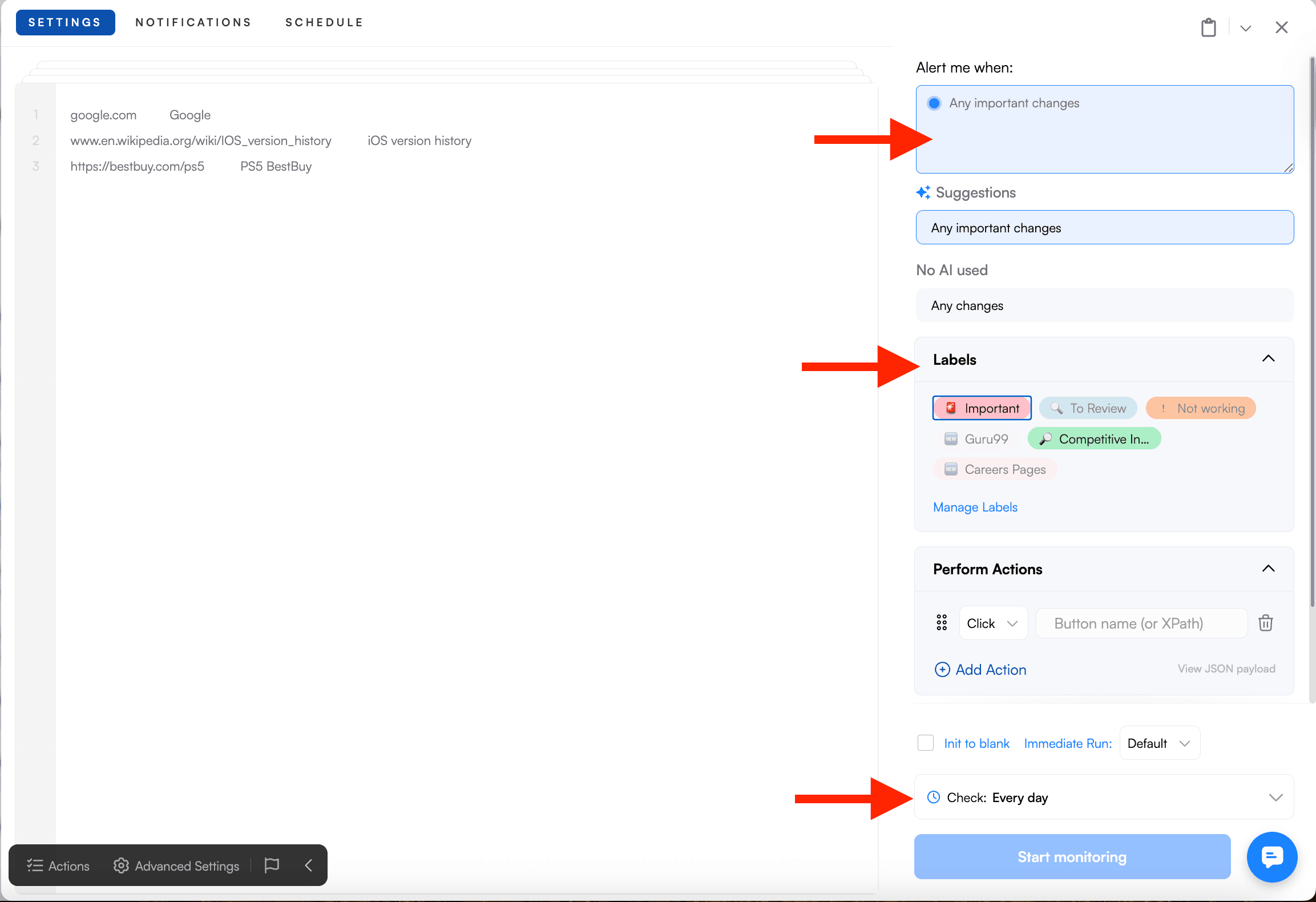
Other settings include check frequency, compare type (visual, text, or element), and Actions for handling dynamic content. All settings apply uniformly to imported URLs.
For teams that need different settings across URL groups, run separate bulk imports. Import competitor pricing pages with one configuration, then import regulatory sources with different thresholds and frequencies.
Picking the right check frequency
Balance your check frequency between detection speed and how quickly you can respond. Monitoring every five minutes gives you near-real-time awareness but generates more alerts. Daily checks suit stable content where same-day notification is fine.
| Content type | Suggested frequency | Why |
|---|---|---|
| Competitor pricing | Hourly to daily | Prices change periodically; same-day awareness is usually enough |
| Regulatory filings | Daily | Official sources update on business schedules |
| News and press releases | Hourly | Time-sensitive information needs faster detection |
| Product availability | Every 30-60 minutes | Stock status changes frequently for popular items |
| Static content (policies, legal) | Weekly | Changes are rare; frequent checks add noise |
Set thresholds to filter minor variations. Lower thresholds (5-10%) catch every modification, including timestamp updates and ad rotations. Higher thresholds (15-20%) focus on substantive changes but may miss incremental updates. Start moderate and adjust based on your false positive rate.
Handling authentication and dynamic content
Pop-ups, cookie banners, and login forms often block the content you actually want to monitor.
Visualping's Perform Actions feature handles this automatically. Configure clicks to dismiss overlays, scroll actions to load dynamic content, or login sequences for authenticated pages. These actions run before each check.
For password-protected pages, enter credentials that execute during each monitoring run. Business users can obscure sensitive text to keep credentials private from other workspace members while still enabling automated authentication.
Organizing alerts by brand, category, and team
Once you're monitoring hundreds of pages, organization is the difference between useful intelligence and inbox noise. Without structure, the pricing change that matters gets buried under 47 routine content updates.
Workspaces: group by team or project
Workspaces let Business users group monitoring jobs by team, project, or client. Each workspace operates independently with its own jobs, user permissions, and notification settings.
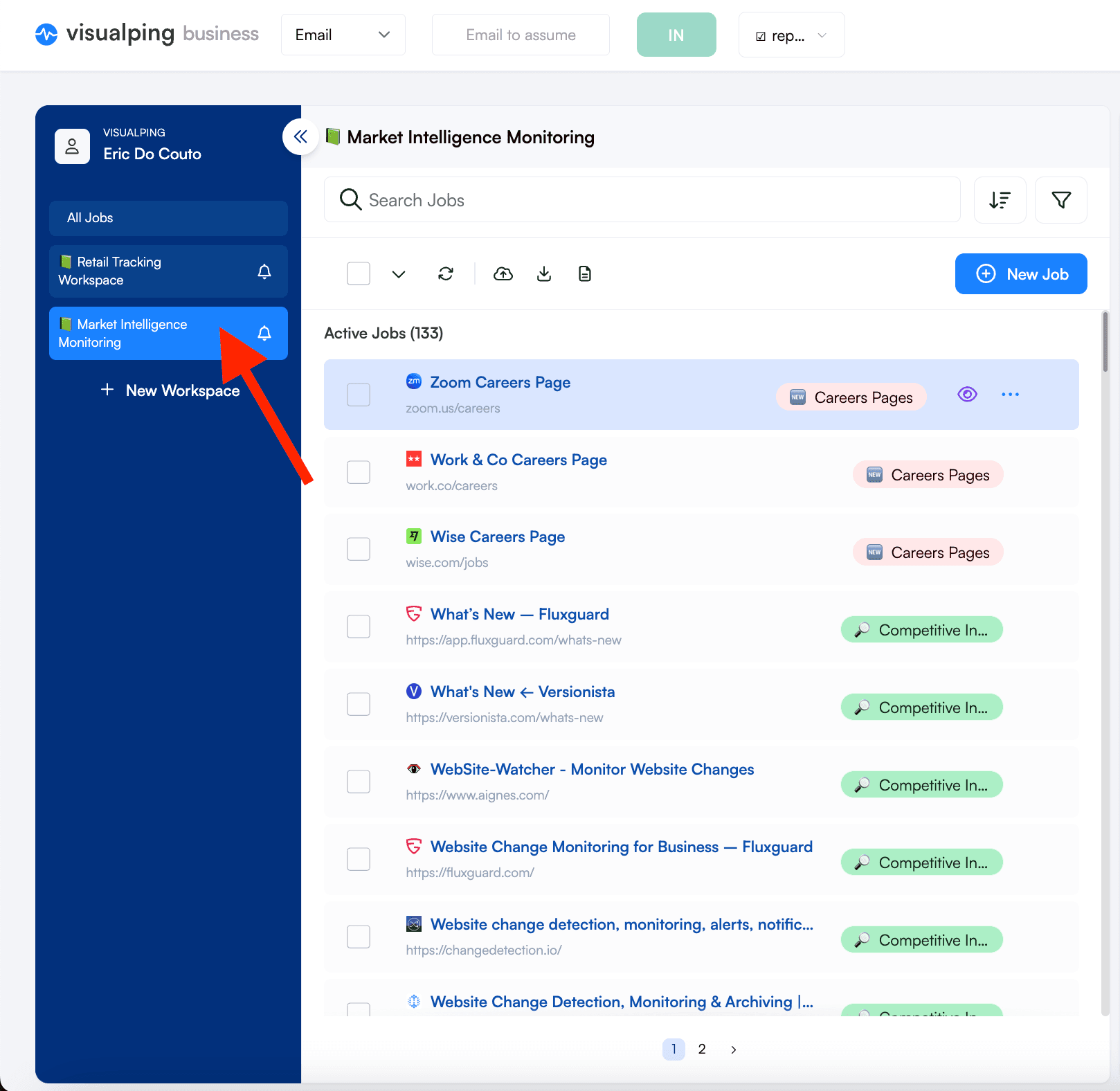
A marketing team might maintain separate workspaces for competitor monitoring, regulatory changes, and MAP price monitoring. Each workspace holds only the jobs that belong there, cutting noise for team members.
Users can toggle notifications per workspace. This lets people receive alerts only from workspaces relevant to their role, preventing alert fatigue while making sure the right changes reach the right people.
Labels: tag across boundaries
Labels provide flexible categorization that cuts across workspaces. While workspaces create separate containers, labels tag jobs with keywords you can filter and search.
To add labels, select a job and use the Labels dropdown on the right side.
Create labels for brand names, content types, priority levels, regulatory categories, or any classification that makes sense for your workflow. A monitoring job tracking FDA guidance documents might carry three labels: "Regulatory," "High Priority," and "Pharma Industry." That lets you pull up views like "all high-priority regulatory pages" or "all pharma monitoring jobs" in seconds.
Labels support emoji icons and custom colors for visual distinction. When scanning your dashboard, color-coded labels help you spot job categories at a glance.
Labels power targeted reports
Labels connect directly to scheduled reports (covered below). When configuring a report, filter by label to generate purpose-specific digests.
A few examples:
- Weekly report filtered to "Regulatory" labels for your legal team
- Daily report filtered to "Competitor Pricing" for your sales team
- Monthly executive summary scoped to "Strategic Competitors" workspace
This filtering turns a generic report into targeted intelligence for each team.
Naming conventions that scale
Systematic naming gives you powerful filtering even without formal labels. Add consistent prefixes or suffixes to job names that identify their category, region, or purpose.
Naming jobs with patterns like "CompetitorA - Pricing - US" or "Regulatory - FDA - Guidance Documents" lets you search for all jobs matching "CompetitorA" or "Regulatory" instantly.
This works alongside labels and workspaces, giving you multiple paths to find specific jobs. When your monitoring inventory grows past a few hundred jobs, these navigation aids pay for themselves.
AI-powered filtering at scale
When you're monitoring hundreds of URLs, raw change alerts pile up fast. Visualping AI handles this with two features available on every plan:
- AI Summaries explain what changed in plain language, so you can scan alerts in seconds
- Important Alerts let you write a prompt defining which changes matter, and only those trigger notifications
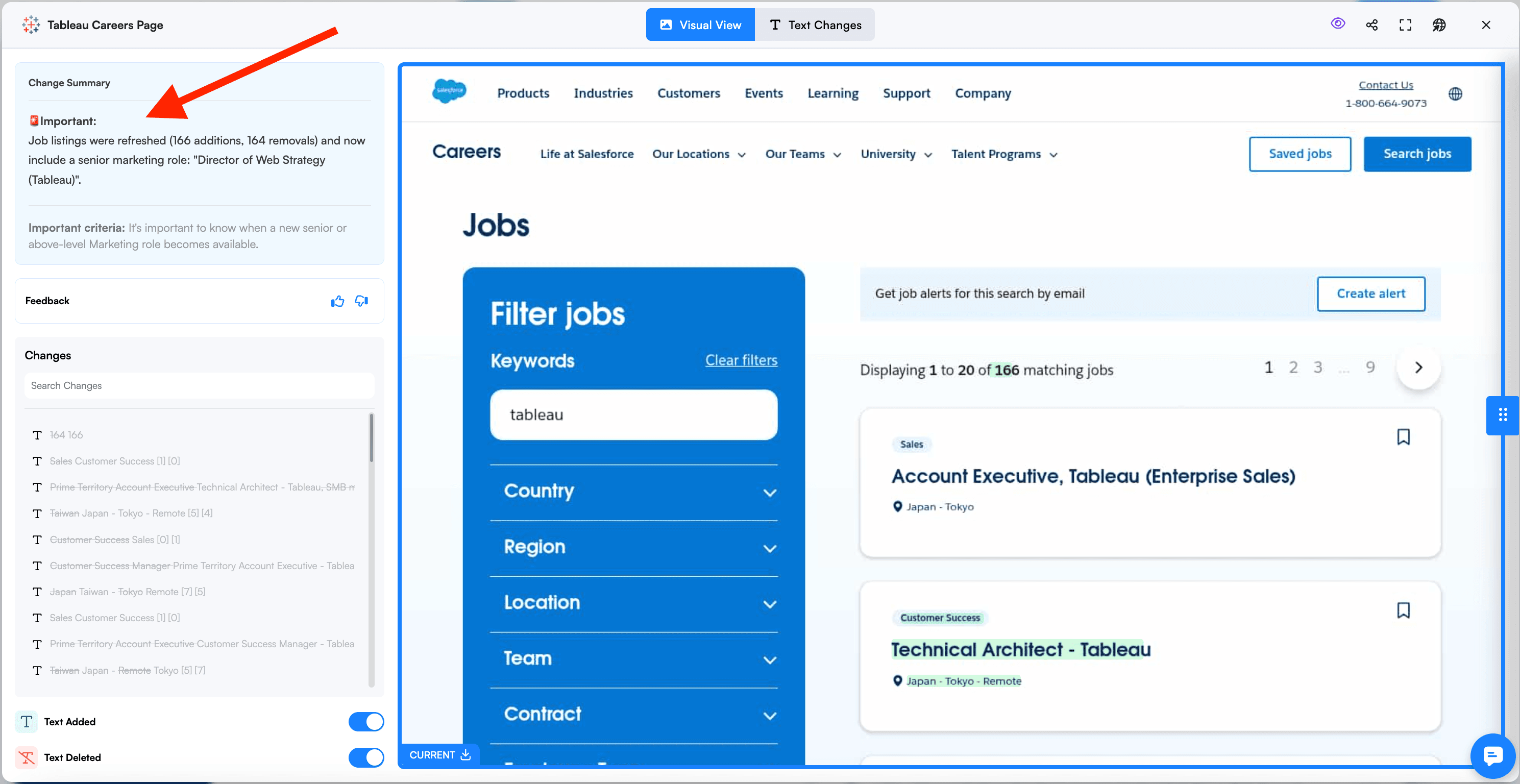
For bulk monitoring, this combination is the thing that makes scale manageable. You can apply the same prompt across all URLs in a bulk import, or run separate imports with different prompts for different page types (pricing-focused for competitors, compliance-focused for regulatory sources).
The "Block ads, cookie banners" adjustment provides extra filtering for common false positive sources.
For a full guide to writing effective prompts, see our prompt writing guide. For a complete overview of all AI features, see our Visualping AI guide.
Scheduled reports for digest-based review
Real-time alerts make sense for time-sensitive monitoring. For everything else, digest-based reporting gives you a more efficient review workflow.
Configuring scheduled reports
Visualping Reports deliver periodic summaries as an alternative to (or alongside) individual alerts. Access reports from the Report button in your dashboard.
Generate reports for a specific date range. Choose to include only important changes or all changes. Summary layout options let you view current page states, previous states, and markup highlighting what changed.
Reports can be scoped to specific workspaces, individual jobs, or filtered by label. This is where your labeling strategy pays off.
A few configurations that work well:
- Weekly report filtered to "Regulatory" labels for your legal team
- Daily report filtered to "Competitor Pricing" for your sales team
- Monthly executive summary scoped to "Strategic Competitors" workspace
Each team receives only the changes relevant to their function, on a schedule that matches how they actually work.
Schedule daily, weekly, or monthly reports to receive automatic summaries. Export options include web view, Excel, and CSV formats for plugging into your existing workflows and documentation processes.
This approach works well for executive oversight, compliance documentation, or any situation where periodic review makes more sense than real-time pings. Advanced options let you include error notifications or limit reports to only the most recent alert per monitored page.
Wiring bulk monitoring into team workflows
Visualping supports multiple alert delivery channels: email, Slack, Microsoft Teams, and Discord. Route urgent changes to Slack with @ mentions for immediate visibility. Send routine updates to email digests for batch review. Configure these preferences per workspace to match each team's workflow.
For automation workflows using webhooks, Zapier, n8n, or Google Sheets, see our integrations and automation guide. These integrations pair well with bulk monitoring: you can route Important changes from specific workspaces to specific Slack channels or Jira boards automatically.
When bulk monitoring might not be the right fit
Bulk monitoring doesn't fit every scenario. A few situations where individual setup works better:
Pages with unique authentication sequences often need individual configuration. Sites with dramatically different layouts may benefit from customized thresholds per page. And if you need different check frequencies per URL (hourly competitor checks mixed with weekly policy monitoring), either run separate bulk imports or configure individually.
Visualping's bulk import requires a Business plan. Personal plans support individual job creation. If you're monitoring fewer than 25 pages, individual setup may be simpler and more cost-effective.
One practical tip: start with smaller batches (10-20 URLs) to dial in settings before scaling to hundreds of pages. Test your configuration by running manual checks to verify that captured page states reflect the content you want to monitor. Dynamic content, JavaScript rendering delays, and authentication requirements often need tweaking after initial import.
Troubleshooting common monitoring issues
Diagnosing failed checks
Check the job's history first. Isolated failures usually point to temporary website issues and need no action. Persistent failures mean something in your configuration needs fixing.
When checks fail, Visualping provides error notifications explaining what went wrong. Common causes: website downtime, blocked requests, changed page structures, or authentication failures.
For sites blocking automated access, contact Visualping support. Adding delays between checks can help. Visualping's static IP option also lets you whitelist monitoring traffic in your analytics so it doesn't pollute visitor data.
Handling dynamic content
If your monitored page captures incomplete content, the page may need more time to load. Add wait time through Advanced Settings. You can also use Perform Actions to scroll or click elements that trigger dynamic content loading. See how to build an action sequence for the full set of steps.
Test by running a manual check and reviewing whether the captured state matches what you want to monitor.
Taming alert volume
If you're getting too many alerts, start with a custom AI prompt that specifies exactly what changes matter. Select "Important Changes Only" to filter for substantive updates. And consider whether certain jobs should move to a less frequent check schedule.
If you're missing important changes, review your AI prompt to make sure it matches your actual information needs. Also verify that thresholds aren't filtering out the updates you care about.
Frequently asked questions
How do I migrate existing individual monitors to bulk management?
Select multiple jobs from your dashboard and update their settings at once. Or export your jobs to spreadsheet format, adjust settings, delete the originals, and reimport in bulk. The second approach also gives you a chance to audit and clean up outdated monitors.
What happens if AI filtering incorrectly marks an important change as unimportant?
All changes are captured and stored in your monitoring history regardless of AI classification. Access your dashboard to review the complete log, including changes the AI filtered as unimportant.
If you notice patterns of incorrect filtering, refine your AI prompt to be more specific about what counts as important. You can also adjust filtering sensitivity or disable AI filtering for specific jobs.
Can I combine real-time alerts with periodic digest reports?
Yes. Configure immediate notifications for high-priority workspaces while scheduling weekly or monthly digest reports for full review. Many teams use real-time Slack alerts for competitor pricing changes while receiving weekly email digests that summarize all detected changes for documentation and trend analysis.
Reports include changes regardless of whether real-time alerts were sent.
How do I handle pages that require two-factor authentication?
Standard login sequences work through Perform Actions, but 2FA with dynamic codes is tricky. Contact Visualping support for help with specific 2FA scenarios.
What is the recommended maximum number of URLs per bulk import?
Visualping processes bulk imports of several hundred URLs without issues. For very large imports (1,000+ URLs), consider splitting into batches of 200-500 so troubleshooting is easier if configuration issues come up.
Large imports also benefit from test runs with a small subset to verify settings before full deployment.
How do I prevent monitoring from affecting my website analytics?
Use Visualping's static IP feature to identify monitoring traffic, then exclude that IP address in your analytics platform (Google Analytics, Adobe Analytics, etc.). This keeps monitoring checks from inflating page view counts or distorting user behavior metrics.
The static IP option is available on Business plans.
Related reading
- Competitive intelligence reports without a $16K CI platform
- How Visualping AI filters noise and flags what matters
- How to focus on what matters with Visualping AI
Visualping has been detecting website changes since 2015 for users worldwide. The platform earned six #1 rankings in G2's Winter 2026 Reports, including Website Change Monitoring and Website Screenshot categories, and was recognized in the 2025 G2 Best Software Awards. Visualping reports that its platform serves 85% of Fortune 500 companies among its business users. Start your free trial to experience bulk URL monitoring with AI-powered summaries.
Related Resources:
- How to Monitor Any Web Page with AI (Visualping)
- Visualping for Business: Work in Teams and at Scale (Visualping)
- State of Competitive Intelligence Report (Crayon)
- G2 Website Change Monitoring Category (G2)
- Best Tools to Monitor Website Changes (Visualping)
Want to monitor the web with AI?
Sign up with Visualping to track web changes with AI and save time, while staying in the know.
Eric Do Couto
Eric Do Couto is the Head of Marketing at Visualping. He leads content strategy, growth operations, and brand positioning for website change detection.
More articles by Eric Do Couto