Google Alerts Setup + When You Need More Than Alerts
Updated June 10, 2026

Quick summary
Set up Google Alerts in about 30 seconds for keyword and news mentions. They will not catch edits on a page that already exists (prices, stock, policies, layouts). When you need more than Alerts, monitor the URL with Visualping and get free email or SMS when that page changes.
Quick setup (30 seconds):
- Go to google.com/alerts.
- Enter what you want to track.
- Click Show options to set frequency, sources, language/region, and delivery.
- Click Create Alert.
Google Alerts is one of those tools everyone has heard of but surprisingly few people use well. It monitors Google's search index for new content matching keywords you choose, then emails you when something appears. No cost, no account beyond a Google login, no learning curve.
This guide walks through how to set up Google Alerts step by step, then covers the specific use cases where it works, where it breaks down, and what to use instead when it does.
What Is Google Alerts?
Think of Google Alerts as a free, always-on search that runs in the background. You give it a keyword, and whenever Google's crawler indexes a new page, blog post, news article, or forum thread matching that keyword, you get an email.
The key word there is new. Google Alerts scans for content that recently appeared in Google's index. It does not monitor changes to existing pages. If a competitor rewrites their pricing page, adds a new product, or updates their terms of service, Google Alerts won't catch it because the URL already exists in the index.
Google Alerts launched in 2003 and has barely changed since. The interface is the same single text field it was a decade ago. That simplicity is a feature for basic use cases and a limitation for anything more complex. Still, if you want to set up Google Alerts for the first time, the process is straightforward.
How to Set Up Google Alerts (Step by Step)
Setting up Google Alerts takes about 30 seconds. Here's the full process.
Step 1: Go to google.com/alerts
Open google.com/alerts in your browser. You'll need to be signed into a Google account. If you're not signed in, Google will prompt you.
The page shows a single search field at the top and any existing alerts below it.
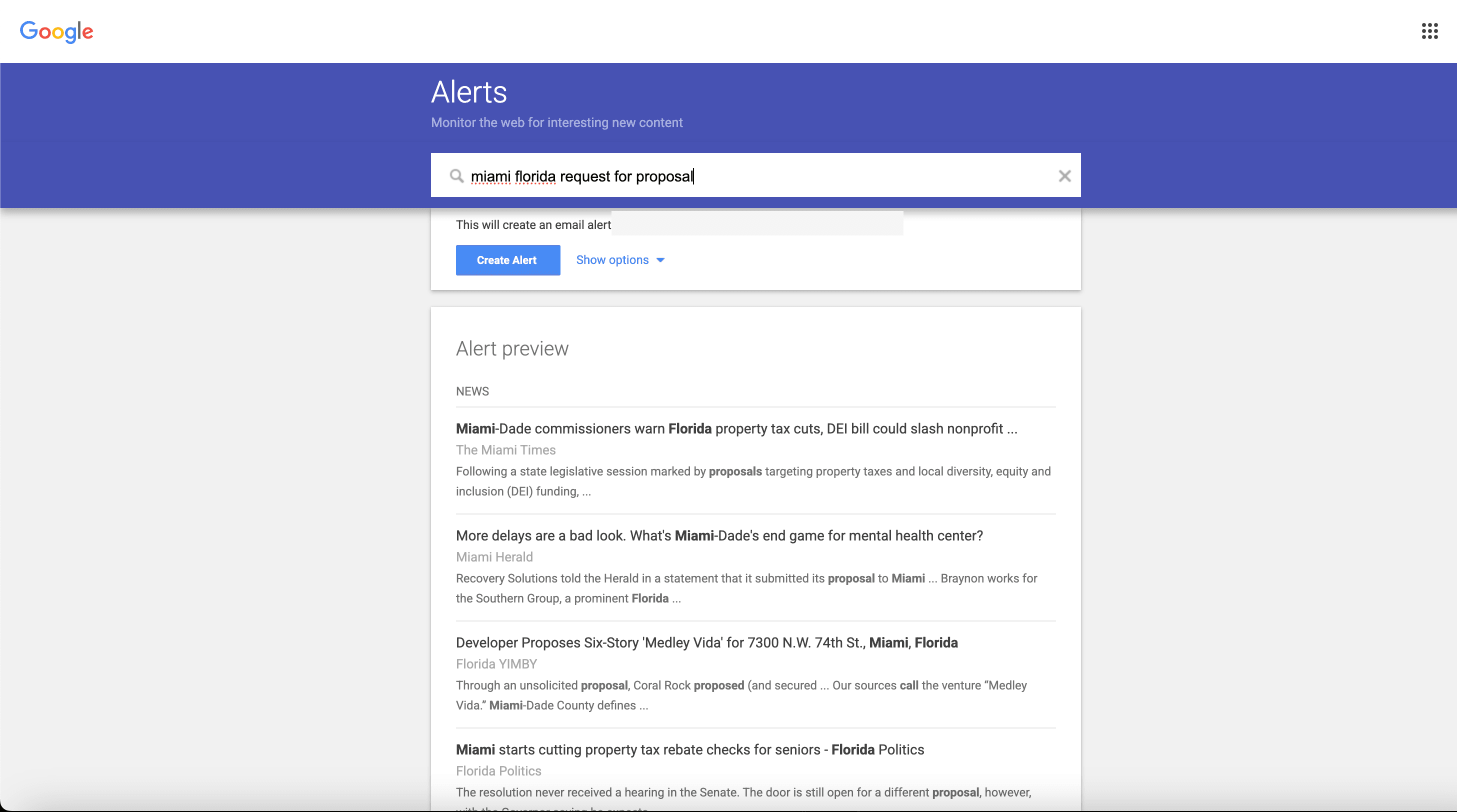
Step 2: Enter your search term
Type the keyword or phrase you want to monitor into the search field. Google will show a preview of recent results matching your query.
Tips for better alerts:
- Use quotes for exact phrases:
"your company name"prevents alerts for partial matches - Use minus signs to exclude terms:
"brand name" -jobs -careersfilters out job listings - Use site: operator to limit to specific domains:
site:reddit.com "your product" - Use OR to combine terms:
"competitor A" OR "competitor B"
Step 3: Configure your alert settings
Click "Show options" to expand the configuration panel. Here's what each setting controls:
| Setting | Options | Recommendation |
|---|---|---|
| How often | As-it-happens, At most once a day, At most once a week | "As-it-happens" for important alerts; "once a day" for lower-priority topics |
| Sources | Automatic, News, Blogs, Web, Video, Books, Discussions, Finance | Leave on "Automatic" unless you want to narrow results |
| Language | Any language or specific language | Match your target market |
| Region | Any region or specific country | Narrow this if you're tracking region-specific mentions |
| How many | Only the best results, All results | "All results" catches more but includes noise |
| Deliver to | Your email or RSS feed | Email for most users; RSS if you use a feed reader |
Click Create Alert. Done.
Step 4: Manage your alerts
To edit, pause, or delete alerts later, return to google.com/alerts. Each alert has a pencil icon (edit) and trash icon (delete). You can also adjust delivery settings for all alerts at once using the gear icon.
Pro tip: Create a Gmail filter to route Google Alerts emails into a dedicated folder or label. This keeps your inbox clean while preserving the alerts for batch review.
7 Google Alerts Use Cases That Work
Google Alerts performs best when you're tracking new content appearing on the web, not changes to existing pages. Here are the use cases where it delivers real value.
1. Brand mention monitoring
Set up Google Alerts for your company name, product names, and key executives. You'll catch press mentions, blog references, and forum discussions as they get indexed. Nearly 15,000 Visualping users chose competitor monitoring as their primary use case during onboarding, and Google Alerts is often the first tool they try for this.
Example alert: "Visualping" -site:visualping.io
2. Competitor news tracking
Track competitor brand names to catch their press releases, product launches, partnerships, and media coverage. This is the bread-and-butter use case for Google Alerts.
Example alert: "Competitor Name" announcement OR launch OR partnership
3. Industry keyword monitoring
Monitor keywords related to your industry to stay current on trends, regulatory changes, and market developments. Over 16,000 users on Visualping's platform report news and press monitoring as their primary use case, and many pair Google Alerts with website change monitoring for fuller coverage.
Example alert: "website monitoring" market OR trend OR report
4. Job posting alerts
Track when specific companies post jobs in your field. Useful for job seekers, recruiters, and competitive intelligence (hiring patterns signal where a company is investing).
Example alert: site:linkedin.com/jobs "data engineer" "New York"
5. Content discovery
Find new content ideas by monitoring keywords your audience cares about. When a new article appears on your topic, you'll know about it within hours.
Example alert: "competitive intelligence" how to OR guide OR tips
6. Reputation management
Catch negative reviews, complaints, or misinformation about your brand before they spread. The sooner you know, the sooner you can respond.
Example alert: "Your Brand" complaint OR scam OR review -site:yourdomain.com
7. Academic and research tracking
Monitor new publications, papers, or studies related to your field. Google Alerts indexes Google Scholar content, so you'll catch academic publications as they appear.
Example alert: "machine learning" "anomaly detection" research OR study
What Google Alerts Can't Do (and Why It Matters)
Google Alerts handles new content well. But even for that job, the coverage is thinner than most people assume. A Contify study of 148 Fortune 1000 companies found that only 10% of Google Alerts results were business-relevant, and 40% of important updates were missed entirely. And that's just for new content. There's an entire category of web monitoring Google Alerts cannot touch: changes to existing pages.
Here's the gap. When a competitor updates their pricing page at 2 AM, Google Alerts stays silent because the URL was already indexed. When a regulatory body edits a compliance document, no alert. When a competitor redesigns their homepage or removes a product from their catalog, nothing.
This matters because page changes are often the most actionable signals:
| What Changed | Why It Matters | Google Alerts Catches It? |
|---|---|---|
| Competitor pricing page updated | Pricing shift signals market repositioning | No |
| Careers page adds 15 new roles | Budget unlocked, team growing | No |
| Terms of service edited | Legal or compliance change (here's how to track those) | No |
| Product page content rewritten | Messaging pivot, new positioning | No |
| Government regulation page updated | Policy change affecting your industry | No |
| New blog post published | Content strategy shift | Yes |
| Press release issued | News, announcements | Yes |
Five out of seven of the most common monitoring needs fall outside what Google Alerts can detect.
Across Visualping's platform, 1.96 million active monitors track web pages for changes. More than a quarter of them (27%) sent at least one change alert in the 30 days to October 7, 2026. That volume of change is invisible to Google Alerts users.
The frequency problem
Google Alerts delivers notifications in three speeds: as-it-happens, once a day, or once a week. Even "as-it-happens" depends on when Google's crawler re-indexes the content, which can take hours or days.
On Visualping, 48% of the monitors on Business plans that ran in the week of September 29, 2026 checked at least once a day, and 12% checked more often than daily. Those faster monitors ran 45% of all checks on Business plans that week. When a competitor changes their pricing at 6 PM on a Friday, the difference between a 5-minute check and a next-day digest is the difference between catching it and missing it.

Google Alerts vs. Website Change Monitoring
Once you set up Google Alerts, you might assume you're covered. But Google Alerts and page monitoring agents solve different problems. The confusion happens because both involve "monitoring the web," but they track fundamentally different things.
| Feature | Google Alerts | Visualping |
|---|---|---|
| What it tracks | New content appearing in Google's index | Changes to specific web pages you choose |
| Detects page edits | No | Yes (visual + text changes) |
| Check frequency | As-it-happens to weekly | Every 5 minutes to weekly |
| Visual change detection | No | Yes (layout, design, images) |
| Integrations | Email only | Email, Slack, webhooks, Zapier (5,000+ tools) |
| Scope | Entire web (keyword-based) | Specific URLs you select |
| AI summaries | No | Yes (describes what changed and why it matters) |
| Price | Free | Free tier available; paid plans available (see pricing) |
The comparison isn't about which is "better." They cover different ground.
Google Alerts answers: "What new content appeared on the web about this topic?"
Visualping answers: "What changed on this specific page since I last checked?"
When to Use Google Alerts vs. Visualping
The clearest way to decide is by what you're trying to catch.
Use Google Alerts when:
- You want to know when someone publishes new content mentioning your brand, a competitor, or a keyword
- You need broad web coverage across millions of pages you haven't specifically identified
- You're tracking news, blog posts, or forum discussions about a topic
- Budget is zero and you need basic coverage today
Use Visualping when:
- You want to know when a specific page changes (pricing, careers, product pages, regulatory filings)
- You need to check pages more frequently than once a day
- You need to detect visual changes (redesigns, layout shifts, removed content) that text-only tools miss
- You want alerts sent to Slack, webhooks, or CRM tools, not just email
- You're monitoring competitor websites for competitive intelligence
Use both when:
- You're running a competitive intelligence program and need new mention tracking (Google Alerts) plus existing page change monitoring (Visualping)
- You're in a regulated industry where both new content (news about regulations) and page changes (the actual regulation documents) matter
Advanced Google Alerts Tips
If you're going to use Google Alerts, use it well. These techniques push the tool further than most people realize.
Boolean operators
Google Alerts supports the same search operators as Google Search:
- Exact match:
"competitive intelligence tools"(must contain the exact phrase) - OR operator:
Visualping OR "website monitoring"(matches either term) - Exclude terms:
"brand name" -jobs -careers -glassdoor(removes noise) - Site-specific:
site:reddit.com "competitor name"(only results from one domain) - Combine operators:
("competitor A" OR "competitor B") (launch OR funding OR acquisition) -jobs
RSS feed delivery
Instead of email, you can route Google Alerts to an RSS feed. This is useful if you want to:
- Aggregate multiple alerts into a single feed reader
- Process alerts programmatically (RSS feeds are structured data)
- Avoid email clutter entirely
To enable RSS: in the alert settings, change "Deliver to" from your email to "RSS feed."
Pairing Google Alerts with other tools
Google Alerts works best as one layer in a broader monitoring setup:
- Google Alerts catches new mentions and content across the web
- Website change detection catches changes to pages you care about
- Social listening tools catch mentions on platforms Google doesn't index well (LinkedIn, X, Instagram)
Each tool covers a blind spot the others miss. The combination is stronger than any one tool alone. There's also a Chrome extension for Visualping if you want to set up monitors directly from the pages you're browsing.
How to Set Up Google Alerts for Multiple Keywords
Google Alerts has no bulk option, so multiple keywords means one of two setups. For unrelated topics, create a separate alert per keyword: repeat the setup above for each, and manage them all from the google.com/alerts dashboard, where each alert keeps its own frequency and delivery settings.
For related terms, combine them in a single alert with the OR operator: "acme software" OR "acme app" OR "acme platform" fires when any phrase matches. Quotes keep each phrase exact, and you can mix in a minus sign to cut noise ("acme" -jobs). In practice the combined query gets unwieldy past five or six phrases, so split by theme before that.
Past a dozen keywords, the dashboard itself is the bottleneck. Watching specific terms on specific pages works better with a tool built to monitor keywords on a website, which alerts you when a chosen word appears or disappears on pages you pick, rather than when Google's crawler happens to index a mention.
Google Alerts FAQ
How do I set up Google Alerts?
Go to google.com/alerts, sign in to your Google account, type your search term, click "Show options" to configure frequency and sources, then click "Create Alert." The whole process takes under a minute.
Is Google Alerts free?
Yes. Google Alerts is completely free. You can create up to 1,000 alerts per Google account at no cost.
Can Google Alerts track website changes?
No. Google Alerts only detects new content that appears in Google's search index. It does not detect changes to existing web pages (pricing updates, content edits, visual redesigns). For tracking changes to specific pages, use a page monitoring agent like Visualping.
How often does Google Alerts check for new content?
Google Alerts checks whenever Google's crawler re-indexes content. Even with "as-it-happens" delivery, there can be a delay of hours or days between when content is published and when Google indexes it. The fastest delivery option is roughly a daily check in practice.
What are the best alternatives to Google Alerts?
For new content monitoring, Mention and Talkwalker Alerts are popular alternatives. For monitoring changes to existing web pages (which Google Alerts cannot do), Visualping is the leading alternative. The best setup for most teams is Google Alerts for new content plus Visualping for page change detection.
Can I use Google Alerts for competitor monitoring?
Yes, for tracking new content about competitors (press releases, blog posts, news articles). For tracking what competitors change on their own websites (pricing, products, messaging), you need a page monitoring agent. Nearly 15,000 users on Visualping chose competitor monitoring as their primary use case.
How many Google Alerts can I create?
Google allows up to 1,000 alerts per Google account. If you need more, create alerts on a second account.

Start Monitoring What Google Alerts Misses
Google Alerts does one job well: telling you when new content appears on the web about topics you care about. Set it up, configure your operators, and let it run.
But if you're relying on Google Alerts alone for competitive intelligence, you're only seeing half the picture. The other half (what companies change on their existing pages) requires a different tool.
Visualping adds that missing layer. Start monitoring your first pages for free and see what changes Google Alerts can't show you.
Want to monitor web changes that impact your business?
Sign up with Visualping to get alerted of important updates from anywhere online.
Eric Do Couto
Eric Do Couto is the Head of Marketing at Visualping. He leads content strategy, growth operations, and brand positioning for website change detection.
More articles by Eric Do Couto