Google Alerts Setup + When You Need More Than Alerts
Updated October 29, 2026

Quick summary
Google Alerts can email you when matching new results appear in Google Search. It does not provide a before-and-after comparison of a page you select. For that task, use a change monitor such as Visualping. Visualping email alerts are available on Free; SMS requires Personal 5K or higher.
Quick setup:
- Go to google.com/alerts.
- Enter what you want to track.
- Click Show options to set frequency, sources, language/region, and delivery.
- Click Create Alert.
Google Alerts is a free service for following search results about a topic. Your query and alert settings determine which matching results you receive.
This guide walks through how to set up Google Alerts step by step, then covers the specific use cases where it works, where it breaks down, and what to use instead when it does.
What Is Google Alerts?
Google describes Alerts as email notifications when new results for a topic appear in Search. That is different from comparing successive captures of a URL.
An updated page may become a matching search result. The fact that its URL already exists does not prove Google Alerts will exclude it. Equally, Alerts does not promise to report every price, stock or policy edit on a selected page. Use a dedicated page comparison when that exact change is your question.
How to Set Up Google Alerts (Step by Step)
Follow these steps, then review the preview and settings before saving.
Step 1: Go to google.com/alerts
Open google.com/alerts in your browser. Sign in with the Google account where you want to manage your alerts.
The page shows a single search field at the top and any existing alerts below it.
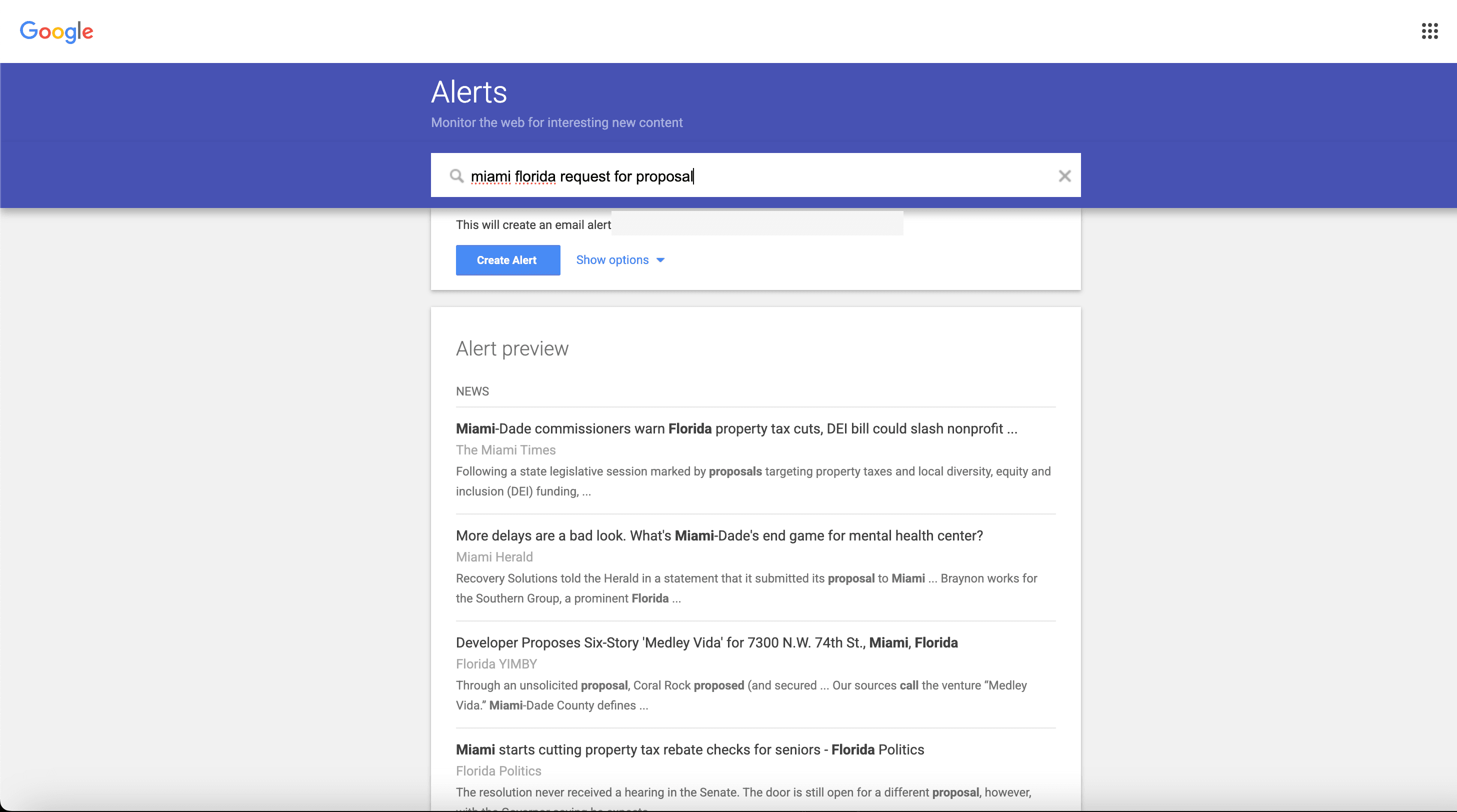
Example Google Alerts screen. The preview depends on the query and the results available at the time.
Step 2: Enter your search term
Type the keyword or phrase you want to monitor into the search field. Google will show a preview of recent results matching your query.
Try a focused query:
- Exact phrase:
"your company name" - Exclude a term:
"brand name" -jobs - Limit to a site:
site:reddit.com "your product"
These are documented Google Search operators. Check the Alerts preview before saving; a query is not a guarantee of complete coverage.
Step 3: Configure your alert settings
Click "Show options" to expand the configuration panel. Here's what each setting controls:
| Setting | Options | What to decide |
|---|---|---|
| How often | As-it-happens, At most once a day, At most once a week | Choose a delivery preference; it is not a promised crawl interval |
| Sources | Automatic, News, Blogs, Web, Video, Books, Discussions, Finance | Choose the types of results you want |
| Language | Any language or a specific language | Select the languages relevant to your topic |
| Region | Any region or a specific country | Decide whether geography should narrow the results |
| How many | Only the best results, All results | Compare the preview and adjust if results are too broad |
| Deliver to | Available destinations for your signed-in account | Confirm where the alert will arrive |
Click Create Alert. Done.
Step 4: Manage your alerts
Return to google.com/alerts to edit or delete an alert. Use the edit control, change the settings and select Update Alert. Google also documents a Settings control for delivery options.
Tip: A Gmail filter can apply a label to incoming Google Alerts emails, helping you review them together.
7 Ways to Use Search Alerts
These are example topics to try. Results depend on Google's coverage and your query; none is a complete monitoring record.
1. Brand mention monitoring
Try your company name, product names or executives to look for matching press mentions and discussions. For competitor monitoring, decide whether you need new search results or comparisons of specific pages.
Example alert: "Visualping" -site:visualping.io
2. Competitor news tracking
Use a competitor's name with a relevant topic, then review the preview.
Example alert: "Competitor Name" announcement
3. Industry keyword monitoring
Try an industry phrase to discover relevant articles. Pair it with a narrower topic if the preview is too broad. For a related workflow, see our guide to online review monitoring tools.
Example alert: "website monitoring" market
4. Job posting alerts
Try a company name and role title to find matching job-related search results. Coverage of a job board is not guaranteed, so also check the employer's own listings or alerts.
Example alert: "Company Name" "data engineer"
5. Content discovery
Use a topic phrase to look for articles you may want to read or discuss. Google's Alerts help does not state a delivery-time guarantee for this workflow.
Example alert: "competitive intelligence" guide
6. Reputation management
Try your brand with a concern you want to investigate. Review the underlying result before treating it as a factual complaint.
Example alert: "Your Brand" complaint -site:yourdomain.com
7. Academic and research tracking
For academic publications, use Google Scholar's own alerts. Search for a topic and use its alert option. Scholar says it sends alerts after adding new papers to its index.
Example search: "machine learning" "anomaly detection"
What Google Alerts Can't Do (and Why It Matters)
Google Alerts helps you discover matching search results. It does not give you a change log for a selected URL. A result might reflect an edited page, but the alert itself does not establish exactly which text changed or when.
For these tasks, decide whether you need a search result or a comparison:
| Question | Useful evidence to review |
|---|---|
| Did a competitor change a displayed price? | Before-and-after captures of the relevant pricing area |
| Did a careers page add a role? | The listing and its details; a new listing does not by itself prove headcount growth |
| Did terms of service change? | Versions of the terms and the stated effective date (tracking guide) |
| Did a product page change its wording? | The changed copy, interpreted in context |
| Did a government page publish an update? | The issuing body's document and dates |
| Is there a new article or press release about a topic? | A matching search result and the publisher's page |
A page-change alert and a Google Alerts result measure different things. Results from one tool do not show what the other might have missed.
The frequency problem
Google's three frequency choices are notification preferences. They do not give you a fixed schedule for fetching one URL or a guarantee that every update will appear.
For a Visualping cloud monitor, choose an interval that fits your plan's monthly check allowance. Free includes 150 checks per month and a fastest interval of 60 minutes. One page checked hourly for 30 days would need 720 checks, exceeding Free. Five pages checked daily need exactly 150 checks in 30 days, leaving no margin, and 155 in 31 days, which exceeds Free. Failed checks also count, and monitoring pauses when the allowance is exhausted.

Google Alerts vs. Website Change Monitoring
Once you set up Google Alerts, you might assume you're covered. But Google Alerts and page monitoring agents solve different problems. The confusion happens because both involve "monitoring the web," but they track fundamentally different things.
| Feature | Google Alerts | Visualping |
|---|---|---|
| Main task | Find matching new search results | Compare captures of selected pages |
| Timing control | Notification frequency preferences | Scheduled cloud checks within plan limits |
| Evidence | Links to matching results | Captured changes and AI summaries |
| Delivery | Email; check your account for other destinations | Email and webhooks on all plans; SMS from Personal 5K; Slack on Business |
| Scope | Google's available search results | Content that a monitor can successfully capture |
| Price | Free | Free and paid plans; see pricing |
Choose based on the evidence you need: a relevant result to read, or a comparison of a specific page.
When to Use Google Alerts vs. Visualping
The clearest way to decide is by what you're trying to catch.
Use Google Alerts when:
- You want matching search results about a brand, competitor or topic.
- You want to discover relevant pages you have not selected individually.
Use Visualping when:
- You want to compare captures of a specific pricing, careers, product or regulatory page.
- You need a configurable check schedule and can budget for it.
- You want email or webhook delivery, or Business-plan Slack delivery.
- You are monitoring selected competitor pages for competitive intelligence.
Use both when:
- New search results and changes to known pages answer different questions in your work.
Visualping's AI can summarize a detected change and mark it important or not, guided by the condition you write in Alert me when. For filtered delivery, confirm Alert me only when the AI condition is met is enabled along with your delivery channel. The setting is on by default and normally turns on when you write a prompt. AI assessments can be wrong, so filtering can withhold a change you wanted. For critical pages, consider receiving all detected change alerts. Review the captured page before acting.
Advanced Google Alerts Tips
Start with a query whose results you can evaluate.
Search operators
Google Search documents quotes, exclusions and the site: operator. Try these in the Alerts preview and inspect the matches before saving. This guide does not assume that every Search operator or complex Boolean expression behaves identically in Alerts.
- Exact phrase:
"competitive intelligence tools" - Exclusion:
"brand name" -jobs - Site restriction:
site:reddit.com "competitor name"
RSS feed delivery
Check the Deliver to choices in your signed-in account. If an RSS option is available, you can use the resulting feed in a compatible reader. The public, signed-out page reviewed for this guide did not expose account-specific delivery destinations.
Pairing Google Alerts with other tools
You can combine different kinds of evidence:
- Google Alerts provides matching search results.
- Website change detection compares selected pages.
- Platform-native notifications or other tools may help with social accounts; verify their access and coverage. See our Instagram monitoring guide for that use case.
Visualping's Chrome extension can help you create monitors from pages you are browsing.
How to Set Up Google Alerts for Multiple Keywords
For unrelated topics, create a separate alert for each and choose its settings. For related topics, try a combined query and inspect the preview. Split it if the matches are difficult to review.
If your task is to track a term on selected pages, use a keyword monitoring workflow and confirm the relevant text appears in successful captures.
Google Alerts FAQ
How do I set up Google Alerts?
Go to google.com/alerts, sign in, enter your topic, review Show options, then select Create Alert.
Is Google Alerts free?
Yes. Google Alerts is a free service. Check the current interface for any account limits rather than relying on an unverified numeric maximum.
Can Google Alerts track website changes?
An updated page may appear as a matching search result, but Google Alerts does not provide a before-and-after comparison of a chosen URL. For that workflow, use a page monitoring tool and review its captures.
How often does Google Alerts check for new content?
The public options are As-it-happens, At most once a day and At most once a week. These control how often you receive notifications. Google's Alerts help does not state a guaranteed check interval or delivery time.
What are the best alternatives to Google Alerts?
Choose a tool by the job: discovering mentions, following a social platform or comparing a particular page. Visualping provides page comparisons and scheduled checks; confirm that it can capture your target content and that the plan fits your required frequency.
Can I use Google Alerts for competitor monitoring?
Yes. Try competitor names to discover matching articles and announcements. For changes on selected competitor pages, add page comparisons and review the underlying evidence.
How many Google Alerts can I create?
The official help page reviewed for this guide does not state a numeric maximum. Follow any limit shown in your account.

Monitor the Pages You Choose
Set up a Google Alert for a topic you want to follow and inspect the results it returns. For competitive intelligence, identify the exact pages whose changes you also need to review.
Start monitoring selected pages with Visualping's Free plan after confirming the preview contains the relevant content and choosing a schedule within the allowance.
Want to monitor web changes that impact your business?
Sign up with Visualping to get alerts about changes on the web pages you monitor.
Eric Do Couto
Eric Do Couto is the Head of Marketing at Visualping. He leads content strategy, growth operations, and brand positioning for website change detection.
More articles by Eric Do Couto