Introducing Discovery, a Faster Way to Find Pages to Monitor
By Kayla Zhu
Updated October 23, 2026
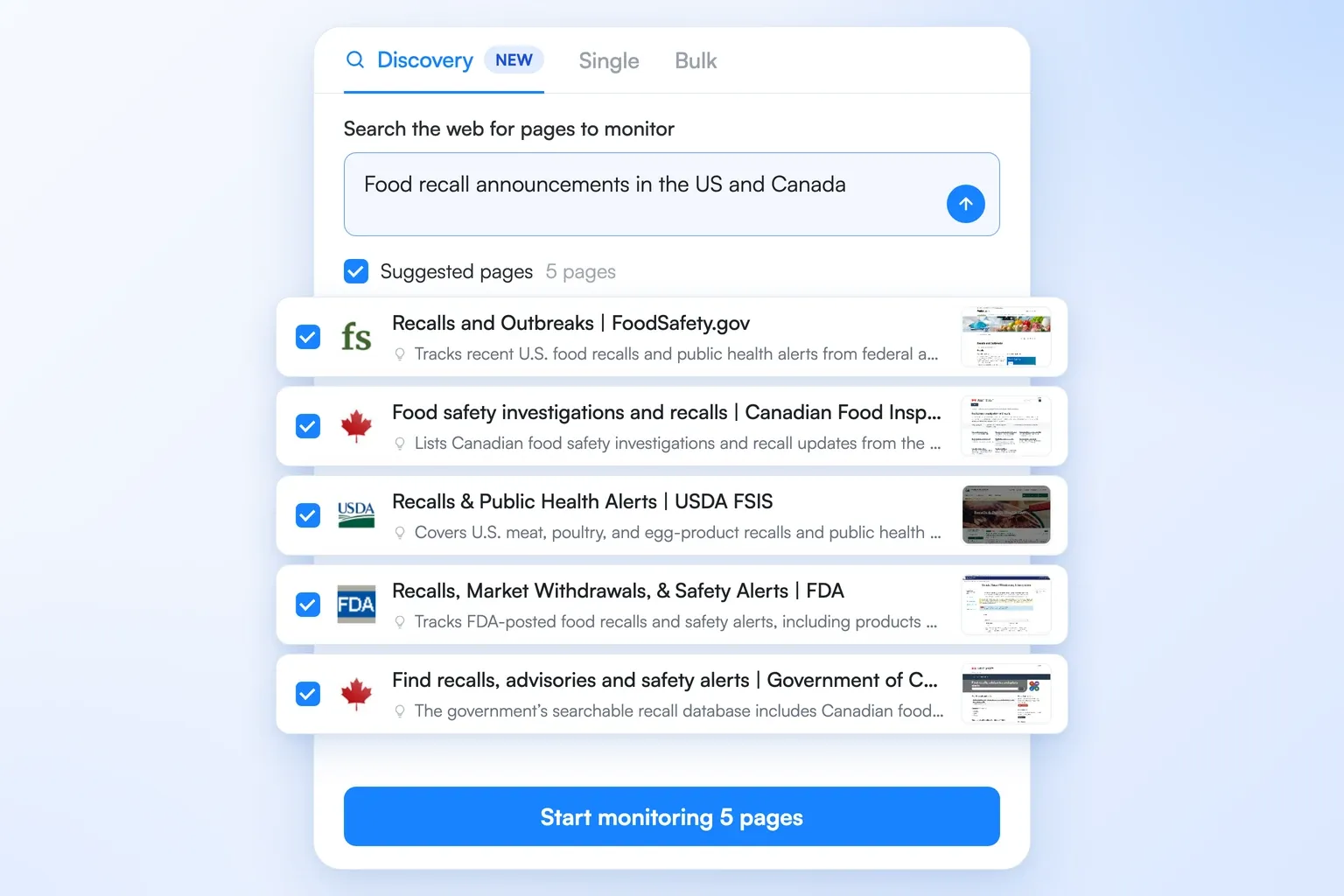
TL;DR: Discovery is a new tab in the Visualping monitor creator that helps you find pages to monitor. Describe what you want to keep an eye on, such as food recalls or competitor pricing, and Discovery suggests up to five pages to monitor, each with a short reason. Start the ones you want in one click, add more, or find pages similar to ones you already track. Searches don't use any credits, and Discovery works on every plan, including Free.
Discovery is a new way to add monitors in Visualping. You describe what you want to keep an eye on, Discovery searches the web for pages that cover it, and you start monitoring the ones that fit in a single step.
Until now, setting up a monitor started with a URL. That is quick when you already have the page in hand and slower when you start from a topic. To follow food recalls in the US and Canada, you first had to work out which agencies publish recall notices. Then you had to find the right page on each site and check that it was the page that actually updates. Discovery does that research for you.
Describe what you want to watch, and get pages back

Open the monitor creator and choose the Discovery tab. Under "Search the web for pages to monitor", write what you want to keep an eye on in plain language and press Enter. For example, try "Food recall announcements in the US and Canada" or "pricing pages for the top project management tools".
Discovery searches the web and returns up to five pages. Each suggestion shows the page title, a one-line reason it fits your request, and a link so you can open the page first. For the food recall search, that means pages like the FDA's recalls list, the USDA's recalls and public health alerts, and Canada's recalls and safety alerts.
Visualping loads every suggested page before showing it to you. A page that fails to load is dropped from the list. Discovery also skips any page your workspace is already actively monitoring.
Find pages to monitor with Discovery →
Start monitoring the pages you like in one click
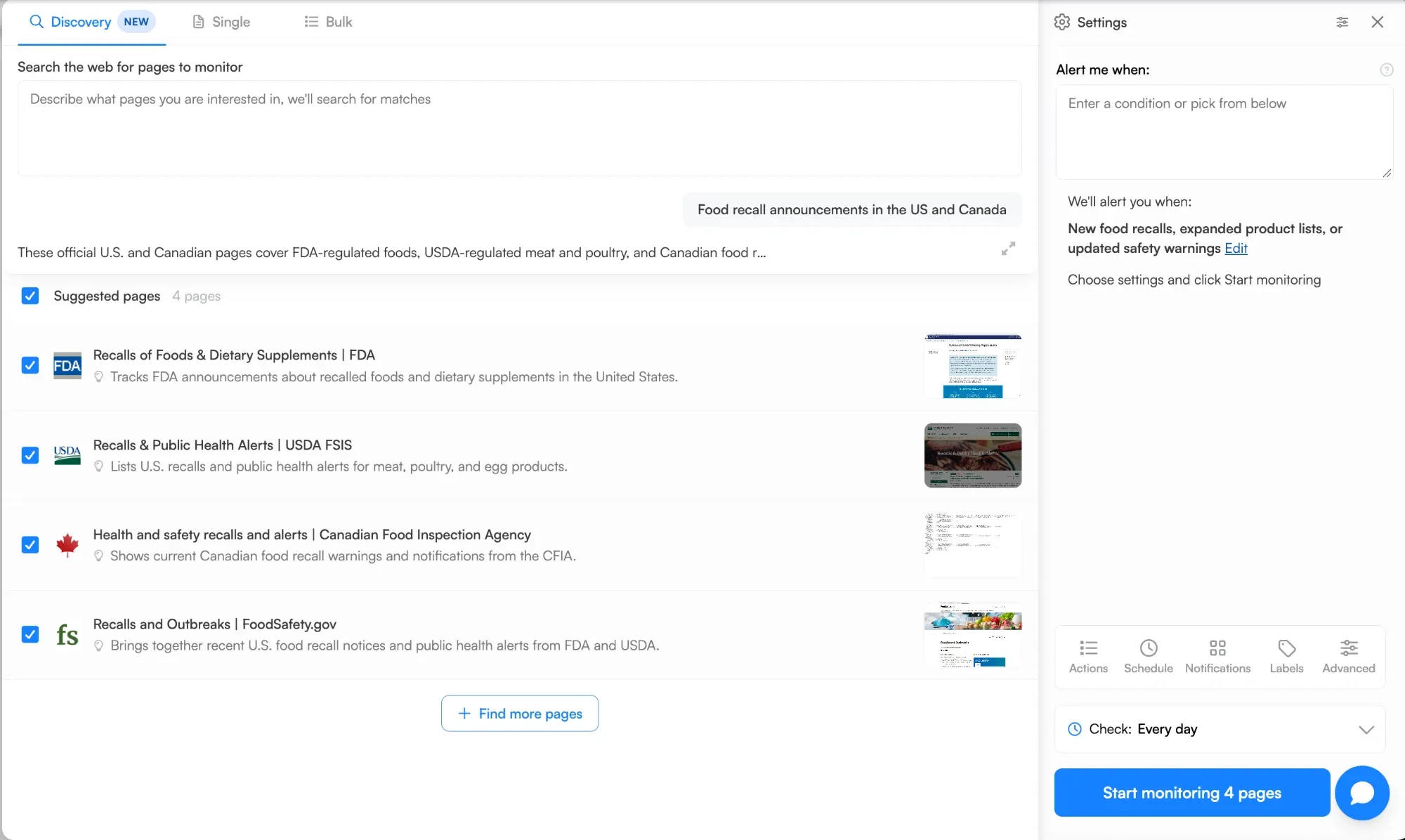
Suggestions arrive already selected. Unselect any you don't need, and the button at the bottom updates to match, for example Start monitoring 4 pages. One click creates all of them.
The settings column applies to every page you start at once, so you can set the schedule, notifications and labels a single time. Each new monitor takes the suggestion's title as its name, so you don't have to rename them on your dashboard.
Find more pages to monitor, or add your own

If the first five pages aren't enough, click Find more pages. Discovery adds up to five more, using the pages you ticked as examples of what you want. Pages you left unticked are not offered again in the same session.
You can also name pages in your request. Type something like "nike.com/shoes and other running shoe pages" and Discovery lists the pages you named first, under "From your search", already ticked. The AI suggestions fill in around them.
A new search replaces the whole list, so start the pages you want before you search again.
Find pages similar to the ones you already monitor

Before you type anything, the Discovery tab lists the pages your workspace already monitors under "Or discover more pages like the ones you monitor". Click Find similar next to any of them, and Discovery searches for more pages like it.
Use it to widen coverage you already have. If you track a competitor's pricing page, Find similar looks for the pricing pages of other companies in the same market.
If you only want to add one specific page, type its address. Discovery shows a banner asking "Only want to monitor" that page, and Monitor this page only takes you straight to the Single tab with the URL filled in.
Who this is for
If you're setting up Visualping for the first time, Discovery gets you from an idea to a working set of monitors without hunting for URLs. Describe the topic, keep the pages that fit, and start them together.
If you already monitor a few pages and want broader coverage, Find similar and Find more pages extend what you have. That suits teams tracking a market, such as competitor pricing across a category or every regulator that publishes guidance in a sector.
Getting started
Discovery is live now for every Visualping account. There's nothing to turn on.
- Go to your Visualping dashboard and click the arrow next to Start monitoring, then choose Discovery. You can also open the creator and pick the Discovery tab.
- Describe what you want to monitor and press Enter.
- Untick anything you don't need, adjust the settings column if you like, and click Start monitoring.
Discovery works on every plan, including Free, and searches don't use any credits. The monitors you start count toward your plan's page limit and use checks like any other monitor once they run.
Frequently asked questions
Does Discovery cost credits? No. Searching with Discovery doesn't use any credits or checks. The monitors you start from Discovery use checks on their regular schedule, the same as monitors you add by URL.
Which Visualping plans include Discovery? Every plan, including Free. Free accounts can monitor up to 5 pages, so a Free user who already monitors some pages may need to untick suggestions to stay within the limit.
How many pages does Discovery suggest? Up to five per search. Click Find more pages to get up to five more. Pages you name in your request are listed first and don't count toward the five.
Will Discovery suggest pages I already monitor? No. Discovery skips pages your workspace actively monitors. Paused monitors can still appear as suggestions.
What information does Discovery use to make suggestions? Discovery uses your request, the domain of your email address, the use case you chose at sign-up, and up to 20 of the active monitors in your current workspace. That context helps it match suggestions to what you already track.
Where do I find Discovery in Visualping? In the monitor creator. Click the arrow next to Start monitoring on your dashboard and choose Discovery, or open the creator and select the Discovery tab. Choose a workspace first, since Discovery matches suggestions to that workspace's monitors.
Start from what you want to watch
If you know what you want to watch but not where it lives online, start with a Discovery search. For everything else that shipped recently, see the Q3 2026 release recap, or open Discovery and run your first search.
Want to monitor web changes that impact your business?
Sign up with Visualping to get alerted of important updates from anywhere online.
Kayla Zhu
Kayla is the Public Relations Specialist at Visualping and manager of Visualping's Journalist Program. She manages Visualping's media relations, content marketing, and social media.
More articles by Kayla Zhu