How to Monitor Website Changes Automatically (Free)
Updated February 17, 2026
TL;DR You can monitor website changes automatically using a page monitoring agent (also known as a website monitoring tool). Paste in a URL, set what kind of change to watch for, and choose how often to check. Visualping monitors the page on a schedule and sends you an alert the moment something changes, with a side-by-side comparison of before and after.
Using page monitoring agents beats manually refreshing pages all day. Whether you’re waiting for concert tickets to drop, tracking competitor pricing shifts, or watching a regulatory filing for updates, a tools like Visualping do the work for you. Over 2 million users already use it for exactly this.
What Is Website Change Monitoring?
Website change monitoring is the process of automatically tracking web pages for updates and receiving instant alerts when something changes. Those updates can include content changes, price shifts, regulatory filings, or visual modifications. Monitoring tools like Visualping check pages at set intervals and notify users via email, SMS, Slack, or API when a difference is detected.
To give you a sense of scale: across a sample of Visualping users in March 2026, the platform ran over 17 million checks and sent roughly 2 million change alerts. About 11.5% of checks detected a change worth alerting on, which means the other 88.5% confirmed "no change, nothing to worry about." That's the whole point: the tool watches so you don't have to.
Why People Monitor Website Changes
Most people start monitoring websites for personal reasons: restock alerts, price drops, job postings. The business applications are what keep them paying.
When we looked at self-reported use cases from a sample of 33,000+ Visualping users, the breakdown was clear: price tracking (40%) dominated, followed by government and regulatory monitoring (13%), clothing and restock alerts (8%), ticket and event tracking (6%), and job monitoring (4%). The long tail covers everything from real estate to pet adoption pages.
Competition across most industries has sharpened over the past five years (Gartner's CI research tracks this trend closely). Tracking competitor websites for changes lets you see their moves the same day they make them.
The most common reasons people and businesses track website changes:
- Competitive Intelligence: Monitor competitor homepages, pricing pages, and product listings to catch positioning shifts, new feature launches, and pricing changes as they happen.
- Regulatory Compliance: Track changes to government filings, legislation, and regulatory body websites. Law firms and compliance teams use website monitoring to catch updates the day they're published rather than weeks later.
- Software Updates: Be the first to know when a vendor pushes a patch, changelog, or new version.
- Brand Protection: Detect unauthorized changes to web pages that mention your brand, or catch website defacement before your customers do.
- Job Hunting: Monitor career pages at target companies so you can apply within hours of a new posting going live, not days.
- Price Tracking: Watch product pages on Amazon, Best Buy, or any retailer and get notified when the price drops below your target.
How to Monitor Website Changes in 3 Steps
- Enter the URL. Paste the web page address you want to track into a monitoring tool like Visualping.
- Set your alert criteria. Choose what types of changes to watch for: any change, text only, visual differences, or specific page elements.
- Choose your check frequency and notification method. Select how often to check (every 5 minutes to once daily) and where to receive alerts (email, SMS, Slack, or API webhook).
The tool runs on autopilot from there. When it finds a difference, it sends you a side-by-side comparison showing exactly what shifted.
Here's what each step looks like in Visualping.
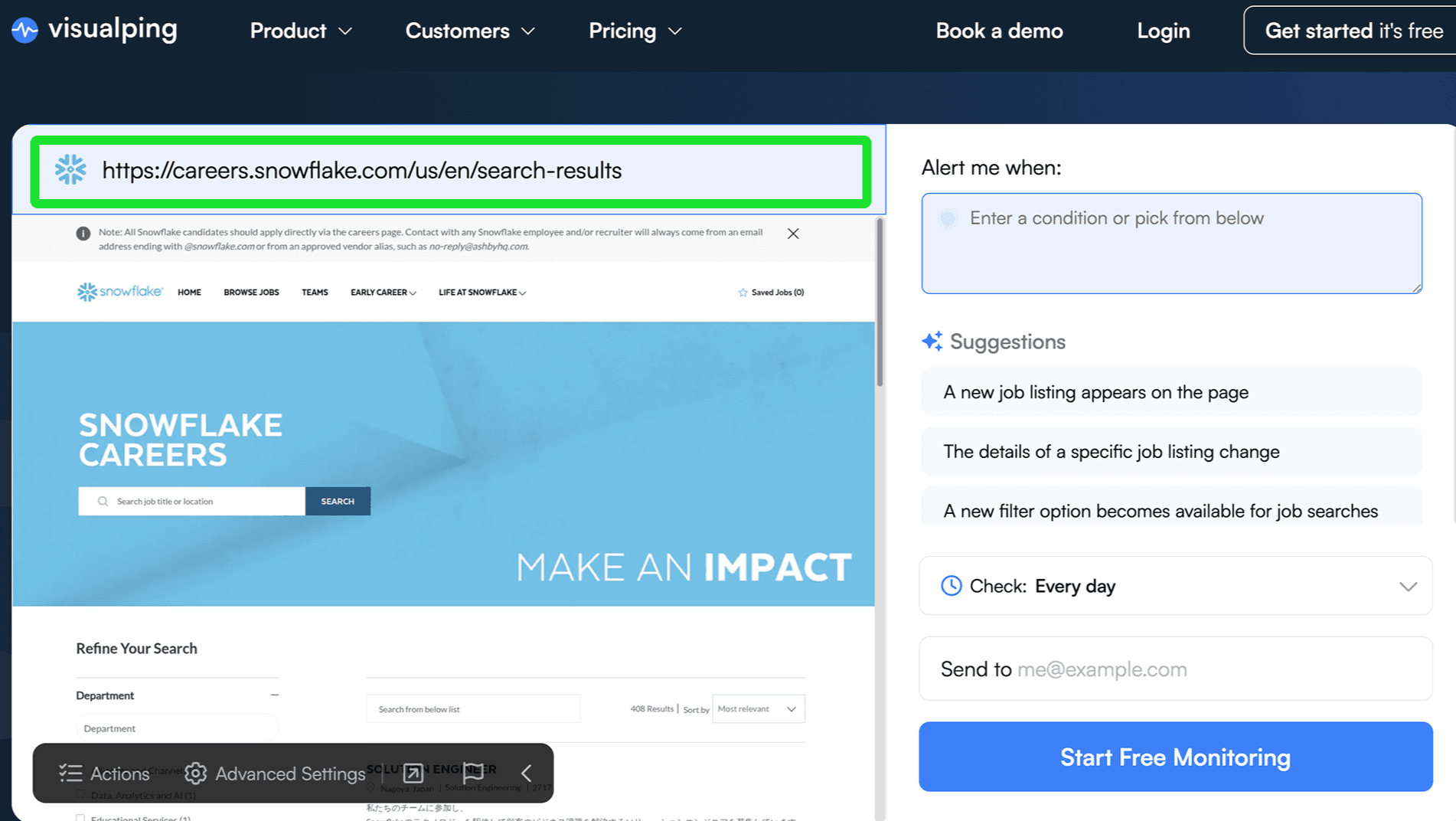
Step 1: Type the URL of the page you want to track
Copy the URL of the page you want to monitor and paste it into the search bar on the Visualping homepage. Hit "Go" and a preview of the page loads.
Step 2: Set a criteria for the alert
Next, set a condition for your alert so you're not notified of every minor change on the page. In the "Alert me when" box, write out a specific condition. For example: "Alert me when the price drops below $50" or "Alert me when a new marketing job is posted."
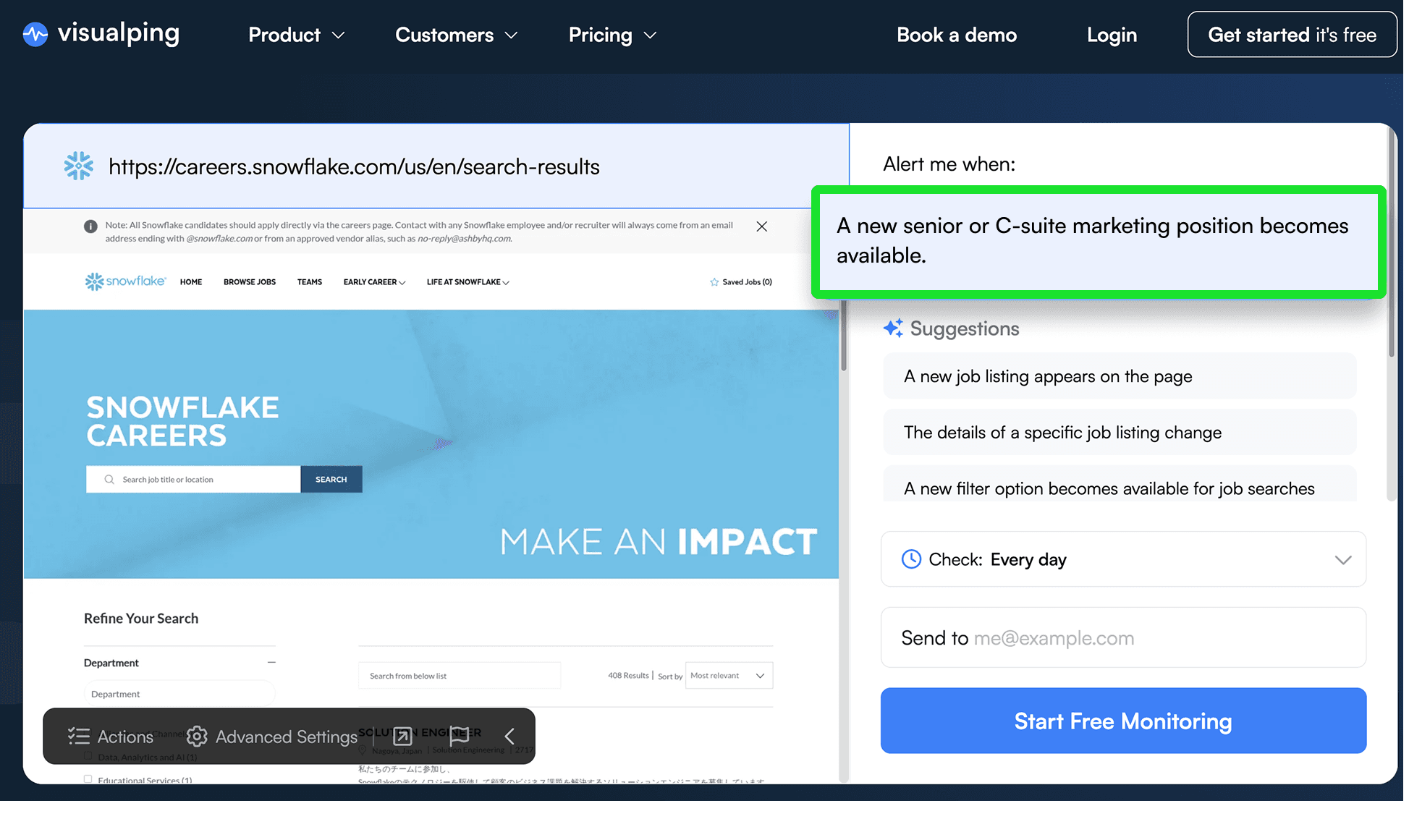
You can also select a specific part of the page to monitor by dragging a box over the preview. Only the selected area gets tracked, and changes outside that selection are ignored. To monitor everything, select "Full page."
Step 3: Set the check frequency and enter an email
Now, you can set how often you want Visualping to check that page, whether that's every day, every hour, every week or another frequency. Free plans can check as frequently as every hour, and paid plans can go as low as every 2 minutes.
Next, just enter your email address to receive your alerts. If you’re new, the system will set up an account for you. You'll get a verification link: click it, set a password, and you're in.
The Visualping Dashboard
Your Visualping dashboard shows every page you monitor for website changes in one place. This is where you fine-tune things.
Getting too many emails because of shifting ads? Adjust the alert condition or narrow the page selection area. You can also change check frequency per job (hourly for that competitor pricing page, daily for the rest).
Here’s a dashboard with several jobs tracking tech policy updates.
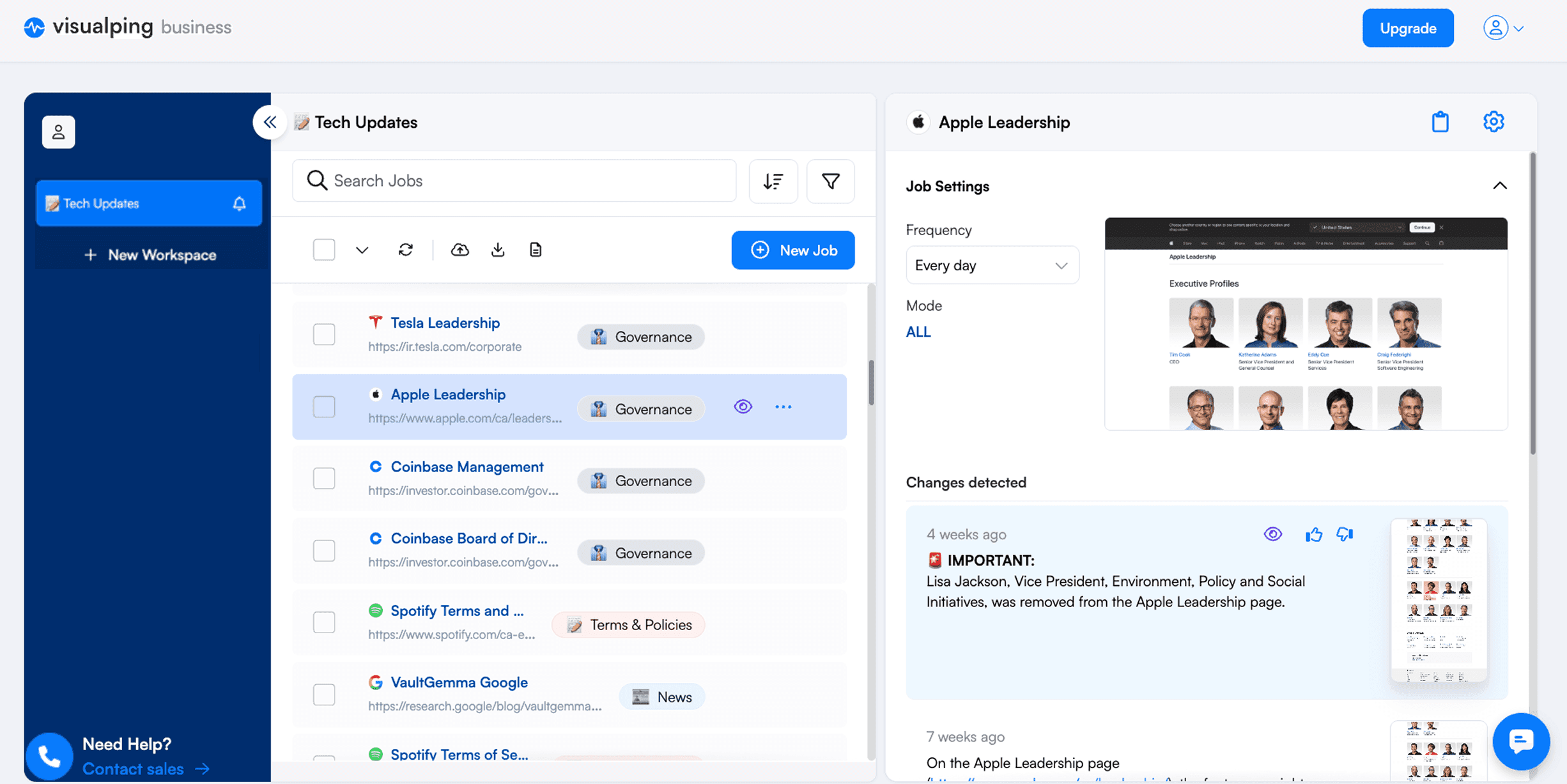
If you click into a specific job, you can see all the recent changes Visualping detected with timestamps.
The Visualping Alert Email
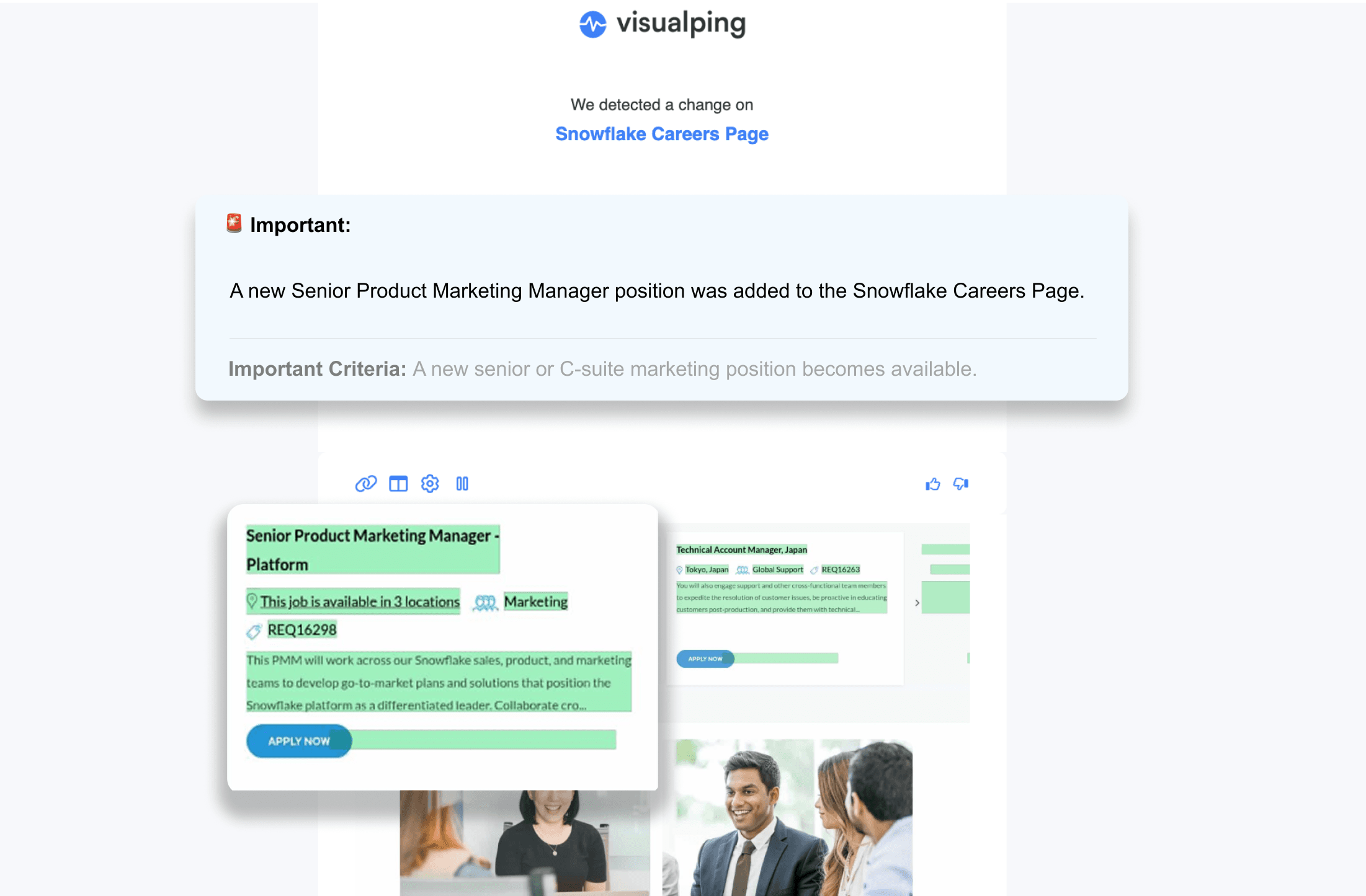
When Visualping detects a change that meets your criteria, you get an email right away. Each alert includes:
- An AI-generated summary of what changed (in plain English, not a raw diff)
- Before and after screenshots with changes highlighted: green for additions, red for deletions
- Links to open the live page, view the change in your dashboard, adjust settings, or pause the alert
Here's what an alert email looks like for a job posting monitor.
Actions and Advanced Settings for Website Monitoring
Some pages require interaction before content loads. Visualping's Advanced settings let you perform actions on a page during each check, and our walkthrough for forms and logins builds a full sequence.
- Click: Hit a button before the check runs (e.g. a "Load more" button or a cookie consent popup).
- Type: Enter text on the page (e.g. login credentials or a search term).
- Block: Hide an element so it doesn't trigger false alerts (ads, video players, rotating banners).
- Wait: Give slow-loading pages extra seconds to fully render before the snapshot.
Other advanced settings include using a proxy from a different country for your job, or disabling Javascript. For a full walkthrough of these options, refer to our Knowledge Base.
Visualping for Business
For teams that monitor website changes at scale, Visualping’s Enterprise plans add custom check volumes, dedicated AI models for change classification, team dashboards with multi-workspace management, and a support team that helps configure complex monitoring setups.
When Website Change Monitoring Gets Tricky
Most pages are straightforward to monitor, but some situations require extra setup:
- Login-protected pages: If a page sits behind a login, you'll need a monitoring tool that supports browser actions. In Visualping, use the Click and Type actions to enter credentials before the check runs.
- JavaScript-heavy single-page apps: Some sites load content dynamically after the initial page load. If your monitoring tool only reads the raw HTML, it may miss changes. Look for a tool that renders JavaScript (Visualping does this by default).
- Frequently rotating content: Pages with ad banners, news tickers, or personalized sections can trigger false alerts. Use the Block action to exclude those elements, or narrow your monitoring selection to the specific section you care about.
- Very large pages: Monitoring an entire page with thousands of elements produces noisy results. Select only the section that matters to keep alerts useful.
No page monitoring agent catches every edge case perfectly. If you're dealing with an unusual page, start with a test run at a lower check frequency to calibrate before increasing to your target interval.
Want to do this without leaving ChatGPT? Open ChatGPT and type: Visualping, monitor [the URL you want to track]. Our app handles the rest. Open Visualping in ChatGPT →
Page Monitoring Agents Compared
| Tool | Free Plan | Check Frequency | Alert Channels | Visual Diff |
|---|---|---|---|---|
| Visualping | 5 pages | 2 min to daily | Email, SMS, Slack, API | Yes |
| Distill Web Monitor | 5 cloud + 20 local | 6 hours+ | Email, push | No |
| ChangeTower | 3 pages | Daily | Yes | |
| Sken.io | 14-day trial | 1 min+ (paid) | Email, Slack | Yes |
| changedetection.io | Self-hosted | 1 min+ | Email, webhooks | No |
| UptimeRobot | 50 monitors | 5 min | Email, SMS, Slack | No (uptime only) |
What you're monitoring determines which tool fits. Visualping handles visual change detection with AI-powered summaries. If you'd rather self-host, changedetection.io gives you full control. UptimeRobot does one thing well: telling you whether a site is up or down. TechRadar's 2025 roundup covers additional options.
Frequently Asked Questions
How do I monitor changes on a website?
The simplest way to monitor a website for changes is to use a dedicated monitoring tool. Enter the page URL, select what types of changes to track (text, visuals, or specific elements), set a check frequency, and provide your email. The tool checks the page automatically and sends you an alert with a visual diff whenever something changes.
Is Visualping a legitimate service?
Yes. Visualping is a page monitoring platform used by over 2 million users worldwide, including teams at Fortune 500 companies. The company has been operating since 2014 and maintains SOC 2 compliance. Visualping offers a free plan for personal use and paid plans for business teams.
How can I see if a website has been changed?
You can check a website's change history using a monitoring tool that takes periodic snapshots. Visualping stores before-and-after comparisons for every detected change. For past changes, you can also use the Wayback Machine (web.archive.org) to view historical page versions.
What is the Chrome extension to monitor website changes?
Several Chrome extensions monitor website changes, including Visualping, Distill Web Monitor, and Page Monitor. Visualping's Chrome extension lets you start monitoring any page directly from your browser. Highlight specific areas to track, set check intervals, and receive email alerts when changes are detected.
Working mainly in your browser? We also have a dedicated guide on how to monitor a website for changes in Chrome, covering the free extension route and when to move pages to the cloud.
How often should I check a website for changes?
Check frequency depends on the use case. Price monitoring and stock alerts typically need checks every 5 to 15 minutes. Regulatory compliance monitoring works well at hourly intervals. Competitor tracking and content monitoring can use daily or weekly checks. Most monitoring tools let you adjust frequency per page.
Can I monitor just part of a web page?
Yes. Most page monitoring agents let you select a specific area of a page to track rather than the entire page. In Visualping, you can highlight a section of the page (like a price, a job listing, or a specific paragraph) and only receive alerts when that section changes.
Is website monitoring free?
Many page monitoring agents offer free tiers. Visualping's free plan covers up to 5 pages with checks as often as every hour, which is enough for most personal use (the median Visualping user monitors just 1 page, while power users at the 99th percentile track 19+). For faster checks (down to every 2 minutes), more pages, or team features like Slack and API integrations, paid plans start at $10/month billed annually.
What types of website changes can be detected?
Page monitoring agents can detect text changes, visual layout changes, image swaps, price updates, new content additions, element removals, and source code modifications. Visualping also uses AI to classify whether a change is important and provides a plain-English summary of what changed.
 The tool watches so you don't have to
For more details on how to monitor website changes with specific settings and features, refer to our Knowledge Base.
Want to track the changes that matter to you?
Sign up with Visualping to get alerted of important updates from anywhere online.
Eric Do Couto
Eric Do Couto is the Head of Marketing at Visualping. He leads content strategy, growth operations, and brand positioning for website change detection.
More articles by Eric Do Couto