How Visualping Cuts False Positives (And Why We Had To)
Updated April 13, 2026

Smart filtering turns alert noise into actionable signals
Platform data in this post reflects Visualping activity as of April 2026, sampled across roughly 1.8 million active monitors.
TL;DR: Page monitoring agents (also known as website monitoring tools) trigger alerts on irrelevant changes (banner rotations, cookie popups, timestamp updates). Visualping solves this with AI that classifies 83% of detected changes as not important, plus five ways to prevent false positives before the AI layer runs.
Every page monitoring agent has the same fundamental problem: web pages change constantly, and most of those changes do not matter.
A banner rotates. A cookie consent popup renders slightly differently. A timestamp in the footer updates. A CDN serves the page from a different edge node, shifting a few pixels. These are real changes. They are also noise. And for years, every one of them triggered an alert.
We know this because we heard it, repeatedly, from Visualping users. The feedback was clear: too many alerts for changes that did not matter. When your inbox fills with notifications about pixel-level rendering differences, you stop trusting the alerts. You stop opening them. The monitoring tool becomes background noise itself.
That is why we started building AI-powered filtering in 2024.
The false positive problem
A false positive in website monitoring is an alert triggered by a change that does not matter to you. The page did change. The tool detected it correctly. But the change was irrelevant to why you set up the monitor in the first place.
Four noise sources cause most of the damage:
Ad and banner rotation. Display ads cycle through creatives on a schedule. Every rotation looks like a visual change to a screenshot-based monitor. A page with three ad slots rotating hourly can generate dozens of meaningless alerts per day.
Cookie consent popups. Consent banners render differently depending on session state, browser settings, and regional compliance rules. The popup's position, size, or text can shift between checks.
Timestamps and date strings. Footer copyright years, "last updated" labels, session IDs embedded in the page, countdown timers. All of these change on every page load.
Layout shifts from responsive rendering. Pages served from CDNs can render with sub-pixel differences depending on the edge node, browser version, or viewport configuration. A one-pixel shift in a heading triggers a visual diff.
None of these changes carry information you need. But a tool comparing screenshots has no way to tell a banner rotation apart from a competitor slashing their enterprise pricing.
That was the problem we set out to fix.
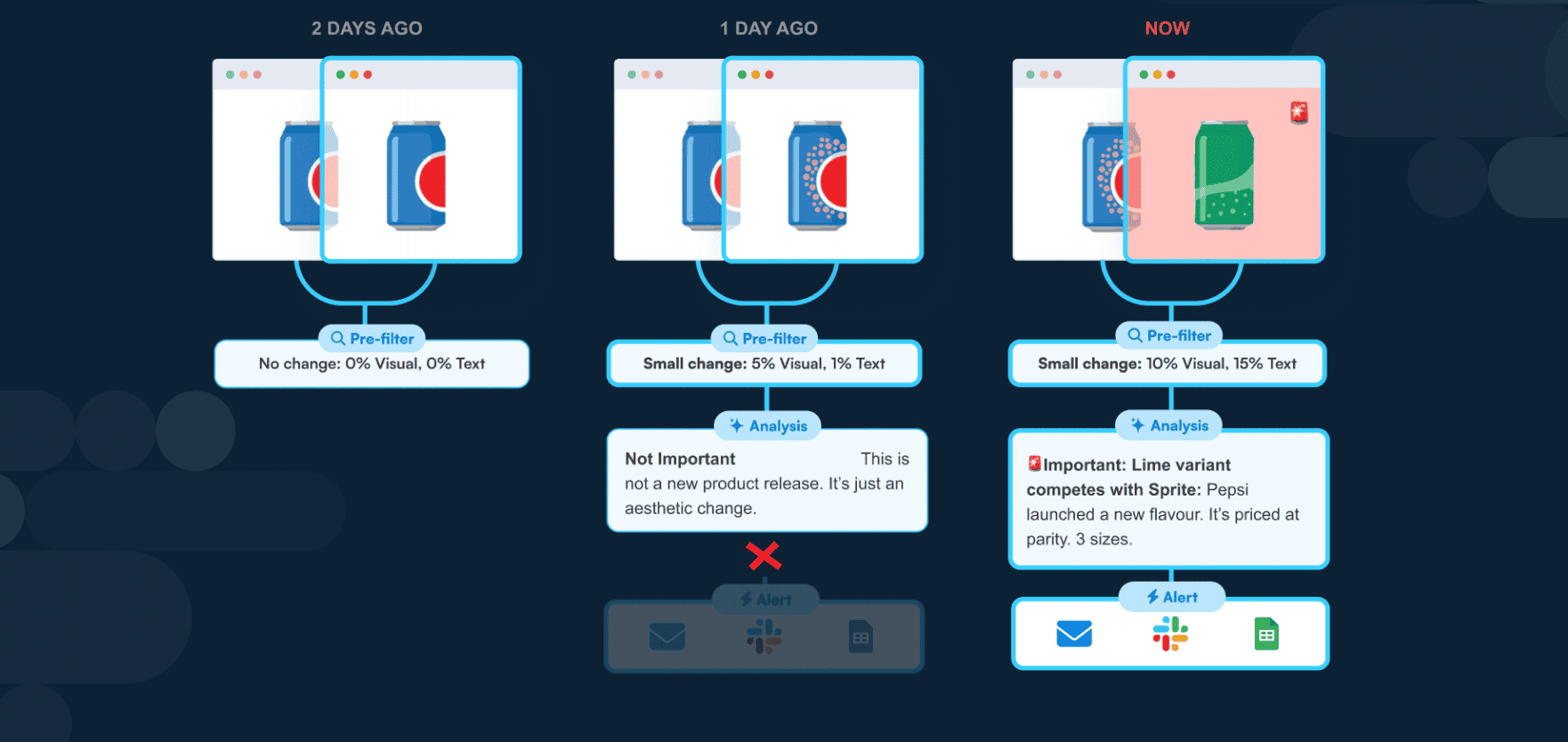 The AI classifies each change and explains why it matters or does not
What we built, starting in 2024
In 2024, Visualping launched its AI analysis layer. Every change event would now carry enough context to tell at a glance whether to act on it or ignore it.
The AI layer includes two features that ship with every Visualping plan, including the free tier:
AI Summarizer. After a change is detected, Visualping's AI reads both the before and after states and writes a plain-English summary. Instead of studying a red-highlighted diff, you read: "The hero banner image was replaced with a seasonal promotion" or "The 'Last Updated' date changed from March 10 to March 12." The summary tells you what happened in human language.
IMPORTANT flag. A binary classification on every change: important or not important. Banner rotations, cookie popup shifts, and footer date changes are classified as not important. Pricing changes, policy revisions, new content sections, and product updates are flagged as important. You can customize the criteria per monitor using natural-language prompts (for example: "Only flag changes to pricing or product availability").
These two features addressed the core complaint: "I can see something changed, but I cannot tell if it matters." The Summarizer answers what. The IMPORTANT flag answers whether to care.
Since the 2024 launch, we have kept refining the model. The Q1 2026 upgrade targeted banner rotations, footer date updates, and cookie consent popup variations specifically, because those were the three noise sources users flagged most often.
Five ways to reduce noise (and when to use each)
The AI layer catches noise after a change is detected. But you can also prevent false positives before they fire by configuring your monitors for precision. Here are five approaches, ordered from broadest to most targeted.
1. Area selection
Monitor only the part of the page you care about. If you are tracking a competitor's pricing table, draw a selection box around the pricing section. Banner rotations in the header, footer updates, and sidebar ads all fall outside the selection and never trigger alerts.
This is the simplest noise reduction method and the one that fixes the most common complaint. Most false positives come from page regions the user never intended to monitor.
2. Monitoring mode selection
Different monitoring modes filter different types of noise. Text mode ignores visual changes entirely, comparing only the readable text on the page. If you are watching for pricing or policy changes, Text mode eliminates every pixel-level false positive.
Element mode targets a single CSS selector (#pricing-table, .product-status). Everything outside that selector is invisible to the check.
All mode combines visual and text analysis in one check, giving you coverage without the noise of pure pixel comparison. It is the most popular mode on the platform, used by 35% of active monitors.
3. Threshold settings
Visual mode lets you set a change threshold: a minimum percentage of pixels that must differ before an alert fires. A threshold of 5% means sub-pixel rendering shifts, anti-aliasing differences, and minor layout jitter are ignored. Only changes that affect a meaningful portion of the monitored area trigger alerts.
The right threshold depends on the page. A product listing with large images might need 1-2%. A dense text page with small fonts might need 5-10%. Start higher and lower it if you are missing changes you care about.
4. AI Summarizer + IMPORTANT flag
Even after area selection, mode choice, and threshold tuning, some noise gets through. The AI layer is the final filter. Every change that reaches you includes a plain-English summary and a binary importance classification.
Across Visualping's platform, the AI classifies 83% of detected changes as not important. That means for every 100 changes your monitors detect, roughly 17 get flagged as worth your attention. The other 83 still appear in your change history (nothing is hidden or deleted), but they are clearly marked as minor, so you can scan past them. Teams that need to review changes in aggregate can use Visualping Reports to filter by importance level.
5. Custom importance prompts
The default IMPORTANT classification works well for most use cases. But you can override it with a natural-language prompt that tells the AI exactly what matters to you. For the full playbook on how to structure these prompts (roles, tables, languages, ignore rules, conditional logic), see Prompt Engineering for Important Alerts.
Examples:
- "Only flag changes to pricing, product availability, or shipping policies"
- "Ignore any change that only affects images or layout. Flag text changes."
- "Mark as important if the page mentions a recall, safety warning, or regulatory update"
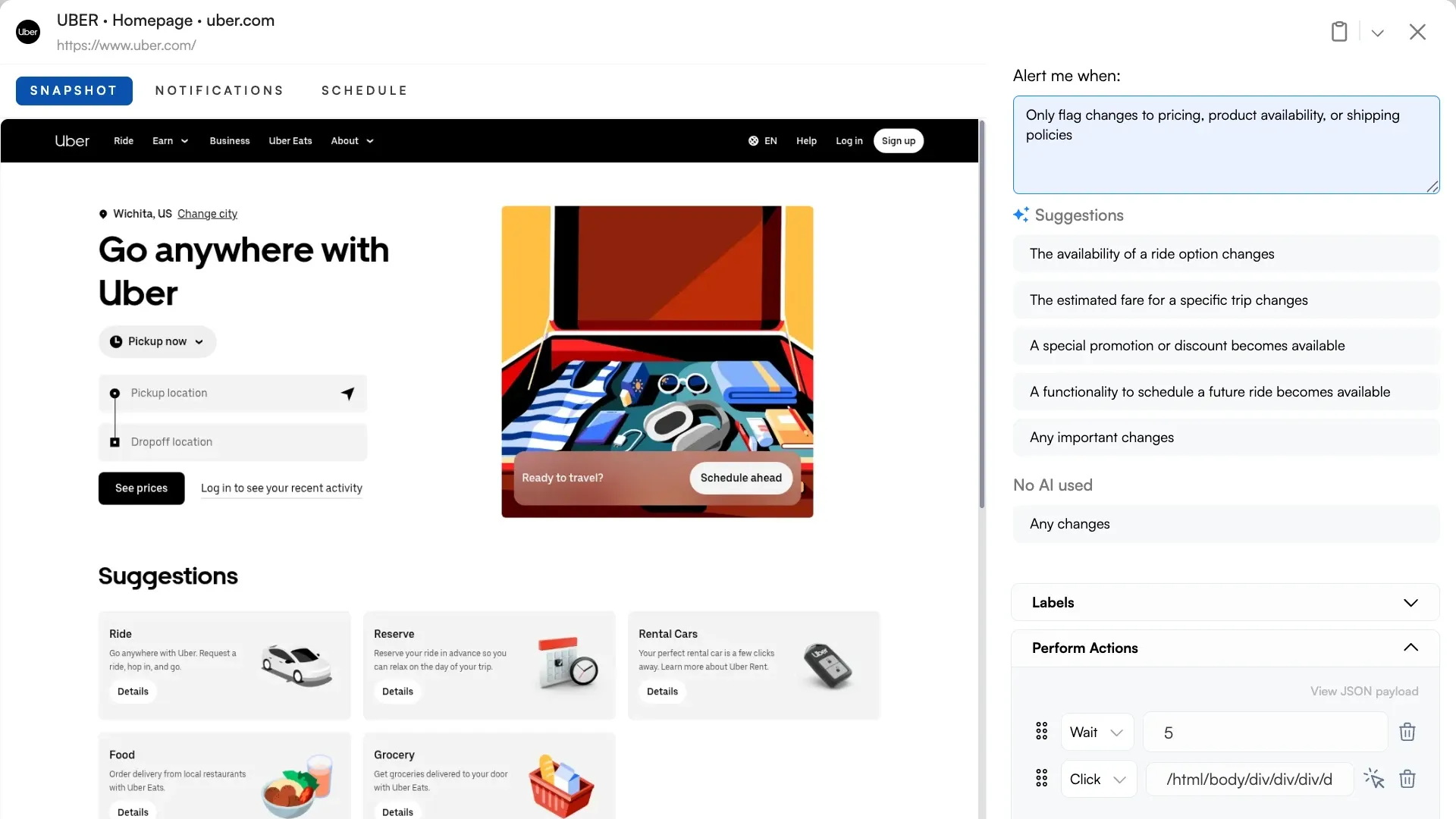 Tell the AI what matters using plain English. No rule builders, no code.
This turns a general-purpose noise filter into one tuned for your specific monitoring goal.
What the numbers show
We measure noise reduction across the platform. Here is what the data looks like:
- 83% of detected changes are classified as not important by the AI
- 17% are flagged as important, meaning they contain the type of change the user set up the monitor to catch
- All mode (combined visual + text) is the most popular monitoring mode at 35% of active monitors, followed by Text mode at 32% and Visual mode at 30%
Users who tried pure screenshot comparison got swamped with false positives and switched to Text mode, Element mode, or All mode. Usage has shifted toward combined and text-based detection because those modes produce fewer irrelevant alerts.
(These numbers come from Visualping's monitoring platform across 1.8 million active monitors. They represent what users actually configure, not what we recommend.)
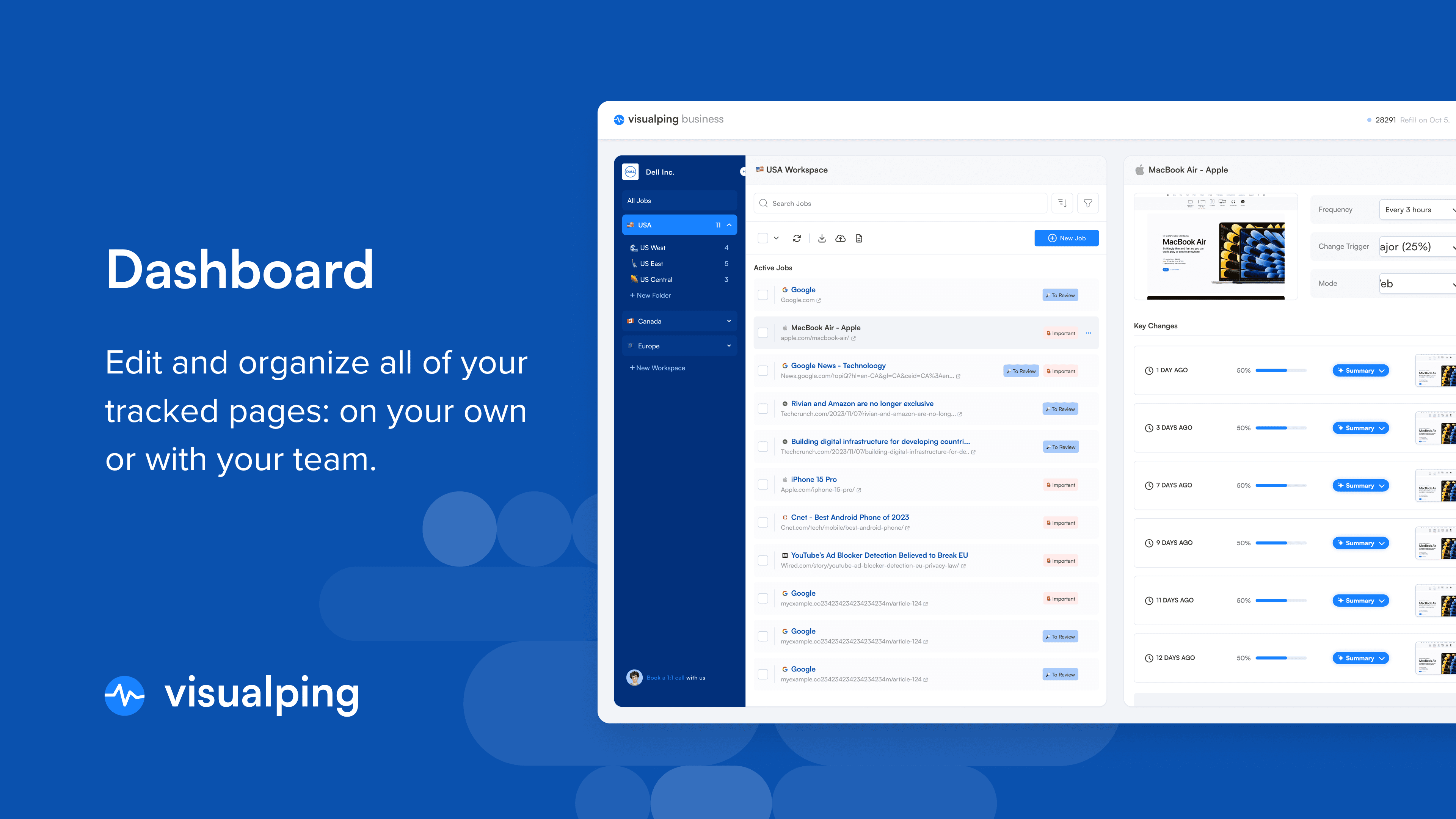 Important and Not Important badges help you scan your change history at a glance
Where the system still falls short
JavaScript-heavy single-page applications. Pages that rebuild their DOM on every load can produce text diffs that look like changes but are really just the framework re-rendering. Element mode targeting a stable container helps, but some SPAs remain noisy.
Pages behind Cloudflare or aggressive bot protection. If the monitoring request gets served a challenge page instead of the real content, the diff between "real page" and "challenge page" triggers a false positive. This is a detection gap, not a filtering gap: the AI correctly reports what it sees, but what it sees is wrong. (For context on how Visualping handles different page types, including login-gated and JavaScript-rendered pages, see our setup guide.)
Heavily personalized pages. Pages that serve different content based on geography, logged-in state, or A/B test variant can produce diffs that are real but not relevant to the user's intent. Area selection and Element mode mitigate this, but personalization remains a source of noise.
We are working on all three. False positives in website monitoring will never reach zero. The goal is to keep the remaining ones rare and clearly labeled, so they do not erode trust in the alerts that matter.
Frequently asked questions
Does Visualping send false alerts?
Visualping can detect changes that are technically real but irrelevant to your monitoring goal (banner rotations, timestamp updates, cookie popups). The AI layer classifies 83% of detected changes as not important, and you can further reduce noise with area selection, monitoring mode choice, and threshold settings. False alerts are not eliminated entirely, but they are clearly labeled so you can distinguish signal from noise.
How do I reduce noise in website monitoring?
Five approaches, in order of impact: (1) Use area selection to monitor only the page section you care about. (2) Choose the right monitoring mode (Text mode ignores visual noise, Element mode targets a single CSS selector). (3) Set a change threshold to filter sub-pixel rendering differences. (4) Use the AI IMPORTANT flag to separate meaningful changes from minor ones. (5) Write a custom importance prompt to define what matters for your specific use case.
What is the IMPORTANT flag in Visualping?
A binary classification applied to every detected change. The AI evaluates whether a change is important (pricing update, policy revision, new content) or not important (banner rotation, date update, cookie popup). You can customize the criteria per monitor using a natural-language prompt. The flag is visible on every alert, in the dashboard, and in webhook payloads.
Can I monitor only part of a webpage?
Yes. Visualping's area selection lets you draw a box around the specific section of the page you want to monitor. Changes outside that area are ignored. This is the most effective way to prevent false positives from headers, footers, sidebars, and ad blocks.
How does Visualping's AI filter work?
When a change is detected, Visualping's AI reads the before and after states, generates a plain-English summary of what changed, and classifies the change as important or not important. The AI launched in 2024 and has been continuously improved. The Q1 2026 model upgrade specifically targeted the three most common noise sources: banner rotations, footer date changes, and cookie consent variations. The AI runs on every Visualping plan, including the free tier.
Want to monitor web changes that impact your business?
Sign up with Visualping to get alerted of important updates from anywhere online.
Eric Do Couto
Eric Do Couto is the Head of Marketing at Visualping. He leads content strategy, growth operations, and brand positioning for website change detection.
More articles by Eric Do Couto