How to Catch Unauthorized Website Changes by Contractors
By Eric Do Couto
Updated September 23, 2026

Unauthorized website changes are edits that reach your live site without passing your approval process: an agency edits the payment page, a freelancer rewrites a legal footer, a CMS editor publishes early. To catch them, monitor the pages contractors can touch, send each alert to the person who can say approved or not, and keep a timestamped before-and-after record of every change.
The people making these edits usually have every right to be in your CMS, and the edit still reaches customers before anyone on your side says yes. In September 2026 we built a demo insurer quote page, watched it with Visualping, and pushed two releases to it. The first was an approved hero refresh. The second was a contractor release nobody signed off: a relabeled quote button, rewritten payment wording in the footer, and a new script that injected a partner offer. Every product screenshot in this guide comes from that test.
Which change problem do you have?
| If the change came from | Start here |
|---|---|
| A contractor, agency, or CMS editor with access who skipped approval | Keep reading, or jump to the 5-step setup |
| An attacker who replaced or vandalized your pages | Website defacement detection guide |
| A release you want to check for visual bugs before it ships | Visual regression monitoring |
| A script on your payment page | PCI DSS 11.6.1 guide |
| Title tags, canonicals, or robots rules | SEO change monitoring |
What unauthorized website changes look like on a live site
An unauthorized website change is an edit to a live page that skipped your approval path. The person behind it can be an agency, a freelancer, a CMS editor, or an attacker, and the right response depends on which one. Sort every alert into one of three buckets before anyone reaches for a rollback.
| Change type | What it looks like | Signal in the alert | Owner | First response |
|---|---|---|---|---|
| Authorized release | Matches a ticket or change-calendar entry, lands inside the release window, and stays inside the approved area of the page | The diff sits inside the ticketed area and the AI Summary describes the expected edit. With a well-written alert prompt, no IMPORTANT flag | Release owner in web ops | Match it to the ticket, accept it, archive the record |
| Unapproved edit | A legitimate editor changes something outside the approved scope: legal copy, a quote button, a new visible widget or embed | Changes outside the ticketed area, an IMPORTANT flag when the edit hits one of your "Alert me when…" conditions, and no matching ticket | Web ops, with compliance for regulated text | Confirm with the editor, roll back or ratify, archive the evidence |
| Defacement | Unfamiliar text, images, or links, or whole sections replaced | A large visual diff and content nobody on the team recognizes | Security | Start incident response with the defacement response playbook |
Contractor setups hide the middle row for mundane reasons. When an agency publishes from a shared login, the CMS log records the account and loses the person. Default CMS roles can be generous: the WordPress Editor role can publish and manage posts, including other users' posts. And when the ticket that approved the work lives in the agency's project tool, nobody on your side sees the scope grow when the release ships.
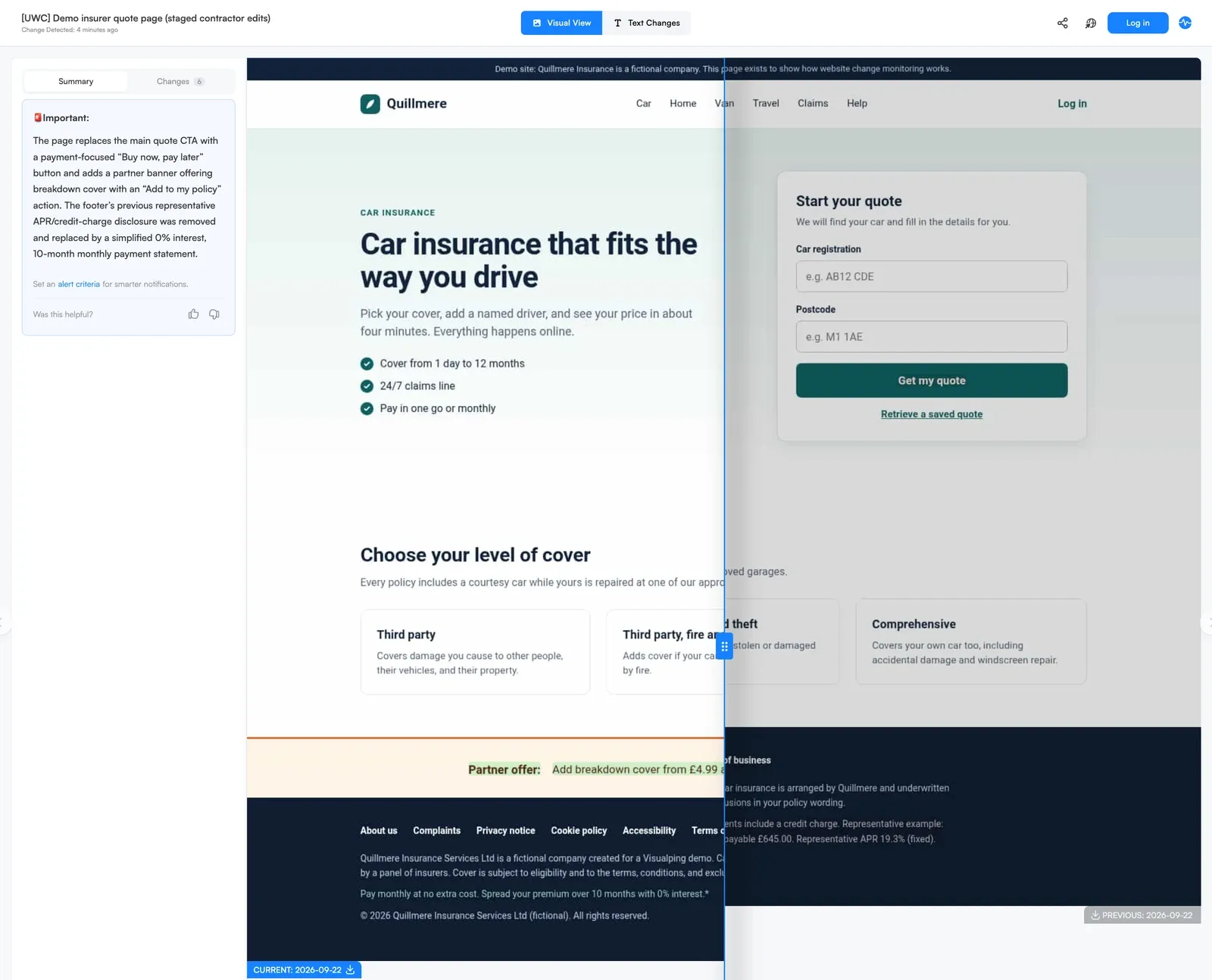
The staged contractor release in Visualping's diff viewer. The current capture (left) shows the new partner-offer iframe and the rewritten footer. The previous capture (right) still shows the original "Get my quote" button and the APR disclosure.
Control layers for web change accountability
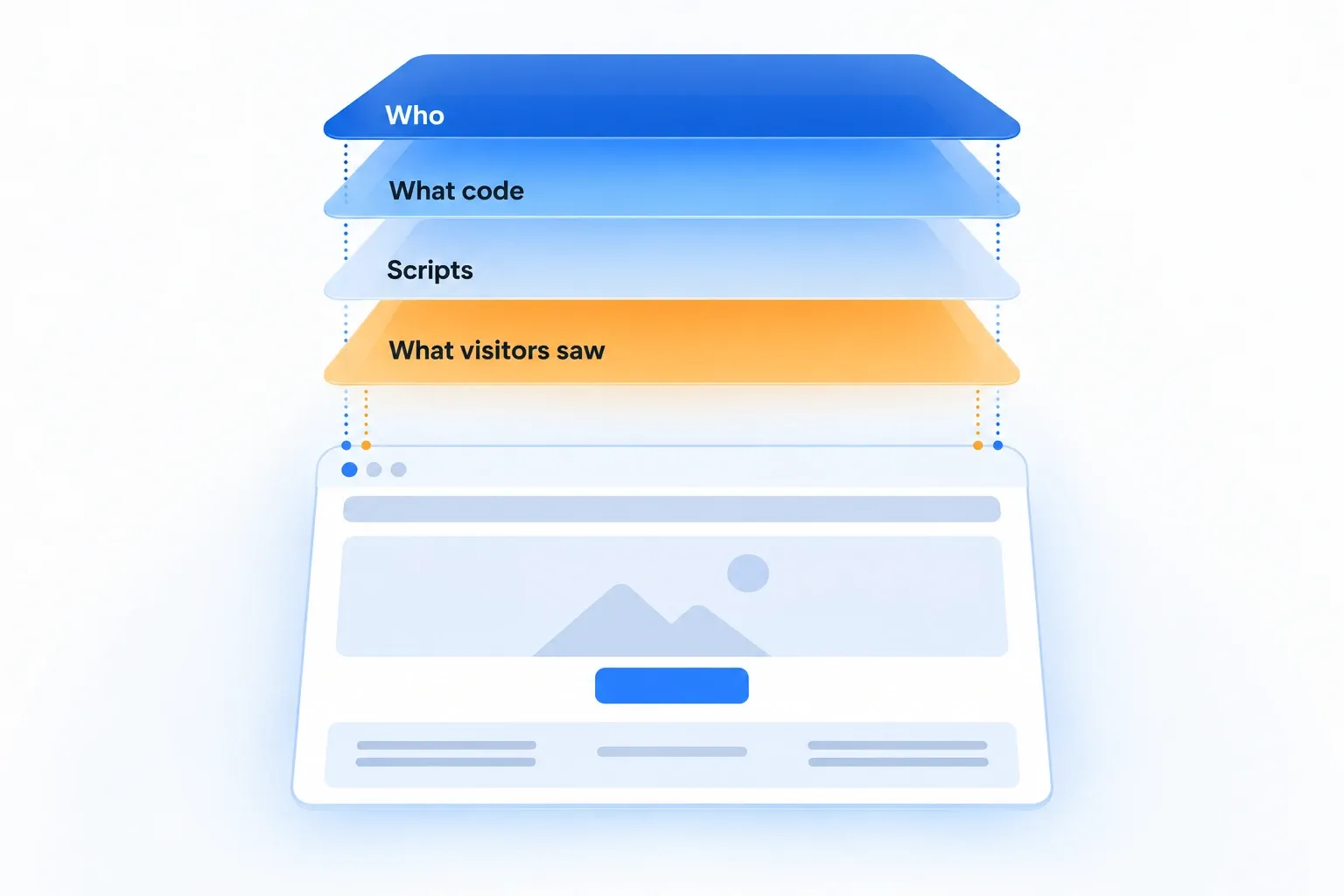
Four kinds of records answer the questions that unauthorized website changes raise, and each one covers a different question. When an alert fires, this table tells you which log to open first.
| Layer | Question it answers | Catches | Blind spot | Usual owner |
|---|---|---|---|---|
| CMS activity or audit log | Who changed what inside the CMS | Edits, publishes, and role changes made through CMS accounts | Edits made outside the CMS (theme files, tag managers, CDN rules). Shared logins hide the person | Web ops or the CMS admin |
| Version control and deploy logs | What code changed, who merged it, and when it shipped | Template, CSS, and script changes that go through your repository | Hotfixes made straight on the server, and CMS content edits | Engineering |
| File integrity monitoring and CSP reporting | Whether server files or loaded scripts changed | Modified server files, and scripts loading from sources your Content Security Policy does not allow | Content edits made through the CMS, and code that changes inside a source you already allow | Security |
| Outside visual change monitoring | What the visitor saw, and when | Changes to the page as the monitor renders it: text, layout, buttons, banners, iframes, and embedded content | Who made the change, and script or header changes that render nothing visible | Web ops and compliance |
Third-party scripts cut across all four rows, so decide in advance which team owns them. OWASP's Third-Party JavaScript Management Cheat Sheet names "loss of control over changes to the client application" as the first major risk of third-party tags, and lists subresource integrity among the defenses. A Content Security Policy with a report-to directive sends a violation report when a page tries to load something your policy blocks.
Visualping is our product, and it covers the outside-monitoring row of this table. The other three rows answer questions it cannot. Your CMS log and Git history tell you who made an edit, and CSP reporting and file integrity monitoring tell you when a script or server file changed without changing the page. Run them together.
The pages contractors touch most
Start with the pages where a contractor's edit would hurt most if nobody noticed for a week, plus the global code that sits behind every template. Unauthorized website changes on these pages are the ones customers and regulators see first.
| Page | Why contractors touch it | What to watch | Check cadence and alert routing |
|---|---|---|---|
| Homepage | Campaign swaps, hero refreshes, promo banners | Hero, navigation, announcement bars | Hourly. Email every change to web ops, with hero copy marked routine in the alert prompt |
| Critical flows (sign-up, quote, booking) | Form tweaks, A/B tests, new tracking tags | Each step of the flow, reached with Actions | Hourly, and every 15 minutes during agency release windows |
| Quote and payment pages | Button relabels, price and fee display, payment-provider embeds | Buttons, price and fee text, iframes and embedded payment content | Every 15 minutes, with IMPORTANT alerts to web ops and security |
| Global CSS and script-driven UI | Theme updates, tag manager changes, consent banners, chat widgets | One representative page per template, so a sitewide change that renders shows up once | Hourly |
| Legal footers and policy pages | Copy edits, disclosure changes, template updates | Footer text, disclosures, links to terms and complaints | Daily, with every change routed to compliance |
The quote page gets the tightest cadence because a single release can change its buttons, its prices, and its embedded third-party content at once. The legal footer gets a slower cadence and a stricter route. Every footer edit goes to compliance, and a same-day response is usually enough.
A regulated UK insurer using Visualping shows what this looks like at a small scale: about 10 monitored pages, including its quote and payment pages, frequent cloud checks, and alerts routed to Microsoft Teams. Its stated concern is the one this guide covers, unauthorized changes to the pages customers use to get a quote and pay.
How to set up monitoring in 5 steps
This is the setup that caught unauthorized website changes on the staged quote page, adjusted for a real production site. Visualping's website regression and defacement monitoring uses the same monitors, so one account covers contractor edits, visual bugs, and defacement.
Step 1: Add the pages contractors can edit
Build the list from two sources: the agency's statement of work and your CMS user roles. Every page a contractor can publish to belongs on the watchlist from the previous section. On any plan you can paste URLs and titles from a spreadsheet into the Bulk tab instead of adding them one at a time, up to your plan's page limit.
Step 2: Write an "Alert me when…" prompt for each page type
Visualping AI reads every detected change against a plain-language condition you write. Each change event then gets an IMPORTANT flag (on or off) and an AI Summary of what changed. The prompt on the staged quote page read:
Alert me when the legal or payment wording in the footer changes, when the quote or payment button is renamed, moved, or removed, or when a new banner, pop-up, or embedded frame appears on the page. Treat headline and intro copy updates in the hero as routine.
The approved hero refresh came through as a routine change. The contractor release came through flagged IMPORTANT, with a summary that named all three problems.
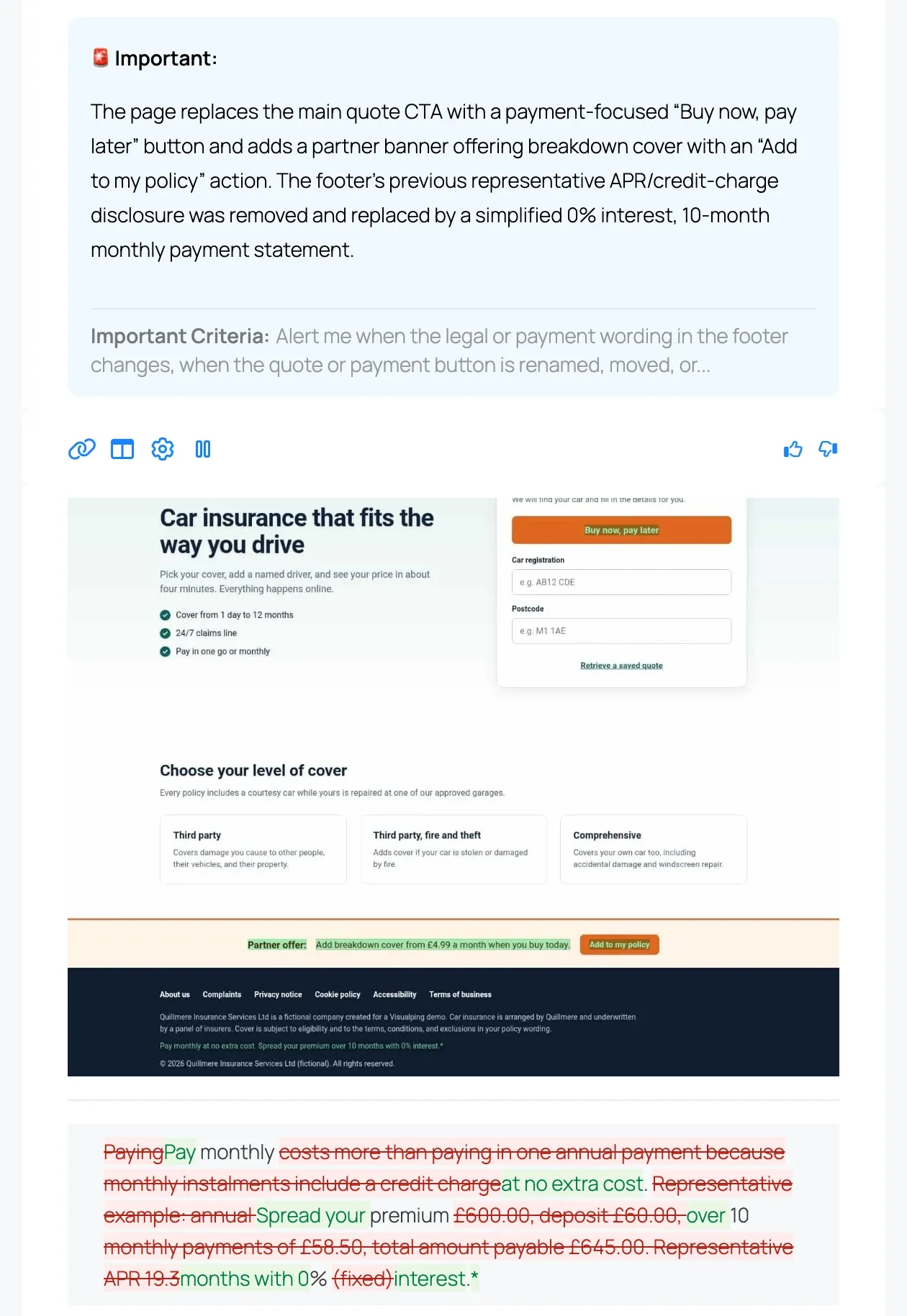
The real alert email for the contractor release. The AI Summary names the relabeled button, the new partner banner, and the removed APR disclosure, and the text diff shows the footer wording that changed.
Step 3: Mute the parts of the page that change on purpose
Rotating banners, A/B test slots, timestamps, and personalized recommendations produce a diff on almost every check. Select the page areas that matter, or add a Block action that hides a rotating element before each capture, so each alert means someone edited something. If an A/B test runs on the quote button itself, keep the button in scope and name the test in your alert prompt instead.
Step 4: Use Actions to reach the steps behind a click
Quote and checkout flows keep their most sensitive screens behind form steps. Visualping Actions run clicks, typing, and logins before each capture, so a monitor can enter a test postcode, press Continue, and check step two of the quote. Use test data your team recognizes, and stay away from flows that place real orders. The guide to Visualping pre-action tools covers the setup.
Step 5: Route alerts and set the cadence
Email alerts, webhooks, and the API work on every plan. Slack and Microsoft Teams alerts are Business plan integrations, and the Slack change alerts guide walks through that setup. Cloud checks run anywhere from every 2 minutes to monthly, depending on plan. The browser extension can run local checks down to every minute on any plan, but only while that browser is open, which makes it a poor fit for production payment pages. Take the cadence from the watchlist table and send IMPORTANT alerts to someone who can answer "was this approved?" within the hour.
When an alert fires: approved or not?
The alert tells you what changed and when. It can't tell you whether anyone signed off, and that gap is where unauthorized website changes slip through. Deciding whether the change was allowed takes four checks, in this order:
- Check the change calendar or ticket. Look for a ticket that covers this page, this part of the page, and this time window. A ticket for a hero refresh covers the hero and nothing else on the page.
- Confirm with the owner or the contractor. Send the diff to the agency lead or the editor who owns the page, and ask what shipped and why. Your CMS log or Git history tells you which account made the edit.
- Roll back or accept. Roll back first when the edit touches legal text, prices, or the payment flow, then sort out the paperwork. For a harmless out-of-scope edit, ratify it with a retroactive ticket so the record matches the live page.
- Archive the decision. Keep the before-and-after screenshots, the alert, the ticket reference, and the name of the person who decided. That bundle is your proof trail.
In the staged test, the first alert arrived at 20:03 UTC. The hero headline and intro copy had changed, which matched the approved ticket, so under this runbook the change gets accepted and archived. The second alert arrived at 20:08 UTC, flagged IMPORTANT. The quote button now read "Buy now, pay later", a partner-offer iframe had appeared above the footer, and the footer's representative APR disclosure had been replaced with a "0% interest" line. No ticket covered any of it. On a real site that is a same-day rollback, followed by a conversation with the agency about who approved the footer.
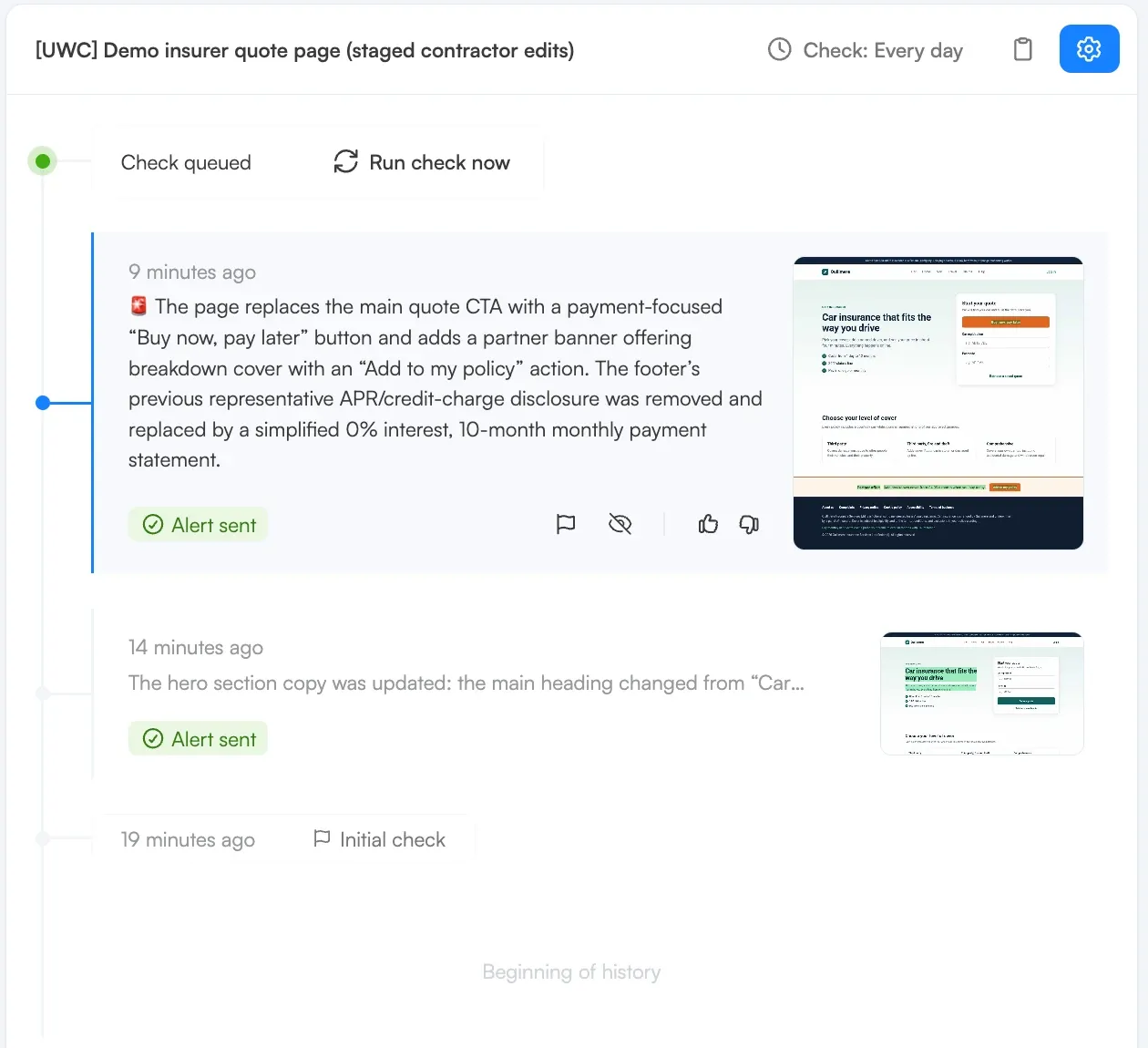
The monitor's history in Visualping: the initial check, the routine hero change five minutes later, and the IMPORTANT contractor release five minutes after that. Both changes show "Alert sent." The test ran on a 5-minute check interval; the header reads "Every day" because the monitor was switched to a daily interval after the test.
Want this check running on your own quote page? Add the page to Visualping and write one "Alert me when…" prompt that covers its footer and buttons. The Free plan covers 5 pages at up to hourly checks; the 15-minute cadence above needs a paid plan.
Who owns what
When nobody has decided who approves footer copy, the agency decides for you. A RACI settles it per change type: who does the work (Responsible), who signs off (Accountable), who is consulted before the change, and who is informed after it. It is a one-page piece of website governance that an auditor can read at a glance. Many unauthorized website changes start as a gap in this table rather than as bad intent.
| Change type | Agency or contractor | CMS editor | Web ops | Security | Compliance | Alert channel | Keep evidence for |
|---|---|---|---|---|---|---|---|
| Hero and campaign copy | R | R | A | I | I | 3 months (default) | |
| Legal, regulatory, and pricing text | R, with a ticket | C | R | I | A | Compliance channel in Teams or Slack, plus email | 1 year, exported to your records |
| Quote, checkout, and payment pages | R | I | A | C | C | Web ops and security channels | 1 year |
| Scripts, tags, and embeds | R | I | C | A | I | Security channel | 1 year, plus CSP report logs |
| Emergency fixes | R | I | A | C | I | Web ops on-call | 1 year |
Visualping keeps change history for 3 months by default on every plan, and Business plans can extend a monitor's history to 1 year. For anything longer, export the evidence into the system that holds your change tickets.
Put the approval path into the contract as well. The UK National Cyber Security Centre's supply chain guidance tells organizations to build security considerations into their contracting processes and to require the same of suppliers. For web work, that advice becomes a change-notice clause.
Sample contractor change-notice clause (not legal advice; have your counsel adapt it):
Supplier will give Client at least [two business days'] written notice, through Client's change-ticket system, before publishing any change to Client's production website that affects legal or regulatory text, prices or fees, quote or payment pages, forms that collect personal data, or third-party scripts, tags, or embedded content. Supplier may publish an emergency fix without notice if Supplier records the change in Client's ticket system within [four hours] of publishing it. Client may monitor its production website for changes and may require Supplier to reverse, at Supplier's cost, any change published without the required notice.

Keeping proof
When an auditor, a regulator, or your own legal team asks what the quote page said on a given Tuesday, the answer should sit in one place: the before-and-after screenshots, the timestamps, the AI Summary, the ticket, and the decision. Change-management frameworks expect records of changes and their approvals, and this bundle is one way to keep them. The NIST SP 800-53 control CM-3, configuration change control, asks organizations to review and approve configuration-controlled changes and to retain records of them. The AICPA's SOC 2 trust services criteria cover authorizing, approving, and implementing changes under CC8.1.
Screenshots hold up better as evidence when they carry a reliable timestamp, the URL, and the full page, and the guide to screenshots as evidence covers the details. Each capture in a Visualping monitor's history carries the time of the check, so treat that history as the website change log for the pages contractors can reach (3 months by default, or up to 1 year per monitor on Business plans once you raise it; export anything older). When unauthorized website changes turn into a dispute with an agency, that history is the record both sides can check.
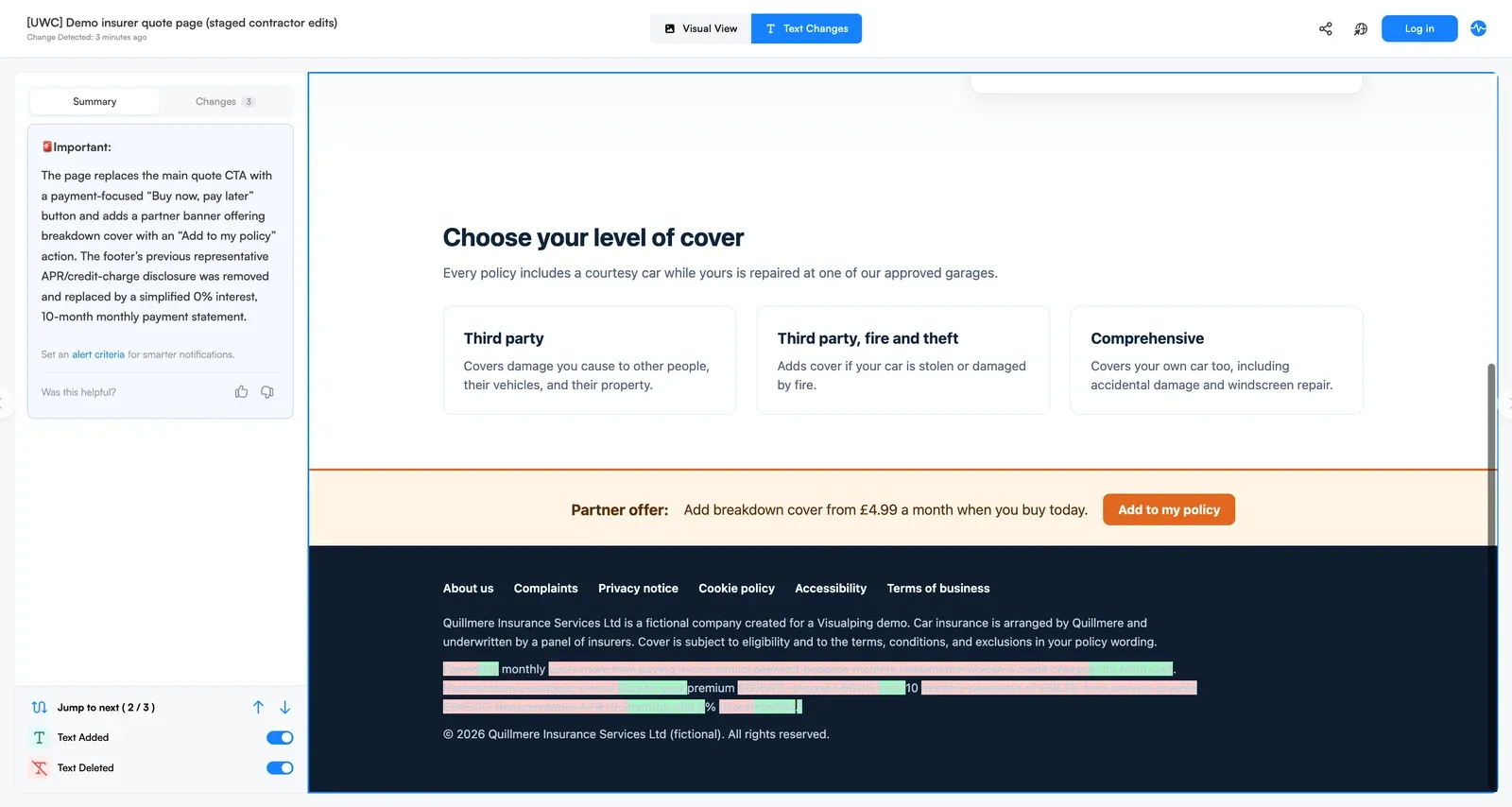
Visualping's Text Changes view for the staged release: the struck-through APR disclosure, the "0% interest" line that replaced it, and the injected partner-offer iframe above the footer.
Go deeper: How to archive a website | Compliance monitoring guide
What outside monitoring can and cannot show
Outside monitoring sees unauthorized website changes the way a visitor does. In the staged release, Visualping caught all three unapproved edits, including the partner-offer iframe that a new script injected. It caught the iframe because the iframe rendered on the page. Visualping never compared the script's code, and the frame's text showed up in the change list alongside the visual diff.
What outside monitoring shows: which page changed, what changed in the rendered text and layout, when it changed (to within one check interval), and new iframes or embedded content that appear on the page.
What it leaves to other layers:
- Who made the change. Visualping has no view of your CMS accounts or Git history, so attribution comes from the CMS audit log and your deploy logs.
- Script changes that render nothing. A skimming script can copy card numbers in the background while the page looks identical, which is how Magecart-style attacks stay hidden. CSP reporting, subresource integrity, file integrity monitoring, and a client-side script monitor cover that gap.
- Server configuration and HTTP response headers, which need a tool that reads them directly.
- Pages behind a login, until an Action logs in before the capture.
Payment pages sit where these layers meet. PCI DSS v4.0.1 requires documented approval for changes to production systems (Requirement 6.5.1). Since March 31, 2025, it has also required a change- and tamper-detection mechanism for payment pages (Requirement 11.6.1). That mechanism evaluates the security-impacting HTTP headers and script contents the consumer's browser receives, according to the standard published by the PCI Security Standards Council. Visualping documents what the payment page displayed and flags new iframes and embeds that visibly render on it. The header and script checks in 11.6.1 need a tool that inspects them directly, and the PCI DSS 11.6.1 guide covers where each piece fits.
FAQ
Can website monitoring show who made a change?
No. Website monitoring compares what a page displayed at two points in time, so it shows what changed and when. The name comes from your CMS audit log or Git history. If you run WordPress, add a WordPress audit log plugin so the CMS records who published each change, then look for entries between the previous check and the alert.
How can I get an alert if a website changes?
Add the page to a monitoring tool such as Visualping, pick a check frequency, and choose where alerts go. Email alerts work on every plan, and Slack alerts and Microsoft Teams alerts come with Business plans. Add an "Alert me when…" prompt so Visualping flags the changes you care about as IMPORTANT.
How do I know if a website change was approved?
Compare the alert with your change calendar or ticket system. An approved change matches a ticket for that page, that part of the page, and that release window. Unauthorized website changes are the ones with no matching ticket, so if nothing matches, confirm with the page owner or the contractor before you accept or roll back, and record the decision next to the before-and-after screenshots.
How often should I check pages contractors can edit?
Match the cadence to the damage an unnoticed edit could do. Check quote and payment pages every 15 minutes, homepages and key flows hourly, and legal footers and policy pages daily. Visualping cloud checks run from every 2 minutes to monthly depending on plan, and faster checks use more of your monthly check allowance.
Can Visualping detect skimmers or malicious scripts?
Only when the script changes what the page shows. Visualping flags changes that render on the page, including new iframes and embedded content that a script injects. A script that changes in the background without altering the page produces no visual or text change, so it needs CSP reporting, subresource integrity, or file integrity monitoring. Payment pages need both layers.
How long does Visualping keep change history?
Visualping keeps change history for 3 months by default on every plan. Business plans can extend a monitor's history to 1 year. For audits that need a longer record, export the screenshots and alert details and store them with the related change ticket.
Want to monitor web changes that impact your business?
Sign up with Visualping to get alerted of important updates from anywhere online.
Eric Do Couto
Eric Do Couto is the Head of Marketing at Visualping. For this guide he staged contractor edits on a demo site and captured the real Visualping alerts they triggered.