How Visualping AI filters noise and flags what matters
Updated July 10, 2024
Summary: Important Alerts use natural-language prompts to filter which web changes trigger your notifications. This guide covers prompt examples across 9 use cases (including multilingual monitoring), 4 common mistakes that flood your inbox, auto-suggested prompts, and how the Important tag flows through email, Sheets, Reports, and webhooks.
Visualping AI includes a feature called Important Alerts that lets you write a natural-language prompt defining which changes matter to you. When Visualping detects a change, AI reads it and checks it against your prompt. Match? You get notified. No match? The change is still captured, but it won't interrupt your day.
This post is a practical guide to writing prompts that actually work, with examples across nine common use cases, mistakes to avoid, and tips for wiring alerts into your workflow. Over 650,000 active monitors on our platform run custom AI prompts today. (For a broader look at all Visualping AI features, including multilingual summaries, see our complete Visualping AI overview.)
What happens when a change hits your prompt
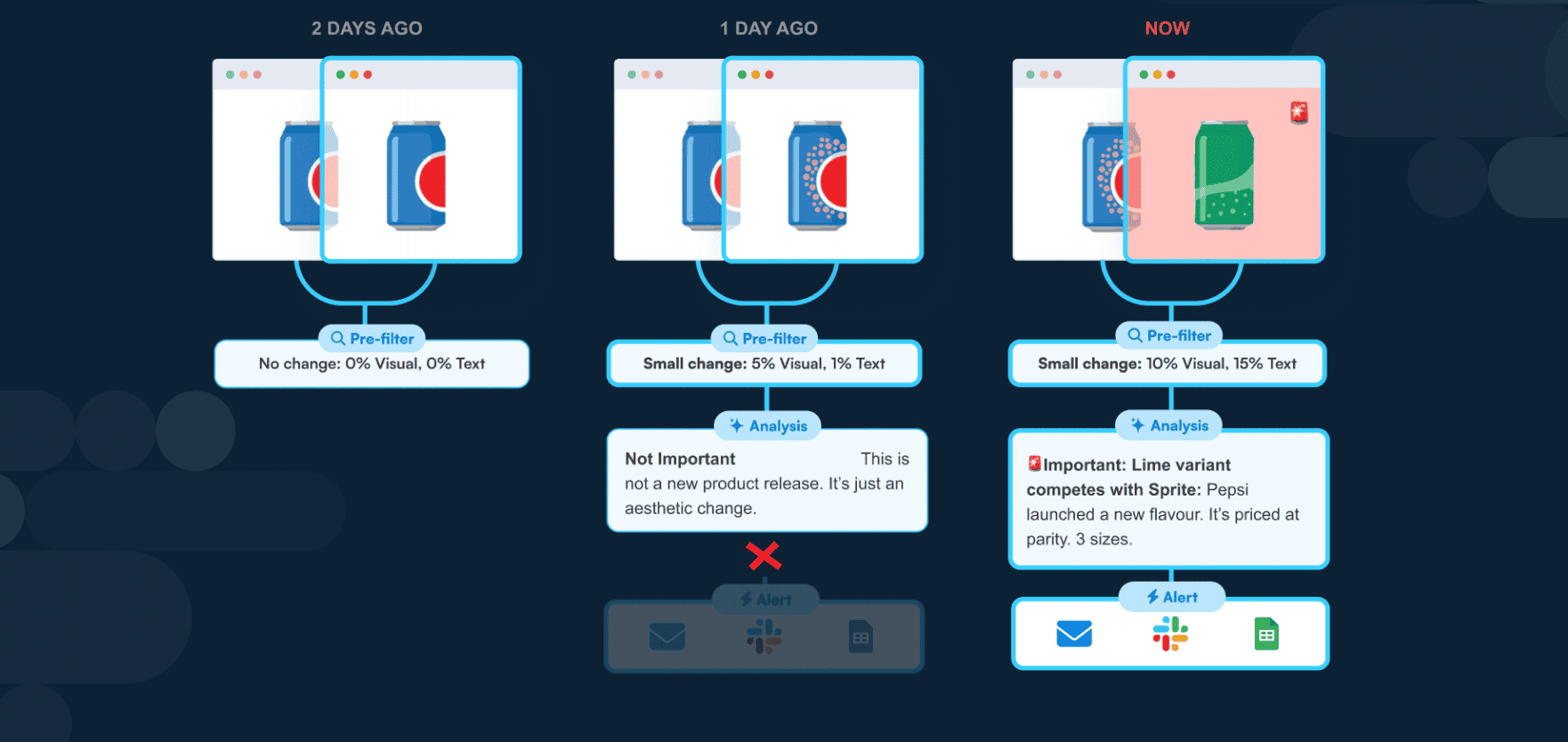
When Visualping detects a change on a monitored page, four things happen in sequence:
- AI reads the change. It processes the before and after versions of the page.
- AI reads your prompt. That's the natural-language criteria you wrote during setup.
- Binary decision. Does this change match what you care about? Yes or no.
- Tag and route. If yes, the alert gets tagged "Important" and fires your notifications (email, SMS, Slack, webhook). If no, the change is logged silently.
Think of the prompt as a sieve. Every detected change passes through it. The tighter the sieve, the fewer false positives reach your inbox.
In Q1 2026, Visualping upgraded its AI models. The practical effect for prompt writing: compound prompts with both what-to-flag and what-to-ignore clauses are handled more reliably. See the Q1 2026 release recap for details.
Choose the right monitoring mode for your prompt
Your prompt evaluates what Visualping captures, so the monitoring mode you choose affects what the AI sees. Pick the wrong mode and your prompt is working with incomplete information. Among active monitors with custom prompts, nearly 80% use All mode.
All mode (recommended) combines visual and text monitoring on your selected region. The AI sees layout changes, image swaps, and text edits, giving your prompt the fullest picture of what changed. Say you're tracking a competitor's pricing page. A price drops from $499 to $399 (text change) and the "Most Popular" badge moves to a different tier (visual change). All mode catches both in a single check.
Text mode works best for prompts focused entirely on content changes: pricing, legal language, product specs. The AI works with text instead of pixels, so summaries tend to be more precise.
Visual mode catches design shifts and image swaps that don't touch the underlying text. A competitor rearranges their pricing table without changing any numbers? Visual mode flags it. Text mode wouldn't.
Element mode lets you draw a box around the specific region you care about. Everything outside the box is ignored: rotating banners, sidebar ads, cookie popups, social feeds.
When in doubt, start with All mode. You can always narrow later. For details on each mode, see Four monitoring modes, one AI layer.
Prompt examples by use case
1. Competitive pricing
Prompt: "Flag any price change on listed products, including changes to discount percentages, bundle pricing, or subscription tier costs"
Why it works: It names the specific elements (products, discounts, bundles, tiers) instead of just saying "price changes." This catches subtle pricing shifts like a reduced annual discount that wouldn't register as a headline price change.
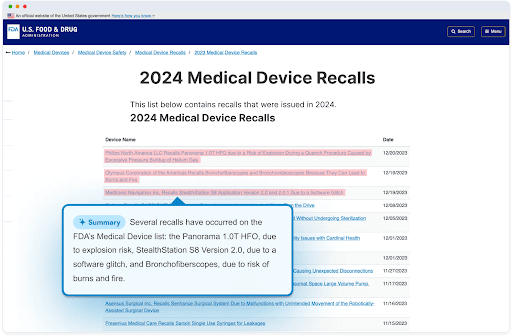
2. Regulatory compliance
Prompt: "Important only if approval status changes, new enforcement actions are posted, or compliance deadlines are added or modified"
Why it works: It targets three concrete triggers. Routine formatting updates, staff directory changes, or FAQ rewording on the same regulatory page won't fire a false alert.
3. Job board monitoring
Prompt: "Alert when new senior engineering, product management, or data science roles are posted. Ignore changes to existing listings."
Why it works: It specifies the seniority level and departments. It also explicitly excludes edits to existing postings, which are a common noise source on career pages where salary ranges or application links get updated regularly.
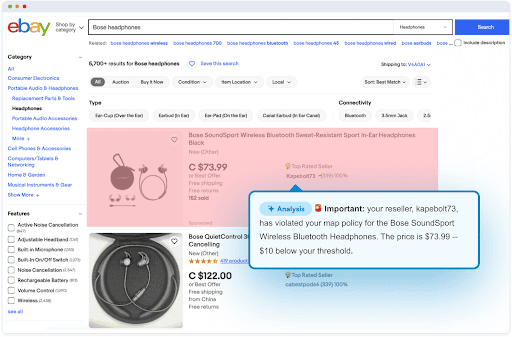
4. E-commerce MAP enforcement
Prompt: "Flag any reseller listing where the displayed price falls below $149.99 for the Pro model or below $89.99 for the Standard model"
Why it works: It names exact SKUs and price floors. A broad "flag price drops" prompt would fire on every sale and clearance. This targets only the MAP violations you need to act on.
5. Legal and contract monitoring
Prompt: "Notify when indemnification clauses, liability caps, termination terms, or data processing provisions are added, removed, or substantively modified"
Why it works: It targets four specific clause types by name. Terms of service pages update frequently (footer changes, cookie policy refreshes, formatting tweaks), but only substantive contract changes need your legal team's review.
6. Competitor content and launches
Prompt: "Flag new blog posts, case studies, product announcements, or press releases. Ignore navigation changes, author bio updates, and footer edits."
Why it works: It tells the AI what to watch for and what to ignore. Competitor websites generate constant cosmetic changes. By naming the content types you care about and excluding common noise sources, the prompt stays focused.
7. Brand and trademark monitoring
Prompt: "Important if our brand name, logo, or product names appear in new content, or if existing mentions of our brand are modified or removed"
Why it works: It covers three scenarios: new mentions, modifications to existing mentions, and removal. For trademark enforcement, the removal of a required attribution matters just as much as a new unauthorized use.
8. Real estate and listings
Prompt: "Flag new listings under $500K with 3+ bedrooms, or price reductions greater than 5% on any tracked property"
Why it works: It combines two distinct triggers with specific criteria. Without those specifics, every minor listing edit (photo additions, open house schedule changes) would fire an alert.
9. Multilingual monitoring
Prompt: "Résumer tous les changements en français. Signaler comme important tout changement de prix, de date limite de conformité ou de conditions de service."
Why it works: The entire prompt is in French, so both the importance classification and the summary arrive in French. You can also write the prompt in English and append "Summarize in French." The AI handles either approach. You set the language per monitor, so different monitors can output different languages. See Summaries in any language for more examples.
Tip: Prompts work in any language. Include a language instruction in any prompt: "Summarize all changes in Spanish," "Zusammenfassung auf Deutsch," or "変更内容を日本語で要約してください." The AI reads the source page in whatever language it's written in and produces the summary in the language you specify. Set the language per monitor, so a Tokyo team gets Japanese summaries while a Toronto team gets English, even if both are watching the same French regulatory site.
Four prompt mistakes that flood your inbox
Too vague: "Tell me about changes" This matches everything. The AI can't distinguish important from unimportant if you don't define the boundary.
Too broad: "Flag anything related to pricing" On a competitor's website, "anything related to pricing" might include cookie consent banners with "pricing" in the URL, navigation menu updates, or testimonial sections mentioning value. Be specific about which pricing elements matter.
Negative framing: "Don't alert me about footer changes" Prompts work best as positive statements about what you want, not lists of what you don't want. The exception: adding an "Ignore..." clause after your positive criteria, as shown in the examples above.
Too many conditions: "Flag if price changes AND new products are added AND the competitor mentions our brand AND their market share section updates AND..." This creates an AND chain where all conditions must be true simultaneously. If you need multiple independent triggers, use OR logic: "Flag if price changes, new products are added, or competitor mentions our brand." The 2026 model upgrade handles compound prompts more reliably than earlier versions, but clear OR logic still produces the most consistent results.
When your prompt isn't working
Two common problems and how to fix them.
Too noisy: you're getting too many Important alerts. Open the job in your dashboard and review the last 10-20 Important alerts. Look for a pattern in the false positives. Are they all footer changes? Cookie popup updates? Banner rotations? Add an "Ignore..." clause to your prompt targeting that specific noise source. Example: if rotating banner ads keep triggering alerts on a pricing page, append "Ignore banner images, rotating ads, and promotional overlays" after your positive criteria.
Too quiet: changes are happening but nothing gets flagged. Check the change history in your dashboard. Look at the non-important changes. Are there changes that should have been flagged? If so, your prompt criteria may be too narrow. Broaden the trigger language or add OR conditions. Also check your monitoring mode: if you're using text mode but the important changes are visual (layout shifts, image swaps), switch to All mode so the AI can see them.
In both cases, start by reviewing actual changes in your dashboard before rewriting the prompt. The change history shows you exactly what the AI saw and how it classified each change, so you can diagnose the problem instead of guessing.
Nearly 6 in 10 prompted monitors on our platform are refined after initial setup. Iteration is normal. The examples in this guide are starting points, not final drafts.
Let AI write your first draft
Not sure where to begin? During job setup, Visualping AI scans the page you're monitoring and suggests a prompt matched to that content. Point it at a pricing page, you get a pricing-focused suggestion. Point it at a regulatory page, you get a compliance-focused one.
Use the auto-suggestion as a starting point, then tighten it with the specifics from your use case. The examples above show what "tightened" looks like compared to a generic prompt.
How Important Alerts plug into your workflow
Once your prompt is set, the Important/Not Important tag flows through every output channel.
Email alerts arrive with an "Important" prefix in the subject line. Build inbox rules to surface them or mute everything else.
The Google Sheets integration adds a TRUE/FALSE column. Sort and filter your change log by importance in seconds.
In job settings, you can choose to only receive notifications for Important alerts. Non-matching changes still log in Visualping, but your inbox, phone, and Slack stay quiet.
Webhooks include the importance flag in the JSON payload. Filter downstream automations to act only on Important changes.
Reports: one briefing, not 50 individual alerts. If you monitor dozens or hundreds of pages, Visualping Reports combines every Important change across your selected monitors into a single AI-written briefing. A product marketer tracking 50 competitor pages opens one report on Monday morning. The AI writes the executive summary at the top, then lists each change with its importance classification and side-by-side screenshots below. Schedule reports daily, weekly, or custom. Available on Business plans. See the Reports guide for a walkthrough.
For a closer look at connecting these outputs to Zapier, n8n, and other automation tools, see our integrations and automation guide.
Go deeper: For the technique-level playbook (roles, structured output, ignore rules, few-shot, and Actions), see Prompt Engineering for Important Alerts.
When to call in prompt engineering
Most users get accurate results with self-service prompts. But if your monitoring involves multi-condition logic, domain-specific terminology, or hundreds of pages with varying criteria, the Solutions tier includes a Prompt Engineering service. Visualping's team builds and tunes prompts for your specific use cases, so you get precise Important Alerts without trial and error.
For the full list of Solutions capabilities, see our Visualping AI overview. To see how much time well-tuned prompts save, check our time savings breakdown.
Get started
AI Summaries and Important Alerts are available on all plans, including free accounts. Open any monitoring job, set it to All mode, write your prompt using the examples above as a template, and Visualping AI begins filtering immediately.
Setup takes under a minute per job. Your first Important Alert will show you the difference.
Want to monitor the web with AI?
Sign up with Visualping to track web changes with AI and save time, while staying in the know.
Eric Do Couto
Eric Do Couto is the Head of Marketing at Visualping. He leads content strategy, growth operations, and brand positioning for website change detection.
More articles by Eric Do Couto