How to Monitor a Website for Changes in Chrome (2026 Guide)
Updated June 9, 2026

You can monitor a website for changes in Chrome two ways: a free browser extension that watches pages while Chrome is open, or cloud monitoring that checks around the clock, even when your computer is off. Setup takes about a minute for either route. This guide covers how to set both up, how to choose between them, and how to cut false alerts once you're running.
Two ways to monitor website changes in Chrome
Chrome gives you two routes to website change monitoring, and the right choice depends on where the checking work happens.
Browser extension (local monitoring). A Chrome extension checks pages from inside your browser, on your computer. Visualping's Chrome extension lets you watch an entire page or just a section you select, on a free account. Local monitors are unlimited and free. The tradeoff: checks only run while Chrome is open on your machine.
Cloud monitoring. Cloud monitors run on Visualping's servers instead of your computer. They check pages 24/7, whether your laptop is open, asleep, or in a bag. Every Visualping account includes 5 free cloud monitors alongside unlimited local ones, so you can mix both: local for casual checks, cloud for anything you cannot afford to miss.
Both routes send alerts when something changes, and both take about the same effort to set up. The sections below show the setup, then how to decide which route each page deserves.
When a Chrome extension is enough (and when it isn't)
A local extension monitor covers most everyday cases. Run through four questions before you rely on one:
- Is your computer on when checks need to happen? Local monitors only check while Chrome is running. If you shut your laptop overnight and the page changes at 3 a.m., you find out late.
- How often do you need checks? Spot-checking a page once a day works fine locally. Time-sensitive pages, like a product restock or a filing deadline, deserve cloud checks at tighter intervals.
- How many pages are you watching? A handful of pages is easy to manage locally. Dozens of pages across devices belong in a cloud dashboard.
- What kind of alerts do you need? Local monitors notify you in the browser and by email. Cloud monitors add team workspaces, integrations, and an alert history you can search.
Extension-created monitors skew time-sensitive. In a June 2026 sample of Visualping platform data, more than 60,000 active monitors were created directly from the Chrome extension, and about two in three of them run daily-or-faster schedules, exactly the cadence where a closed laptop starts costing you alerts.
If you answered "always on, once a day, a few pages, just email me," the extension alone will serve you well. Anything more demanding, set up the same monitor as a cloud check instead. The setup flow is identical.
How to set up website change monitoring in Chrome
The whole flow takes about a minute: install the extension, pick what to watch, and tell it where to send alerts.
- Install the extension. Add Visualping from the Chrome Web Store listing and pin it to your toolbar so it stays one click away.
- Open the page you want to monitor. Navigate to the exact page, not the homepage. If a price sits three clicks deep, monitor the page where the price actually appears.
- Click the Visualping icon and choose your target. Watch the full page, or drag to select just the section that matters: a price, a stock status, a job listing, a paragraph of legal text.
- Set the check frequency. Pick how often the page gets checked, from every few minutes to daily or weekly. Match the frequency to how fast the page actually changes. (A page that updates once a week does not need five-minute checks.)
- Choose your alert. Enter your email address. When the monitored area changes, the alert lands in your inbox with a visual before-and-after comparison.
- Manage monitors from the dashboard. Your monitors sync to a dashboard where you can pause them, adjust frequency, review change history, or upgrade any local monitor to a cloud one.
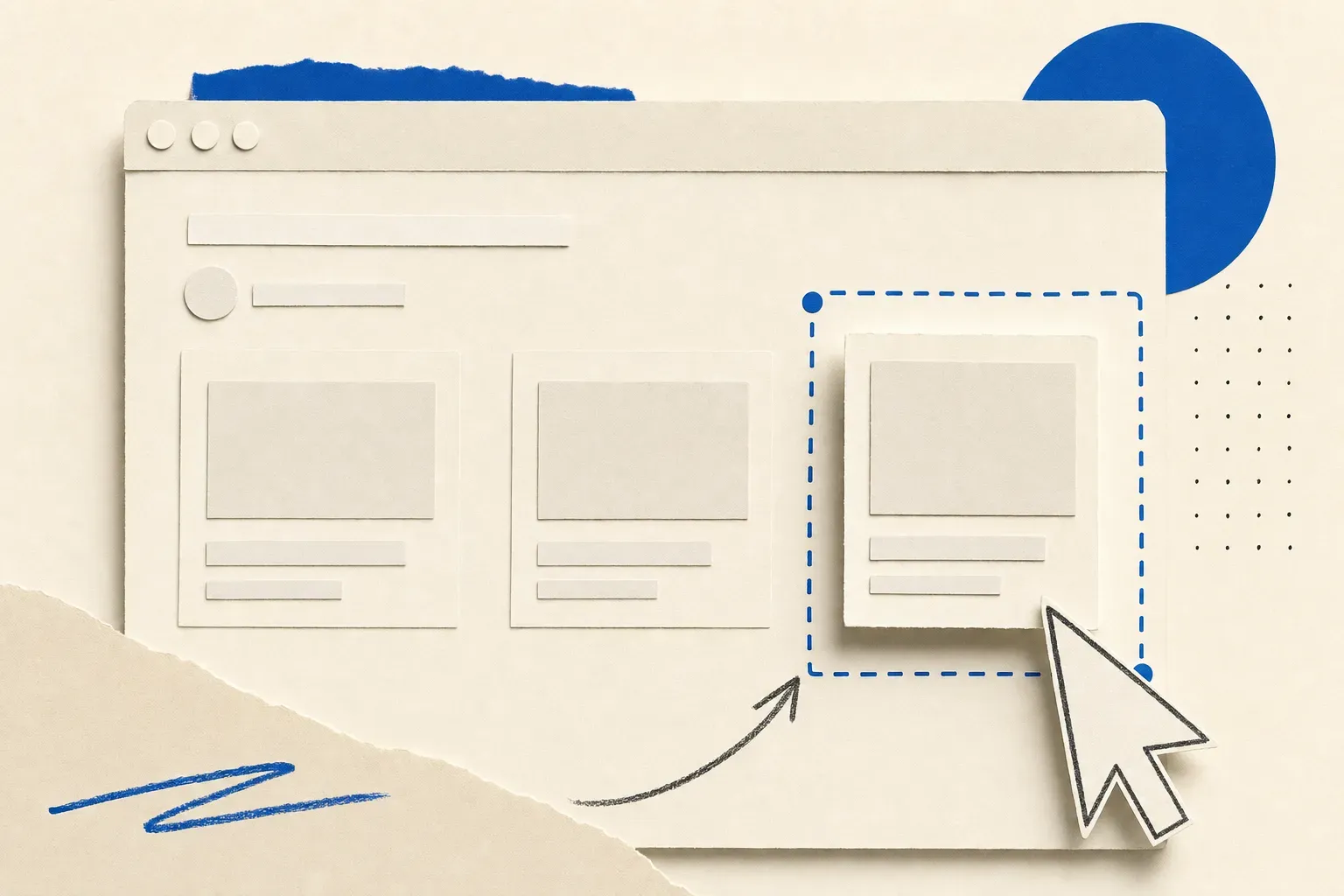
Ready to try it on a real page? Install the extension, open the page you care about, and set your first monitor. It takes about a minute, free, no credit card.
Local vs. cloud monitoring: which should you pick?
The honest answer for most people is both, assigned by stakes.
| Local (extension) | Cloud (Visualping servers) | |
|---|---|---|
| Runs when Chrome is closed | No | Yes, 24/7 |
| Free allowance | Unlimited monitors | 5 monitors |
| Where checks run | Your computer | Visualping's servers |
| Check frequency | While browser is open | Any schedule, down to minutes |
| Alert types | Email, browser | Email, API on all plans, Slack and Teams on Business |
| Best for | Casual checks, personal browsing | Deadlines, restocks, compliance, teams |
The short version: keep unlimited local monitors for pages you check out of curiosity, and spend your 5 free cloud monitors on pages where a missed change costs you money, time, or a deal.
Plenty of pages need checks more often than a browser stays open. According to Visualping platform data (June 2026), more than 540,000 monitors in a sample of 1.86 million active monitors run daily-or-faster schedules. That is exactly the cadence a browser-only setup misses whenever the computer is off. If a page matters enough to check every day, it usually matters enough to run it in the cloud.
How to see if a website has changed in the past
Monitoring catches changes from today forward. To see whether a website changed before you started watching it, you have two options.
Check an archive for past versions. The Wayback Machine stores snapshots of hundreds of billions of pages, so you can compare what a page looked like last month or last year. Coverage is uneven for smaller sites, and snapshots can be months apart. Our guide to Wayback Machine alternatives covers the archive options and their gaps.
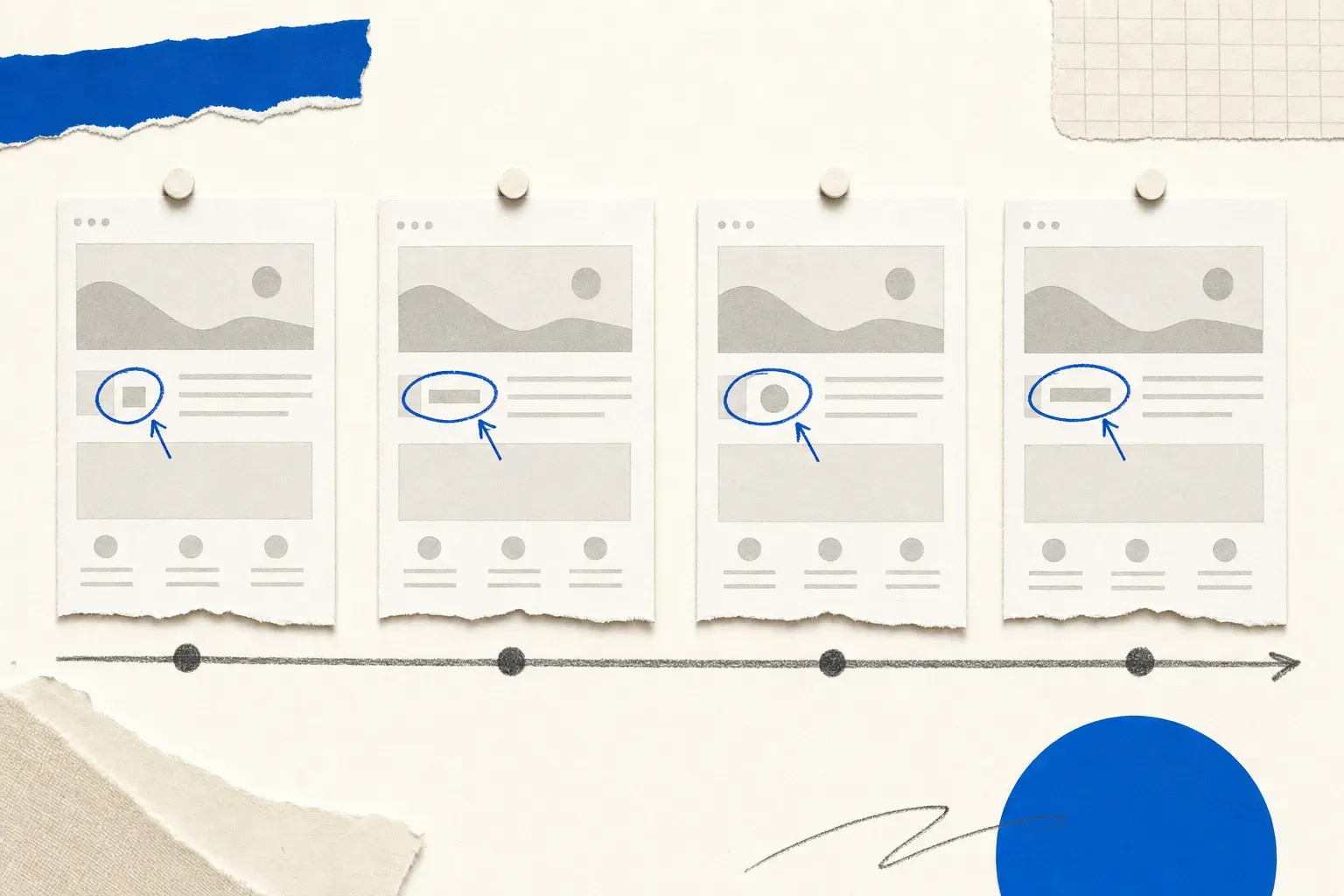
Build your own change history going forward. Once a Visualping monitor is on a page, every detected change is saved to a timeline with visual before-and-after snapshots. After a few weeks you have an edit history for the exact pages you care about, searchable and timestamped, which no public archive guarantees.
What to look for in a Chrome monitoring extension
Four capabilities separate a monitoring extension you keep from one you uninstall within a week:
- Area selection. Whole-page monitoring on a busy page means alerts for ad rotations and date stamps. Drag-to-select monitoring of one section is the single biggest false-alert cut.
- Local and cloud in one tool. You want to upgrade a monitor from "while my browser is open" to "24/7" without rebuilding it in a different product.
- Alerts that explain themselves. Every Visualping change alert carries an importance flag plus a plain-English summary written by Visualping AI, so you can tell a price drop from a font change without opening the page.
- A change history. Before-and-after snapshots over time turn a notification tool into a record you can reference, share, or cite.
Visualping is our product, so weigh this guide accordingly. The fastest way to evaluate any monitoring extension is to set it up on a page you actually care about and judge the first alert: did it catch the change you needed, and could you tell what changed without opening the page? For a wider look at the category, see our rundown of the best change monitoring tools.
Visualping Chrome extension at a glance
- What it does: watches any webpage, or a selected area of it, and emails you when something changes
- Best for: anyone who needs change alerts without code, from a single price page to a team watching hundreds of URLs
- Pricing: free tier includes unlimited local monitors plus 5 cloud monitors; paid plans add checks and seats
- Key differentiator: an importance flag and a plain-English AI summary on every change alert
- Try it: Chrome Web Store install or the Visualping extension page
Common problems and how to fix them
The extension isn't detecting changes
Dynamic pages that load content with JavaScript sometimes finish rendering after the check runs. Increase the wait time in the monitor's advanced settings, and confirm you are monitoring the element itself rather than a container that loads later.
Your computer was asleep when the change happened
Local monitors pause when Chrome closes. For any page with a deadline attached, switch that monitor to a cloud check so it runs on Visualping's servers around the clock.
Too many alerts about nothing
Two fixes, in order. First, select a smaller area. According to Visualping platform data (June 2026), more than 375,000 active monitors in that same 1.86 million monitor sample watch a selected area instead of the full page. That configuration filters out ads, dates, and rotating banners. Second, let the importance flag do its job: every alert is marked important or routine and summarized by Visualping AI, so routine churn never has to interrupt you.
The page blocks automated checks
Some sites rate-limit unfamiliar traffic. The extension has an advantage here: it checks from your own browser session, which most sites treat as a normal visit. For cloud monitors, widen the check interval before anything else.
Frequently asked questions
Can I monitor a website for changes?
Yes. Install a monitoring extension like Visualping, open the page, choose the full page or a selected area, set a check frequency, and add your email. From then on you get an alert with a before-and-after comparison whenever that page changes. Free local monitors are unlimited, and 5 cloud monitors are included free. Our comparison of free website change detection tools covers the wider field.
How do I monitor a website for changes in Chrome?
Install the Visualping extension from the Chrome Web Store, open the target page, click the extension icon, and select what to watch. Pick a check frequency, enter your email, and you're done. The whole setup takes about a minute and works on any public webpage.
Can you see the edit history of a website?
Not retroactively for most sites. Public archives like the Wayback Machine hold past snapshots of many pages, though coverage is spotty for smaller sites. Going forward, a change monitor builds a precise edit history: Visualping saves every detected change to a timeline with visual snapshots you can review anytime.
How do I see if a website has been changed?
Compare the live page against a saved version. For past changes, check the Wayback Machine for an older snapshot. For current and future changes, set up a monitor: it stores a reference copy of the page and flags exactly what changed, where, and when, down to a selected section.
Is there a way to get notified if a website changes?
Yes. Change monitoring tools send notifications by email when a watched page changes. Visualping alerts include a visual comparison, an importance flag, and a plain-English summary of what changed. Business plans add native Slack and Microsoft Teams notifications, and every plan, including free, can route alerts into your own systems through the Visualping API.
Will a Chrome extension keep monitoring if my computer is off?
No. Extension-based local monitors only check while Chrome is running on your computer. If you need checks while you're away, asleep, or offline, use cloud monitors instead: they run on Visualping's servers 24/7 and email you wherever you are. Every free account includes 5 cloud monitors.
Is a browser extension or cloud monitoring better?
Use both, assigned by stakes. The extension is unlimited and free, perfect for casual pages. Cloud monitoring runs around the clock, supports tighter check intervals, and adds team features and integrations, which makes it the right home for restocks, deadlines, compliance pages, and anything a missed change would cost you. Start local, then move the critical pages to cloud.
Want to monitor web changes that impact your business?
Sign up with Visualping to get alerted of important updates from anywhere online.
Eric Do Couto
Eric Do Couto is the Head of Marketing at Visualping. He leads content strategy, growth operations, and brand positioning for website change detection.
More articles by Eric Do Couto