Competitor Analysis Template for Excel, Source-Linked
Updated October 1, 2026

TL;DR. This competitor analysis template for Excel records a source URL and checked date for each row. Download the five-sheet XLSX for a blank template, supported pricing formulas and a manual revision log, or the CSV for eight worked rows with saved values. The example compares four team password managers using September 7, 2026 source checks. Two prices remain empty because the source capture did not contain them.
Download: the competitor analysis template as XLSX or CSV.
A competitor analysis template for Excel should let a colleague trace each comparison back to the evidence. This workbook records the plan, price unit, billing basis and source together, so a reviewer can check what the quoted number buys.
Each row carries a source_url and a checked_on date. When you change a workbook value, add the old and new values to the Revision History sheet. That manual record lets the next reviewer follow the comparison from one source check to the next.
Jump to: what the competitor analysis template tracks | the audit-trail columns | three columns that prevent a false comparison | the worked snapshot | quoted features, blank prices | four filling rules | the Revision History sheet | keeping it current | FAQ
What the competitor analysis template tracks in five sheets and fifteen columns
The XLSX workbook contains five sheets. The CSV download contains only the eight worked comparison rows, with saved values. Use the XLSX for formulas, dropdowns, the blank template and the revision log.
The Market comparison sheet holds the worked example: eight plan rows across four products, fifteen columns wide. Blank template repeats those fifteen columns with thirty empty rows, the same dropdown validation, and the annual-cost formula already sitting in column J. Sources lists every page the worked rows were read on, with the page title as it appeared and the HTTP status it returned. Revision History carries the dated change log. How to use gives the filling rule for each column, one row per column, so the rules travel with the file instead of living in a blog post.
The fifteen columns are: competitor, category_segment, plan_name, what_the_price_buys, price_type, list_price_usd, price_unit, seats_covered_by_price, billing_basis, annual_cost_10_seats_usd, documented_features, source_url, checked_on, checked_by, notes.
Calculate annual cost for the supported price formats
In the competitor analysis template, column J is the only calculated one:
=IF(LEN($F2)=0,"",IF(AND(ISNUMBER($F2),$F2>0,ISNUMBER($H2),OR(AND($H2=1,$G2="per user / month"),AND($H2=10,$G2="flat, per month")),OR($I2="billed annually",$I2="billed monthly")),IF($H2=1,$F2*10*12,$F2*12),"CHECK INPUT"))
Column J calculates the annual cost for a ten-person team from a positive numeric monthly price. Both supported formats accept billed annually or billed monthly in billing_basis:
| Price format | price_unit | seats_covered_by_price | Calculation |
|---|---|---|---|
| Monthly price for one user | per user / month | 1 | Price × 10 users × 12 months |
| Monthly price for a ten-seat pack | flat, per month | 10 | Price × 12 months |
A missing price leaves the result blank. If a price is present, an unsupported unit, seat count or billing basis returns CHECK INPUT. This covers annual units, one-time charges and five-seat packs. Text and non-positive prices also return CHECK INPUT.
Confirm the source's unit and billing basis before changing those inputs. An annually billed offer works when the value entered is its monthly equivalent. Document any conversion in notes; a different pricing model needs a separately reviewed calculation.
Two columns that turn a competitor analysis template into an audit trail
The source columns make the competitor analysis template useful for review. They identify the evidence behind a row and when someone last examined it.
source_url takes the exact page where you read the value. If you read the Teams price on a business pricing page, record that page. checked_on takes the ISO date you opened and reviewed it. Keep both fields attached to the row when copying it into another document.
A colleague can reopen the source to check your number. Sorting by checked_on also identifies the oldest observations, so you can prioritize source checks before a decision.
Three columns that prevent a false price comparison
Three supporting columns explain the comparison. price_type separates a list price, a promotional price, a quote-only tier and a price you could not read. what_the_price_buys records the unit: $24.95 covering ten members and $8.99 covering one seat need different calculations. billing_basis records whether a monthly amount requires annual billing or is charged month to month. Keep those terms visible when using the grid for a competitive pricing analysis.
A competitor analysis snapshot of four team password managers
The example category is team password managers, a separate market from website monitoring. The source checks below were recorded on September 7, 2026, and each pricing page returned HTTP 200 that day. Treat these prices and features as a dated snapshot; reopen the linked pages before using them for a purchase or pricing decision.
| Competitor | Plan | What the price buys | Type | List price | Unit | Annual, 10 seats | Source | Checked |
|---|---|---|---|---|---|---|---|---|
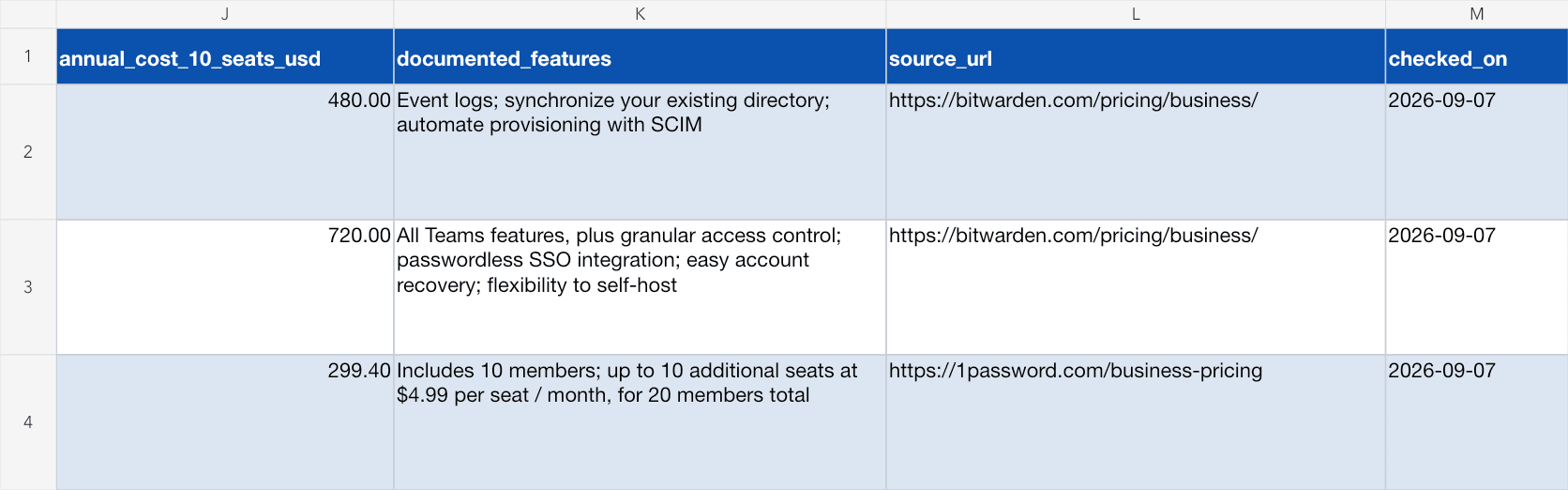
| Bitwarden | Teams | One user seat | list | $4.00 | per user / month, billed annually | $480.00 | Bitwarden business pricing | 2026-09-07 |
| Bitwarden | Enterprise | One user seat | list | $6.00 | per user / month, billed annually | $720.00 | Bitwarden business pricing | 2026-09-07 |
| 1Password | Teams Starter Pack | Up to 10 members | list | $24.95 | flat, per month, billed annually | $299.40 | 1Password business pricing | 2026-09-07 |
| 1Password | Business | One user seat | list | $8.99 | per user / month, billed annually | $1,078.80 | 1Password business pricing | 2026-09-07 |
| Passbolt | Cloud Business | One seat, minimum 10 users | list | $5.40 | per user / month, billed monthly | $648.00 | Passbolt cloud pricing | 2026-09-07 |
| Passbolt | Cloud Sovereign | One seat, minimum 10 users | list | $8.00 | per user / month, billed annually | $960.00 | Passbolt cloud pricing | 2026-09-07 |
| Zoho Vault | Professional | One seat, minimum 5 users | not published in page HTML | (empty) | (empty) | Zoho Vault pricing | 2026-09-07 | |
| Zoho Vault | Enterprise | One seat, minimum 5 users | not published in page HTML | (empty) | (empty) | Zoho Vault pricing | 2026-09-07 |
In this snapshot, a ten-person team pays $299.40 a year on the 1Password Teams Starter Pack and $1,078.80 on 1Password Business. The first is a flat pack for up to ten members; the second is priced per seat. Bitwarden Teams totals $480.00 and Passbolt Cloud Business $648.00. Passbolt has a ten-user minimum, so a six-person team would need to pay for at least ten users under the recorded terms.
The recorded 1Password page provides a cross-check: $299.40 per year for the Teams Starter Pack and $107.88 per user per year for Business. Across ten seats, Business totals $1,078.80. Both agree with column J.
How the workbook avoids paraphrased features and estimated prices
The workbook also records the feature strings read on those pages on September 7, 2026. Bitwarden listed event logs, directory synchronization and SCIM provisioning under Teams, and granular access control, passwordless SSO integration, account recovery and a self-hosting option under Enterprise. 1Password listed Okta, Entra ID, OneLogin and Duo integration, role-based vault sharing, and Watchtower alerts under Business. Passbolt listed SOC 2 Type II auditing and hosting in Belgium and Germany under Cloud Business, and Luxembourg hosting with ISO 27001 certified infrastructure under Cloud Sovereign.
The documented_features column preserves the vendors' wording. Keep your interpretation in notes so a reviewer can distinguish the quoted plan terms from your analysis. The shorter descriptions above summarize the recorded strings.
The two empty cells
The saved copy of Zoho Vault's pricing page from September 7, 2026 contained plan names, feature lists and seat minimums, but no price figures.
Those two price cells are empty, price_type says not published in page HTML, and notes explains the gap. The Revision History sheet records that decision. To add a price, verify it in an accessible source and record the new check date and evidence.

Four rules that stop a competitor analysis template from drifting
Use these rules when filling or reviewing the competitor analysis template.
Record the billing basis every time. For example, a hypothetical vendor could show $10 per month with annual billing and $14 per month with monthly billing. Either number needs its billing commitment attached to support a comparison.
Label promotional prices. If a page shows a list price, discount and first-year rate, record which figure you used and the conditions that apply. If the terms remain unclear, leave the price empty and describe the source in notes.
Preserve quoted feature wording in documented_features, separated by semicolons. Add your interpretation in notes and verify the plan and availability qualifiers before relying on it.
Use checked_by for the person or process that actually reviewed the source. In the published example, "writer session" records the initial source read and "independent auditor session" records a separate reopening of the four vendor pricing pages. Eric Do Couto is the workbook's maintenance owner; that assignment does not mean he performed every recorded source check. In your copy, assign a reviewer, choose the next review date and record completed checks. Ownership is also part of a working competitive intelligence program.
Keep a manual revision history for the competitor analysis template
The comparison shows the latest recorded values. The Revision History sheet can explain how those values changed, provided the reviewer adds an entry each time.
The Revision History sheet has nine columns: revision, date, changed_by, sheet, cell_or_row, previous_value, new_value, source_url and reason. Add one line per change. Existing entries document the initial build, empty Zoho prices, an independent re-check, the maintenance-owner assignment and the formula repair. Excel does not add these entries automatically.
Use the log to identify which values changed, when the source was checked and why the reviewer updated the workbook. Include the source URL with each factual revision so another analyst can examine the evidence. This record also supports competitive intelligence reports and a sales battlecard built from an individual competitor's row.

Keeping the competitor analysis template current by monitoring the pages it cites
Choose a review schedule based on how quickly an outdated value could affect a decision. Recheck important rows before using them, and use page-change alerts to identify sources that may need attention between scheduled reviews.
Combine two habits. Sort by checked_on to find older observations and schedule their review. Monitor the source pages for changes, then use each relevant alert as another reason to reopen the row. A routine source check can catch broken links or a shifted page section even when no useful alert has arrived.
Visualping supports that second habit. Monitor the pricing pages in your source_url column. Each scheduled check compares the page with its last capture. A detected change includes a visual diff, an AI Summary and a binary IMPORTANT flag based on your alert criteria. Review the evidence before changing workbook values. Free accounts cover five pages, enough for one page per competitor in this four-competitor example; see the Visualping plan limits for other needs.
In a sample checked on September 23, 2026, 1,085 of 1,941 active Visualping monitors (56%) watching pricing and plans page URLs had recorded a page change during the previous 30 days. The sample covered 95 accounts. Use a change alert to reopen the source and check the values your workbook cites. Update checked_on after reviewing the source, and add a Revision History entry when a workbook value changes.
Source: Visualping aggregate usage analysis, September 23, 2026. Page types were identified by /pricing or /plans in the URL path. The sample included active monitors at least 30 days old that ran during the previous 30 days, excluding internal and automatically recommended monitoring. It covers URLs users chose to monitor, so it may not reflect pricing pages generally. Multiple monitors may watch the same page. Recorded changes can include wording or layout edits; check schedules and detection settings varied.
Choose pages that support the comparison
Start with the pages already cited in the workbook: pricing, plans, packaging and any other sources behind its values. Expand the watchlist when another source could change the comparison. The competitive intelligence sources guide can help you select pages, and the competitor website monitoring guide explains how to set up the checks.
For a comparison centered on shipped functionality, use the competitor feature tracking workflow to select supporting sources. Add those sources and their checked dates to the relevant workbook rows.
Frequently asked questions
What are the four P's of competitor analysis?
Product, price, place and promotion, borrowed from McCarthy's four Ps of the marketing mix and pointed at a rival instead of your own offer. In this workbook, product and price live in named columns (plan_name, what_the_price_buys, list_price_usd, documented_features). Record place and promotion in the relevant row's notes or in added columns, since their sources are different pages: a partner directory for place, an ad library or campaign page for promotion.
Can you provide a template for analyzing competitors?
Yes. Download the five-sheet XLSX for eight worked examples and a blank template with fifteen columns, dropdowns and the annual-cost formula. The CSV contains the eight worked rows with saved values. This market-comparison format lets you compare several rivals on shared criteria. A battlecard turns one competitor's evidence into a brief for a sales conversation.
What are the 5 steps of a competitive analysis?
The version that fits this workbook has five steps.
- Define the segment so every row is comparable.
- List the direct and indirect competitors that actually appear in your deals.
- Decide which criteria change your decision and cut the rest.
- Fill each cell from a page you opened, and record the URL and date.
- Set a refresh trigger so the grid stays current.
Use these steps to build and maintain this workbook. Adapt the criteria and review schedule to the decision it supports.
What is the best tool for competitor analysis?
Choose a tool for each part of the work. Excel holds the comparison, formulas and revision log. Visualping, our product, monitors the source pages and reports detected changes for review. Your team still verifies the evidence and updates the workbook. Compare other competitive intelligence tools against the sources and decisions you need to cover.
How often should I refresh a competitor analysis template?
Set the schedule from the decision deadline and the delay your team can accept. Review relevant competitor pricing change alerts as they arrive, and periodically reopen sources to check links, coverage and older observations. Record checked_on after each completed source review and add a revision entry when a workbook value changes.
Keep your competitor analysis template current
Monitor a source URL from your workbook. Review detected changes with an AI Summary and a binary IMPORTANT flag, then check the values and update the source date. Free for 5 pages.
Eric Do Couto
Eric Do Couto is the Head of Marketing at Visualping. He leads content strategy, growth operations, and brand positioning for website change detection.
More articles by Eric Do Couto