Prompt Engineering for Important Alerts: A Playbook
Updated April 22, 2026

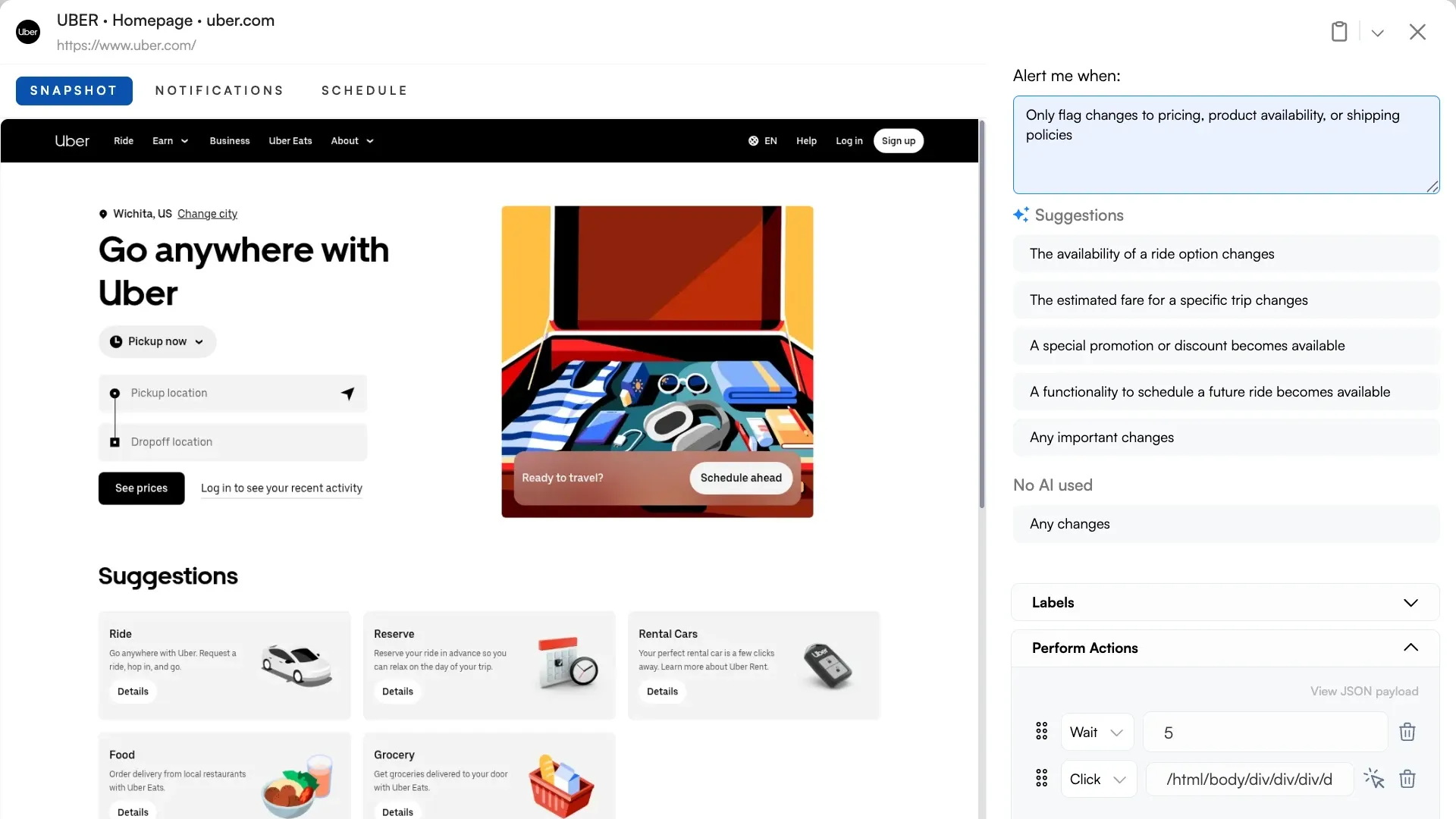
Most Visualping users treat the Important Alerts field as a filter toggle. Type a few keywords, hope the AI does the right thing, move on.
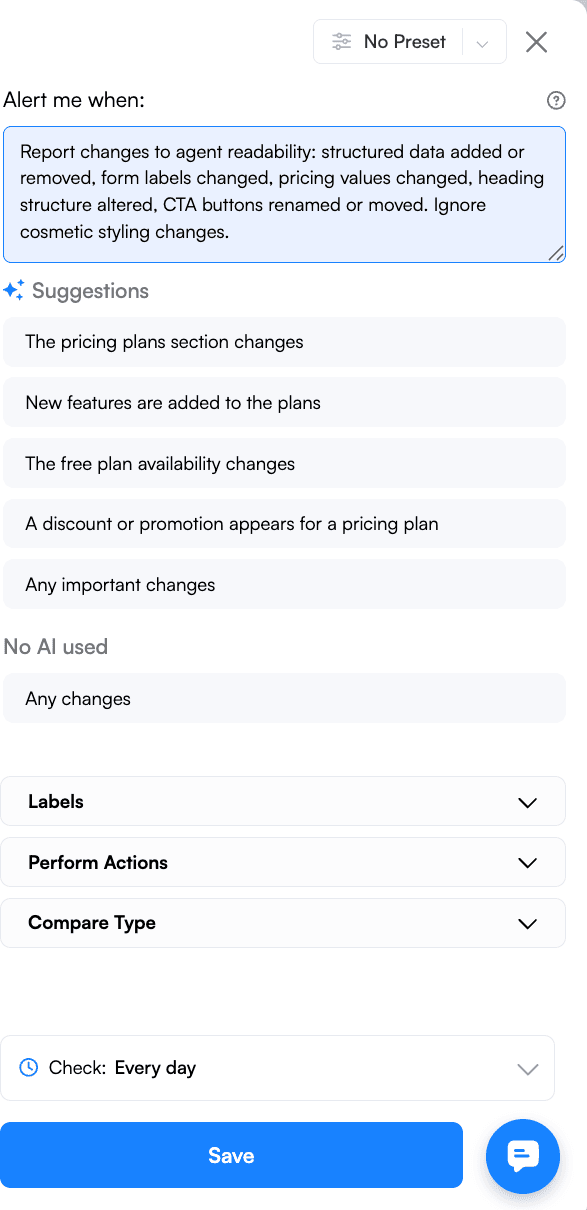
That undersells it by an order of magnitude. The Important Alerts box is a prompt, not a switch. Every character you type is an instruction to Visualping AI, a production intelligence layer we've spent years tuning for web content and change detection.
The prompt field accepts the full range of instructions you'd expect from a state-of-the-art AI system. Take on a role. Format output as a table. Respond in Japanese. Ignore specific regions of a page. Enforce conditional logic. Follow few-shot examples. Return strict JSON for a webhook. The difference from a general-purpose chat interface is that all of this runs inside a pipeline engineered end-to-end for monitoring: change capture, interpretation, and delivery as one integrated system.
Most tools that claim AI change detection bolt a generic model onto a basic diff. Visualping AI is built the other way around, which is why the prompt field behaves more like a programmable interface than a search box.
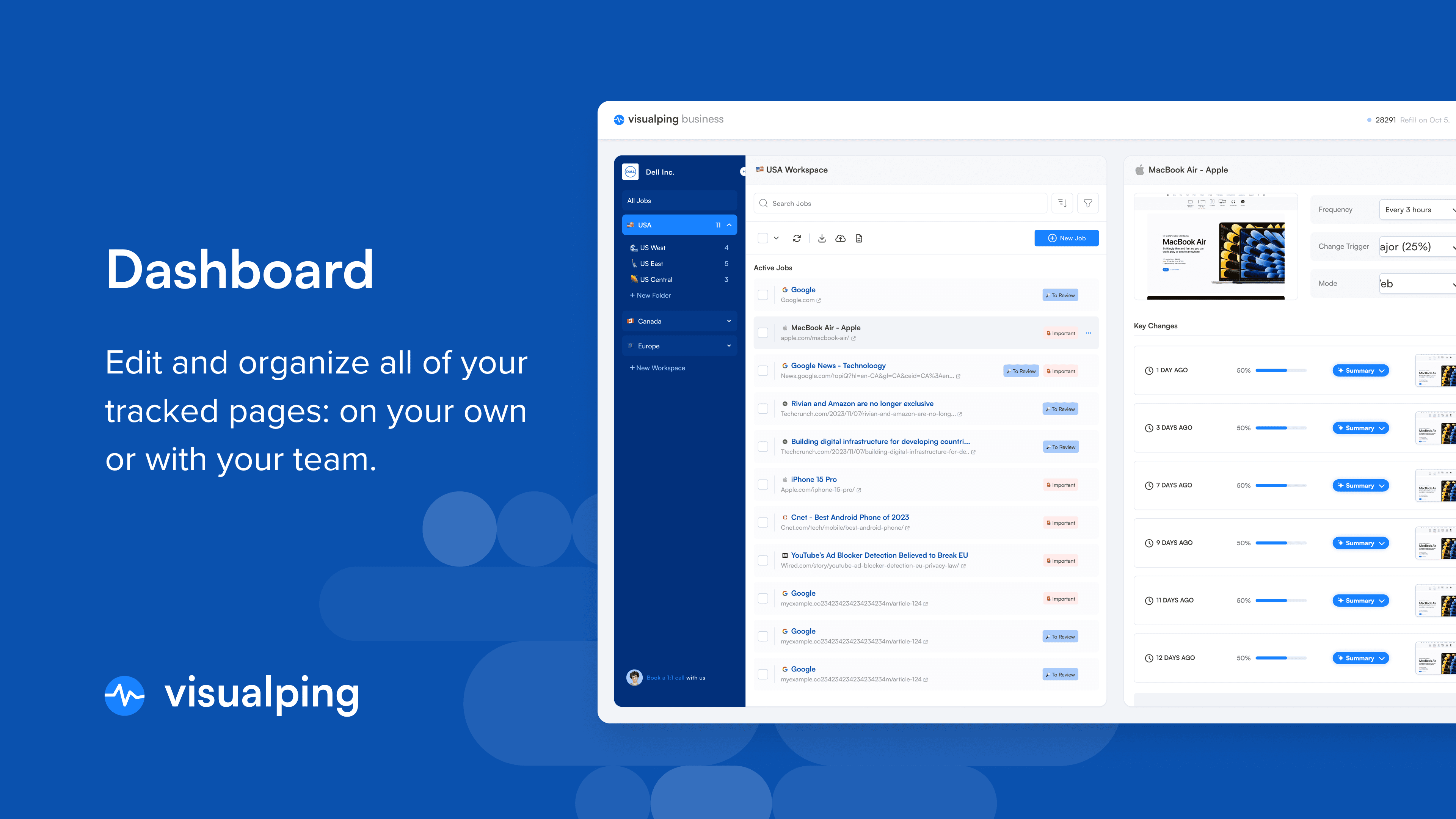
This post is the playbook. Ten techniques, with copy-paste templates at the end. If you're looking for vertical-specific prompt examples (compliance, e-commerce, job boards, real estate), pair this with our prompt examples by use case post. For the big-picture view of how VP's AI works, start with our Visualping AI pillar.
The mental model: what the AI actually sees
Every time Visualping detects a change, three things get passed to the AI:
- The before state of the monitored region
- The after state of the monitored region
- Your Important Alerts prompt
The AI reads all three, then produces two outputs that travel with every alert: a binary IMPORTANT flag (true or false) and a plain-English summary of what changed. If your prompt asks for additional outputs (a table, JSON, a specific format), the AI returns those too, and they flow downstream into email, webhooks, Slack, Reports, and any automation you've connected.
For a sense of the scale this runs at: across a recent 30-day sample of Visualping activity, our infrastructure detected roughly 16.8 million page-level changes across about 1.5 million active monitors. The AI classification layer flagged 11.5% of those changes as Important Alerts and filtered the other 88.5% as noise before any alert was sent. The prompt you write is what teaches the AI where your line between signal and noise sits, which is why the default settings are almost never where the best monitors end up. (For the deeper story on how we cut false positives across that pipeline, the companion post walks through the full noise-reduction stack.)
The problem this solves has a name. When monitoring systems page users on every minor event, alert fatigue sets in and real signals get missed. The same dynamic that plays out in security operations centers plays out in website monitoring: the tool that cries wolf every hour becomes the tool you ignore.
The prompt is the piece of this pipeline you control at the interpretation layer. There's also a second programmable layer upstream (called Actions) that lets you transform what the AI sees before capture. We cover that after the ten prompt techniques, because the prompt is where most teams start and is the fastest way to improve an alert.
Ten techniques for steering Visualping AI
The techniques below compound. A prompt with a role, a structured output format, and an ignore list will outperform any one of those techniques on its own. Start with whichever fixes the most obvious weakness in your current monitor, then layer in the rest.
Which technique should you start with?
| Your situation | Start here |
|---|---|
| Alerts are too noisy; too many false positives | Define what to ignore |
| Alerts need to flow into Sheets, a webhook, or a database | Request structured output |
| Reporting to a specific stakeholder (CFO, dev, compliance lead) | Specify the audience |
| Your use case is hard to describe in rules | Use few-shot examples |
| Multilingual team or non-English monitored page | Pick an output language |
| Decision depends on multiple factors at once | Chain conditions |
| Need to filter A/B test noise and only flag real rollouts | Request comparisons |
| Alerts feed SMS (160 char) vs email (long) vs Reports | Define the output length |
| Getting occasional silent failures on failed page loads | Handle edge cases explicitly |
| Not sure where to start | Assign a role (the fastest win on most monitors) |
Assign a role
Roles change how the AI interprets the same change. The before and after states don't move. The angle does.
You are a compliance officer at a publicly traded company.
Flag any change that could trigger a disclosure obligation,
affect data rights, or introduce liability.
(If the compliance angle is your primary use case, pair the role with our AI-powered regulatory intelligence workflow patterns.)
Compare that to:
You are a competitive intelligence analyst.
Flag pricing changes, new features, removed features,
and shifts in positioning language.
Point both prompts at the same competitor homepage and you'll get different decisions on the same change. A privacy policy update is critical for the compliance officer, ignorable for the CI analyst. A tagline shift is the opposite. (For a walkthrough of the CI version of this setup specifically, see AI-powered competitor monitoring with Visualping.)
Roles also raise the quality bar on the summaries. "Explain this change as a compliance officer would" produces different prose than "explain this change as a product manager would," because the AI draws on different vocabulary and different framing for each role.
Request structured output
The default output is prose. If you're consuming alerts downstream (Google Sheets, webhook, Zapier, a Slack channel that gets read on mobile), prose is often the wrong shape. Ask for structure explicitly.
Summarize the change in a markdown table with these columns:
| Section | Before | After | Impact |
Or for webhook consumers:
Return your summary as a JSON object with exactly these keys:
{
  "category": "pricing" | "features" | "messaging" | "policy" | "other",
  "severity": "high" | "medium" | "low",
  "impact": "one sentence description",
  "affected_pages": ["list", "of", "pages"]
}
Return only the JSON. No prose before or after.
The JSON lands in your webhook's summarizer field ready to parse. No regex scraping. No LLM-of-your-own to restructure it.
Pick an output language
Teams that report to stakeholders in a specific language shouldn't have to translate every alert. The Important Alerts prompt handles output language directly.
Respond in French. Keep technical terms in English where there is no
clean French equivalent.
Or for global teams with mixed reporting lines:
Respond in the language of the monitored page. If the page is in
English, respond in English. If the page is in Spanish, respond
in Spanish.
The summary, the IMPORTANT decision rationale, and any structured output you requested all respect the language instruction.
Define what to ignore
Negative instructions are often more effective than positive ones. Telling the AI what doesn't matter prunes the search space fast.
Ignore the following:
- Cookie banners and consent modals
- Rotating testimonials and customer logos
- Footer copyright years and last-updated dates
- Chat widgets and live support bubbles
- Third-party ad slots and recommendation carousels
- Any change that affects fewer than 20 words

Flag everything else that meets the pricing, feature, or policy criteria.
This pairs well with VP's area selection tool (which crops the page before the AI sees it). Area selection handles the visual layer. The ignore list handles the semantic layer. Together they eliminate two separate sources of noise.
Use few-shot examples
Modern AI systems learn patterns from examples faster than from abstract instructions, a behavior documented in the foundational few-shot learning research that underpins every contemporary prompt-engineering practice. If your use case is nuanced, give the model two or three examples of what to flag and what to ignore.
Flag changes that indicate a pricing move. Here are examples:

IMPORTANT (flag these):
- "$49/mo" becomes "$59/mo"
- Tier renamed from "Pro" to "Business" with different inclusions
- A previously free feature now requires a paid plan

NOT IMPORTANT (ignore these):
- Annual discount copy updated from "save 20%" to "save 2 months"
- Currency symbol added or removed for internationalization
- Plan card reordered but prices unchanged
Two examples of each class is usually enough. More than five starts to crowd the prompt without adding clarity.
Chain conditions
Real decisions are rarely single-factor. You want to flag when several conditions are true, or when either of two patterns occurs, or when something happens in a specific combination.
Flag this change only if ALL of the following are true:
1. The change occurs in the pricing section, not the homepage hero
2. A dollar figure, plan name, or feature inclusion has moved
3. The change is not a seasonal promotion (Black Friday, end-of-year)

OR flag if the page's Terms of Service has any substantive change,
regardless of the pricing conditions above.
The AI handles Boolean logic reliably if you write it as Boolean logic. Numbered conditions and explicit AND/OR connectives beat long paragraphs.
Specify the audience
The summary field is read by a human. Tell the AI who that human is.
Write the summary for a CFO who has 30 seconds to decide whether
to escalate this change to the CEO. Lead with the dollar impact
if any. Assume fluency with financial terminology. No preamble.
Versus:
Write the summary for a junior product manager. Explain any
industry jargon. Include one sentence of context about why
this change might matter.
Same underlying change, same IMPORTANT decision. Two different summaries, both useful, calibrated to the reader.
Request comparisons
Visualping's AI has context across consecutive change detections on the same monitor. You can ask it to compare the current change against the previous one.
Compare this change against the most recent previous change on
the same page. Note if this appears to be part of a pattern
(multi-phase rollout, A/B test rotation, progressive rollout).
Flag as IMPORTANT only if the pattern suggests a completed launch
rather than an in-progress experiment.
This is how you filter out A/B test noise on pages that run constant experiments. Most individual variants get ignored. A sustained pattern gets flagged.
Define the output length
Not every alert channel has the same budget. SMS is 160 characters. Slack is scannable but short. Email can be long. Reports can be longer. Control the summary length in the prompt.
Summary format:
- First line: 15 words maximum, the headline of what changed
- Second line: 40 words maximum, the so-what for our business
- No third line
Or for Reports and long-form consumption:
Produce a detailed summary with sections: What changed,
Before/after specifics, Likely reason, Implications for us,
Suggested next actions. 200-400 words total.
The AI respects length instructions tightly. Concrete word or line budgets outperform vague adjectives like "brief" or "detailed."
Handle edge cases explicitly
Every monitor eventually hits an edge case. The page fails to load. The page gets redesigned and the AI can't tell what changed. The page switches language. Tell the AI what to do in each case.
Edge cases:
- If the page fails to load or returns an error, respond with:
  IMPORTANT: false. Summary: "Page failed to load. Check manually."
- If the page appears fully redesigned rather than incrementally changed,
  respond with: IMPORTANT: true. Summary: "Page redesigned. Review."
- If the page changed language, respond with: IMPORTANT: true.
  Summary: "Page language changed to [new language]."
This turns edge cases from silent failures into actionable alerts.
Layer your prompt on top of an Action
Everything above assumes the AI reads the page as it renders for a visitor. The prompt, however, is downstream of another programmable layer: Actions.
Actions are JavaScript snippets that run in the browser before Visualping captures the page. They transform what's on the page before the AI ever sees it. The prompt answers "how should the AI interpret this?" An Action answers "what should the AI be looking at in the first place?"
This is the difference between a detection system that sees what visitors see and one that sees what you tell it to look at.
A few things Actions can do before the prompt runs:
- Reveal HTML source as plain text so the AI reasons about code-level changes, not just visible copy
- Expose every
hrefon the page as visible text so link changes (new backlinks, removed outbound links, rewritten internal links) get detected even when anchor copy stays identical - Surface all meta tags (title, description, Open Graph, canonical) so SEO metadata changes become first-class signals
- Inject a timestamp into the page so each comparison has an explicit time anchor
- Click "Load more" buttons, scroll to the bottom, or expand all dropdowns so nothing stays hidden behind lazy loading or interactive gates
- Access shadow DOM or iframes that normally hide behind component boundaries
- Strip out known-noisy elements (rotating carousels, animations) before capture, so the change detection layer doesn't have to filter them out afterward
- Split a page into parts and isolate a specific section, handle bot-detection gates like click-and-hold, or extract URLs from a sitemap for bulk URL monitoring
Once the Action runs, the transformed page is what the AI sees. Your prompt operates on that transformed state. Two programmable layers, compounding.
A few combinations worth knowing
Catch link-level changes
Pair an Action that exposes every href on the page as visible text with a prompt like: "Flag any new or removed outbound link. Return a markdown table with columns: URL, Anchor text, Status (added/removed)." Without the Action, link changes often go undetected because the visible copy around them didn't move. With the Action, they become first-class signals your prompt can work with.
Track SEO metadata
An Action that surfaces all meta tags (title, description, canonical, Open Graph) paired with a prompt: "Summarize any SEO metadata change. Flag as IMPORTANT if the title tag, meta description, or canonical URL changed." Gives you title-and-description monitoring on any page.
Time-anchored comparisons
An Action that injects a timestamp near the top of the page, paired with a prompt that uses that timestamp to reason about timing: "Compare this change against the previous change on this monitor. Note the elapsed time. Flag if two changes occur within an hour of each other."
Monitor a dynamic dropdown
An Action that expands all dropdowns and lists their options as visible text, paired with a prompt: "Flag when a new option is added to any dropdown. Ignore reorderings. Return the new option as a bulleted list." Without the Action, dropdown options stay hidden in the DOM and never make it into the diff.
Where scripts come from
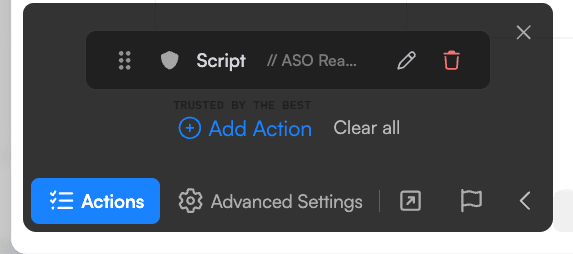
Our team maintains an internal library of Action scripts covering link exposure, metadata extraction, bot-detection handling, page-splitting, shadow DOM access, SPA scroll patterns, and dozens of other transformations. Any scripts can be tested in the Chrome console before you paste them into your monitor, so you can verify the transformation visually before it goes into production.
Solutions-tier customers get managed Action development as part of the engagement. Visualping's team writes and tunes Actions for each customer's monitoring program, the same way they tune prompts. For self-serve plans, contact support if your use case needs a custom script and we'll point you at the right starting point.
Go deeper: What 100,000+ users monitor with the Visualping API | How to monitor competitor websites: a complete guide
Copy-paste Important Alerts templates
Five starting points. Adapt to your specific monitor.
The compliance analyst
You are a compliance officer at a regulated financial services firm.
Flag any change that affects: disclosure obligations, data handling,
consent terminology, fee structures, or regulatory language.
Ignore: cookie banners, marketing copy, team photos, blog links.
Summary format: 50 words max, lead with the compliance implication.
The price watcher (structured)
You are a pricing analyst. Flag any change to: dollar amounts,
plan names, feature inclusions per plan, discount language,
or billing frequency.
Return your summary as a markdown table:
| Plan | Field | Before | After |
Respond in English regardless of page language.
The webhook consumer
Flag all changes. Return only valid JSON matching this schema:
{
  "important": boolean,
  "category": "pricing" | "feature" | "policy" | "content" | "other",
  "severity": "high" | "medium" | "low",
  "summary_en": "string, max 200 chars"
}
No prose, no markdown, no code fences. Just the JSON object.
The multilingual brand monitor
You are a brand protection analyst at a global company.
The monitored page is available in English, Spanish, and French.
Flag changes in any language version that affect: brand name usage,
trademark symbols, tagline wording, or product naming.
Ignore: localized marketing copy, regional pricing variations,
country-specific legal disclaimers.
Respond in the language of the version where the change occurred.
The competitive intelligence template
You are a competitive intelligence analyst. Flag changes that affect:
pricing, plan tiers, new or removed features, positioning language
on hero sections, customer logos, or case studies.
Compare this change to the previous detected change on this monitor.
Note if this looks like part of a multi-phase launch or a rollback.
Summary format: 3 sections of 40 words each:
(1) What changed, (2) Likely intent, (3) Our response options.
Ready to try one of these on a real page? Paste any URL into Visualping and drop one of the templates above into the Important Alerts prompt field. Free plan, no credit card, about 90 seconds to your first alert.
How to test an Important Alerts prompt
Writing the prompt is 30% of the job. Testing it is the other 70%.
-
Start with a known change. Pick a page where you can manually trigger a change (a page you control, or a known-noisy competitor page) and watch what your prompt does with it. The first alert tells you whether the prompt is in the right neighborhood.
-
Iterate on real alerts, not synthetic ones. Your production monitor will produce alerts that are messier than anything you'd write as a test case. Real traffic is the only real test.
-
Capture the misfires. When an alert is classified wrong, save the prompt and the change together. A log of your misfires is the fastest way to see what pattern your prompt is missing.
-
Loosen, then tighten. Start with a permissive prompt that flags too much, then add ignore rules until the signal-to-noise ratio lands where you want it. Starting strict and loosening is harder because you don't see what you're missing.
-
Calibrate against frequency. In a recent 30-day sample of Visualping monitors, roughly 8% of hourly checks produced an alert vs. about 11% of daily checks. Slower check intervals aggregate more change per run, which means each alert tends to contain more signal. If you're getting too many low-value alerts, slowing the cadence is sometimes a cleaner fix than tightening the prompt.
Common mistakes
Different from the mistakes we cover in the prompt examples post. These are the technique-level ones.
-
Treating the prompt like a toggle. "Flag important changes" is a toggle, not a prompt. The AI defaults to a generic definition of important, which is almost never what you actually want.
-
Vague roles. "Be helpful" adds zero signal. "You are a compliance officer at a Canadian bank" adds a lot.
-
Asking for offline data. The AI sees the before state and the after state. It doesn't see your CRM, your revenue, or last quarter's board deck. "Flag if this change affects our Q3 forecast" won't work. "Flag if a competitor's pricing dropped below $50" will.
-
Redundant filtering. If your area selection already crops out the footer, telling the prompt to ignore footers is wasted tokens. Pick one layer for each filter.
-
Over-constraining the output. Asking for JSON and markdown in the same prompt produces garbage. Pick one output shape per prompt.
Beyond Important Alerts: where these outputs go
Every output you engineer in the prompt flows downstream automatically. The IMPORTANT flag and summary land in:
- Your email alerts, where the summary becomes the body text
- Webhook payloads, where both flag and summary appear as fields in the 20-field JSON (including any structured output you requested). Full schema in our website-changes API guide.
- Zapier and n8n, where those webhook payloads parse directly into downstream automation workflows triggered by website changes
- Slack, Teams, and SMS, with summaries rendered in each channel's native format
- Google Sheets, with one row per alert and columns mapped to your payload fields
- Visualping Reports, the scheduled digests that roll multiple alerts into a single document
Prompt engineering in Visualping compounds as a result. A well-crafted prompt improves every alert and every downstream workflow that alert flows through. One prompt, every destination. (Five Reports workflows teams actually use if you want to see the compounded output in practice.)
Frequently asked questions
Can I use Visualping's AI for more than filtering?
Yes. The AI runs a full prompt for every detected change. Anything you can describe in natural language is fair game: structured outputs, role-based interpretation, specific languages, conditional logic, comparative analysis.
Does prompt quality affect the IMPORTANT flag?
Directly. A vague prompt produces inconsistent IMPORTANT decisions because the model falls back on a generic definition of importance. A specific prompt with clear criteria produces consistent decisions that match your actual use case.
Can I change the output language without changing the prompt language?
Yes. You can write the prompt in English and instruct the AI to respond in another language. "Respond in German" works regardless of what language your prompt is in.
How long can the prompt be?
Long enough for real-world instructions. Most effective prompts run 100-400 words. Very long prompts (1000+ words) can work but usually indicate that instructions should be condensed or split across multiple monitors.
Is prompt engineering available on the Free plan?
Yes. The Important Alerts prompt field is available on every Visualping plan, including Free, and every technique in this playbook works across all self-serve tiers. Paid self-serve plans (Personal and Business) add more monitors, faster check frequencies, and additional delivery channels.
Our Solutions tier (enterprise, from $3,000/year) adds Premium AI: advanced models and managed prompt engineering, where our team tunes custom prompts and element extraction for your specific monitoring program. Teams running large compliance, alternative data, or brand protection programs typically move to Solutions once their prompt library needs the kind of calibration that benefits from dedicated work. (For the feature-by-feature comparison, see Visualping Solutions vs Business: AI Features and Pricing.)
What makes Visualping AI different from a general-purpose AI tool?
General-purpose AI tools are open-ended chat interfaces. Visualping AI is a purpose-built intelligence layer: change capture, prompt interpretation, and delivery as one integrated pipeline, tuned specifically for web content. The prompting techniques in this post are familiar if you've used any modern AI system. The engineering underneath is not: how pages are captured, how diffs are computed, how the AI is prompted and routed, how outputs flow into your channels. That's years of specialized work. Most tools that claim AI change detection bolt a generic model onto a basic diff. We built the pipeline and the AI layer together, which is why the prompt field behaves the way it does across millions of different pages.
Start experimenting
The fastest way to learn prompt engineering for Visualping is on a real monitor. Pick a page you care about, write a prompt that takes on a role, asks for a specific format, and names a few things to ignore. Watch the first three alerts. Adjust.
If you don't have a Visualping account yet, the Free plan runs every technique in this playbook.
Want to monitor web changes that impact your business?
Sign up with Visualping to get alerted of important updates from anywhere online.
Eric Do Couto
Eric Do Couto is the Head of Marketing at Visualping. He leads content strategy, growth operations, and brand positioning for website change detection.
More articles by Eric Do Couto